
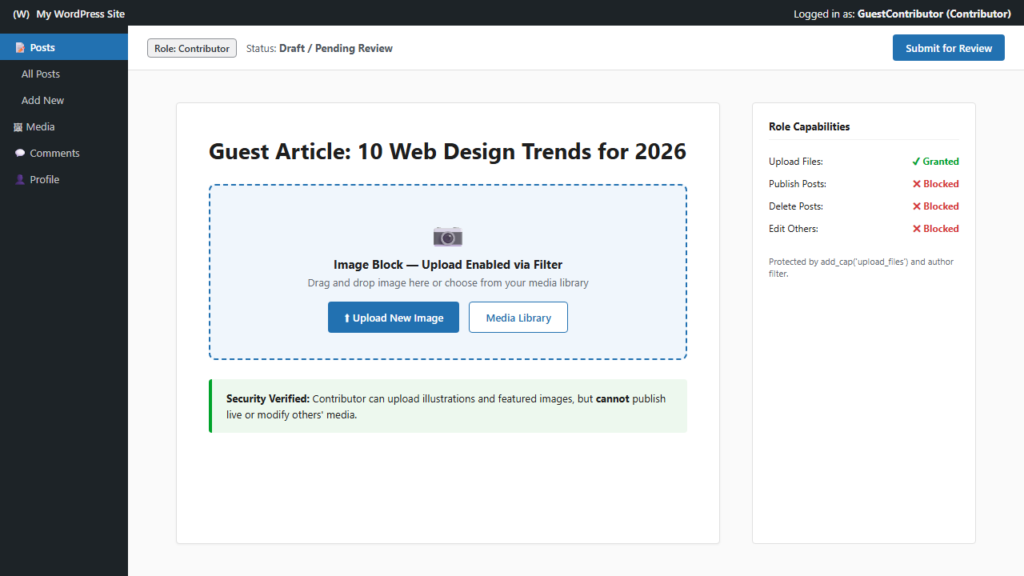
In standard WordPress installations, user accounts assigned the Contributor role face a major operational hurdle: while they can draft, edit, and format their own articles, they are completely blocked from uploading photos, illustrations, or featured images. When a contributor attempts to add an Image block in the Block Editor (Gutenberg) or clicks on the Media Library, WordPress halts the action with a permission error.
To eliminate this friction, many website administrators simply upgrade guest writers and freelance contributors to the Author role. However, doing so introduces a severe editorial and security risk: according to the official WordPress Roles and Capabilities Documentation, users with the Author role have native permission to publish posts directly to your live site without editorial approval, and they can edit or delete published posts at any time.
In this comprehensive guide, you will learn how to safely grant contributors image upload access while retaining 100% editorial review control over post publishing, backed by official WordPress core API hooks and media isolation filters.
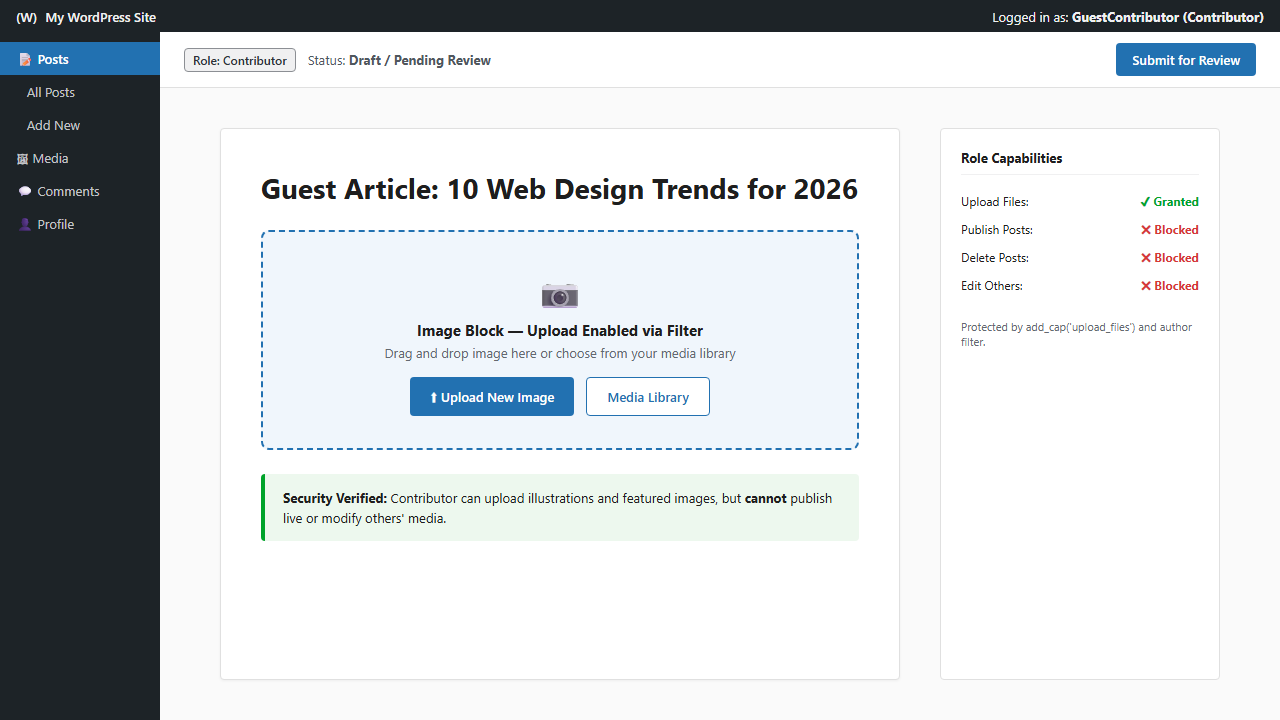
Quick Comparison: WordPress Contributor vs. Author Roles
Understanding the exact capability boundaries defined in the WordPress core architecture reveals why promoting writers to Authors is risky for multi-author blogs and publications:
| Capability | Default Contributor | Default Author | Enhanced Contributor (Target) |
|---|---|---|---|
| Write & Edit Own Drafts | Yes | Yes | Yes |
Upload Images & Media (upload_files) | No (Blocked) | Yes | Yes (Enabled via Filter) |
Publish Posts Live (publish_posts) | No (Pending Review) | Yes (Immediate) | No (100% Editorial Review) |
Delete Published Posts (delete_published_posts) | No | Yes | No (Protected) |
| Editorial Control Retained | 100% Editor Control | Author Decides | 100% Editor Control |
Method 1: Grant Upload Capabilities via PHP Hook (Recommended)
The cleanest, most lightweight method to grant contributors media permissions without installing heavy third-party plugins is modifying the role’s capabilities using the WordPress WP_Role::add_cap() API method. Add the following function to your active child theme‘s functions.php file or inside a site-specific code manager such as WPCode:
<?php
/**
 * Allow Contributors to Upload Images without Giving Author Access
 * Verified via WordPress WP_Role API: https://developer.wordpress.org/reference/classes/wp_role/add_cap/
 */
function netutility_allow_contributor_image_uploads() {
    $contributor = get_role('contributor');
    if ($contributor && !$contributor->has_cap('upload_files')) {
        $contributor->add_cap('upload_files');
    }
}
add_action('admin_init', 'netutility_allow_contributor_image_uploads');
How This Code Functions Under the Hood
get_role('contributor'): Accesses the coreWP_Roleobject stored in your site’s database options table.has_cap('upload_files'): Verifies whether the capability is already active, preventing redundant database updates on subsequent page loads.add_cap('upload_files'): Appends the native file upload capability to the role while leaving publishing rights completely untouched.
Critical Security Hardening: Restrict Media Library Visibility
By default in WordPress, any user role with upload_files permissions can browse every image in your media library, including private brand assets, invoices, or drafts uploaded by administrators. To maintain enterprise-grade privacy, you should restrict contributors to viewing only the images they personally upload.
According to the WordPress Developer Reference for ajax_query_attachments_args, you can isolate media library queries using this security filter:
<?php
/**
 * Isolate Media Library: Restrict Contributors to Viewing Only Their Own Uploads
 * Documentation: https://developer.wordpress.org/reference/hooks/ajax_query_attachments_args/
 */
function netutility_restrict_media_library_by_author($query) {
    $current_user_id = get_current_user_id();
    if ($current_user_id && !current_user_can('manage_options')) {
        $query['author'] = $current_user_id;
    }
    return $query;
}
add_filter('ajax_query_attachments_args', 'netutility_restrict_media_library_by_author');
How to Test and Verify Your Configuration
To confirm that the setup functions correctly:
- Create a test user under Users → Add New and assign the role Contributor.
- Log in using an Incognito browser window.
- Create a new post: verify that the Add Image block and Featured Image panel allow direct file uploads.
- Check the top-right button: verify it displays “Submit for Review” rather than “Publish”, proving that publishing privileges remain securely locked.
Frequently Asked Questions
How can I revoke upload permissions if I change my mind?
To revoke permissions, replace add_cap('upload_files') with remove_cap('upload_files') in the snippet, refresh your WordPress dashboard once, and remove the snippet.
Can contributors delete images uploaded by administrators?
No. Deleting media uploaded by other users requires the delete_others_posts capability. The code above strictly grants upload_files, meaning contributors can never delete files belonging to other team members.
Related WordPress Administration Tutorials
- Need to reassign posts? Learn how to change a WordPress post author without a plugin.
- Managing multiple articles? See how to change authors for multiple WordPress posts at once.
- Harden your site: Discover how to force logout all WordPress users without a plugin.
- Protect your code: Read how to disable WordPress theme and plugin file editors.
- Clean up navigation: Learn how to hide the WordPress admin bar for subscribers.
