
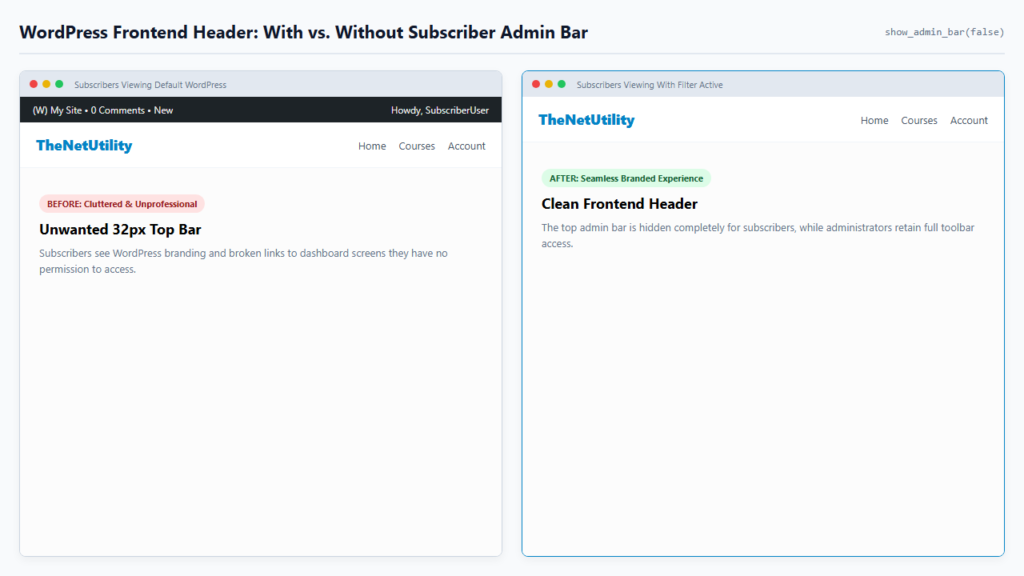
When users log into your WordPress site—whether they are members of a paid community, ecommerce customers on WooCommerce, or registered students on an LMS platform—WordPress renders the dark 32-pixel admin toolbar across the very top of their screen by default.
For standard subscribers with no dashboard privileges, this top bar looks cluttered, clashes with custom frontend navigation, and exposes unnecessary links to WordPress profile screens. In this guide, you will learn how to hide the admin bar for non-administrators using a clean PHP filter, backed by official WordPress API documentation.
Why You Should Avoid Bloated Plugins for This Task
Many WordPress users install third-party utility plugins to toggle the admin bar off. However, adding plugins for simple conditional UI tasks introduces unnecessary database checks, asset loading, and plugin maintenance overhead. WordPress provides a native function specifically built to control toolbar visibility programmatically: show_admin_bar().
The Clean PHP Method: Conditional show_admin_bar Filter
As documented in the WordPress Developer Reference for show_admin_bar(), you can disable the toolbar on the frontend while preserving it for administrators by hooking into after_setup_theme:
<?php
/**
 * Hide the WordPress Admin Bar for Subscribers and Non-Administrators
 * Documentation: https://developer.wordpress.org/reference/functions/show_admin_bar/
 */
function netutility_disable_subscriber_admin_bar() {
    if (!current_user_can('administrator') && !is_admin()) {
        show_admin_bar(false);
    }
}
add_action('after_setup_theme', 'netutility_disable_subscriber_admin_bar');
How This Code Functions
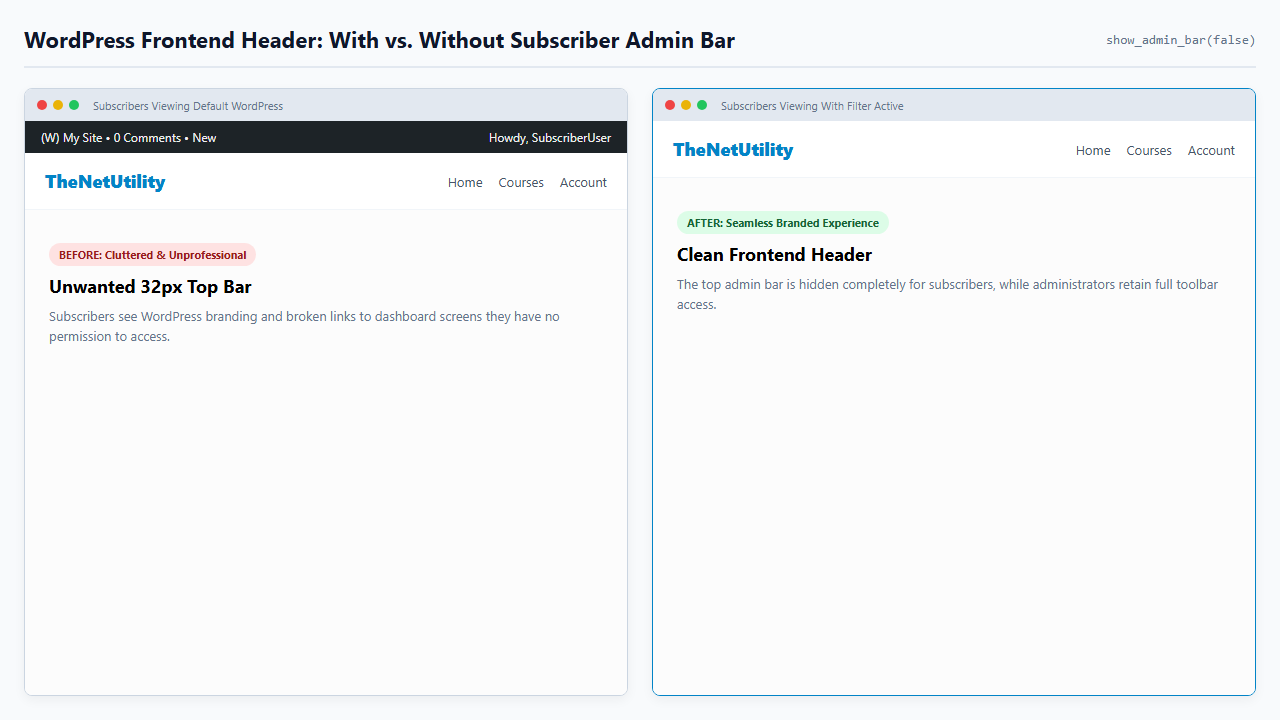
current_user_can('administrator'): Checks if the currently logged-in user possesses administrative privileges using WordPress’s current_user_can() function.!is_admin(): Ensures that if an authorized user accesses the backend dashboard (/wp-admin/), the toolbar continues to render normally.show_admin_bar(false): Instructs the WordPress template hierarchy not to inject the toolbar HTML or the 32px body margin offset on the frontend.
Related User & Security Tutorials
- Control contributor access: Learn how to allow contributors to upload images without giving author access.
- Harden site authentication: Discover how to force logout all WordPress users without a plugin.
- Lock down theme files: See how to disable WordPress theme and plugin file editors.
- Reassign user articles: Learn how to change a WordPress post author without a plugin.
