
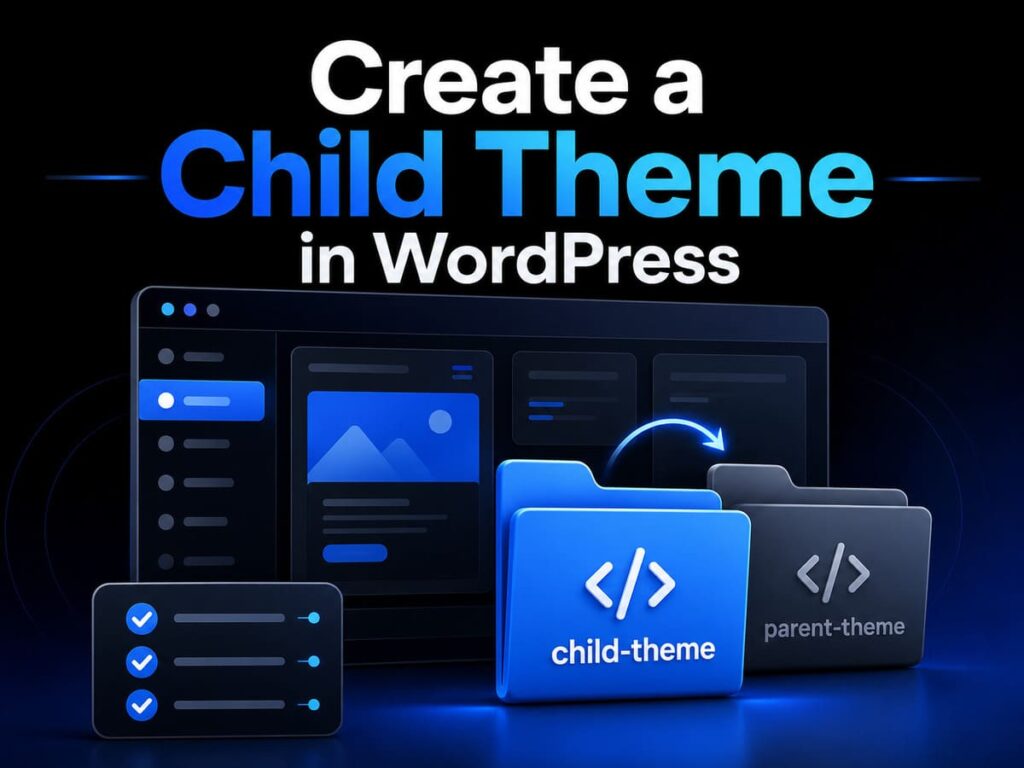
A child theme is a safe copy of your theme that lets you make changes without losing them when the main theme updates. To create one, you make a new theme folder with two small files, a style.css and a functions.php, then activate it in WordPress. The full steps and code are below.
If you ever plan to change your theme’s code or design, a child theme is the safe way to do it. Without one, the next theme update can wipe out all your hard work. With one, your changes are protected.
What Is a Child Theme?
A theme is the design of your WordPress site. A parent theme is the main theme you start with. A child theme is a thin layer that sits on top of the parent. It looks and works exactly like the parent, but it gives you a safe place to put your own changes.
Why Use a Child Theme?
A child theme solves one big problem and adds a few bonuses:
- Safe updates. When the parent theme updates, your changes stay safe in the child, instead of being wiped out.
- Organized changes. All your custom code sits in one place, easy to find and manage.
- Easy to undo. If something breaks, you simply switch back to the parent theme.
Before You Start
Take two quick steps first. Back up your site, so you can undo anything. And find your parent theme’s exact folder name, which you can see in the wp-content/themes folder. You will add the new files using your host’s file manager or an FTP tool, which lets you upload files to your site.
Step by Step: How to Create a Child Theme
Step 1: Create the child theme folder
In wp-content/themes, create a new folder. Name it after your parent theme, then add the word child. For example, if your theme folder is called yourtheme, name the new folder yourtheme-child.
Step 2: Create the style.css file
Inside that new folder, create a file called style.css and paste in this header. Change the Theme Name to anything you like, and set Template to your parent theme’s exact folder name.
/*
Theme Name: My Theme Child
Template: yourtheme
Version: 1.0
*/
The Template line is the important one. It tells WordPress which parent theme to build on, so it must match the parent folder name exactly.
Step 3: Create the functions.php file
Next, in the same folder, create a file called functions.php and add this code. It loads the parent theme’s styles, so your site keeps its design.
<?php
function tnu_child_enqueue_styles() {
    wp_enqueue_style( 'parent-style', get_template_directory_uri() . '/style.css' );
}
add_action( 'wp_enqueue_scripts', 'tnu_child_enqueue_styles' );
Step 4: Activate your child theme
Now go to your WordPress dashboard, open Appearance, then Themes. You will see your child theme listed there. Click Activate. Your site will look exactly the same, but now you are safely running the child theme.
How to Use Your Child Theme
Once it is active, you can customize safely:
- Add your own CSS to the bottom of style.css to change colors, fonts, or spacing.
- Add code to functions.php to add features, like the snippet in my schema markup guide.
- To change a template, copy that file from the parent theme into your child folder, then edit the copy. WordPress will use your version instead.
Every change lives in the child theme, safe from future updates.
Common Mistakes to Avoid
- Setting the Template name wrong, so the child theme will not work.
- Forgetting to back up before editing files.
- Editing the parent theme directly, which updates will erase.
- Deleting the parent theme, since a child theme needs its parent to stay installed.
- Forgetting to reassign your menus or widgets after activating.
Frequently Asked Questions
What is a child theme?
A safe copy of your theme where your changes live, so theme updates do not erase your work.
Do I need a child theme?
If you plan to edit your theme’s code or CSS, yes. It protects your changes from being wiped out by updates.
Can I delete the parent theme?
No. The child theme needs the parent installed to work, so keep both in place.
Will a child theme slow my site?
No. A child theme is tiny and has almost no effect on your site speed.
Does a child theme work with block themes?
Yes. It still works for adding custom code and CSS, though newer block themes do more styling inside the editor itself.
Final Words
A child theme is one of the smartest habits in WordPress. It lets you change your design and code freely, while keeping every edit safe from theme updates. Create the folder, add the two small files, activate it, and you are ready to customize with confidence.
With your child theme in place, you can safely follow my other guides, like adding schema markup in WordPress and speeding up WordPress without a plugin.
