
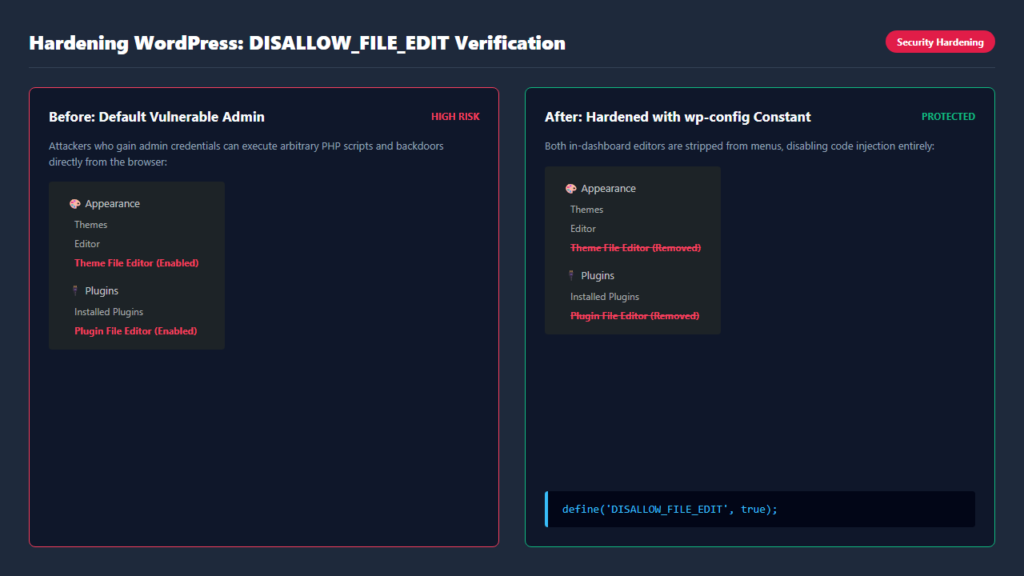
Inside the standard WordPress dashboard, navigating to Appearance → Theme File Editor or Plugins → Plugin File Editor reveals a built-in code editor. While originally designed to let administrators make quick CSS or PHP adjustments, keeping this editor active is recognized by cybersecurity professionals as one of the most critical vulnerabilities on a production site.
If an attacker compromises an administrator account through phishing, credential stuffing, or brute force, this in-dashboard editor grants them immediate, unrestricted Remote Code Execution (RCE). In this guide, you will learn how to permanently disable both editors using native WordPress configuration constants.
Why Built-In File Editors Are a Major Security Hazard
According to the official WordPress Hardening Guide on Disabling File Editing, keeping in-browser editing enabled exposes sites to two severe threats:
- Arbitrary Backdoor Injections: Attackers who gain administrative access do not need FTP or server hosting logins; they can inject web shells, malicious redirects, or spam injectors directly through the browser.
- Catastrophic Syntax Errors: The dashboard editor lacks version control and syntax debugging. A single missing semicolon or unexpected character can immediately trigger a fatal PHP error (White Screen of Death), locking you out of your own site.
How to Disable File Editors with DISALLOW_FILE_EDIT
As documented in the WordPress wp-config.php Constants Reference, you can turn off both the theme and plugin file editors permanently by adding this constant to your wp-config.php file:
/* Disable the Built-in Theme and Plugin File Editors */
define('DISALLOW_FILE_EDIT', true);
Exact Placement in wp-config.php
Open wp-config.php in your root directory. Scroll near the bottom of the file until you see the following line:
/* That's all, stop editing! Happy publishing. */
Paste the define('DISALLOW_FILE_EDIT', true); statement immediately before that line. Save the file. When you refresh your WordPress dashboard, both the Theme File Editor and Plugin File Editor menu items will disappear completely.
Advanced Protection: DISALLOW_FILE_MODS
If you run an enterprise or client site where all updates and deployments should occur strictly via Git, CI/CD, or staging servers, consider using DISALLOW_FILE_MODS instead:
/* Disable File Editing, Plugin/Theme Installations, and Updates */
define('DISALLOW_FILE_MODS', true);
This constant disables the file editors, while also locking down plugin and theme installations and core updates from within the dashboard, ensuring 100% immutable production environments.
Related Security Tutorials
- Emergency response: Learn how to force logout all WordPress users without a plugin.
- Control contributor privileges: See how to allow contributors to upload images without giving author access.
- Enhance frontend privacy: Discover how to hide the WordPress admin bar for subscribers.
