
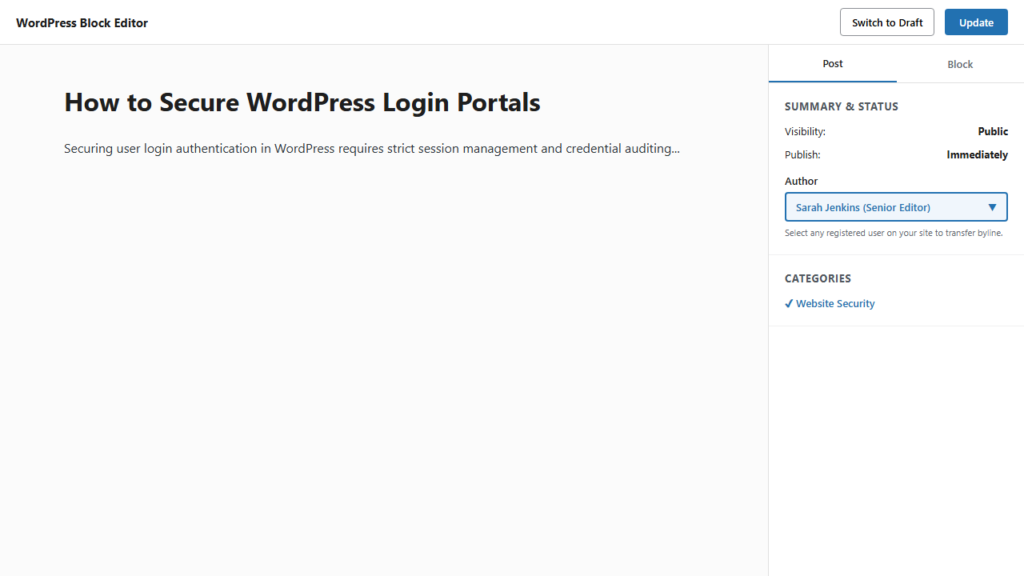
Whether you are reassigning drafts from guest contributors, updating legacy tutorials, or shifting content responsibilities across an editorial team, changing a WordPress post author is a fundamental administrative task. WordPress provides native, secure controls to reassign authorship directly within the Block Editor and Quick Edit—completely plugin-free.
Editorial Roles and Authorship Privileges
In WordPress user architecture documented in the WordPress Roles and Capabilities Documentation, a user can only be credited as an author if their role contains authoring capabilities (such as Administrator, Editor, Author, or Contributor). Subscribers do not possess content creation permissions and will not appear in author selection lists.
If you are coordinating editorial teams, you might also want to review how to allow contributors to upload images without giving full author access, or explore how to hide the WordPress admin bar for subscribers to keep user access neat and streamlined.
Method 1: Change Author Inside the Block Editor (Gutenberg)
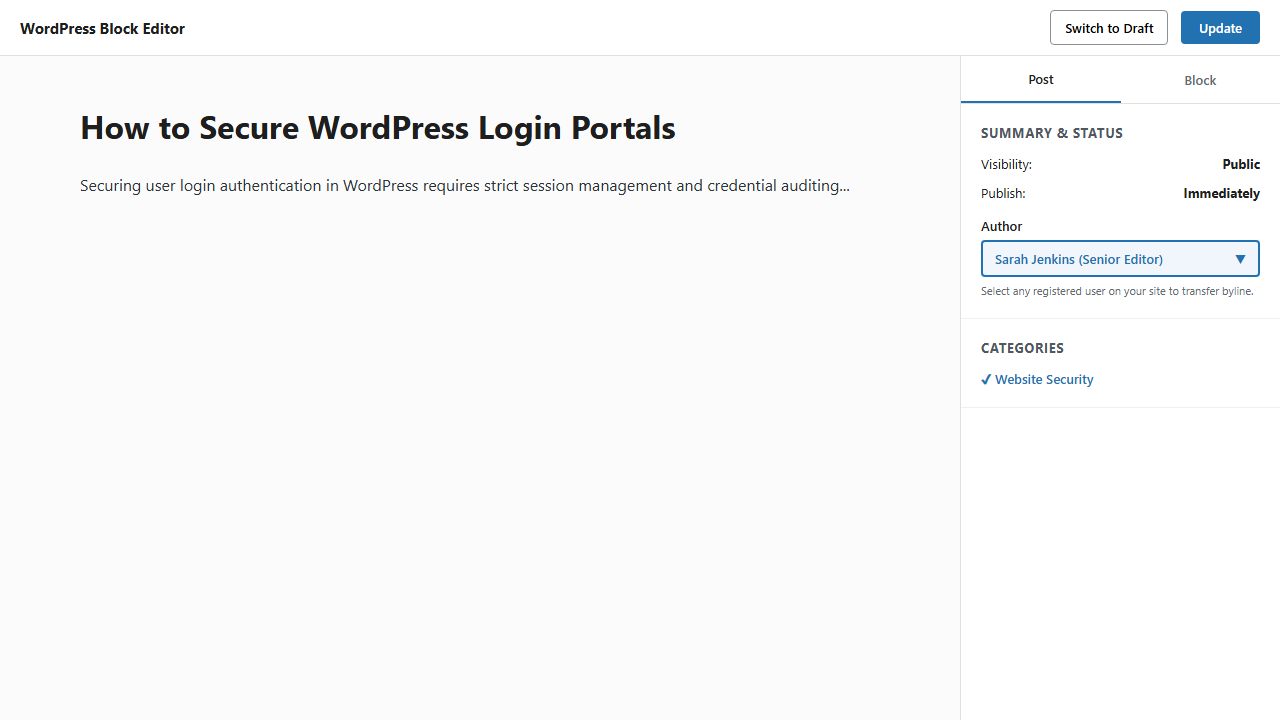
When working on an individual article inside the modern WordPress editor, follow the official WordPress Block Editor Settings Panels Guide:
- Open the target article in the Gutenberg editor via Posts > All Posts.
- Open the right-hand settings panel (if hidden, click the gear icon in the top right corner).
- Ensure the Post tab is selected (not the Block tab).
- Under the Summary section, locate the Author line with the dropdown selector.
- Click the dropdown menu and select the new author’s display name.
- Click Save draft or Update to apply the changes immediately.
Method 2: Change Author via Inline Quick Edit
If you want to update authorship without waiting for the full Gutenberg editor to load, the native Quick Edit tool in the post list is significantly faster:
- Go to Posts > All Posts.
- Hover your cursor over the title of the article you wish to edit and click Quick Edit.
- In the first column beneath the Slug field, locate the Author dropdown menu.
- Select the designated user account from the list.
- Click Update on the right side of the row. The author column updates instantaneously without a page reload.
Reassigning Multiple Posts Simultaneously
If an editor departs your company or you are migrating dozens of posts from an old account to a new personal brand, editing posts one by one is impractical. WordPress includes native bulk attribution capabilities in the post table. Follow our complete walkthrough on how to change authors for multiple WordPress posts at once to reassign hundreds of posts in just a couple of clicks.
