
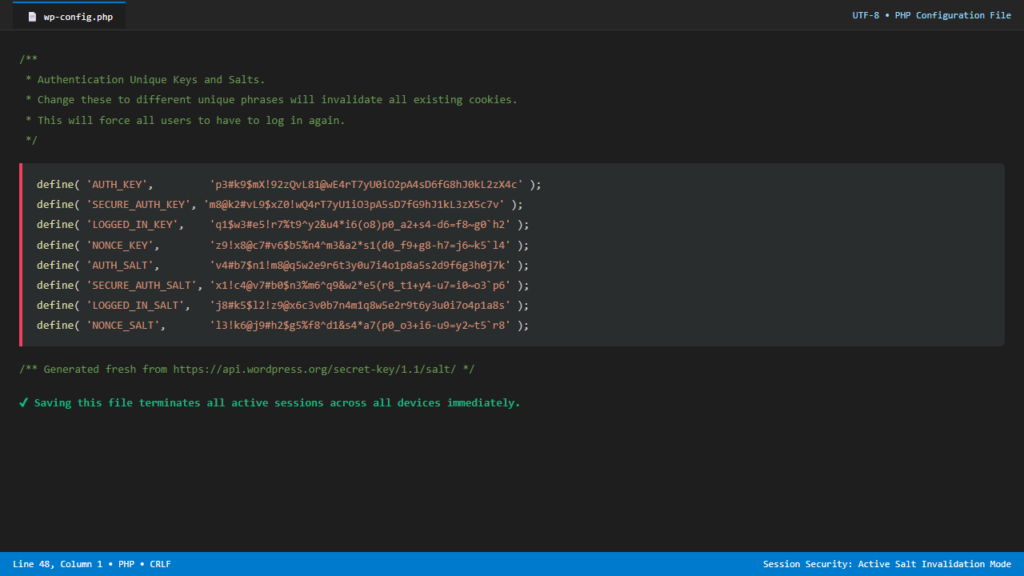
When a WordPress site experiences suspected security breaches, staff turnover, lost administrator laptops, or compromised credentials, terminating all active user sessions is one of the most critical incident response measures you can take. Even if an administrator immediately changes their password, existing browser session cookies can remain authenticated and valid for up to 14 days unless explicitly invalidated.
While many site owners turn to third-party security plugins to log out users, installing plugins during a live security incident is slow and unnecessary. WordPress manages session authentication natively using eight cryptographic security keys and salts defined in wp-config.php. By regenerating these secret keys, you instantly terminate every active browser session site-wide in under 30 seconds.
How WordPress Session Cookies & Salts Work
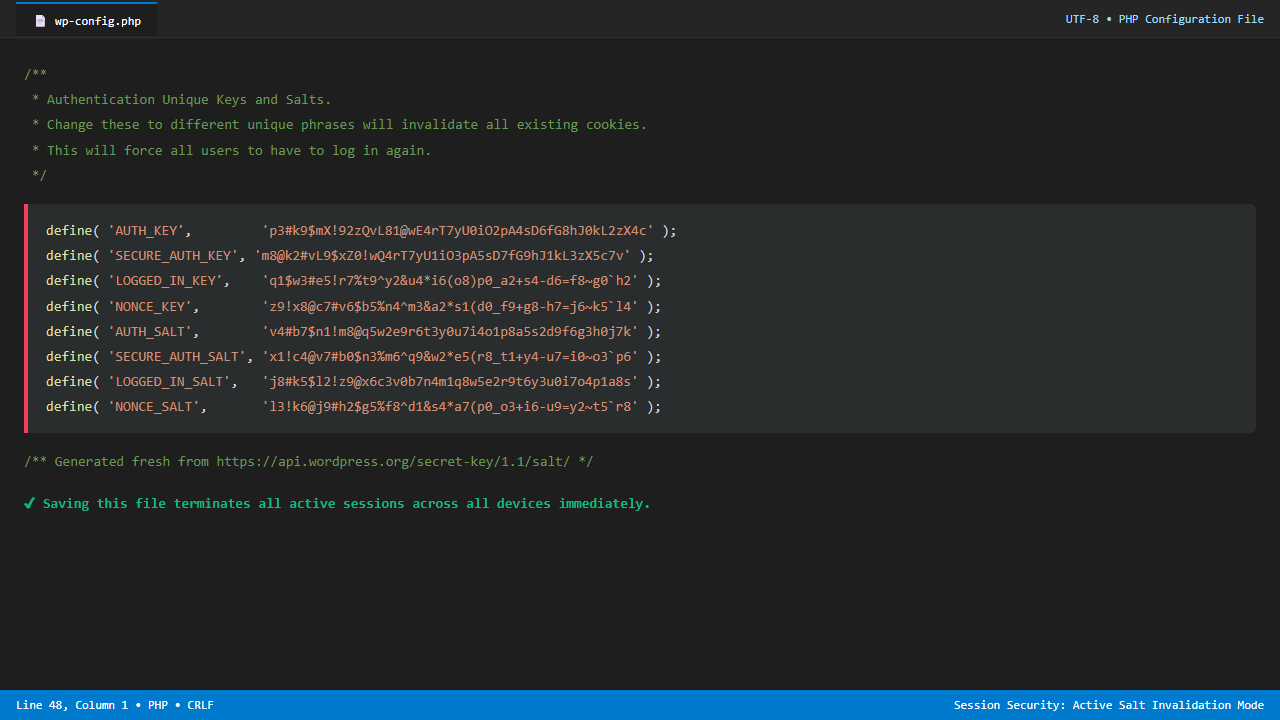
According to the official WordPress Hardening and Security Keys Documentation, WordPress does not store plaintext passwords in browser cookies. Instead, it generates an encrypted authentication token calculated from a cryptographic hash of the user’s password combined with eight unique secret keys stored on the server in wp-config.php:
AUTH_KEYandSECURE_AUTH_KEYLOGGED_IN_KEYandNONCE_KEYAUTH_SALTandSECURE_AUTH_SALTLOGGED_IN_SALTandNONCE_SALT
On every HTTP request, the WordPress core validates the browser’s cookie against these exact cryptographic constants. The moment any of these strings change, every existing session token becomes mathematically invalid, forcing every device, browser, and mobile app to log out immediately.
Step-by-Step: Rotating Security Salts to Force Global Logout
Step 1: Generate Fresh Cryptographic Salts
Visit the official WordPress salt generator API service at api.wordpress.org/secret-key/1.1/salt/. Every time you load this URL, the WordPress.org security infrastructure generates a completely fresh, cryptographically random set of 64-character salts.
Step 2: Access and Backup wp-config.php
Connect to your hosting server using SFTP, SSH, or your cPanel File Manager. Locate the wp-config.php file in your root WordPress directory. As detailed in the WordPress wp-config.php Developer Guide, create a backup copy before making modifications.
Step 3: Replace the Security Keys Block
Locate the block of code defining your authentication keys, which looks like this:
define('AUTH_KEY',         'put your unique phrase here');
define('SECURE_AUTH_KEY',  'put your unique phrase here');
define('LOGGED_IN_KEY',    'put your unique phrase here');
define('NONCE_KEY',        'put your unique phrase here');
define('AUTH_SALT',        'put your unique phrase here');
define('SECURE_AUTH_SALT', 'put your unique phrase here');
define('LOGGED_IN_SALT',   'put your unique phrase here');
define('NONCE_SALT',       'put your unique phrase here');
Select the entire 8-line block and replace it with the fresh keys generated from the official WordPress API. Save the file. The moment the file saves on the server, every active session across all devices is terminated instantly.
Automated Method for Server Admins: WP-CLI
If you have SSH terminal access to your server, you can rotate salts and force a global logout with a single WP-CLI command:
# Rotate WordPress security salts and force global logout instantly
wp config shuffle-salts
This command automatically queries the WordPress API, updates wp-config.php, and terminates all active sessions in under two seconds.
Frequently Asked Questions
Does rotating salts change user passwords or delete posts?
No. Passwords, customer data, and published articles are stored safely in the database and remain completely unaffected. Users can immediately log back into their accounts using their existing credentials.
Will rotating salts break WooCommerce shopping carts?
Active logged-in customers will be asked to log in again upon refreshing. Guest customer carts stored via session cookies will be refreshed, which is why salt rotations should ideally be performed during low-traffic windows unless responding to an emergency.
Related WordPress Security Tutorials
- Prevent code injection: Read how to disable WordPress theme and plugin file editors.
- Control contributor access: Learn how to allow contributors to upload images without giving author access.
- Clean user interfaces: Discover how to hide the WordPress admin bar for subscribers.
- Reassign content: Learn how to change a WordPress post author without a plugin.
