
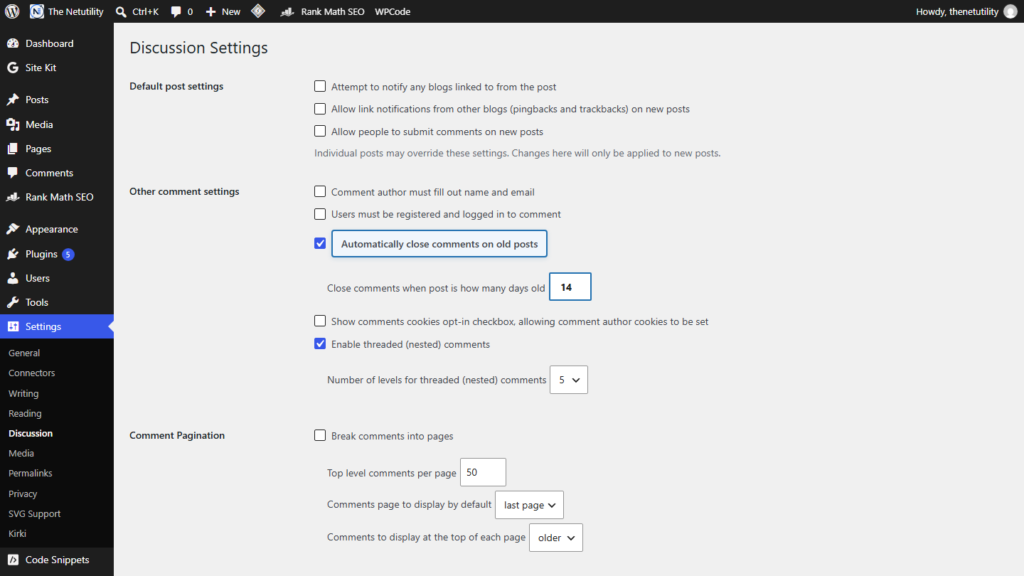
Comment spam is one of the most persistent operational headaches for WordPress administrators. While freshly published articles generate active conversations with genuine readers, posts that are six months, a year, or five years old rarely receive authentic engagement. Instead, older archival articles become prime targets for automated botnets executing link-farming scripts, phishing campaigns, and malware distribution. Rather than manually monitoring comment queues or bogging down your database with tens of thousands of unmoderated spam entries, WordPress features a built-in automated comment closure engine that shuts down commenting on aging content without requiring a single external plugin.
Why Older WordPress Posts Attract the Bulk of Spam
Automated spam networks specifically target older content for three technical reasons. First, older articles have established domain authority and search engine indexing, making them appealing targets for backlinks. Second, site owners rarely review comment sections on older tutorials or news updates, allowing spam links to remain unnoticed for months. Third, unmonitored comment tables degrade database performance; querying hundreds of thousands of spam records in wp_comments bloats memory consumption and slows down object caching.
According to the official WordPress Discussion Settings Screen Documentation, WordPress provides native automated lifecycle management for comments through core options stored directly in the wp_options table. When properly configured, WordPress computes the post publication date against the current Unix timestamp and closes commenting forms dynamically on the frontend.
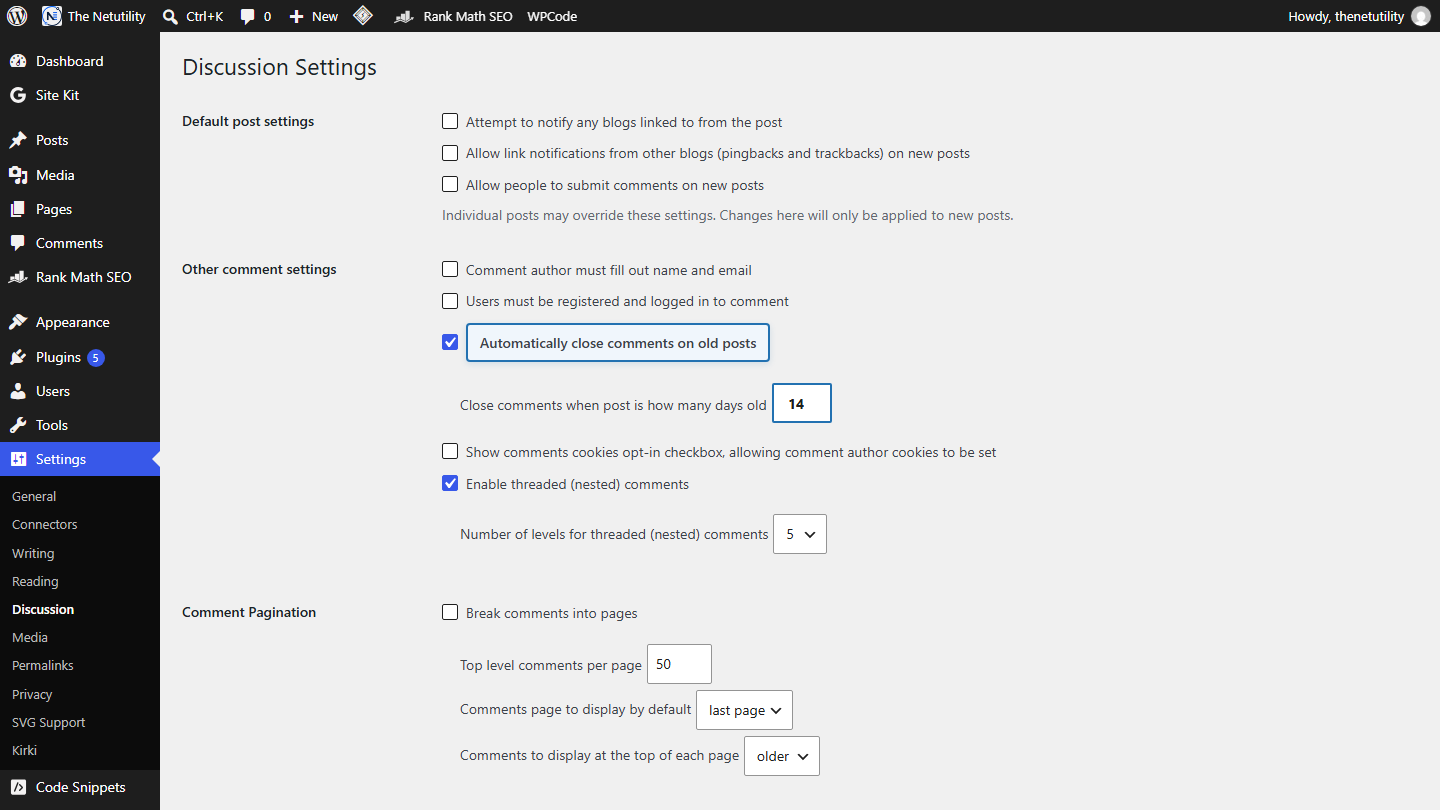
Step-by-Step: Enabling Automated Comment Closure in WordPress
Activating this automated safeguard takes less than two minutes and requires no programming knowledge. Follow these instructions:
- Log in to your WordPress administration dashboard.
- In the left-hand navigation sidebar, navigate to Settings > Discussion.
- Scroll down to the section labeled Other comment settings.
- Locate the checkbox titled Automatically close comments on articles older than [X] days.
- Check the box and enter your desired threshold number into the numeric input field.
- Scroll to the bottom of the page and click the blue Save Changes button.
Selecting the Optimal Day Threshold for Your Site
The optimal number of days depends heavily on your site’s publishing model and content velocity. Consider these tested recommendations:
| Site Content Type | Recommended Threshold | Operational Rationale |
|---|---|---|
| News & Current Events | 14 Days | Conversations conclude quickly. Closing after two weeks blocks bots before old archives are scraped. |
| Tech Tutorials & How-To Guides | 60 to 90 Days | Allows readers ample time to ask clarifying implementation questions while protecting aged documentation. |
| Opinion & Personal Blogs | 30 Days | Strikes a healthy balance between organic community dialogue and low moderation overhead. |
| E-Commerce Product Updates | 14 Days | Redirects inquiries to dedicated customer support desks rather than unmonitored post threads. |
How WordPress Implements Comment Closure Behind the Scenes
When you enable this option, WordPress stores two key settings: close_comments_for_old_posts (a boolean flag) and close_comments_days_old (an integer). During the page rendering cycle, WordPress invokes the core function comments_open() documented in the WordPress Developer Code Reference.
Inside the execution cycle, WordPress calculates the difference between current_time('timestamp') and get_the_time('U', $post). If the elapsed days exceed your defined threshold, comments_open() returns false. Consequently, your active theme replaces the comment submission form with your theme’s “Comments are closed” notice, completely preventing the HTTP POST submission request to wp-comments-post.php.
How to Keep Comments Open on Flagship Evergreen Articles
What if you have one or two flagship cornerstone articles where you want conversations to remain active indefinitely? Global automated closure can be overridden on individual posts:
- Open the specific cornerstone article inside the Block Editor (Gutenberg).
- In the right-hand settings sidebar, ensure the Post tab is selected.
- Expand the Discussion panel.
- Uncheck and re-check Allow comments, or override the publication date if you have republished refreshed revisions.
- Alternatively, you can implement a tiny custom filter in your child theme‘s
functions.phpto exempt specific post IDs from the automated closure rule.
<?php
/**
 * Exclude specific cornerstone post IDs from automated comment closure.
 */
function netutility_keep_flagship_comments_open( $open, $post_id ) {
    // Array of post IDs that should never auto-close
    $exempt_post_ids = array( 1498, 1518, 1524 );

    if ( in_array( $post_id, $exempt_post_ids ) ) {
        return true;
    }

    return $open;
}
add_filter( 'comments_open', 'netutility_keep_flagship_comments_open', 10, 2 );
To identify the exact numeric ID for your exempt posts, see our comprehensive guide on how to find a WordPress page, post, category or tag ID.
Additional Comment Security Best Practices
Automating comment closure is a powerful preventative measure, but pairing it with defense-in-depth security creates an unassailable barrier against bots:
- Require Comment Moderation: Under Settings > Discussion, enable “Comment must be manually approved” for first-time posters.
- Block Open Registration: Prevent bots from creating accounts just to post comments by reading our guide on how to disable new user registration in WordPress.
- Harden User Privileges: Verify who can submit or moderate content across your team with our breakdown of which WordPress user roles can upload files.
- Purge Orphaned Spam Comments: Regularly empty the Spam and Trash bins in the Comments screen to maintain high query efficiency across your database.
Conclusion
Automating comment closure on old WordPress posts is one of the easiest, most impactful maintenance steps you can take. It instantly slashes spam volume, preserves database hygiene, and lets you focus on engaging with readers who are actively discussing your newest publications.
