
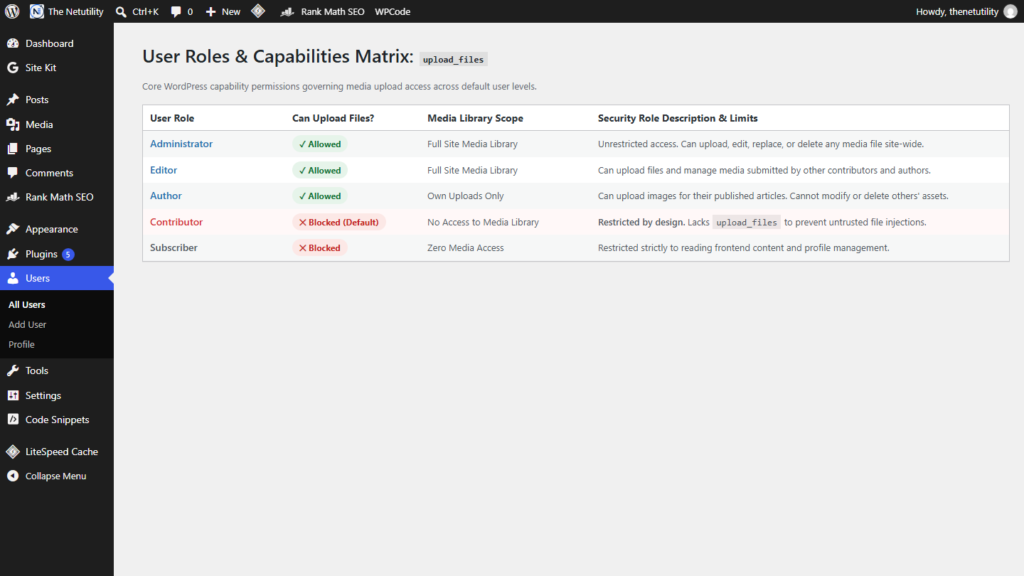
Managing media uploads across a collaborative publishing team requires strict adherence to the principle of least privilege. In WordPress, granting users permission to upload images, PDFs, and documents carries serious security implications: unvetted file uploads represent one of the most common threat vectors for arbitrary code execution and media library corruption. Many website owners are surprised to find that Contributors cannot add images to their draft posts, while Authors can freely upload content. Understanding which WordPress user roles can upload files by default—and how to customize these capabilities safely—is vital for running a secure editorial workflow.
The Core upload_files Capability Architecture
WordPress permissions operate on a granular capability-based system documented in the official WordPress Roles and Capabilities Documentation. Rather than checking a user’s role name directly, WordPress checks whether the user account possesses a specific primitive capability before granting access to an administrative screen or API endpoint.
For media management, the governing capability is upload_files. Whenever a user visits the Media Library (/wp-admin/upload.php) or clicks the “Add Media” / “Image” block inside Gutenberg, WordPress invokes current_user_can('upload_files'). If the capability is absent, WordPress denies access immediately.
Official User Role Upload Permission Breakdown
Here is how the five standard WordPress default user roles handle file uploads:
| User Role | Can Upload Files? | Media Library Visibility | File Deletion Privileges |
|---|---|---|---|
| Administrator | Yes | Full site-wide media library | Can delete any file uploaded by anyone |
| Editor | Yes | Full site-wide media library | Can delete any file uploaded by anyone |
| Author | Yes | Can upload; sees media files | Can only delete their own uploaded files |
| Contributor | No (Default) | No access to Media Library | No file manipulation privileges |
| Subscriber | No (Default) | No access to Media Library | No file manipulation privileges |
Why WordPress Denies Upload Privileges to Contributors
The Contributor role was explicitly engineered for guest writers, external journalists, and untrusted contributors who should write and edit drafts but cannot publish them live. WordPress deliberately strips upload_files from Contributors for three crucial security reasons:
- Executable Script Injections: Malicious actors frequently attempt to disguise PHP scripts as images (e.g., polyglot files or malicious SVG code). Allowing untrusted contributors to upload files creates severe remote code execution risks.
- Storage and Resource Denial: Without upload restrictions, rogue contributors could upload gigabytes of large video or archive files, exhausting server disk space and bandwidth quotas.
- Media Library Clutter: If every guest writer uploads duplicate or uncompressed assets, site administrators spend unnecessary hours cleaning up the media database.
How to Safely Grant Upload Access to Contributors
If you trust your contributors and want them to upload featured images directly without upgrading them to full Authors (who can publish posts live without review), you can grant the upload_files capability cleanly using your child theme‘s functions.php:
<?php
/**
 * Safely allow Contributors to upload images to drafts.
 */
function netutility_grant_contributor_uploads() {
    $contributor = get_role( 'contributor' );
    if ( $contributor && ! $contributor->has_cap( 'upload_files' ) ) {
        $contributor->add_cap( 'upload_files' );
    }
}
add_action( 'admin_init', 'netutility_grant_contributor_uploads' );
For a detailed breakdown of this setup and how to restrict contributors so they only view their own uploaded files, see our step-by-step tutorial on how to allow contributors to upload images without giving author access.
Preventing Upload Folder Exploits with Proper Permissions
Regardless of which user roles upload media, securing your /wp-content/uploads/ folder at the server level is non-negotiable. Standard directory permissions must be set to 755, and regular files to 644. Furthermore, you should disable PHP execution entirely within the uploads directory via .htaccess. Review our detailed reference on WordPress file permissions: what should 644, 755 and wp-config.php use? to ensure your server environment is hardened against exploits.
