
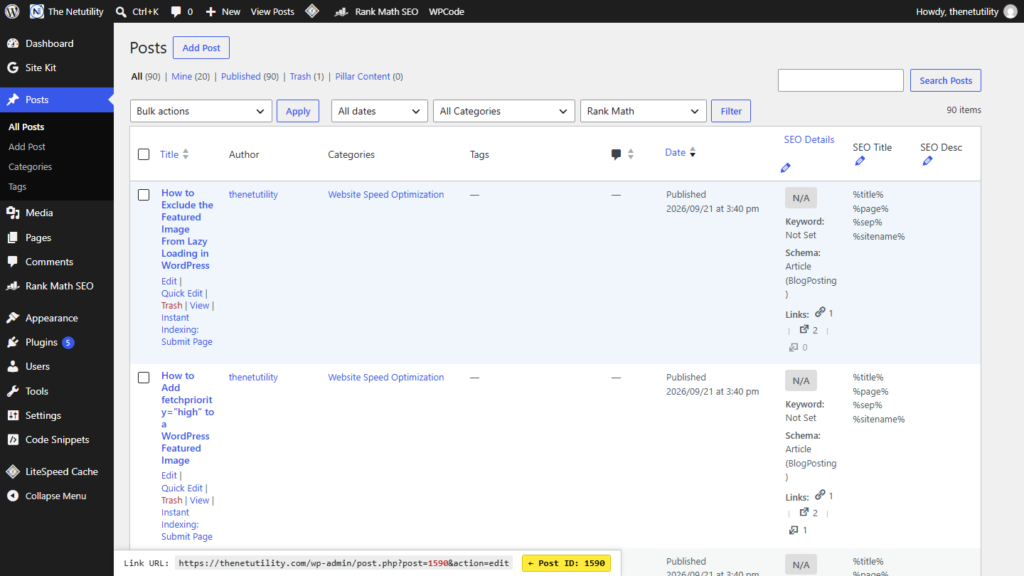
Every piece of content created in WordPress—whether it is a blog post, a landing page, a product category, a flat tag, or a media attachment—is assigned a unique numeric identifier called an ID. While modern WordPress themes and the Gutenberg Block Editor prioritize visual titles and human-readable URL slugs, knowing how to find exact WordPress IDs is essential for configuring shortcodes, writing custom PHP template queries, targeting elements with CSS, configuring caching exclusions, and building REST API integrations.
How WordPress Stores and Uses IDs in the Database
Behind every WordPress site sits a relational MySQL or MariaDB database. In accordance with the WordPress Database Description, posts and pages share the wp_posts table, where each record receives an auto-incrementing primary key labeled ID. Taxonomies like categories and tags are stored in wp_terms, where each term receives an auto-incrementing primary key labeled term_id.
Because URLs and post titles can be modified at any time, WordPress core functions and plugins rely on these immutable numeric IDs to retrieve content reliably. Functions like get_post($id) and get_the_ID() documented in the WordPress Developer Code Reference use these numeric keys to query rows with maximum database efficiency.
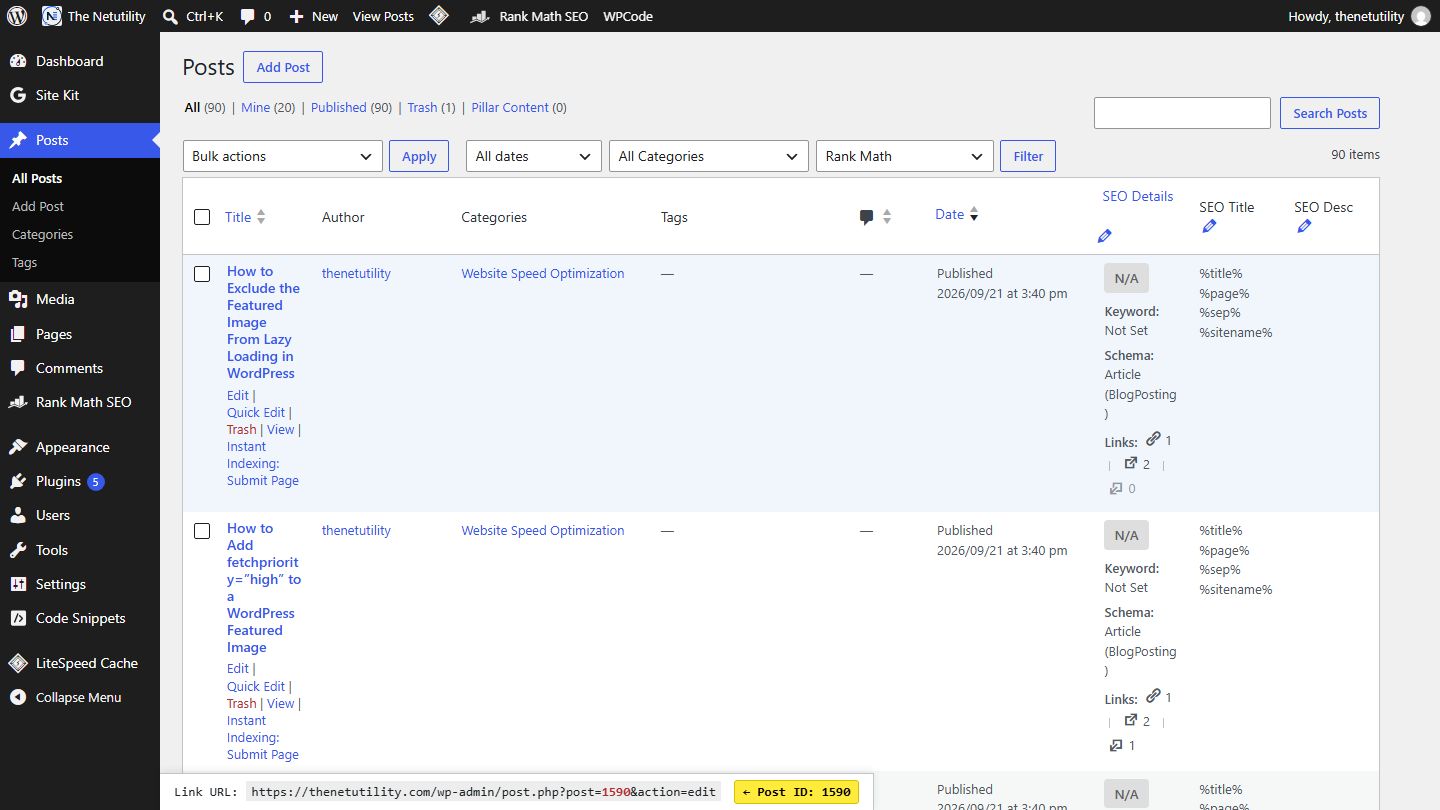
Method 1: The Browser URL Hover Technique (Fastest, No Plugins)
The fastest and most universally reliable way to uncover any post, page, category, or tag ID without installing extra software is by inspecting the browser status bar:
- In your WordPress dashboard, navigate to Posts > All Posts or Pages > All Pages.
- Locate the item whose ID you need to discover.
- Hover your mouse pointer over the Edit link beneath the title (do not click).
- Look down at the bottom-left corner of your browser window at the preview status bar.
- You will see an administration URL formatted like this:
https://yourdomain.com/wp-admin/post.php?post=1498&action=edit. - The number following
post=is the exact database ID (e.g., 1498).
If you have already clicked into the Block Editor, simply look up at your browser’s address bar. The exact same post=1498 parameter will be visible in the current URL.
Finding Category and Tag IDs
Discovering category or tag IDs follows a virtually identical process, with one slight variation in the URL parameter name:
- Go to Posts > Categories or Posts > Tags.
- Hover over the name or the Edit link of the desired term.
- Examine the URL displayed in your browser status bar. It will appear as:
https://yourdomain.com/wp-admin/term.php?taxonomy=category&tag_ID=7&post_type=post. - The number following
tag_ID=is the term’s unique database ID (e.g., 7). Note that WordPress uses the parameter nametag_IDfor both categories and tags.
If you are reorganizing your site structure, you can learn how to delete a WordPress tag without deleting the posts or explore how to change the default post category in WordPress.
Method 2: Inspecting the Frontend HTML Body Class
If you are browsing your live website on the frontend and need to identify a post ID for custom CSS styling, you can check the DOM directly using Chrome DevTools:
- Visit the target article or page on your live website.
- Right-click anywhere on the page and select Inspect (or press
Ctrl + Shift + I/Cmd + Option + I). - In the DevTools Elements panel, locate the opening
<body>tag near the top of the HTML document. - Standard WordPress themes automatically execute
body_class(), which appends specific identification classes such aspostid-1498orpage-id-42. - The digits appended to
postid-orpage-id-represent the exact post ID.
Method 3: Adding a Permanent “ID” Column to Admin Tables (Code Snippet)
If you regularly work with post IDs and find hovering inconvenient, you do not need to install heavy admin plugins. You can add a dedicated, lightweight “ID” column to your post and page administration tables using a short PHP snippet inside your child theme‘s functions.php or a site-specific code snippets plugin:
<?php
/**
 * Add a dedicated ID column to WordPress Post and Page tables.
 */
function netutility_add_id_column( $columns ) {
    $new_columns = array();
    foreach ( $columns as $key => $title ) {
        if ( 'title' === $key ) {
            $new_columns['post_id'] = __( 'ID', 'netutility' );
        }
        $new_columns[$key] = $title;
    }
    return $new_columns;
}
add_filter( 'manage_posts_columns', 'netutility_add_id_column' );
add_filter( 'manage_pages_columns', 'netutility_add_id_column' );

function netutility_render_id_column_content( $column, $post_id ) {
    if ( 'post_id' === $column ) {
        echo '<strong style="color: #2271b1;">' . esc_html( $post_id ) . '</strong>';
    }
}
add_action( 'manage_posts_custom_column', 'netutility_render_id_column_content', 10, 2 );
add_action( 'manage_pages_custom_column', 'netutility_render_id_column_content', 10, 2 );
Finding IDs via WP-CLI and the WordPress REST API
For developers and system administrators managing WordPress at scale:
- WP-CLI: Run
wp post list --fields=ID,post_title,post_statusin your terminal to output a tabular listing of all post IDs instantly. - REST API: Send an authenticated
GETrequest tohttps://yourdomain.com/wp-json/wp/v2/posts. Each returned JSON object includes the top-levelidfield.
Summary
Whether you hover over edit links in the dashboard, inspect the post.php URL parameter, view frontend body_class tags, or output a dedicated admin column, finding WordPress IDs requires zero third-party plugins. Armed with these techniques, configuring shortcodes and custom queries becomes effortless.
