
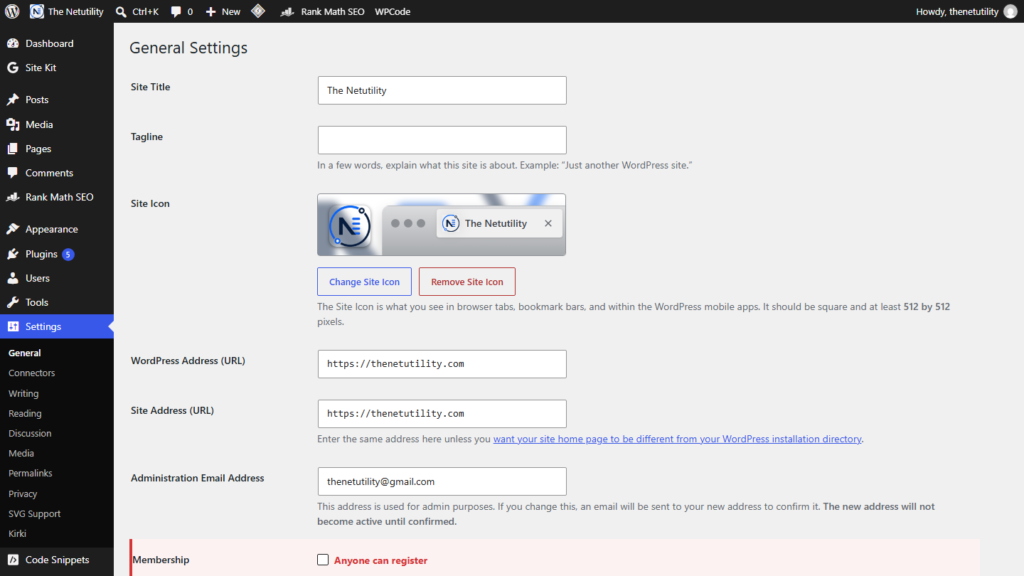
Running a WordPress website without proper access controls is an open invitation for automated bot networks. If your blog, portfolio, or business website does not explicitly run a public membership directory or multi-vendor storefront, allowing public user registration serves no practical purpose. Leaving user registration open exposes your site to automated spam bots that register thousands of bogus subscriber accounts, clog your database with junk records, and probe your administrative endpoints for privilege escalation vulnerabilities. Disabling new user registration in WordPress takes seconds and forms an essential pillar of site security.
Why Open User Registration Is a Major Security Risk
When user registration is enabled on standard WordPress sites, anyone navigating to /wp-login.php?action=register can register an account. While newly registered users are typically assigned the low-privilege Subscriber role, open registration creates several serious risks:
- Database Bloat: Botnets can submit hundreds of registration requests daily, flooding your
wp_usersandwp_usermetadatabase tables with junk records. - Transactional Email Saturation: Every new registration triggers verification emails, which can exhaust your transactional email sending limits or flag your server IP for spam.
- Privilege Escalation Exploits: If a third-party plugin contains a capability vulnerability, an attacker who already holds a registered Subscriber account can exploit it to elevate their role to Administrator.
- Accidental Administrative Default Role: If an administrator accidentally sets the default role to Administrator instead of Subscriber, bots gain instant full control of the website.
As documented in the official WordPress General Settings Screen Documentation, user registration is managed via the core option users_can_register. Keeping this setting disabled ensures only verified site administrators can create user accounts.
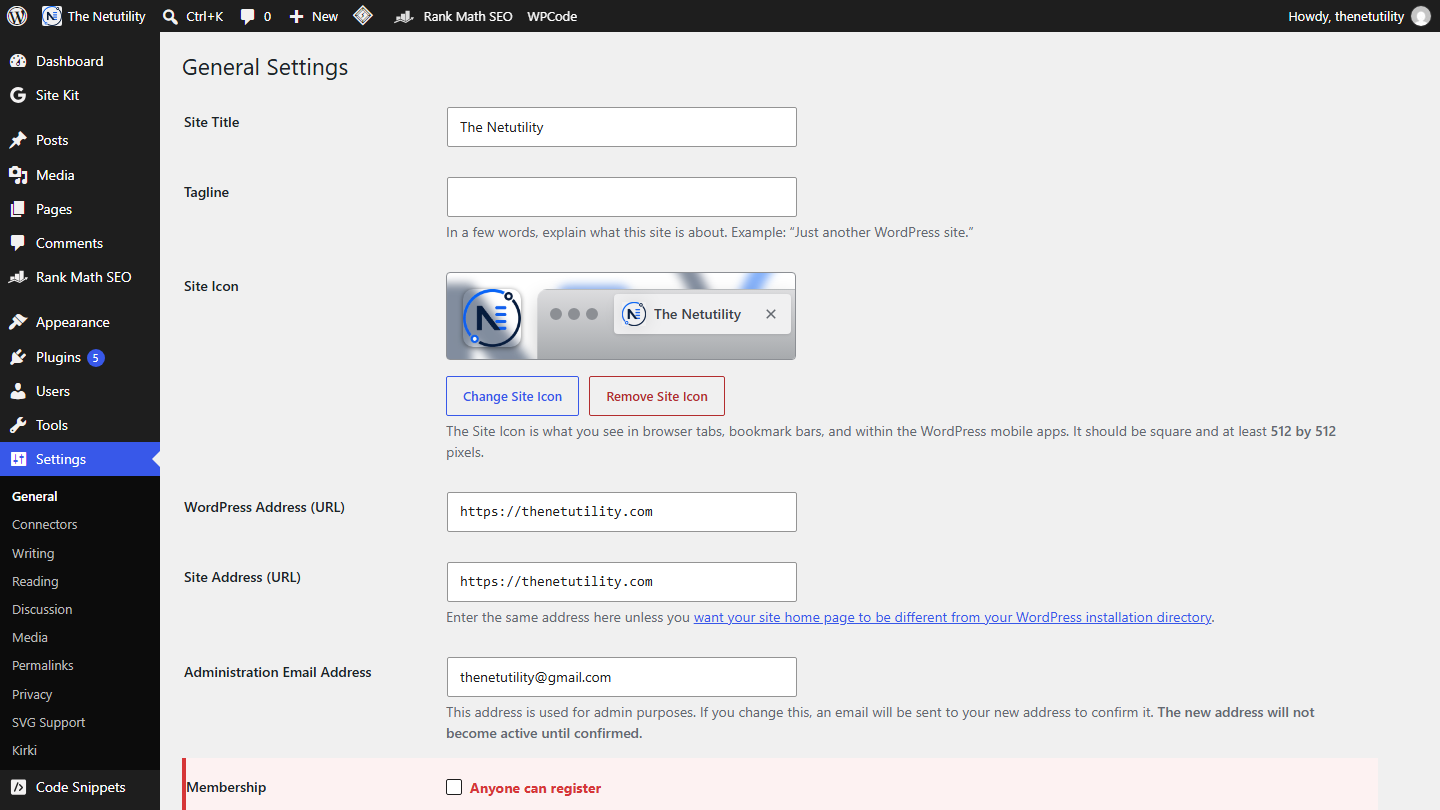
Step-by-Step: Disabling User Registration via Admin Settings
Follow these quick steps to permanently disable public registration in your WordPress dashboard:
- Log in to your WordPress administration dashboard.
- Navigate to Settings > General in the left sidebar.
- Scroll down to the Membership row.
- Uncheck the box labeled Anyone can register.
- Directly below, verify that New User Default Role is set to Subscriber (as a safety fallback).
- Scroll to the bottom of the screen and click Save Changes.
Verifying Registration Is Fully Blocked
To confirm that registration is locked down:
- Open a private or incognito browser window.
- Navigate to your login URL:
https://yourdomain.com/wp-login.php. - Verify that the “Register” link beneath the login box is no longer visible.
- Attempt to access the registration endpoint directly:
https://yourdomain.com/wp-login.php?action=register. - WordPress will display an error message: “User registration is currently not allowed.”
Programmatically Disabling User Registration via Code
If you manage multiple client websites or want to enforce closed registration across a network via a custom functionality plugin, you can override the option dynamically using a core WordPress filter:
<?php
/**
 * Permanently disable public user registration programmatically.
 */
add_filter( 'option_users_can_register', '__return_zero' );
This lightweight filter ensures that even if an administrator inadvertently checks the setting in the dashboard, the core execution loop will treat users_can_register as 0 (disabled), guaranteeing complete security.
How to Clean Up Existing Fake Bot Accounts Safely
If your website had registration enabled previously, you likely have dozens or hundreds of spam accounts sitting in your database. Here is how to purge them without harming legitimate team members:
- Navigate to Users > All Users.
- Click the Subscriber role filter tab at the top of the table.
- Click Screen Options in the top-right corner and increase Number of items per page to
100. - Check the master checkbox to select all displayed subscriber rows.
- Carefully review the list to ensure no genuine customers or subscribers are selected.
- Select Delete from the Bulk actions dropdown and click Apply.
- When prompted, select “Delete all content” (since Subscribers should have no content) and confirm deletion.
To further secure remaining user accounts, discover how to hide the WordPress admin bar for subscribers and review our guide on which WordPress user roles can upload files to prevent unauthorized media uploads.
