
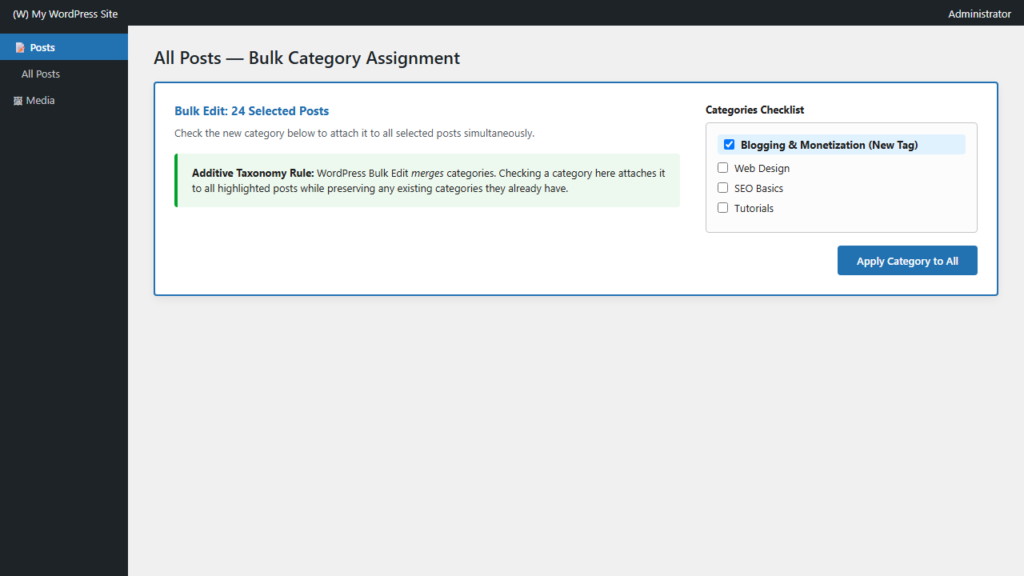
Whenever you introduce a new content silo, launch a special series, or restructure your blog topics, you often need to assign a new category to a large collection of existing articles. Manually updating dozens of individual posts in the editor is a waste of valuable time. WordPress includes native batch-editing tools that let you bulk-assign categories in seconds without adding a single plugin.
Understanding WordPress Bulk Taxonomy Assignment
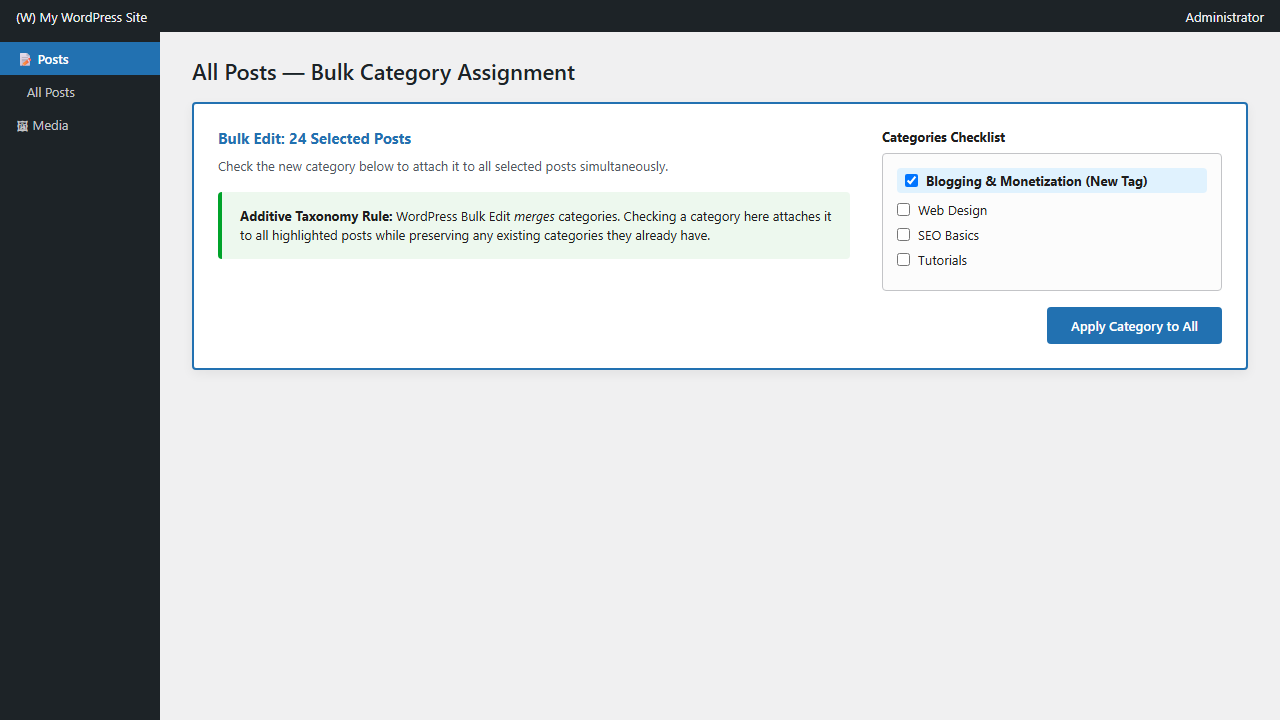
According to the official WordPress Posts Screen Bulk Edit Documentation, bulk editing operates on an additive principle for hierarchical taxonomies like categories. When you select multiple posts and check a category in the bulk edit panel, WordPress attaches that taxonomy term to every selected post while preserving all previously assigned categories.
To learn more about organizing your site’s hierarchy according to official architecture guidelines, consult the WordPress Developer Categories Guide.
Step-by-Step: Adding a Category to Multiple Posts at Once
Follow these quick steps to bulk assign a category across your content archive:
- Navigate to Posts > All Posts in your WordPress dashboard.
- Optional tip: Click Screen Options at the top right and increase Number of items per page to
50or100so you can edit more posts simultaneously. - Select the posts you wish to update using the checkboxes on the far left. To select all displayed posts, check the box in the header row next to Title.
- In the Bulk actions dropdown menu above the table, select Edit and click Apply.
- In the expanded Bulk Edit panel, look for the Categories scrollable box in the center column.
- Check the box next to the new category you want to add to all selected posts.
- Click the blue Update button on the lower right of the panel.
WordPress will batch-process the taxonomy assignments in the wp_term_relationships database table. When the page refreshes, every selected article will now carry the newly assigned category!
How Additive Bulk Assignment Affects Fallback Categories
Because WordPress bulk category assignment is strictly additive, adding a new category to a post that was previously marked with “Uncategorized” will leave both categories assigned. If your goal is to transition posts away from the default tag completely, take the following additional steps:
- Check our guide on how to remove a category from multiple WordPress posts to strip the obsolete default tag quickly via Quick Edit or term deletion.
- Learn why the default exists and how to customize it in our breakdown of why WordPress adds Uncategorized to posts and how to change it.
- Permanently set your primary topic as the global fallback by reading how to change the default post category in WordPress.
Need to Bulk Edit Other Post Attributes?
The native Bulk Edit panel is equally powerful for editorial attribution. If you are reallocating articles across multiple authors or editorial team members, check out our companion guide on how to change authors for multiple WordPress posts at once.
