
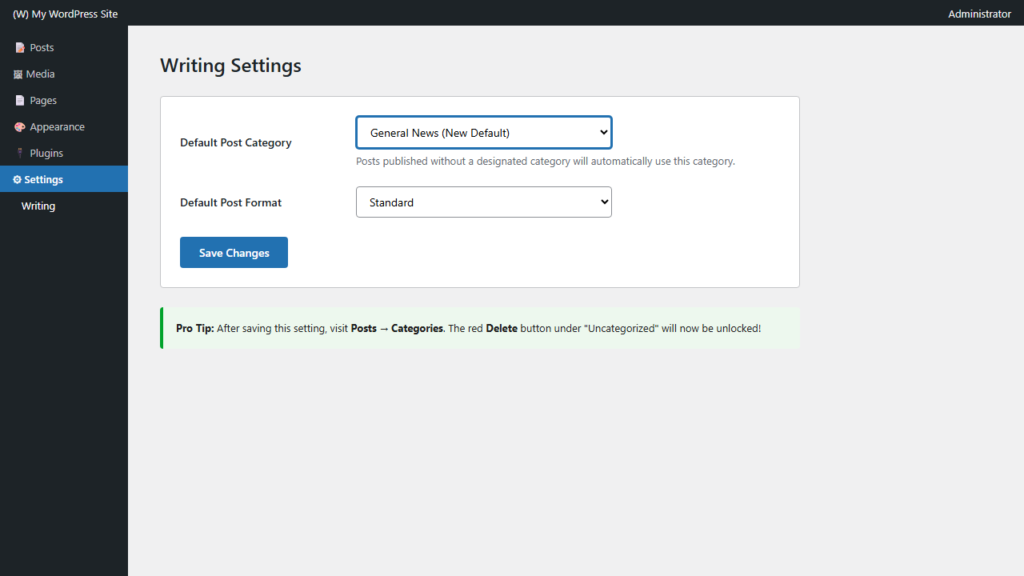
Every standard WordPress installation includes a built-in category labeled Uncategorized. Whenever an author publishes a new article without explicitly checking a category box, WordPress automatically assigns it to Uncategorized as a system fallback.
Displaying “Uncategorized” across your live website damages professional credibility, degrades user navigation, and generates poor SEO signals. However, when you navigate to Posts → Categories, you will notice that the “Delete” link is missing under Uncategorized. In this guide, you will learn the exact steps to designate a new default category, unlock the delete capability, and clean up your site taxonomy.
Why Can’t You Delete “Uncategorized” Right Away?
According to the official WordPress Categories Handbook, WordPress requires at least one default category term in the database at all times. This architecture guarantees that if your site uses permalinks containing /%category%/%postname%/, post URLs will never resolve to broken paths like example.com//my-post/.
Because WordPress designates “Uncategorized” as the system fallback upon installation, it locks the delete action. You must first assign an alternative category as the fallback before WordPress will permit you to delete Uncategorized.
Step-by-Step: Changing the Default Category
Step 1: Create or Select Your New Primary Category
- Go to Posts → Categories in your WordPress dashboard.
- Create a professional fallback category suitable for your niche (e.g. General, Articles, or Tech News).
- Click Add New Category.
Step 2: Update Your Writing Settings
As documented in the WordPress.org Writing Screen Documentation, the default fallback category is managed under global system settings:
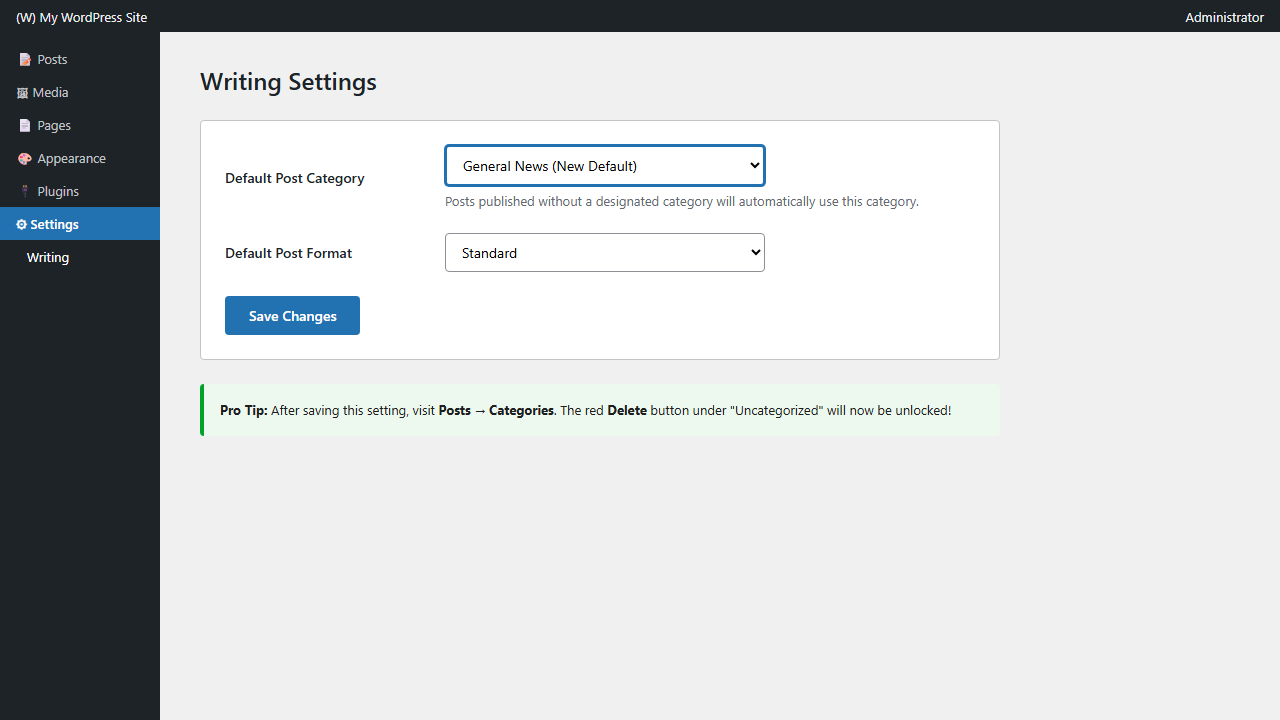
- Navigate to Settings → Writing in the admin menu.
- Locate the Default Post Category dropdown at the top of the screen.
- Select your newly created category from the dropdown menu.
- Scroll down and click Save Changes.
Step 3: Delete the Legacy Uncategorized Category
- Return to Posts → Categories.
- Hover your cursor over “Uncategorized”. The red Delete action is now fully unlocked!
- Click Delete and confirm.
Any existing posts previously assigned to Uncategorized will automatically transfer to your new default category without breaking existing URLs.
Related Taxonomy Management Tutorials
- Read our architectural breakdown: Why WordPress adds Uncategorized to posts and how to change it.
- Cleaning up your blog? Learn how to remove a category from multiple WordPress posts.
- Bulk publishing? Discover how to add a category to multiple WordPress posts at once.
- Manage team credits: Learn how to change authors for multiple WordPress posts at once.
