
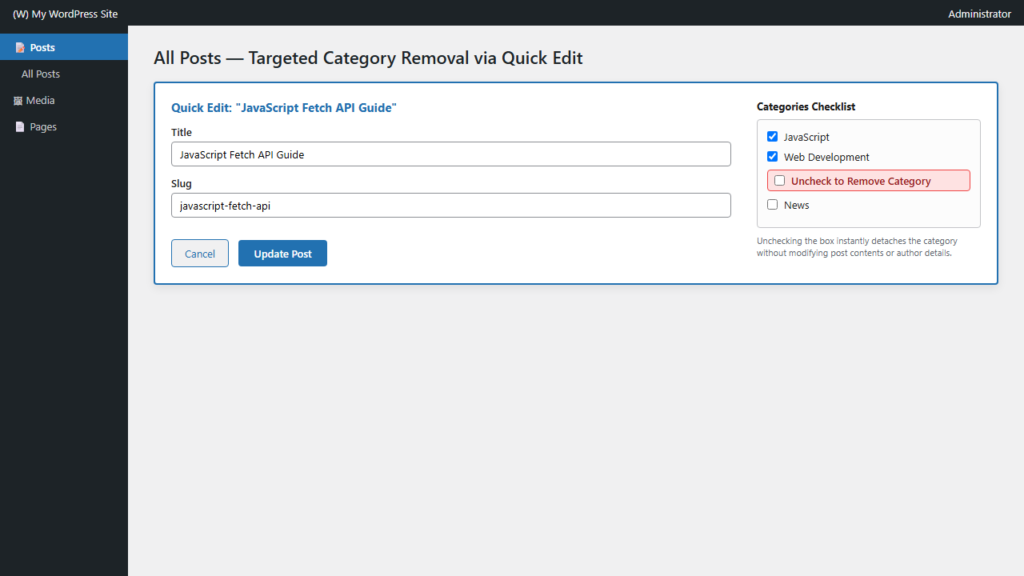
Restructuring WordPress site architecture often requires unassigning an obsolete or duplicate category from dozens of articles. While clicking into every single post in the Block Editor is painfully slow, WordPress includes powerful built-in administrative tools designed specifically for mass taxonomy management without third-party plugins.
Native WordPress Post Taxonomy Management
According to the official WordPress Posts Screen Documentation, the WordPress core admin interface provides two high-speed workflows to alter post metadata: Quick Edit for individual entries inline, and Bulk Edit for batch processing. Both methods interface directly with WordPress taxonomy tables without requiring database access or external extensions.
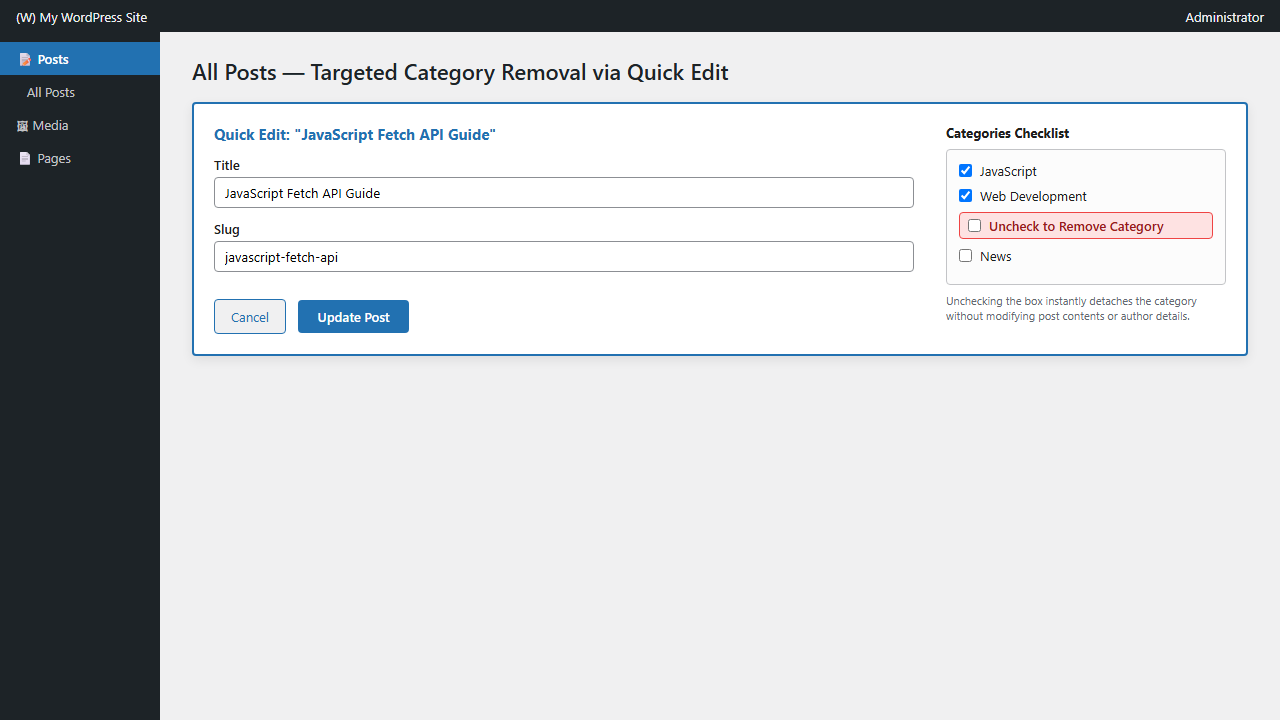
Method 1: Rapid Removal via Inline Quick Edit
When you only need to remove an unwanted category from 3 to 10 posts, Quick Edit is by far the fastest and most precise method:
- Go to Posts > All Posts in your admin dashboard.
- Use the All Categories dropdown filter at the top to filter specifically by the category you wish to remove, then click Filter.
- Hover your mouse over the first post title and click Quick Edit.
- In the middle column, locate the Categories checklist box.
- Uncheck the unwanted category checkbox. Ensure at least one other legitimate category remains selected.
- Click Update on the bottom right of the inline row. Repeat for each targeted post.
Method 2: Nuclear Category Deletion (Batch Unassigning All Posts)
If you want to completely remove a specific category from every single post on your entire website simultaneously, the native WordPress category deletion workflow is the most elegant solution. When a category is deleted under Posts > Categories, WordPress core executes clean database cleanup rules:
- WordPress does not delete the posts assigned to the deleted category.
- If a post has multiple categories (e.g., “WordPress Tips” and “Obsolete Category”), the obsolete category is stripped, and the post safely remains in “WordPress Tips”.
- If a post was only assigned to the deleted category, WordPress automatically reassigns it to your configured site default fallback category (such as your designated primary topic or the default Uncategorized category).
How to Safely Delete the Obsolete Category:
- First, ensure your site’s default category is set to what you want orphaned posts to inherit by reviewing our guide on how to change the default post category in WordPress.
- Go to Posts > Categories.
- Hover over the category you want to remove across all posts and click Delete.
- Confirm the browser dialog prompt. WordPress will instantly detach that term ID from all records in the
wp_term_relationshipstable.
Important Note on Native Bulk Edit Behavior
Many site owners attempt to select all posts, choose Edit from Bulk actions, and uncheck categories. As documented on WordPress Posts Screen Bulk Edit, native Bulk Edit operates strictly in an additive manner—checking a category in Bulk Edit appends it to all selected articles. To learn how to leverage Bulk Edit effectively for restructuring taxonomies, check out our guide on how to add a category to multiple WordPress posts at once.
