
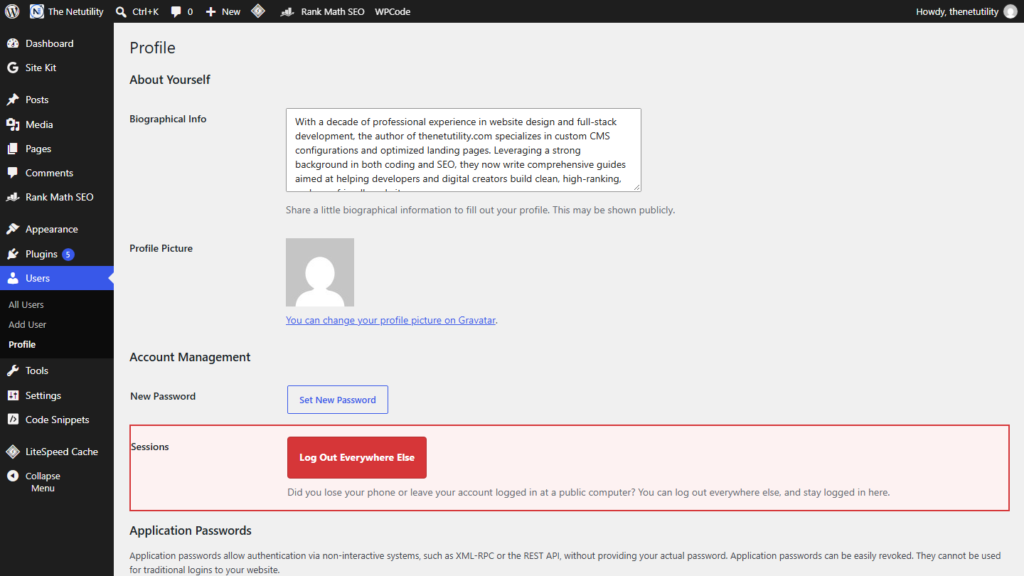
Changing your WordPress account password is the standard response when you suspect account compromise, lose a mobile device, or conclude work on a public computer. However, many site administrators do not realize that simply updating your password does not necessarily invalidate active session cookies immediately across every other browser and device. Under certain caching configurations or older WordPress behaviors, cached authentication tokens may allow unauthorized sessions to linger. Understanding how WordPress manages session tokens—and how to forcefully terminate all sessions across every device—is critical for securing your administrative accounts.
How WordPress Manages User Session Tokens
Modern WordPress installations handle user sessions through the WP_Session_Tokens class documented in the WordPress Developer Code Reference. Instead of validating passwords on every single HTTP request, WordPress creates a cryptographic session token when you log in. This token is hashed and stored in the wp_usermeta table under the meta key session_tokens.
When you update your password via the standard password reset workflow described in the WordPress Password Reset Documentation, WordPress updates your password hash in wp_users and automatically calls WP_Session_Tokens::destroy_others(). This destroys all session tokens except the one belonging to your current browser. However, if your password was updated programmatically, via an external script, or if you suspect session hijacking, you should execute an explicit session termination.
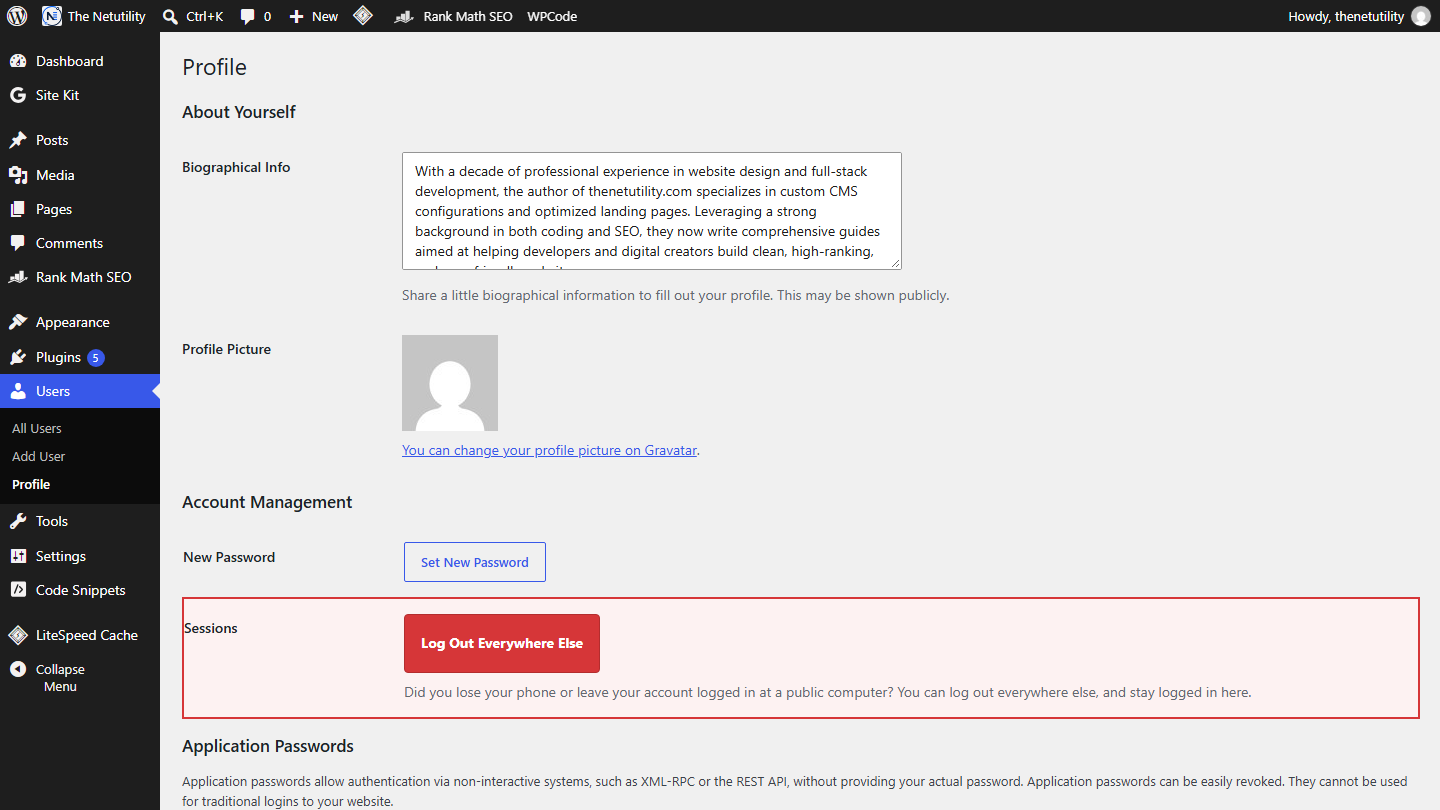
Method 1: Using the Native “Log Out Everywhere Else” Button
WordPress includes a native, one-click mechanism inside your personal profile settings to destroy all other active logins instantly:
- Log in to your WordPress dashboard.
- In the top right toolbar or left sidebar, navigate to Users > Profile.
- Scroll down to the Account Management section near the bottom of the screen.
- Locate the Sessions row.
- Click the button labeled Log Out Everywhere Else.
- WordPress will immediately wipe all session token arrays stored in
wp_usermetaexcept for your current active session.
Anyone currently logged in on another laptop, tablet, or smartphone will be kicked back to the login screen upon their next page request or AJAX ping.
Method 2: Nuclear Force Logout via Salt Rotation
If you suspect an attacker has gained root administrative access or you want to force logout every single user on the entire website (not just yourself), rotating your secret keys in wp-config.php is the gold standard. As detailed in our comprehensive guide on how to change WordPress security keys and salts safely, regenerating keys from the official WordPress API breaks cryptographic cookie validation site-wide, instantly expelling all active sessions.
Method 3: Programmatically Terminating Sessions on Password Update
If you build custom client portals or want to guarantee that changing a password terminates 100% of all sessions (including the current browser), you can hook into the password_reset action using a custom code snippet in your child theme‘s functions.php:
<?php
/**
 * Force logout across ALL devices (including current session) upon password reset.
 */
function netutility_destroy_all_user_sessions( $user ) {
    if ( is_object( $user ) && isset( $user->ID ) ) {
        // Destroy all stored session tokens for this user
        $sessions = WP_Session_Tokens::get_instance( $user->ID );
        $sessions->destroy_all();
    }
}
add_action( 'password_reset', 'netutility_destroy_all_user_sessions', 10, 1 );
Verifying Session Termination in DevTools
To verify that sessions are terminating properly:
- Open Chrome DevTools (
F12orCtrl + Shift + I). - Click on the Application tab and expand Cookies in the left sidebar.
- Select your website domain.
- Look for cookies beginning with
wordpress_logged_in_. - When a session is terminated or logged out, this cookie’s expiration is either wiped or set to a past date (e.g.,
1970-01-01), preventing further authenticated requests.
Pairing session management with proper access privileges ensures airtight account defense. Read our complete guide on which WordPress user roles can upload files to lock down contributor permissions across your team.
