
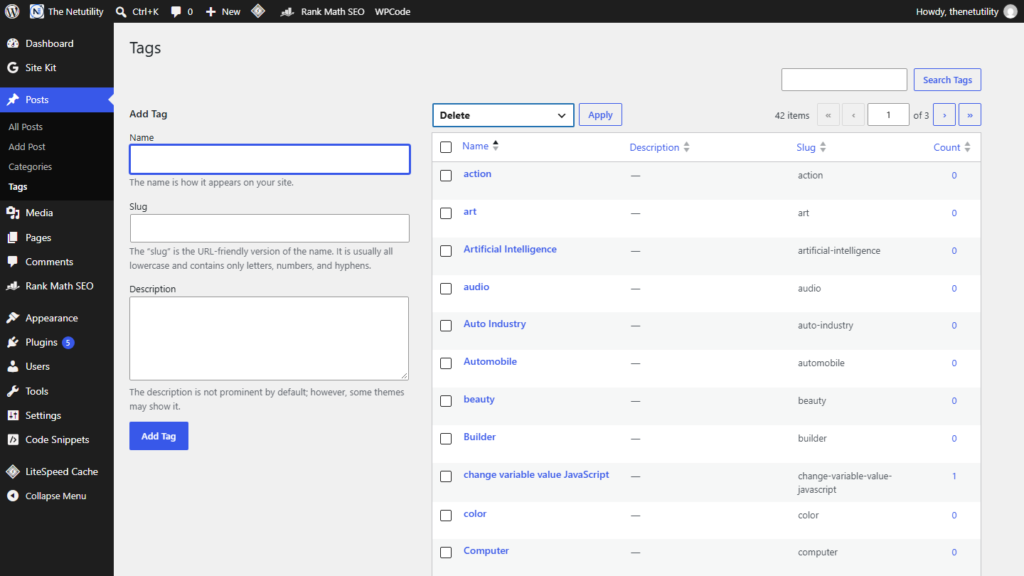
As a WordPress blog expands over several years, tag taxonomies frequently spiral out of control. Writers often invent slightly different tags for identical topics (such as web-dev, web-development, and web-developer), or attach temporary campaign tags that become obsolete after a few weeks. The result is hundreds of thin, duplicate tag archive pages that dilute crawl budget and harm search engine rankings. However, many site owners hesitate to clean up their tag lists out of fear that deleting a tag will accidentally delete the articles assigned to it. Rest assured: in WordPress database architecture, deleting a tag never deletes your posts.
Understanding WordPress Taxonomy Relational Architecture
To understand why deleting a tag is completely safe, we must look at how WordPress organizes content in MySQL/MariaDB. According to the official WordPress Database Description, your content and its classification terms live in separate, relational tables:
wp_posts: Stores the actual article content, post title, excerpt, publication status, and author ID.wp_termsandwp_term_taxonomy: Store the name, slug, description, and taxonomy type (category vs. tag).wp_term_relationships: Acts as the intermediary junction table, mapping a specificobject_id(Post ID) to aterm_taxonomy_id(Tag ID).
When you delete a tag under Posts > Tags, WordPress core simply deletes the tag record from wp_terms and wipes the corresponding mapping rows from wp_term_relationships. The row in wp_posts remains untouched. Your post retains its exact URL slug, publication status, comments, author attribution, and categories.
Step-by-Step: Deleting Tags in WordPress Safely
As documented in the official WordPress Posts Tags Screen Documentation, you can remove individual tags or execute mass cleanups in seconds:
Method 1: Deleting a Single Tag
- In your WordPress dashboard, navigate to Posts > Tags.
- Find the unwanted tag in the right-hand table.
- Hover your mouse over the tag row to reveal the action links.
- Click the red Delete link and confirm the prompt. The tag is immediately purged.
Method 2: Bulk Deleting Multiple Tags
- Go to Posts > Tags.
- Click Screen Options at the top right and set Number of items per page to
100or200. - Review the Count column: tags with a count of
0or1are prime candidates for removal. - Check the boxes next to each obsolete tag.
- Select Delete from the Bulk actions dropdown at the top of the table.
- Click Apply. WordPress will batch-purge the selected tags in a single transactional operation.
SEO Considerations: Managing 404 Errors on Deleted Tag Archives
While your articles remain safe, deleting a tag does remove the public tag archive page (e.g., https://yourdomain.com/tag/outdated-tag/). If that tag URL was indexed by Google or linked externally, visitors will encounter a 404 Not Found error. Protect your SEO with two simple strategies:
- 301 Redirect to Relevant Category: If the deleted tag had established backlinks, use a redirection tool to create a 301 Permanent Redirect pointing the old tag URL to the most relevant parent category.
- Serve 410 Gone for Junk Tags: If the tag was purely spam or accidental, allowing search engines to receive a 410 Gone or standard 404 signals Google to drop the thin archive from its index.
If you are also reorganizing your broader content silos, explore our companion tutorials on how to remove a category from multiple WordPress posts and how to add a category to multiple WordPress posts at once.
