
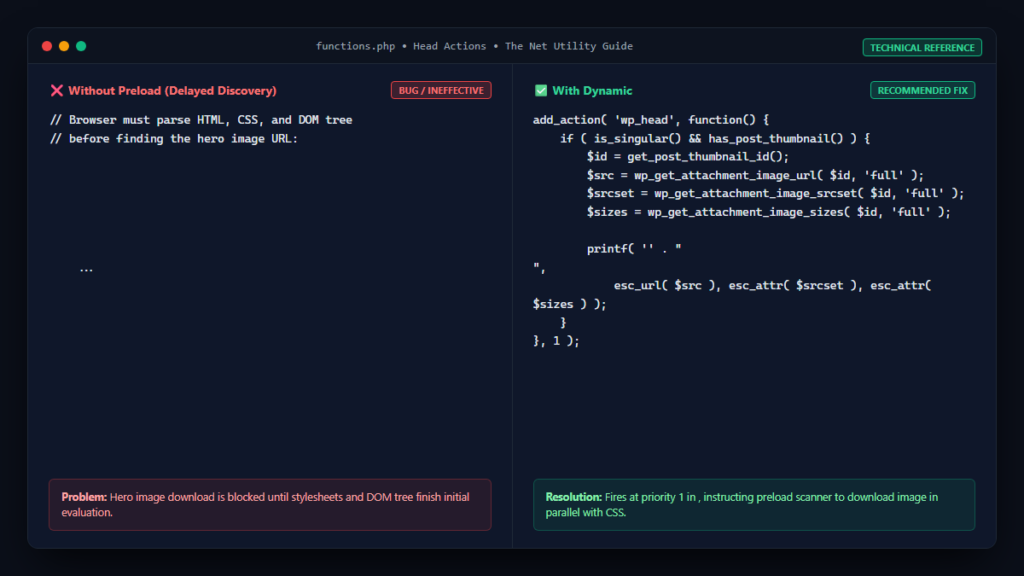
In modern web performance optimization, reducing the time to first visual engagement is one of the most impactful factors for both search engine rankings and user conversion rates. When Google measures Largest Contentful Paint (LCP) as part of its Core Web Vitals assessment, the browser’s discovery time for the primary hero image often determines whether your score falls into the green zone or triggers critical performance warnings.
While many WordPress administrators install heavy optimization plugins to manipulate resource loading, you can achieve superior, bloat-free performance by manually preloading your post hero image. In this architectural guide, we will explore the underlying browser mechanics of resource hints, demonstrate how to inject dynamic preloading tags via pure PHP in WordPress, handle responsive srcset images accurately, and evaluate the real-world performance gains.
Why Preloading the Hero Image Accelerates LCP
As documented in Google’s official web.dev LCP optimization guide, the total time required to render your LCP image can be broken down into four distinct phases:
- Time to First Byte (TTFB): The duration required for the server to deliver the initial HTML response.
- Resource Load Delay: The gap between when the browser receives the HTML and when it discovers the LCP image URL and initiates the network request.
- Resource Load Time: The physical duration needed to transfer the image bytes over the network.
- Element Render Delay: The time elapsed between the image download finishing and the browser painting it to the display screen.
When an image is declared normally inside the HTML body—or even worse, referenced as a background image inside an external stylesheet—the browser cannot discover the URL until it finishes parsing preceding HTML nodes, downloading stylesheets, and executing render-blocking scripts. By placing a declarative <link rel="preload"> directive inside the document’s <head>, you instruct the browser’s preload scanner to begin streaming the graphic asset immediately, virtually eliminating the Resource Load Delay phase.
The Technical Specification of <link rel="preload">
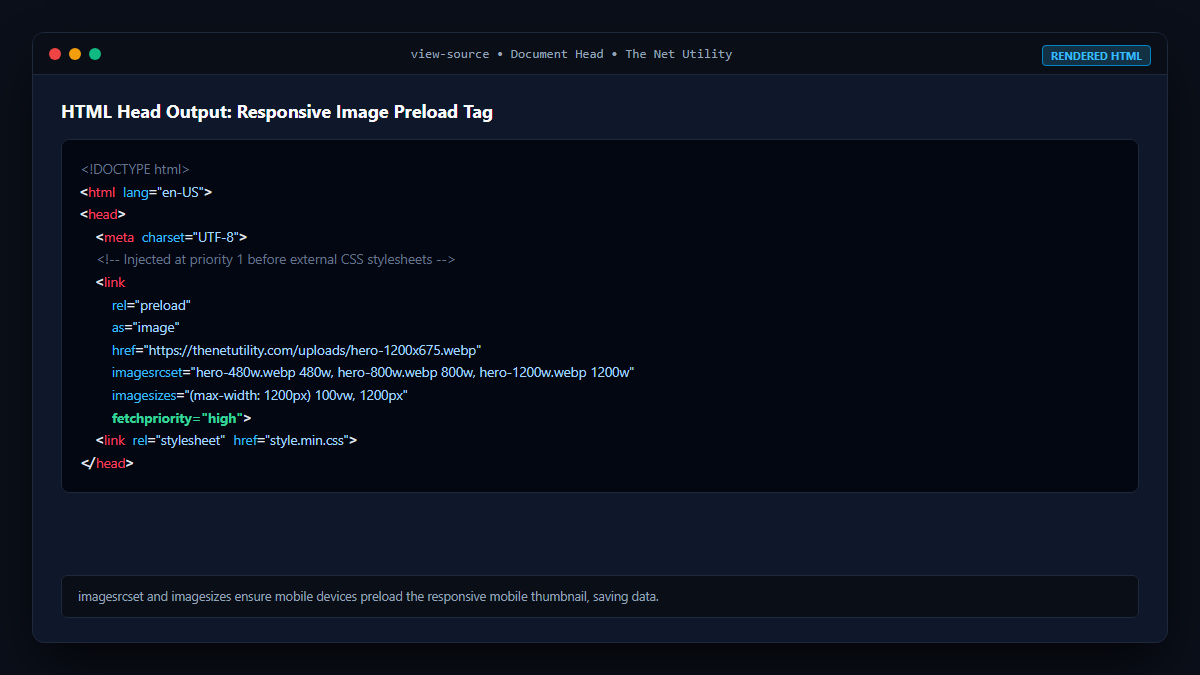
According to the official MDN Web Docs specification on resource preloading, preloading provides a mandatory fetching mechanism that informs the browser that a resource is critically needed for the current navigation. Unlike speculative resource hints like prefetch or dns-prefetch, preload forces the browser to allocate high priority bandwidth immediately.
A standard image preload directive requires the following attributes:
<link rel="preload" as="image" href="https://example.com/wp-content/uploads/hero.webp" fetchpriority="high" type="image/webp">Crucially, if your site utilizes responsive images with multiple resolution breakpoints, you must supply imagesrcset and imagesizes attributes so the browser selects and preloads the exact resolution matched to the visitor’s screen width.
Why You Should Avoid Plugins for Hero Preloading
While various all-in-one performance plugins offer check-box toggles for image preloading, relying on plugins often introduces significant downsides:
- Static URL Limitations: Many plugins preload a single hardcoded image across all pages, causing blog posts with unique featured thumbnails to miss out or preloading unneeded assets on secondary pages.
- Database Query Overhead: Heavy plugins run additional database lookups and hook into multiple filters on every page load, increasing your server execution time and worsening TTFB.
- Responsive Mismatch: Rudimentary plugins frequently fail to generate proper
imagesrcsetattributes, leading the browser to preload a desktop-sized 2000px image on mobile screens, wasting bandwidth and triggering Lighthouse warnings.
Dynamic PHP Implementation: Preload WordPress Featured Images
The optimal WordPress method involves hooking into the core wp_head action hook. This hook outputs directly between the <head> tags, ensuring your preload directive appears before any external stylesheets or scripts. Add the following function to your child theme‘s functions.php file:
/**
 * Dynamically Preload the Featured Hero Image on Single WordPress Posts.
 * Includes complete srcset and sizes support for high-performance responsive loading.
 */
function netutility_preload_featured_hero_image() {
    // Only execute on single posts, pages, or custom post types where a thumbnail exists
    if ( is_singular() && has_post_thumbnail() ) {
        $post_id = get_the_ID();
        $thumbnail_id = get_post_thumbnail_id( $post_id );

        if ( ! $thumbnail_id ) {
            return;
        }

        // Fetch the full-size image URL
        $img_src = wp_get_attachment_image_url( $thumbnail_id, 'full' );

        // Fetch responsive srcset and sizes data generated by WordPress core
        $img_srcset = wp_get_attachment_image_srcset( $thumbnail_id, 'full' );
        $img_sizes  = wp_get_attachment_image_sizes( $thumbnail_id, 'full' );

        if ( ! $img_src ) {
            return;
        }

        // Construct the preload tag
        if ( $img_srcset && $img_sizes ) {
            printf(
                '<link rel="preload" as="image" href="%s" imagesrcset="%s" imagesizes="%s" fetchpriority="high">' . "
",
                esc_url( $img_src ),
                esc_attr( $img_srcset ),
                esc_attr( $img_sizes )
            );
        } else {
            printf(
                '<link rel="preload" as="image" href="%s" fetchpriority="high">' . "
",
                esc_url( $img_src )
            );
        }
    }
}
// Set priority to 1 so it outputs at the very top of <head>
add_action( 'wp_head', 'netutility_preload_featured_hero_image', 1 );
This implementation dynamically inspects whether the current page is a single post or page, grabs the attachment ID, resolves the exact responsive srcset attributes, and outputs the tag with fetchpriority="high" at priority 1. As a result, the browser initiates the image request before it even encounters the opening <body> tag!
Handling CSS Background Hero Images
If your WordPress theme utilizes a hero section styled with CSS background-image: url(...) rather than an inline <img> tag, preloading is doubly essential. The browser’s preload scanner cannot parse CSS backgrounds until the CSSOM (CSS Object Model) is fully constructed. If you have custom hero backgrounds on specific pages, adapt the snippet above to output the exact URL of that asset.
Also be sure to coordinate this with your lazy loading configurations. Preloading an asset while simultaneously having it lazily loaded will cause conflicting browser signals. To prevent this, consult our detailed guide on how to fix “Largest Contentful Paint image was lazily loaded” in WordPress.
Preload vs Other Resource Hints
| Resource Directive | Timing / Priority | Primary Use Case | Browser Action |
|---|---|---|---|
rel="preload" | Immediate / Highest | Current page hero image, critical font, above-the-fold CSS | Mandatory fetch immediately; caches for current page |
rel="prefetch" | Idle / Lowest | Next page resources anticipated during user navigation | Fetches when browser is idle; saves for future page |
rel="preconnect" | Immediate / High | External CDN domains (e.g. Google Fonts, Cloudflare) | Performs DNS lookup, TCP handshake, and TLS negotiation |
rel="dns-prefetch" | Early / Low | Third-party domains not immediately needed | Resolves domain IP address ahead of time |
Common Pitfalls and How to Avoid Them
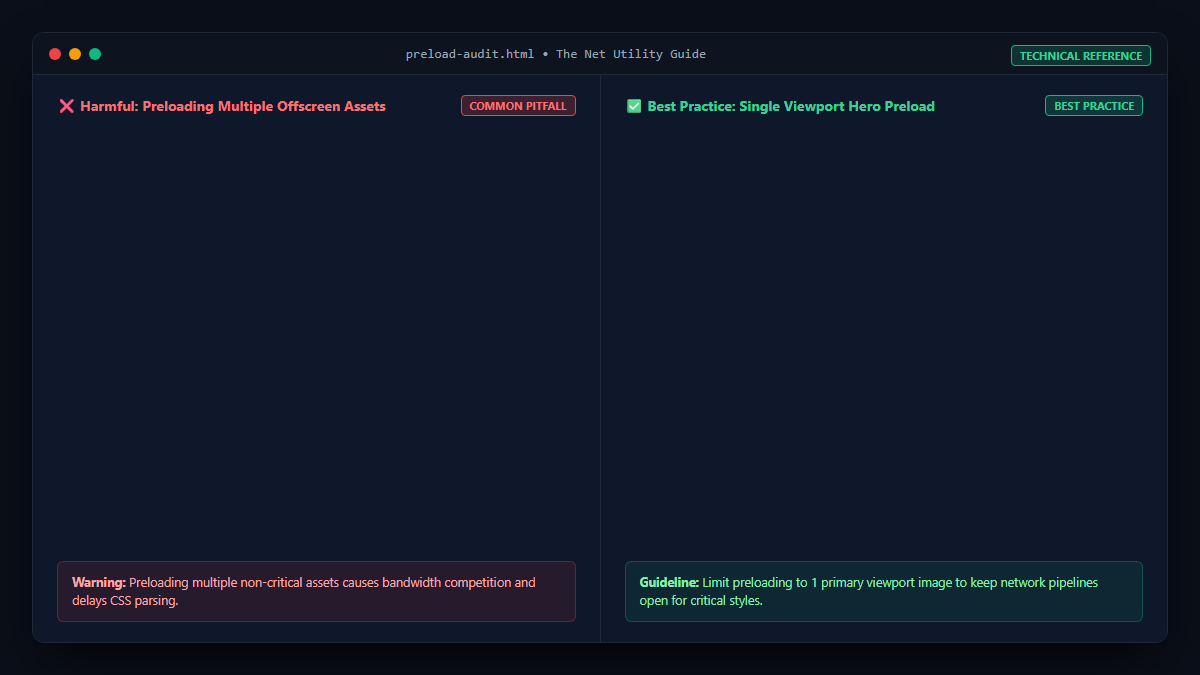
- Preloading Too Many Images: Preloading is designed strictly for critical viewport assets. If you preload more than 1 or 2 images, you will saturate the user’s network connection and starve critical CSS and JavaScript files, counteracting your performance gains.
- Mismatched URLs: Ensure that the URL provided in
hrefmatches the exact URL rendered by your theme. If your preload link specifiesimage-1024x768.webpbut your<img>tag rendersimage-1200x900.webp, the browser will download both images, wasting bandwidth and triggering a Chrome console warning: “The resource was preloaded using link preload but not used within a few seconds”. - Forgetting
imagesrcset: Always include responsive attributes whenever your theme utilizes WordPress’s native responsive image markup.
Verification in Chrome DevTools
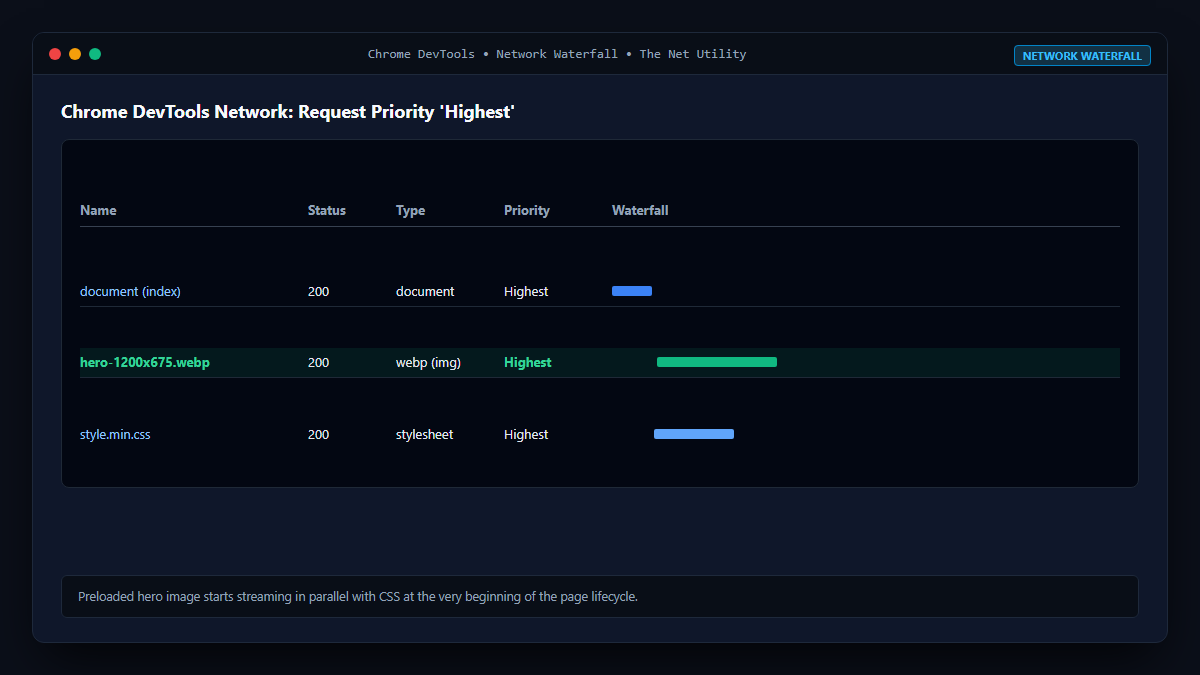
- Open your single post in Chrome and press
Ctrl + Shift + I(Windows) orCmd + Option + I(Mac). - Navigate to the Network panel and reload the page.
- Inspect the Waterfall column. The hero image should appear right alongside your main CSS stylesheet at the top of the timeline.
- Right-click the table headers in the Network panel and enable the Priority column. Confirm that the image priority is marked as Highest.
