
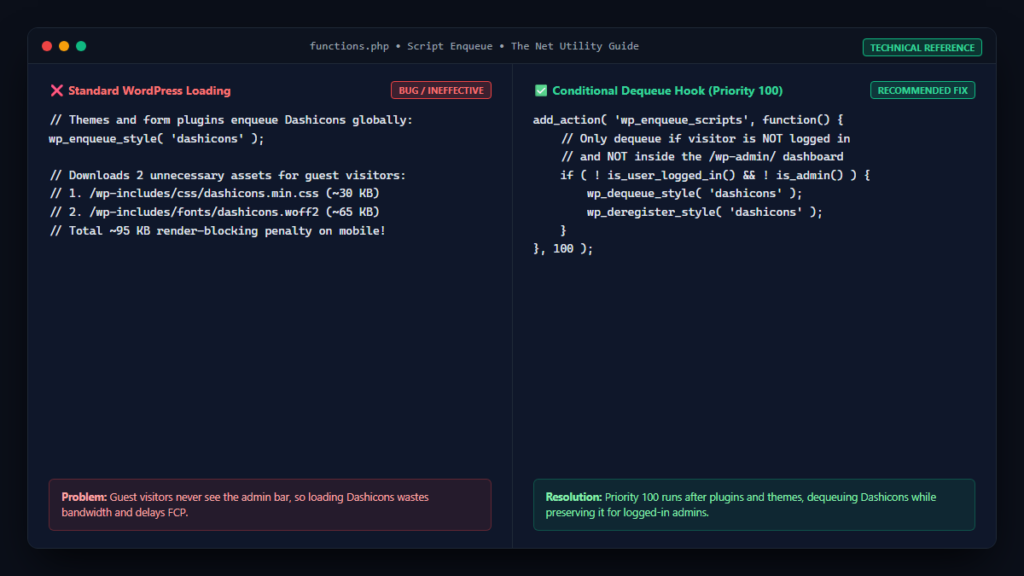
Every unnecessary stylesheet, font file, or script loaded on your WordPress site consumes browser parsing time and contributes to render-blocking latency. One of the most widespread examples of unneeded front-end overhead is Dashicons—the official icon font library bundled with WordPress core.
While Dashicons are indispensable inside the WordPress administrative dashboard (/wp-admin/) and for the top admin toolbar when logged in, many themes and plugins enqueue the full dashicons.min.css stylesheet for guest visitors who never see the admin bar. In this performance tutorial, we will examine the technical cost of Dashicons, identify why WordPress enqueues it, and provide clean, modular PHP snippets to dequeue Dashicons for all logged-out visitors without breaking dashboard functionality.
What Are Dashicons and Why Do They Matter for Performance?
Dashicons is the font and icon set developed by WordPress core contributors for the administrative interface, introduced in WordPress 3.8. As documented in the official WordPress Dashicons Resource Reference, Dashicons includes over 300 vector icons utilized across the admin menu, post status icons, and toolbar widgets.
When WordPress enqueues Dashicons on the front end, it downloads two separate assets:
- Stylesheet:
/wp-includes/css/dashicons.min.css(approx. 30 KB uncompressed). - Font File:
/wp-includes/fonts/dashicons.woffor.woff2(approx. 60–70 KB).
Although 100 KB might seem modest on a high-speed fiber connection, loading external font stylesheets on mobile devices with high network latency delays the First Contentful Paint (FCP) and contributes to cumulative layout shifts (CLS) if icons cause font swapping.
Why Is Dashicons Loading for Logged-Out Visitors?
Under a clean WordPress installation without active plugins, Dashicons is not loaded on the front end for guest users. However, in practice, Dashicons is inadvertently loaded on millions of production sites due to:
- Form Plugins: Plugins like Contact Form 7, WPForms, and Gravity Forms frequently enqueue Dashicons as a dependency to display validation or spinner icons.
- Page Builders & Themes: Theme developers often declare
wp_enqueue_style( 'dashicons' )inside their front-end enqueue scripts so they can render small menu icons or social media links using Dashicon glyphs. - Custom Login/Registration Widgets: Front-end membership and login widgets frequently require Dashicons styling for user avatar placeholders.
The WordPress Core Functions: wp_dequeue_style and is_user_logged_in
To safely disable Dashicons on the front end, we rely on two essential WordPress APIs:
- is_user_logged_in(): A conditional tag that returns
trueif the current visitor is authenticated into WordPress, andfalsefor public guests. - wp_deregister_style() and
wp_dequeue_style(): Core functions that remove enqueued CSS handles from the global queue before the header is compiled.
The Clean Solution: Dequeue Dashicons via functions.php
Add the following code to your child theme‘s functions.php file, or create a simple site-specific must-use (MU) plugin. By attaching our function to wp_enqueue_scripts with a late priority of 100, we ensure our code runs after all plugins and parent themes have finished registering their styles:
/**
 * Dequeue and Deregister Dashicons for Logged-Out Visitors.
 * Preserves full functionality for logged-in administrators and contributors.
 */
function netutility_remove_dashicons_for_guests() {
    // Check if the user is NOT logged in and not in the admin dashboard
    if ( ! is_user_logged_in() && ! is_admin() ) {
        wp_dequeue_style( 'dashicons' );
        wp_deregister_style( 'dashicons' );
    }
}
add_action( 'wp_enqueue_scripts', 'netutility_remove_dashicons_for_guests', 100 );
This snippet guarantees that:
- Public guests downloading your site do not load the Dashicons stylesheet or font files.
- Logged-in users still receive Dashicons, ensuring the top WordPress Admin Toolbar functions seamlessly.
- The WordPress backend (
/wp-admin/) is completely untouched becausewp_enqueue_scriptsonly fires on the front end.
If you also want to streamline the experience for logged-in subscribers, check out our guide on how to hide the WordPress admin bar for subscribers without a plugin.
What If Your Front-End Theme Uses Dashicons?
Before leaving Dashicons dequeued permanently, verify that your active theme does not rely on Dashicons for front-end visual elements like search bars, hamburger menus, or pagination arrows. If you remove Dashicons and notice small rectangular boxes (missing glyphs) on your front end, you have two options:
Option A: Replace Dashicon Glyphs with Inline SVG Icons
Inline SVGs are infinitely superior to font icons: they scale crisply at any DPI, do not cause layout shifts, and require zero additional HTTP requests. Modern themes such as GeneratePress, Astra, and Kadence use inline SVGs exclusively.
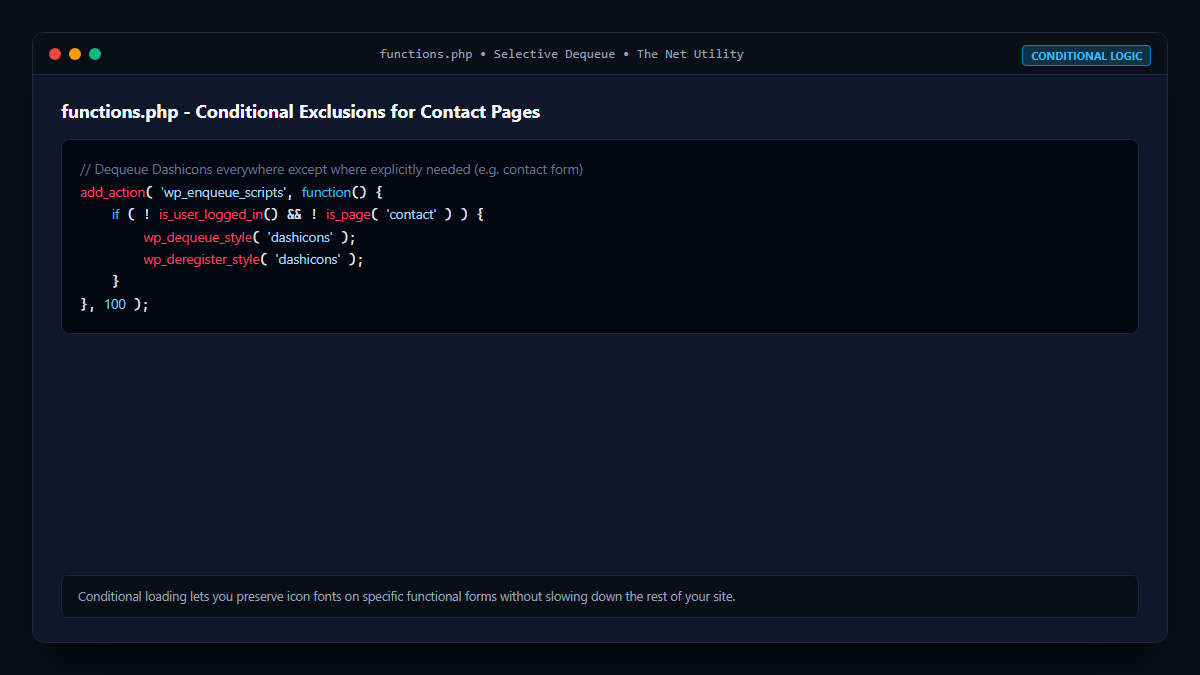
Option B: Selective Conditional Loading
If only a specific page (such as a custom contact page or forum) requires Dashicons, you can conditionally allow Dashicons on that URL while dequeuing it everywhere else:
/**
 * Dequeue Dashicons everywhere except on the contact page.
 */
function netutility_selective_dashicons_dequeue() {
    if ( ! is_user_logged_in() && ! is_page( 'contact' ) ) {
        wp_dequeue_style( 'dashicons' );
        wp_deregister_style( 'dashicons' );
    }
}
add_action( 'wp_enqueue_scripts', 'netutility_selective_dashicons_dequeue', 100 );
Performance Impact Comparison
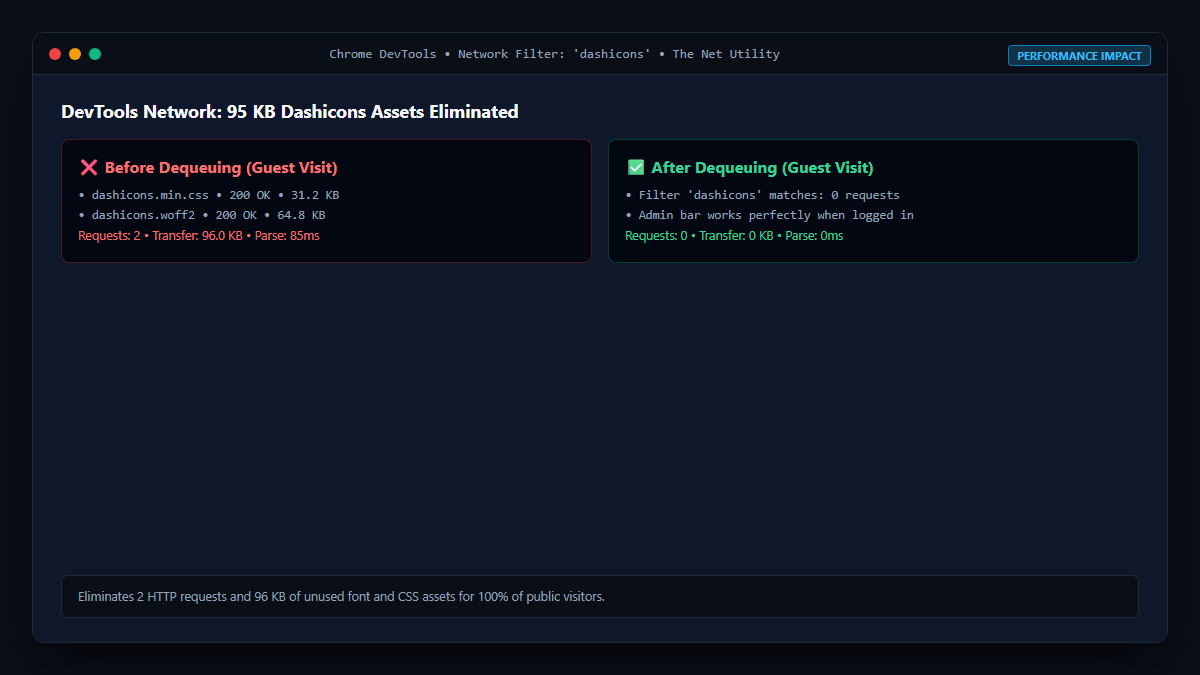
| Metric | With Dashicons Loaded | Dashicons Dequeued | Improvement |
|---|---|---|---|
| HTTP Requests | +2 requests (CSS + WOFF2) | 0 extra requests | 2 fewer network calls |
| Transfer Size | ~35–45 KB (compressed) | 0 KB | 100% reduction for icon assets |
| Render-Blocking Time | 50–120ms (depending on network) | 0ms | Eliminates CSS parse block |
| Admin Dashboard Impact | Normal | Normal | Zero side-effects for admins |
Verification in Chrome DevTools Network Tab
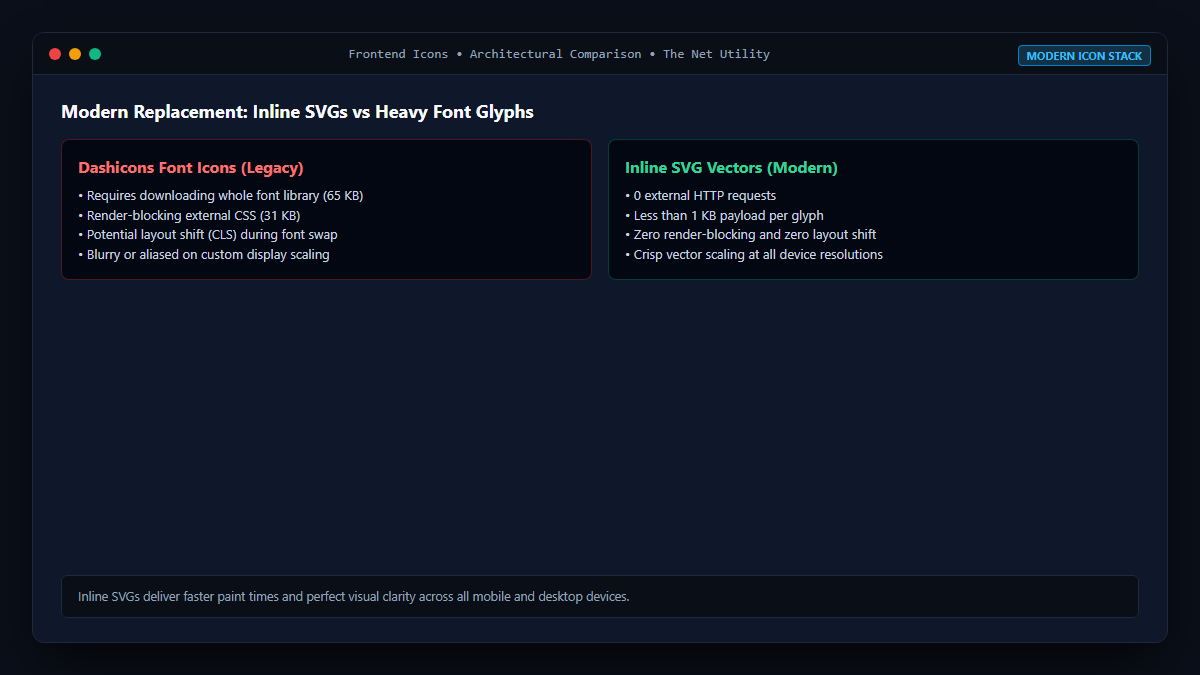
To confirm that Dashicons has been dequeued successfully:
- Open an Incognito window in Google Chrome to simulate a logged-out guest.
- Navigate to your WordPress homepage or blog post.
- Open DevTools (
F12) and click the Network tab. - Type
dashiconsin the search/filter box. - Reload the page (
Ctrl + R). - Confirm that
dashicons.min.cssdoes not appear in the requests list. - Now, log into your WordPress site in a standard tab and inspect the same page; confirm that
dashicons.min.cssloads properly to power the admin bar.
