
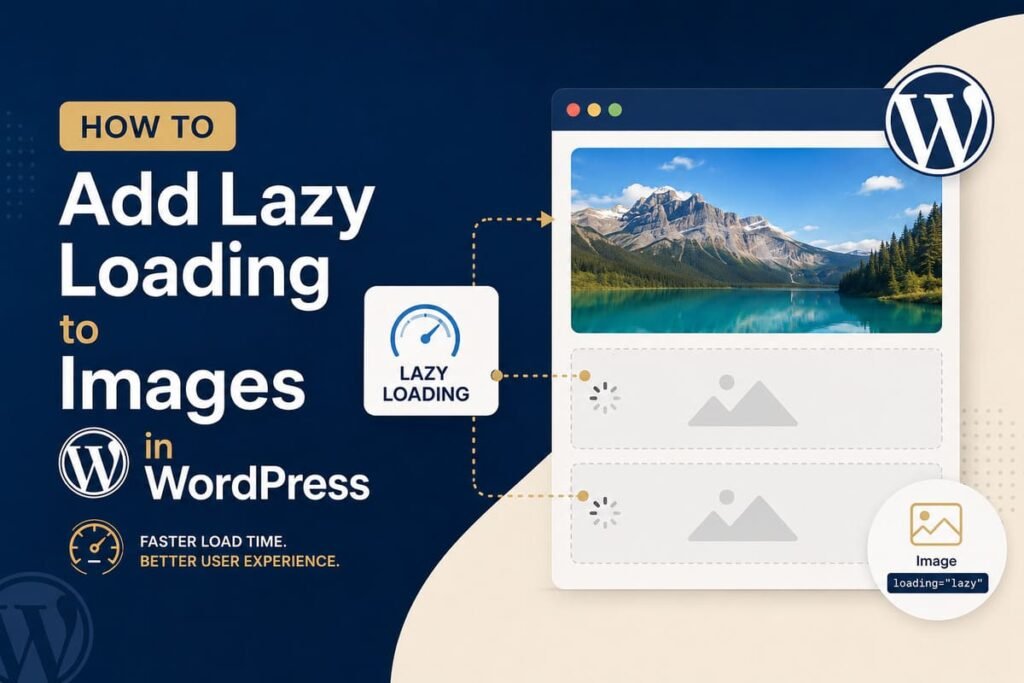
Lazy loading makes images load only when the reader scrolls to them, which speeds up your page. The good news is that WordPress already does this for you automatically since version 5.5. For more control, you can use a free plugin or add the lazy loading code yourself. Both easy methods are below.
Images are usually the heaviest part of a page, so loading them only when needed is a simple speed win. Most WordPress sites already have lazy loading on, but it helps to understand it and to avoid one common mistake.
What Is Lazy Loading?
Lazy loading means an image waits to load until the reader scrolls near it, instead of every image loading at once when the page opens. So the top of your page appears fast, and the lower images load only as they are needed. The reader barely notices, but your page feels much quicker.
Why Lazy Load Your Images?
- Your page appears faster, because fewer images load at the start.
- It saves data for visitors who never scroll all the way down.
- It can improve your Core Web Vitals, which are Google’s speed scores.
Method 1: Use WordPress Built-In Lazy Loading
Since WordPress 5.5, lazy loading is built in and turned on by default. WordPress adds the right code to your images for you, with no plugin and no effort. For most sites, you already have it.
To check it is on, open your live page, right click an image, and choose Inspect. If you see loading=”lazy” on the image, it is working. If a plugin or theme has turned it off, the next method gives you control.
Method 2: Use a Lazy Load Plugin
If you want lazy loading for more than just images, a free plugin helps. The built-in feature covers images and embedded videos, but a plugin can also lazy load background images and give you finer settings. This is handy for image heavy or media rich sites. Install a lazy load plugin, turn it on, and adjust the options to fit your site.
Bonus: Add Lazy Loading by Hand
If you build pages by hand, or your theme uses custom image code, you can add lazy loading yourself. Just add loading=”lazy” to your image tag, like this:
<img src="photo.jpg" alt="A short description" loading="lazy">That one small attribute, which is a short instruction added to an HTML tag, tells the browser to wait until the reader scrolls near the image before loading it.
One Important Tip: Do Not Lazy Load Your First Image
There is one image you should not lazy load: the first big image at the top of your page, often called the above the fold image. This is usually your Largest Contentful Paint, a Core Web Vitals score for how fast your biggest visible item appears. If you delay it, that score gets worse. Newer WordPress versions already skip lazy loading the first image for this reason, so let them. When adding lazy loading by hand, leave your top image out of it.
How to Check It Is Working
- Right click an image and choose Inspect, then look for loading=”lazy”.
- Run your page through Google PageSpeed Insights and watch your load time.
- Scroll slowly on a fresh page load and notice images appearing just as you reach them.
Common Mistakes to Avoid
- Lazy loading your top, above the fold image and hurting your LCP score.
- Adding a plugin when the built-in feature already does the job.
- Lazy loading tiny images, which gives no real benefit.
- Turning off WordPress’s built-in lazy loading by accident.
- Forgetting to test that it actually works.
Frequently Asked Questions
Does WordPress lazy load images by default?
Yes. Since version 5.5, WordPress adds lazy loading to your images automatically, with no plugin needed.
Do I need a plugin for lazy loading?
No. The built-in feature handles images and videos. A plugin only helps if you want extra control over other elements.
Does lazy loading speed up my site?
Yes. It loads fewer images at first, so your page appears faster and uses less data.
Should I lazy load every image?
No. Skip your first, above the fold image, since lazy loading it can hurt your Core Web Vitals.
How do I add lazy loading by hand?
Add loading=”lazy” to your image tag in the HTML, and leave your top image out of it.
Final Words
Lazy loading is one of the easiest speed wins in WordPress, and the best part is that it is mostly automatic. Let the built-in feature do its job, reach for a plugin only if you need extra control, and add the code by hand for custom images. Just remember to leave your first, above the fold image out, so your Core Web Vitals stay strong.
Lighter, faster images make a real difference. To keep improving, read my guides on converting images to WebP and improving Core Web Vitals.
