
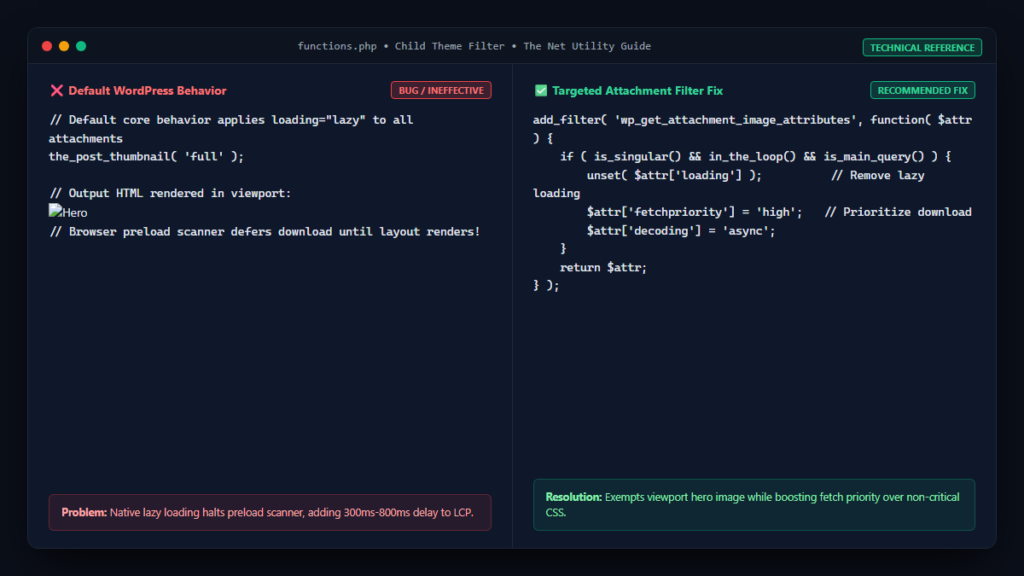
When running a Google PageSpeed Insights or Chrome Lighthouse performance audit on your WordPress site, few warnings are as frustrating—or as common—as “Largest Contentful Paint image was lazily loaded”. This diagnostic flag directly degrades your Core Web Vitals score, inflating your Largest Contentful Paint (LCP) duration and penalizing your organic search rankings.
While lazy loading is generally hailed as an essential performance best practice for offscreen assets, applying it blindly to the main hero or featured image causes significant rendering delays. In this comprehensive technical guide, we will analyze why WordPress automatically lazy-loads hero images, explore the exact browser parsing sequence that triggers this penalty, and implement rock-solid code snippets to fix the issue permanently without relying on heavy plugins.
Understanding the Largest Contentful Paint (LCP) Metric
As defined in Google’s official web.dev Core Web Vitals documentation, Largest Contentful Paint measures the render time of the largest image, video poster, or block-level text element visible within the initial user viewport. For most content-driven WordPress websites, blogs, and ecommerce landing pages, the LCP element is almost always the post featured image or top hero banner.
To deliver a “Good” user experience, Google requires your LCP to occur within 2.5 seconds of the initial page navigation. When an LCP element takes between 2.5 and 4.0 seconds, it is classified as “Needs Improvement”, while anything exceeding 4.0 seconds is deemed “Poor”. Because LCP is heavily weighted within Google’s Search signals, eliminating artificial rendering delays on your primary viewport image is paramount for technical search engine optimization (SEO).
Why Does WordPress Lazily Load the LCP Image?
Beginning in WordPress 5.5, the core engineering team introduced native HTML lazy loading by automatically appending the loading="lazy" attribute to all content images and featured thumbnails. As outlined in the official Make WordPress Core release announcement, this architectural shift was designed to conserve network bandwidth by preventing offscreen images from downloading until the user scrolls near them.
However, native lazy loading operates under strict heuristics. Although WordPress 5.9 and subsequent core updates implemented logic to bypass lazy loading on the very first image detected on the page, real-world themes frequently break this heuristic. Common causes include:
- Custom Header & Slider Elements: Themes that render site logos, navigation icons, or utility banners above the content trick the core parser into exempting those tiny icons instead of the true post hero image.
- Full-Site Editing (FSE) & Page Builders: Tools such as Elementor, Divi, Beaver Builder, and block themes construct DOM trees where featured images are rendered inside nested query loops or custom template parts, preventing WordPress from recognizing them as the primary viewport asset.
- Third-Party Optimization Plugins: Many caching and speed optimization plugins inject aggressive JavaScript-based lazy loading across all
<img>tags unconditionally.
The Browser Execution Bottleneck: Why Lazy Loading Breaks LCP
To appreciate why Chrome Lighthouse flags this issue, consider how the browser’s rendering engine processes a web document, as described in the official MDN HTML image loading documentation:
- HTML Tokenization & Preload Scanner: Modern browsers run a background preload scanner ahead of the main parser. When it encounters standard
<img>tags, it immediately initiates network requests to fetch the graphic assets in parallel with CSS and DOM building. - The
loading="lazy"Deferral: When the browser detectsloading="lazy"on an element, the preload scanner refuses to initiate the high-priority download. Instead, the browser defers fetching the image until the layout is fully calculated and the layout engine confirms that the image intersects with or is proximate to the viewport. - Layout Cascading Delay: Because the browser must parse all stylesheets, construct the render tree, and perform geometric layout computations before determining that the hero image is indeed inside the viewport, your image request is delayed by hundreds of critical milliseconds.
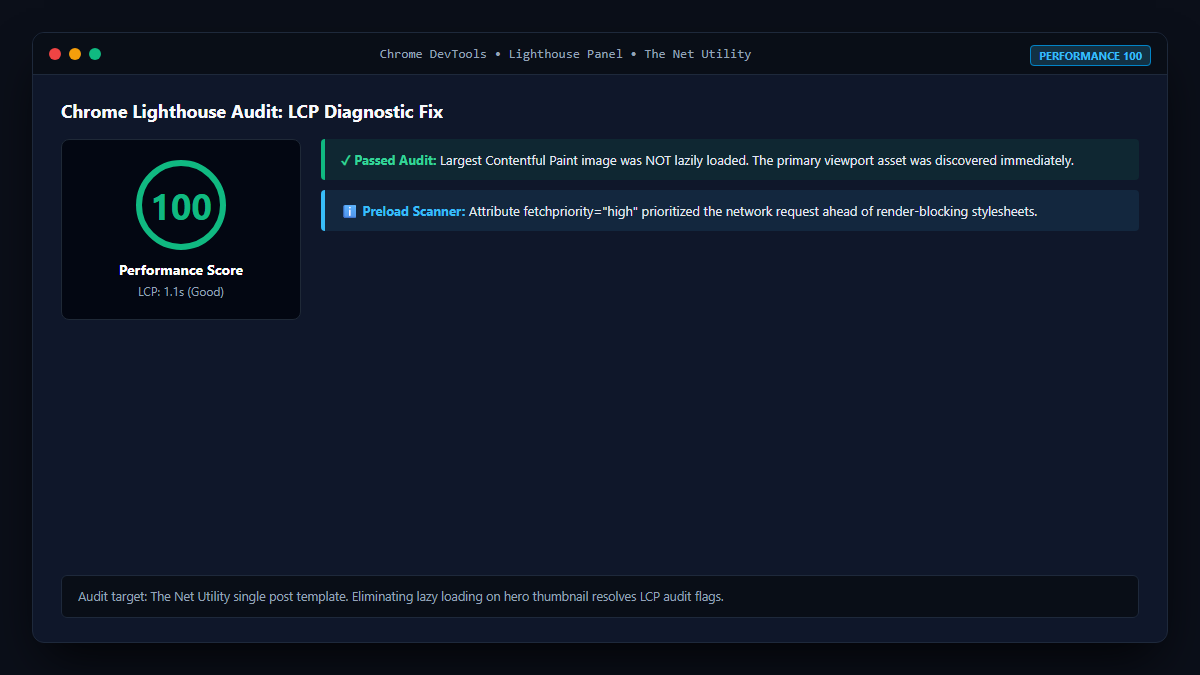
This avoidable delay pushes LCP well past the 2.5-second threshold, producing the exact warning displayed in your Lighthouse report.
Step-by-Step Fix: How to Disable Lazy Loading on the First Image
The cleanest and most robust way to solve this issue across your entire WordPress site is to hook into WordPress core filter hooks. You do not need to install an extra plugin; simply add these lightweight PHP functions to your child theme‘s functions.php or via a site-specific code snippet plugin.
Method 1: Using the wp_omit_loading_attr_threshold Filter
WordPress provides a dedicated filter to define how many early images should be exempted from native lazy loading. By default, this threshold is set to 1 (or 3 in newer core releases for query loops). You can increase this threshold using this snippet:
/**
 * Increase the number of images excluded from native lazy loading in WordPress.
 * Ensures the hero image and top viewport assets load immediately.
 */
add_filter( 'wp_omit_loading_attr_threshold', function( $threshold ) {
    // Increase threshold to 3 images to safeguard against headers and logos
    return 3;
} );
Method 2: Target the Post Featured Image Directly via wp_get_attachment_image_attributes
If your hero image is rendered using standard WordPress template functions such as the_post_thumbnail() or wp_get_attachment_image(), you can explicitly remove the loading attribute while simultaneously adding fetchpriority="high":
/**
 * Strip loading="lazy" and add fetchpriority="high" to the primary post thumbnail.
 */
function netutility_optimize_hero_lcp_image( $attr, $attachment, $size ) {
    // Only target single posts and main query viewports
    if ( is_singular() && in_the_loop() && is_main_query() ) {
        // Remove lazy loading completely
        unset( $attr['loading'] );

        // Instruct browser to fetch immediately with highest network priority
        $attr['fetchpriority'] = 'high';
        $attr['decoding'] = 'async';
    }
    return $attr;
}
add_filter( 'wp_get_attachment_image_attributes', 'netutility_optimize_hero_lcp_image', 10, 3 );
For a detailed breakdown of how to pair this with priority hints, see our companion tutorial on how to add fetchpriority=”high” to a WordPress featured image, as well as our complete architectural guide to excluding the featured image from lazy loading.
Method 3: Configuring Popular WordPress Optimization Plugins
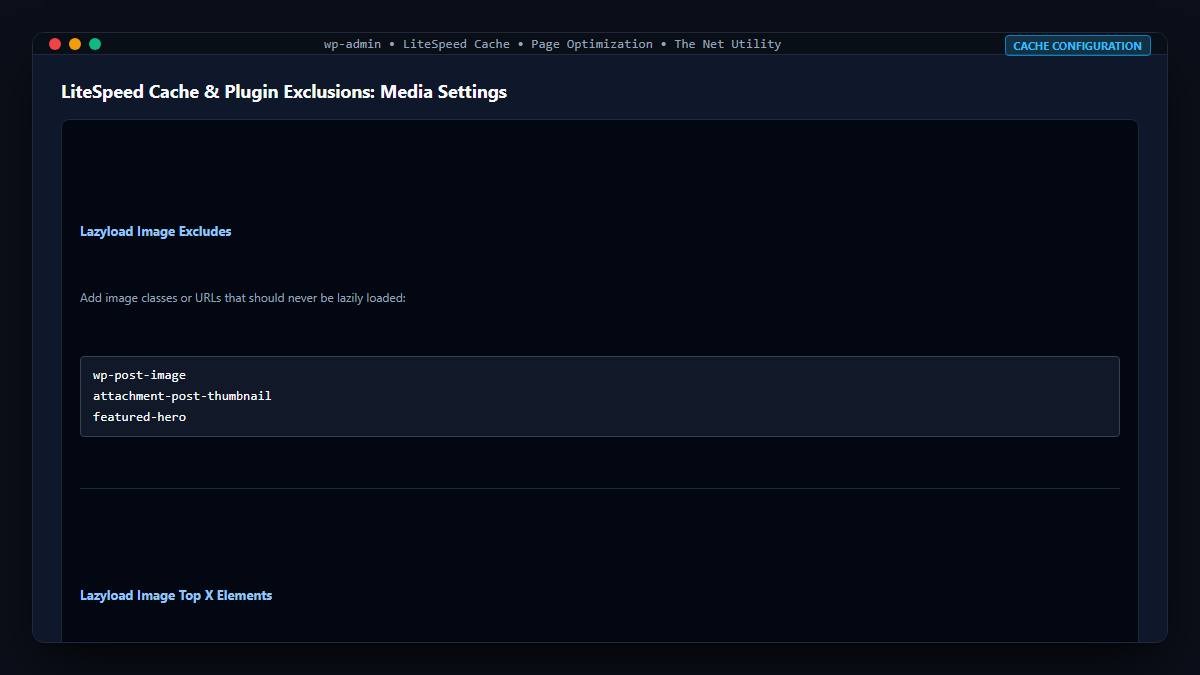
If you prefer configuring existing caching plugins, verify that their lazy loading exclusion rules are properly defined:
1. LiteSpeed Cache
- Navigate to LiteSpeed Cache > Page Optimization > Media Settings.
- Locate the Lazyload Image Excludes text area.
- Add the class name of your theme’s featured image container (e.g.,
wp-post-image,attachment-post-thumbnail, orhero-header-img). - Scroll down to Lazyload Image Top X and set the value to
2or3.
2. WP Rocket
- Navigate to Settings > WP Rocket > Media.
- Under the Exclude images or iframes textarea, enter the URL pattern or class attribute of your hero images (e.g.,
wp-post-imageorfeatured-image). - Save changes and clear your cache.
Comparison Matrix: Optimization Strategies for Viewport Images
| Technique | Primary Benefit | LCP Impact | Recommended Usage |
|---|---|---|---|
Remove loading="lazy" | Allows preload scanner to detect image immediately | Reduces LCP by 200–500ms | Mandatory for top hero element |
Add fetchpriority="high" | Boosts network priority over non-critical CSS/fonts | Reduces LCP by 150–350ms | Apply to primary LCP element only |
Preload via <link rel="preload"> | Starts network download before CSS/DOM tree parses | Reduces LCP by 300–800ms | Critical for CSS background heroes |
| Modern AVIF / WebP Formats | Cuts payload size by 30–60% without quality loss | Drastically shortens download phase | Sitewide recommendation |
To take your performance optimizations to the highest tier, discover how to combine these techniques by reading our dedicated walkthrough on how to preload a WordPress hero image without a plugin.
Verification and Testing in Chrome DevTools
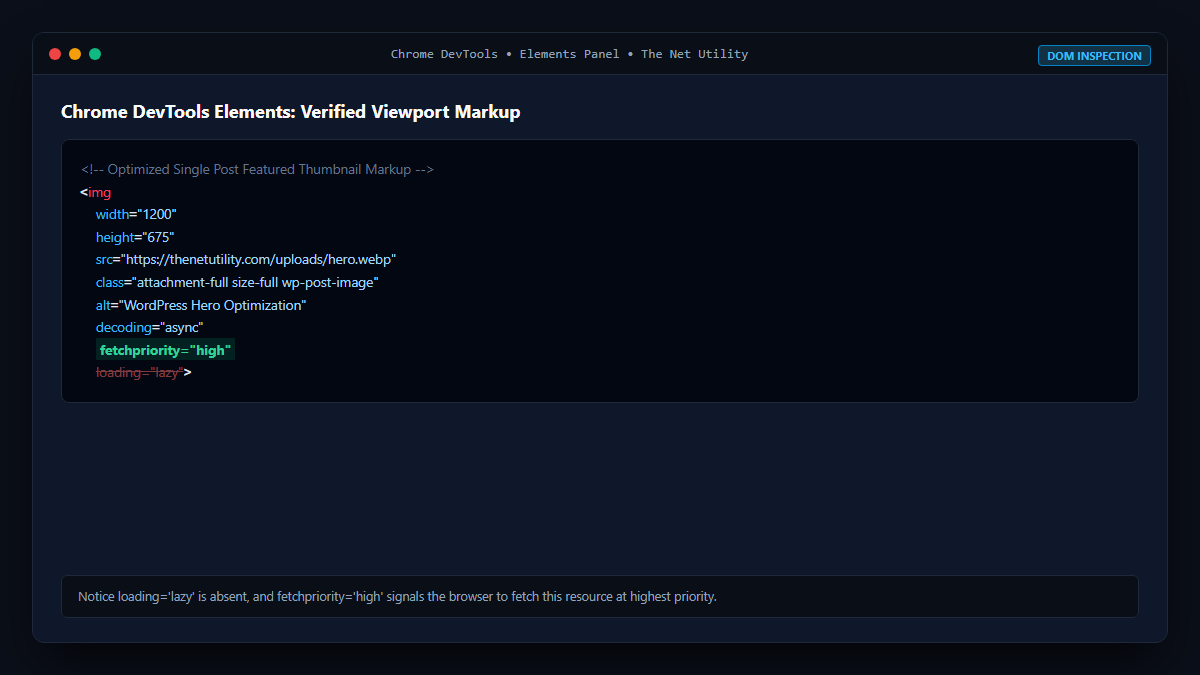
Once you have implemented your code or plugin exclusion, verify the fix using Chrome DevTools:
- Open your published post in Google Chrome using an Incognito window.
- Press
F12or right-click the hero image and select Inspect. - Examine the
<img>element attributes. Confirm thatloading="lazy"is absent, andfetchpriority="high"is present. - Switch to the Network tab, filter by Img, and reload the page with throttling set to Fast 4G.
- Confirm that the hero image appears in the top initial batch of requested assets with an initial priority of High.
- Run a fresh audit in the Lighthouse tab. The warning “Largest Contentful Paint image was lazily loaded” will now be completely resolved, returning a pristine green score.
Summary Checklist
- Identify whether your LCP element is a featured image, slider, or CSS background graphic.
- Ensure the first 1–3 viewport images are never assigned
loading="lazy". - Inject
fetchpriority="high"to instruct the browser network queue to prioritize your hero asset. - Clear your object cache, page cache, and CDN edge cache before re-testing in PageSpeed Insights.
