
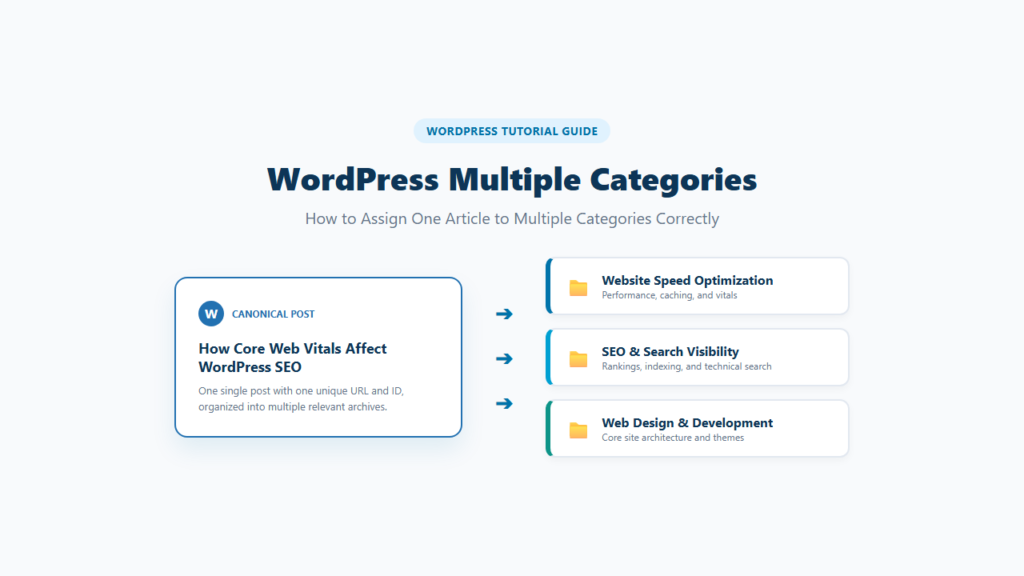
Yes. WordPress lets you assign one post to more than one category.
Open the post, find Categories in the Post settings, and select each category that genuinely fits the article. The post can then appear in every selected category archive.
The important question is not only whether WordPress allows multiple categories. You also need to decide whether each extra category helps readers understand where the post belongs. Adding categories only for more exposure can make your site structure harder to follow.
Quick Answer: Can One WordPress Post Have Multiple Categories?
Yes. WordPress supports assigning a post to one or more categories.
To add several categories:
- Open the post.
- Open the Post settings sidebar.
- Find Categories.
- Select each relevant category.
- Click Publish or Update.
WordPress does not require every post to use only one category.
For many sites, one category is enough. Some posts genuinely belong in two or more established content groups.
Use the smallest number of categories that accurately describes where the post belongs.
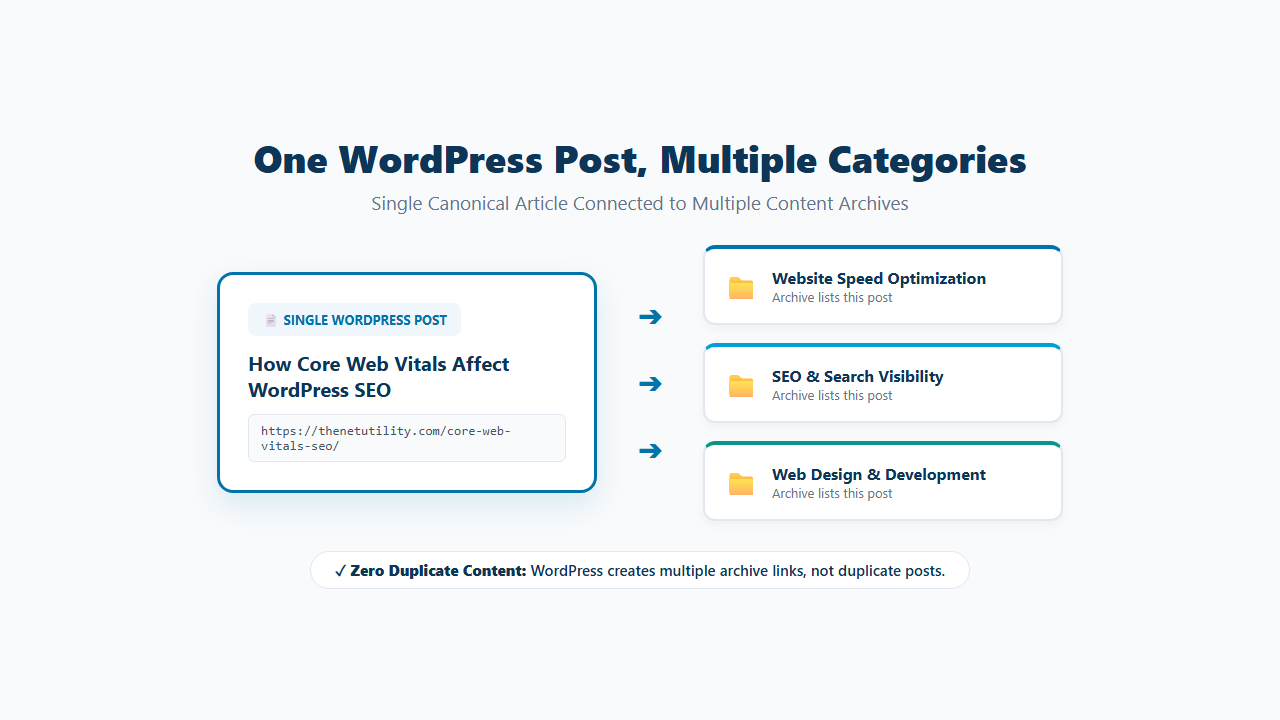
How to Assign Multiple Categories to One WordPress Post
The process is the same whether you are writing a new post or editing an existing one.
Step 1: Open the Post
Go to:
Posts → All Posts
Open the post you want to edit.
For a new article, go to:
Posts → Add New
Step 2: Open the Post Settings
Make sure the right settings sidebar is visible.
Select the Post tab rather than the Block settings.
Step 3: Find Categories
Open the Categories section.
WordPress shows the available categories as selectable options.
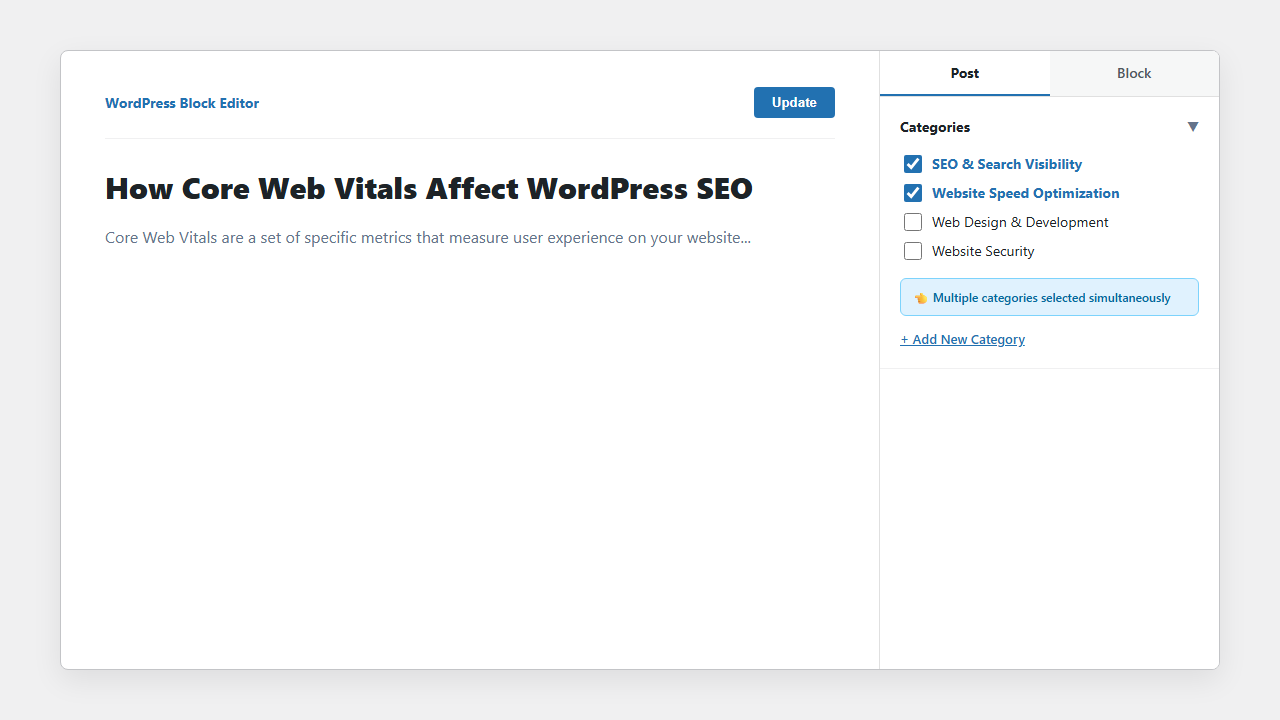
Step 4: Select More Than One Category
Choose every category that genuinely matches the article.
For example, a post called How Core Web Vitals Affect WordPress SEO could reasonably fit:
Website Speed Optimization
SEO & Search Visibility
Both categories represent a substantial part of that topic.
Step 5: Publish or Update the Post
Click Publish for a new post or Update for an existing one.
The post can now appear in the archive for each selected category.
How to Add a New Category While Editing a Post
You can also create a category while working on a post.
Open the Categories panel and choose the option to add a new category.
Then:
- Enter the category name.
- Choose a parent category if needed.
- Add the category.
- Select it for the current post.
- Save or update the post.
Do not create a new category simply because one article uses a slightly different phrase.
For example, these categories would probably create unnecessary overlap:
WordPress Tips
WordPress Guides
WordPress Tutorials
WordPress Help
A smaller and clearer category structure is easier for readers to understand.
What Happens When a Post Has Multiple Categories?
The post remains one post.
WordPress does not create a separate copy for every category.
If a post belongs to:
SEO & Search Visibility
Website Speed Optimization
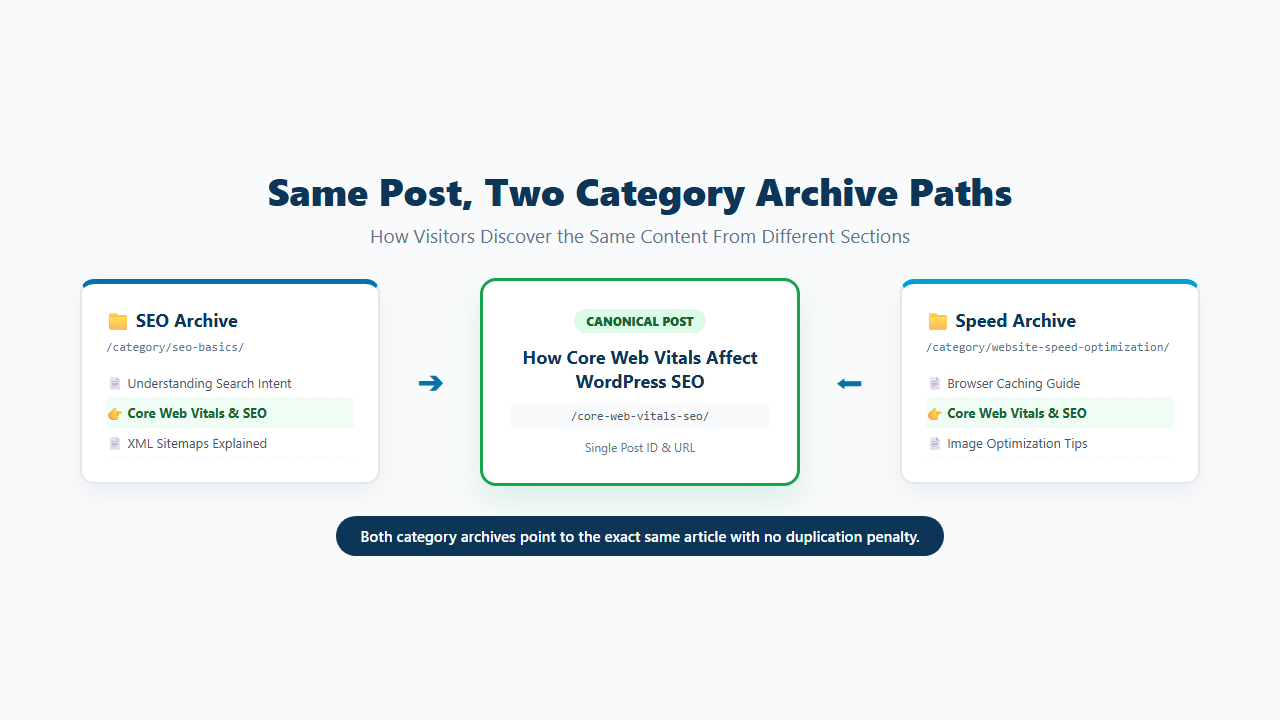
the same article may appear in both category archive pages.
For example:
/category/seo-basics/
/category/website-speed-optimization/
Both archives can link to the same post URL.
Depending on your theme, the selected categories may also appear as clickable category links on the post itself.
Does Assigning Multiple Categories Create Duplicate Posts?
No.
Assigning one WordPress post to several categories does not create several separate posts.
You still have one article with one post ID and one normal post URL.
The category archive pages can each list that article, but the article itself remains the same.
The bigger site-structure problem comes from creating many categories that contain almost the same group of posts.
For example:
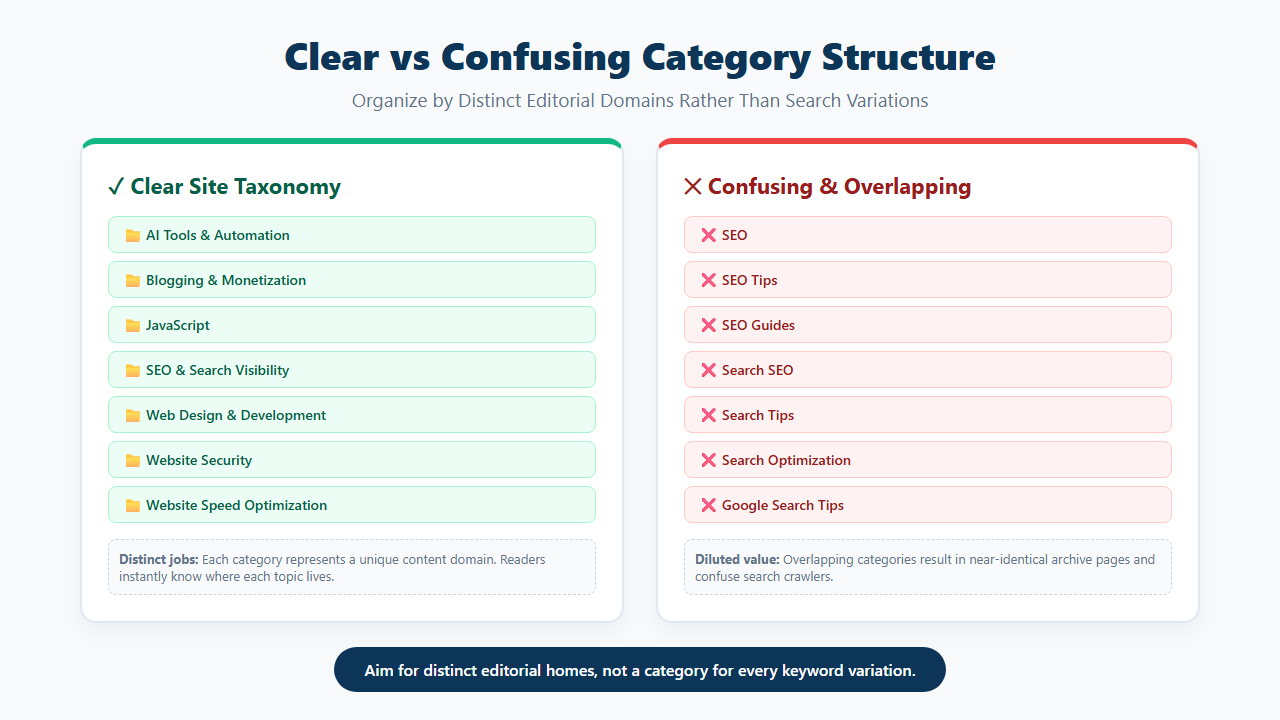
SEO
SEO Tips
SEO Guides
Search SEO
If all four archives show nearly identical articles, the category system becomes harder to understand.
The better goal is clear topic organization, not adding as many categories as possible.
Should You Assign a Post to More Than One Category?
Yes, when the article genuinely belongs in more than one established content group.
Ask this before selecting another category:
Would someone browsing this category reasonably expect to find this exact article?
If the answer is yes, a second category may help.
If the connection exists only because one paragraph briefly mentions the subject, keep the post in its main category.
When Multiple Categories Make Sense
Multiple categories can work well when an article connects two important topics.
The Article Covers Two Real Site Topics
Example: How Core Web Vitals Affect WordPress SEO
Possible categories:
Website Speed Optimization
SEO & Search Visibility
The article is genuinely about both speed and SEO.
Readers May Browse Either Category for the Article
An article can belong in two categories when both archives provide a logical route to the content.
The category should reflect reader expectations, not only keywords used in the article.
The Topics Are Different but Closely Connected
A detailed article may cross two established areas without becoming vague.
That is different from placing one article into several loosely related categories.
When You Should Use Only One Category
One category is usually better when one topic clearly dominates the article.
For example: How to Update a WordPress Theme Without Losing Changes belongs naturally in Web Design & Development.
The article discusses backups, but that does not automatically make Website Security an equally strong category.
Do not add another category simply because:
- One section mentions the topic.
- The category receives more traffic.
- You want more internal archive links.
- The keyword appears in the post.
- You want the article visible in more places.
Choose categories for organization first.
Should One Category Be the Post’s Main Editorial Home?
Yes, even when you assign more than one category, it helps to know which category best represents the article.
Think of it this way:
If you could choose only one category, where would this post belong?
For How to Update a WordPress Theme Without Losing Changes, the answer is Web Design & Development. That is the article’s main editorial home.
This is an editorial decision rather than a special WordPress feature.
Does WordPress Have a Primary Category?
WordPress core does not provide a standard Primary Category setting in the normal post category controls.
You can select several categories, but core WordPress does not ask you to mark one of them as primary.
Some SEO plugins add their own Primary Category feature.
If you see a Primary option inside an SEO plugin, that setting comes from the plugin rather than the normal WordPress category system.
What Happens to the Post URL With Multiple Categories?
The answer depends on your permalink structure.
If your posts use:
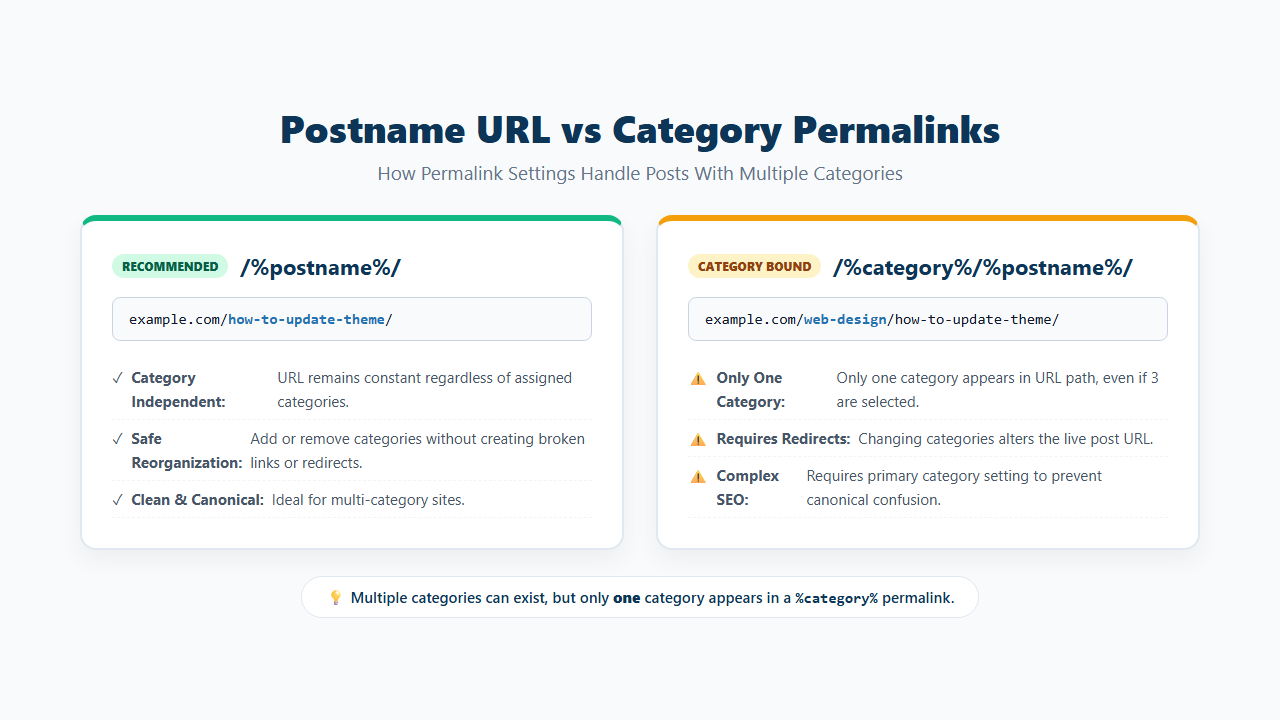
/%postname%/adding another category does not normally change the post URL.
Example:
example.com/how-to-update-wordpress-theme/The post can belong to several categories while keeping that same URL.
When the Permalink Uses %category%
A custom permalink can use:
/%category%/%postname%/Example:
example.com/wordpress/how-to-update-theme/Only one category can appear in that URL even when the post has several categories.
WordPress core can choose one of the assigned categories for the %category% portion of the permalink, and plugins or custom code can alter that selection.
Because category-based URLs can become more complicated when categories change, check your permalink structure before reorganizing existing posts.
Should You Use %category% in WordPress Post URLs?
You can, but category-based post URLs make taxonomy changes more important.
A structure like /%category%/%postname%/ ties the visible post URL to a category.
A simpler structure such as /%postname%/ keeps the category separate from the post permalink.
If your existing website already uses category-based URLs, do not change the permalink structure casually. URL changes can require redirects and a wider migration plan.
This article is about assigning categories, not rebuilding an existing permalink system.
Can a Post Use Parent and Child Categories?
Yes.
WordPress categories support hierarchy.
For example:
Web Development
└── WordPress
You can organize categories so a broad topic contains a more specific subcategory.
A post can be assigned according to the categories you select in the editor.
The presence of a parent and child category does not mean you must automatically select both.
Should You Select Both a Parent and Child Category?
Not automatically.
Suppose your structure is:
Tutorials
└── WordPress
A WordPress tutorial may only need the more specific WordPress category, depending on how your archives and navigation work.
Another site may intentionally assign posts to both parent and child archives.
Use both only when that structure helps readers.
Do not select every parent category simply because the post uses a child category.
Why WordPress Adds a Category When You Did Not Choose One
WordPress has a Default Post Category.
If a post does not have another category assigned, WordPress uses the configured default.
You can check it under:
Settings → Writing → Default Post Category
Many older WordPress sites still use Uncategorized as the default.
If that category does not suit your site, choose a more useful default from the Writing settings.
How to Remove a Category From a WordPress Post
Open the post and return to the Categories panel.
Then:
- Find the category you want to remove.
- Clear its selection.
- Confirm the remaining category choices.
- Click Update.
Check the frontend afterward if your theme displays category labels or category-based breadcrumbs.
If your permalink uses %category%, also check whether the post URL or preferred category path has changed.
How to Add a Category to Several Posts at Once
You do not need to open every post individually.
Go to:
Posts → All Posts
Then:
- Select the posts you want to edit.
- Open Bulk actions.
- Choose Edit.
- Click Apply.
- Select the category you want to add.
- Update the posts.
Bulk Edit is useful for adding an existing category to several posts.
Be careful when reorganizing an old site. Make a list of the posts you are changing so you can review the category archives afterward.
Multiple Categories vs Multiple Tags
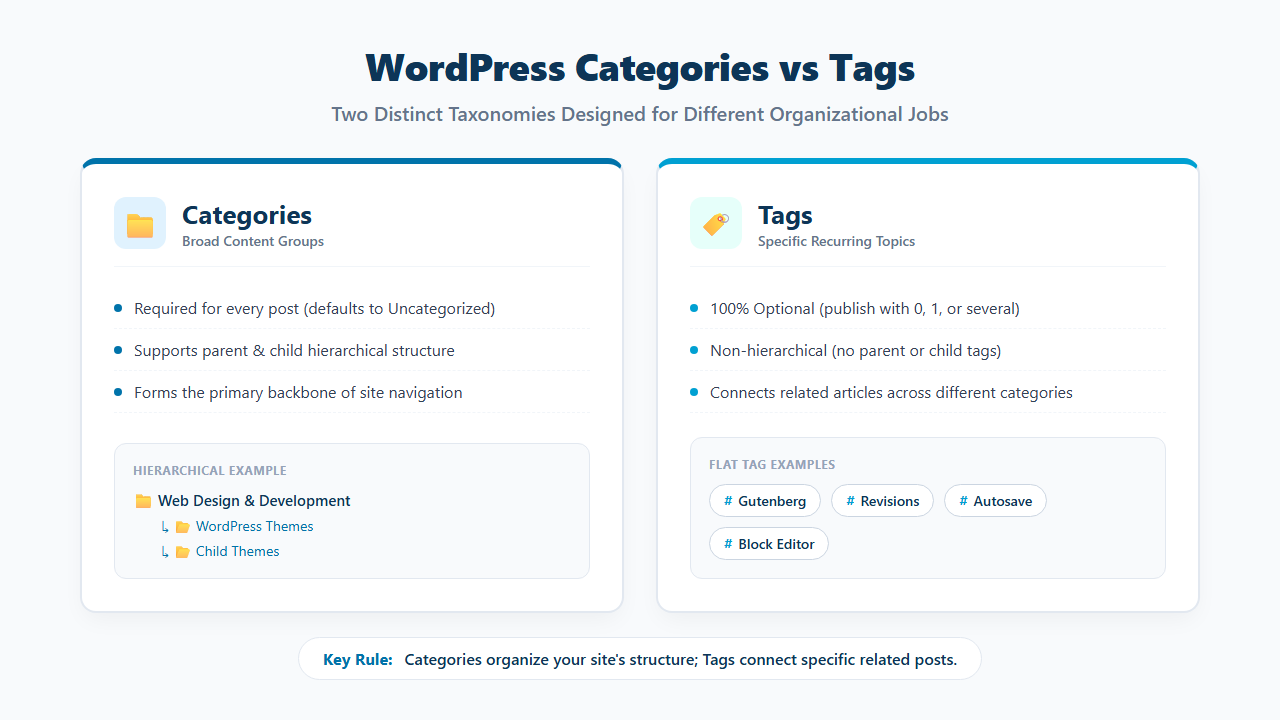
Categories and tags both help organize WordPress posts, but they have different jobs.
| Feature | Categories | Tags |
|---|---|---|
| Broad site organization | Yes | Usually more specific |
| Hierarchy | Yes | No |
| One post can use multiple | Yes | Yes |
| Archive pages | Yes | Yes |
| Best use | Major content groups | Specific subjects or details |
Example:
Category:
WordPress

Tags:
Block Editor
Revisions
Gutenberg
Do not turn every keyword into either a category or a tag.
For the next tutorial, see Can You Assign Multiple Tags to a WordPress Post?.
How Many Categories Should One Post Use?
There is no universal number. WordPress allows one or more categories.
Use the smallest number that accurately describes the article. For many sites, that will be one category. Some articles genuinely fit two or more.
The category count should come from your site structure rather than a fixed SEO rule.
A useful test is:
- Does the article clearly belong there?
- Would a reader expect to find it in that archive?
- Does the category represent a major part of the article?
- Is the category different from the other selected categories?
If the answer is no, leave it out.
How Multiple Categories Affect Your Site Structure
Every selected category can become another browsing path to the article.
That is useful when each category:
- Has a clear topic.
- Contains related posts.
- Helps readers discover more content.
- Has a distinct purpose.
- Fits your navigation structure.
It becomes less useful when most categories show the same posts.
For example, this is hard to understand:
SEO
SEO Tips
SEO Guides
Search Tips
Search Optimization
A clearer structure is:
SEO & Search Visibility
Web Design & Development
Website Security
Website Speed Optimization
Each category has a separate editorial job.
A Clear Category Structure Example
For The Net Utility, a clean category structure can look like:
AI Tools & Automation
Blogging & Monetization
JavaScript
SEO & Search Visibility
Web Design & Development
Website Security
Website Speed Optimization
Then individual articles can have a clear home.
How to Update a WordPress Theme Without Losing Changes
Web Design & DevelopmentHow to Change User Roles and Permissions in WordPress
Website SecurityHow Core Web Vitals Affect WordPress SEO could reasonably fit:
Website Speed Optimization
SEO & Search Visibility
because both topics are central to the article.
The goal is not to force every post into only one category. The goal is to make every category choice useful.
Common WordPress Category Mistakes to Avoid
Adding Every Related Category
A brief mention does not make the article part of that category.
Creating a Category for One Slightly Different Phrase
Do not create WordPress Guides, WordPress Tips, and WordPress Help unless each has a genuinely different job.
Using Categories Like Tags
Categories should represent broader content groups.
Adding Categories Only for More Exposure
Archive visibility is not a good reason to weaken site structure.
Keeping Uncategorized Forever
Choose a useful default category when Uncategorized no longer fits the site.
Changing Categories Without Checking Permalinks
This matters when %category% is part of the post URL.
Selecting Every Parent Category
Use parent and child categories intentionally.
Putting Most Posts in Most Categories
If every archive contains almost the same posts, the category structure is doing very little for readers.
Category Checklist Before Publishing
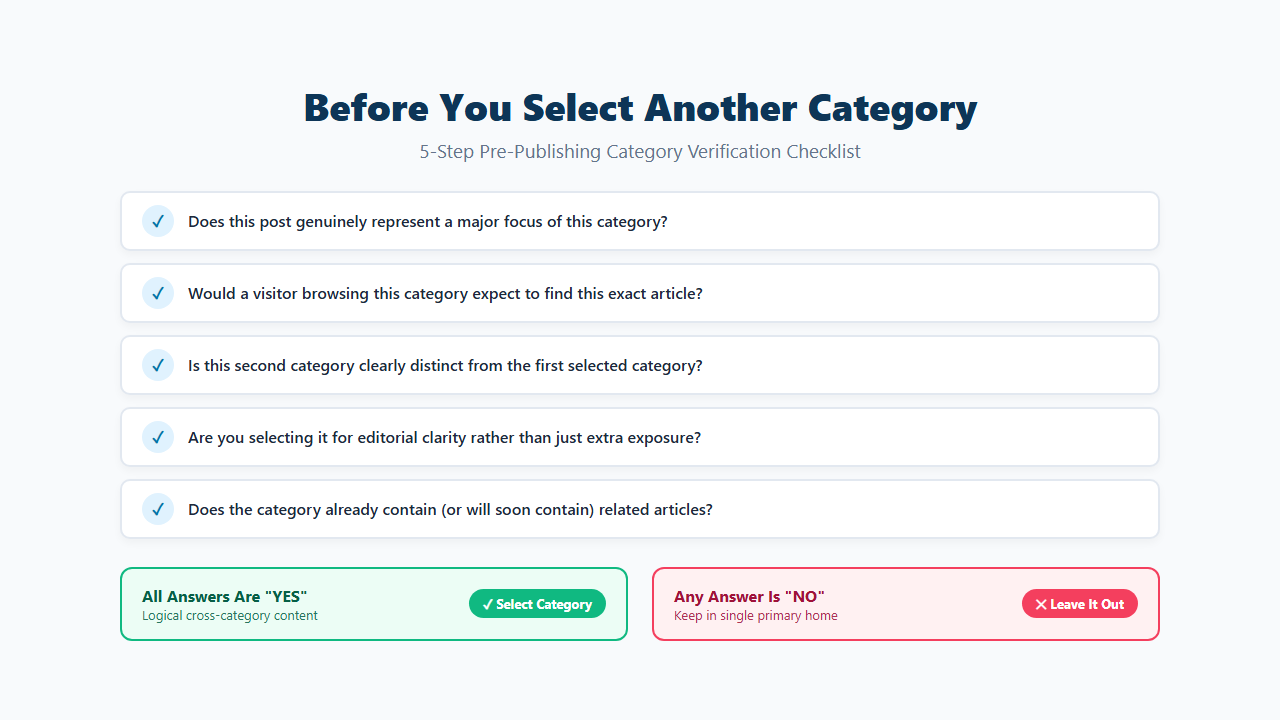
Before you publish, ask:
- Does this post clearly belong in this category?
- Would a reader browsing the category expect this article?
- Is the second category genuinely different?
- Am I selecting it only for more exposure?
- Does the category already contain related posts?
- Is it too similar to another category?
- Is
%category%part of my permalink structure? - Would one more specific category be clearer?
- Does this post really need more than one category?
Frequently Asked Questions
Can one WordPress post have multiple categories?
Yes. WordPress lets you assign a post to one or more categories through the Categories panel in the post editor.
Is it bad to use multiple categories in WordPress?
No. Multiple categories are useful when the post genuinely belongs in each one. Problems appear when categories are irrelevant, heavily overlapping, or added only for extra exposure.
How many categories should I assign to one post?
There is no fixed number. Use the smallest number of categories that accurately represents the article.
Does using multiple categories hurt SEO?
Not automatically. Focus on clear site organization and useful category archives rather than adding categories for SEO alone.
Does WordPress create a separate post for each category?
No. The same post can appear in several category archives without becoming several separate posts.
Does WordPress have a primary category?
Not in the standard WordPress core category controls. Some SEO plugins add their own Primary Category option.
What happens to the URL when a post has several categories?
If your permalink uses only %postname%, the category assignments normally do not change the post URL. If your structure uses %category%, one category is used in the category portion of the permalink.
Can I assign both a parent category and child category?
Yes, but you do not need to select both automatically. Use the category structure that makes sense for your archives and navigation.
What happens if I do not select a category?
WordPress uses the site’s configured Default Post Category, which you can change under Settings → Writing.
Are categories and tags the same?
No. Categories are hierarchical content groups. Tags are non-hierarchical labels used for more specific topics.
Use Multiple Categories Only When They Improve the Site Structure
WordPress lets one post belong to several categories.
That flexibility is useful when an article genuinely connects two established parts of your site.
Do not select another category simply because the article mentions that topic or because you want another archive link. Ask whether someone browsing that category would reasonably expect to find the article.
For many posts, one clear category is enough. Use a second or third only when each category has a real editorial purpose.
