
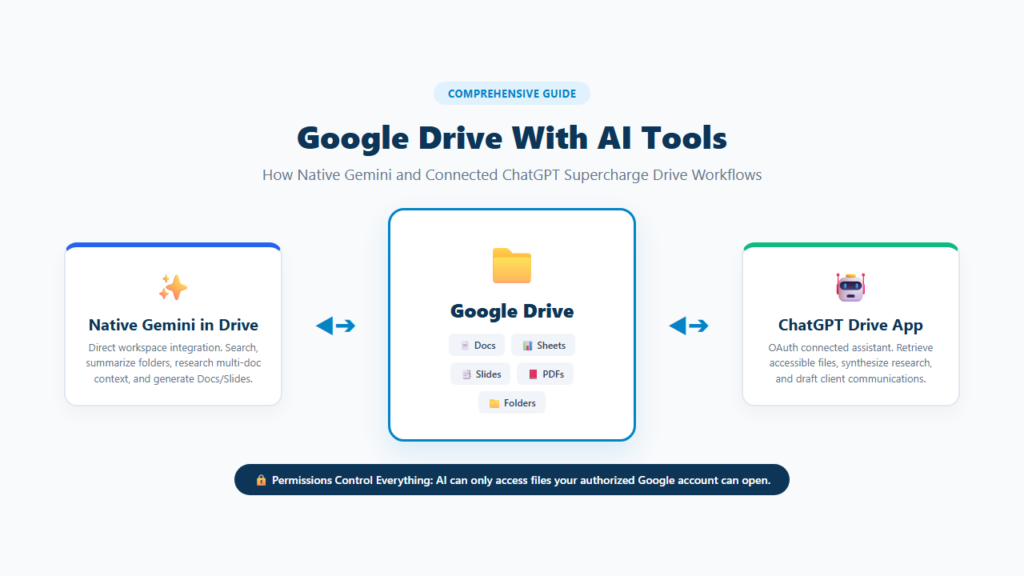
Yes. Google Drive works with AI tools.
Google’s own Gemini is built directly into Drive for eligible Google Workspace and Google AI plans. It can search Drive, summarize files and folders, research across several files, create documents and presentations, generate audio overviews, and help organize files.
ChatGPT can also connect to Google Drive through its Google Drive app when the feature is available for your plan, region, and workspace. After you authorize the connection, ChatGPT can work with Drive files that your connected Google account already has permission to open.
The important point is this: connecting AI to Google Drive does not automatically give the AI unlimited control of your Drive. What it can read, create, update, move, share, or delete depends on the AI tool, permissions you grant, your plan, and administrator settings.
Quick Answer: What Can AI Do With Google Drive?
AI can help with many common Drive tasks.
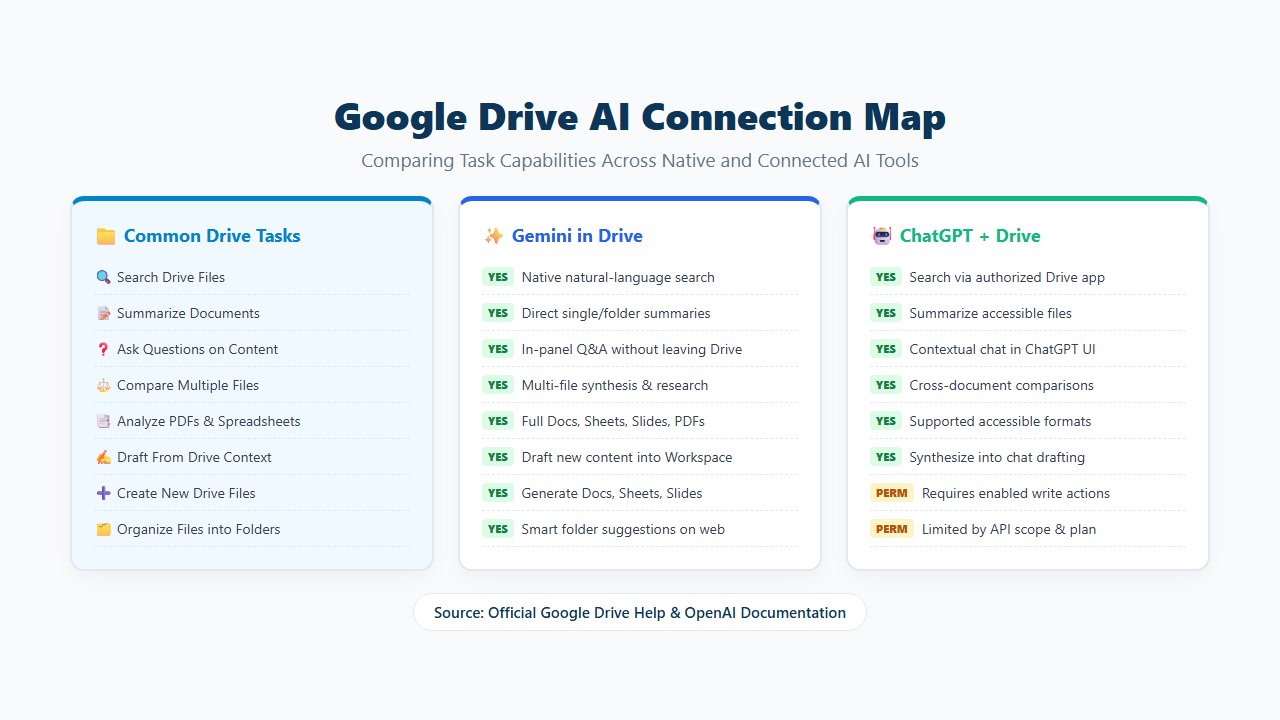
| Task | Gemini in Google Drive | ChatGPT + Google Drive |
|---|---|---|
| Search Drive files | Yes | Yes, when connected |
| Summarize files | Yes | Yes |
| Ask questions about documents | Yes | Yes |
| Compare several files | Yes | Yes |
| Analyze PDFs | Yes | Yes, when supported and accessible |
| Work with Docs, Sheets and Slides | Yes | Yes through the Drive app |
| Draft content from Drive files | Yes | Yes |
| Create new Drive content | Yes in supported workflows | Depends on enabled actions and permissions |
| Organize Drive files | Yes in supported Drive workflows | Depends on available Drive actions |
| Use an admin-managed synced knowledge source | Google-native Workspace experience | Available for eligible managed ChatGPT workspaces |
Google currently says Gemini in Drive can research across multiple files, search and retrieve files, summarize files and folders, create content, generate audio overviews, use Gems, and help organize files.
Source: Google Drive Help — Get started with Gemini in Google Drive
How Does Google Drive Work With AI?
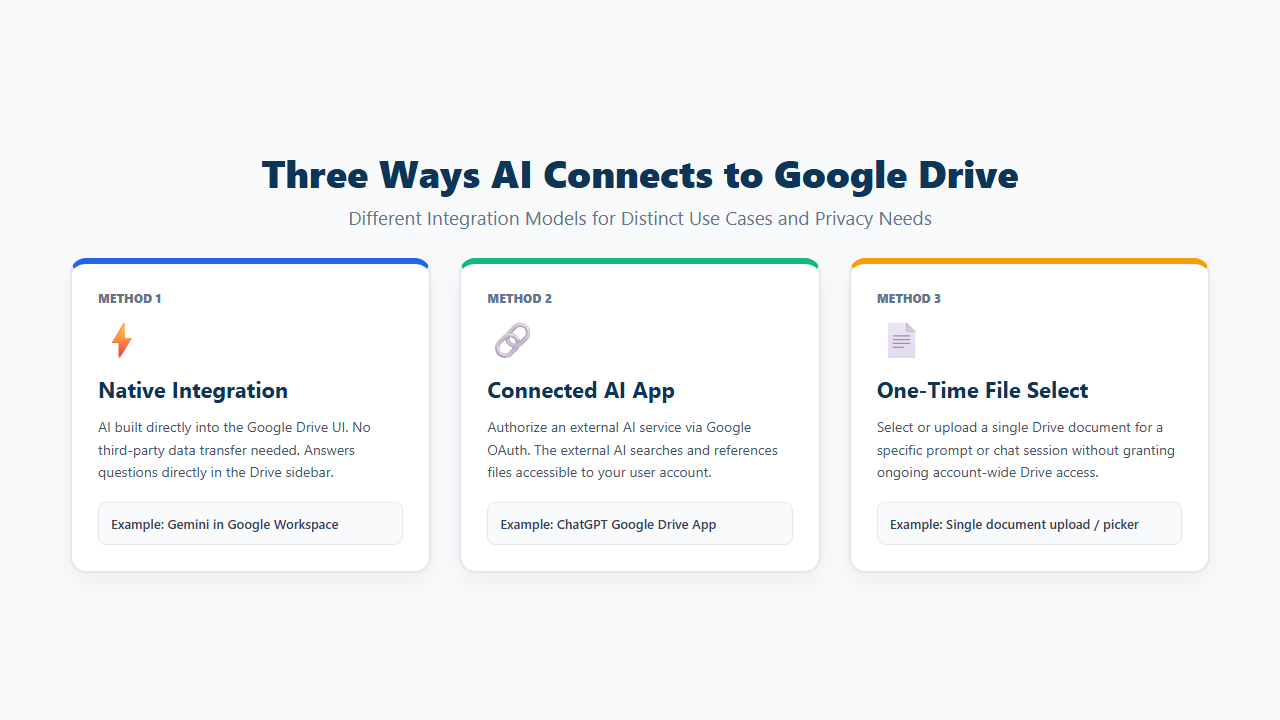
There are three main ways AI can work with Google Drive.
1. AI Built Directly Into Google Drive
Gemini can appear inside the Drive interface itself.
You can ask questions about files, find documents, summarize content, compare information, and create new content without leaving Drive.
This is the most direct Google-native experience.
2. An External AI Tool Connected to Google Drive
ChatGPT can connect to Google Drive through an authorized app connection.
The connection lets ChatGPT use files and folders that the connected Google account already has permission to access.
The exact actions depend on:
- ChatGPT plan
- Google permissions
- Workspace settings
- Administrator controls
- Region
- Supported actions
OpenAI currently documents Google Drive as a connected app that can search files, reference Google Docs, Sheets, and Slides, and use supported actions when allowed.
Source: OpenAI Help — Google Drive app and setup in ChatGPT
3. Uploading or Selecting a Drive File for One Task
Some AI experiences let you select a Drive file for a specific prompt or conversation.
This is different from giving the AI broader ongoing Drive access.
What Can Gemini Do Inside Google Drive?
Gemini is Google’s native AI experience for Drive.
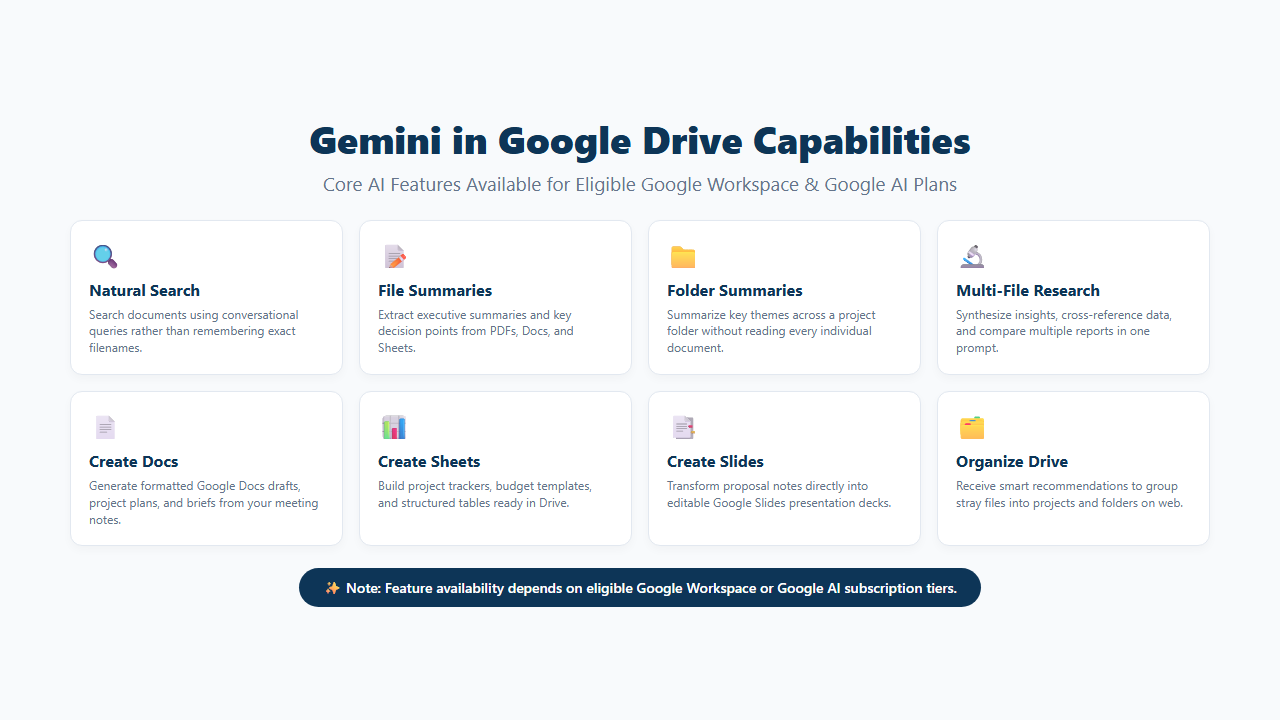
Current Drive features can include:
- Search and file retrieval
- Natural-language questions
- File and folder summaries
- Research across multiple files
- Docs creation
- Slides creation
- Sheets creation
- Image creation
- Audio Overviews
- Drive organization
- Skills and Gems in supported experiences
Availability depends on an eligible Google Workspace or Google AI plan.
Search Drive With Natural Language
Instead of remembering an exact filename, you can ask for the information you need.
Example:
Find the latest website redesign proposal.Another example:
Show me presentations about Q4 marketing.This is useful when your Drive contains many files and folders.
Summarize a File
You can ask Gemini to summarize supported Drive content.
Example:
Summarize this PDF in 10 clear points.Or:
Give me the main decisions from this meeting document.Google currently supports summaries for file types including Google Docs, Sheets, Slides, PDFs, videos, and images in supported Drive experiences.
Summarize a Folder
Gemini can also summarize a selected Drive folder.
Example:
Summarize the main themes in this project folder.Google warns that a folder summary may not necessarily include every file in the folder.
That limitation matters when you need a complete audit.
Source: Google Drive Help — Get updates and summaries on your files with Gemini
Research Across Several Files
Gemini can combine information from several Drive files.
Example:
Compare these three campaign reports and list the common problems.Another example:
Review the project documents and summarize the main risks.This can save time when information is spread across reports, meeting notes, spreadsheets, and presentations.
Create New Google Docs
Gemini in Drive can create a Google Docs document from a prompt.
Example:
Create a 30-day project plan based on these notes.The file can be saved to Drive.
Create Google Slides
Gemini can generate an editable Google Slides presentation in supported Drive workflows.
Example:
Create a presentation from these project notes.Google currently lets users generate presentation plans and then create editable Slides.
Create Google Sheets
Gemini in Drive can also create Sheets in supported accounts.
Example:
Create a project tracker with task, owner, deadline and status columns.Create Audio Overviews
Google currently supports Audio Overviews for several Drive file types in eligible experiences.
Supported examples include:
- Google Docs
- Google Slides
- Microsoft Word files
- Microsoft PowerPoint files
- Plain-text files
- Videos
Google notes that Audio Overview generation has availability and usage limits.
Source: Google Drive Help — Create Content, Images & Audio Overviews with Gemini in Drive
Can Gemini Organize Google Drive Files?
Yes, in supported Drive web experiences.
Gemini can suggest moving loose files into existing folders or creating new folders based on file content and your organization patterns.
Google says:
- The feature works on Drive web.
- Eligible file types include Docs, Sheets, Slides, PDFs, Microsoft Office files, images, videos with transcripts, and shortcuts.
- You need editor access to the files.
- Gemini suggests file moves rather than moving files without permission.
You can also refine the organization with prompts such as:
Group these files by year.or:
Organize these by project.Source: Google Drive Help — Let Gemini organise your files
How Does ChatGPT Work With Google Drive?
ChatGPT can connect to Google Drive through its Google Drive app when the feature is available.
After connecting your Google account, you can ask ChatGPT to find and work with files you already have permission to access.
Examples include:
Find the latest project plan in my Google Drive and summarize the next steps.Compare the two budget spreadsheets I shared last week.Use the launch notes in my Drive to draft a short customer update.Depending on available actions and permissions, ChatGPT can also support changes such as creating, updating, moving, sharing, or deleting Drive content.
OpenAI notes that write actions require the corresponding Google permissions and must be enabled in the workspace.
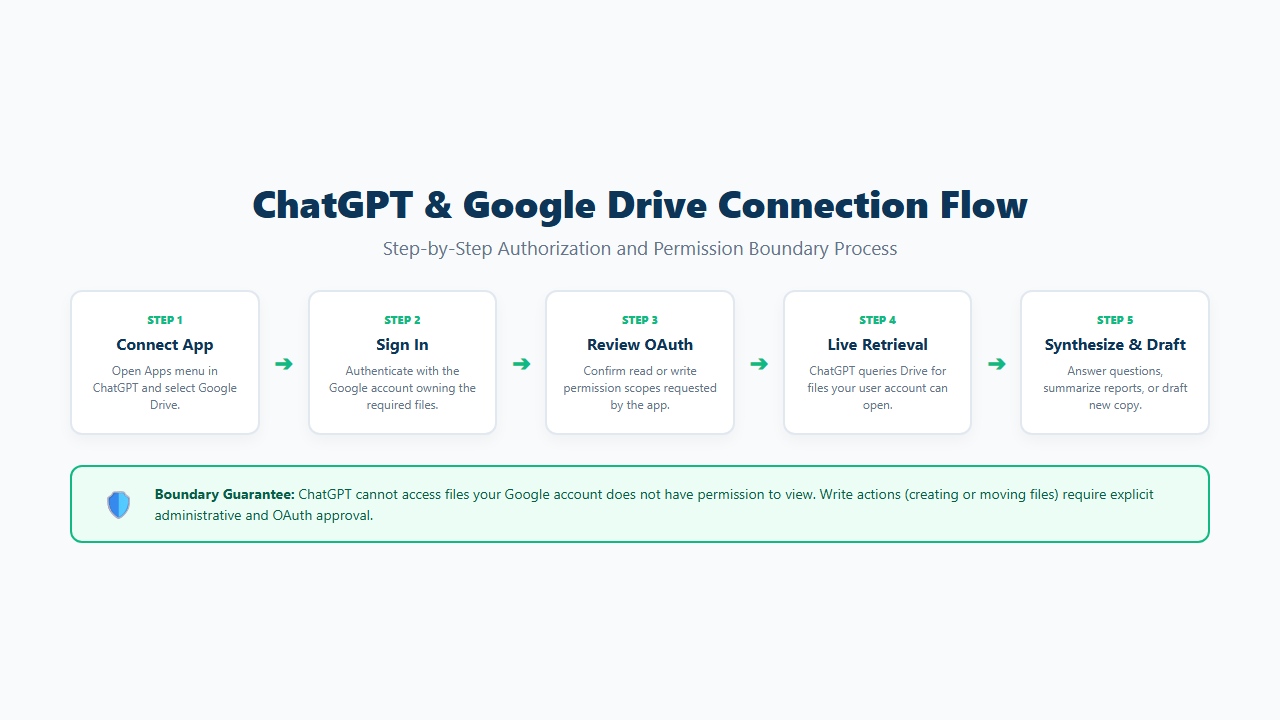
How to Connect Google Drive to ChatGPT
The exact menu name can differ by plan and interface, but the current flow is:
- Open ChatGPT.
- Open Apps or Plugins, depending on your interface.
- Find Google Drive.
- Choose Connect.
- Sign in to the Google account that has the files you need.
- Review the Google permissions requested.
- Complete the authorization.
- Return to ChatGPT.
- Ask ChatGPT to find or use a Drive file.
If you use more than one Google account, connect the account that actually has access to the required files.
In a managed workspace, your ChatGPT administrator or Google Workspace administrator may need to enable or approve the connection.
Source: OpenAI Help — Google Drive app and setup in ChatGPT
Live Google Drive Access vs Synced Drive Access in ChatGPT
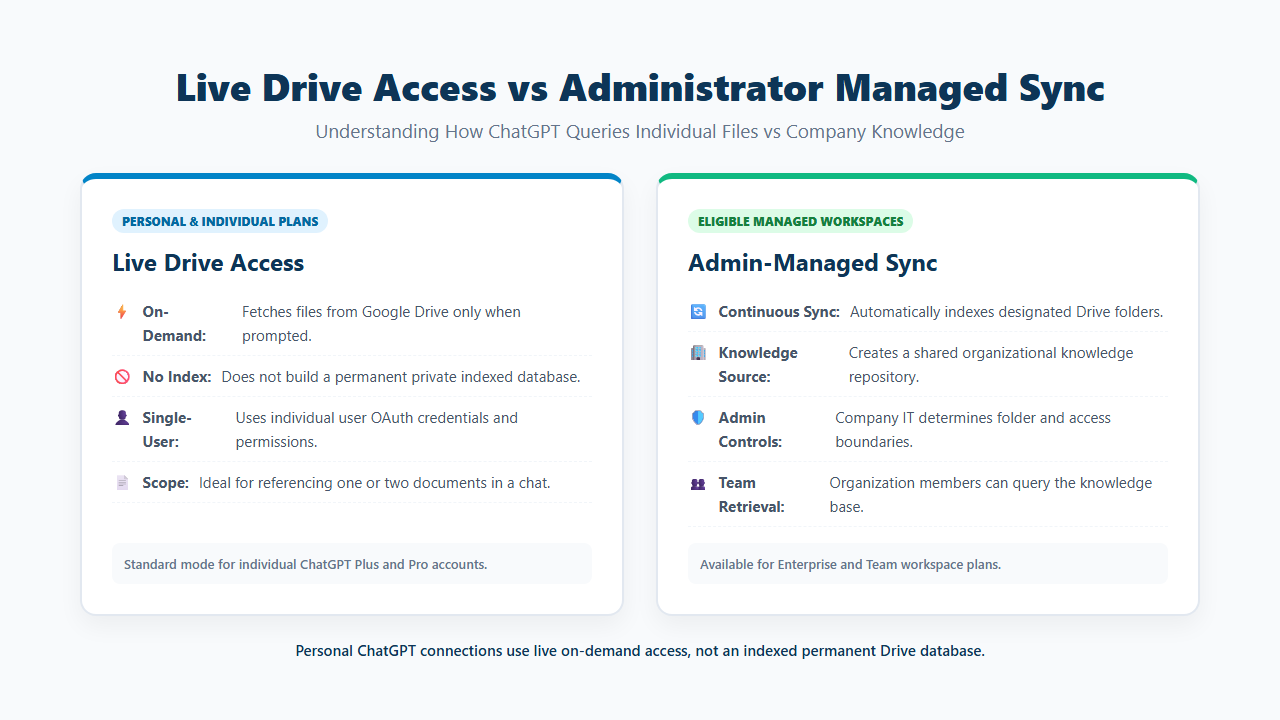
These are not the same thing.
Live Access
A personal or individual Google Drive connection gives ChatGPT live access to supported Drive content when you ask for it.
It does not create a permanent personal synced Drive index.
Administrator-Managed Sync
Eligible managed ChatGPT workspaces can use administrator-managed sync to create an indexed Google Drive knowledge source.
This is designed for organization-wide or workspace knowledge access.
OpenAI currently states that personal and individual ChatGPT accounts cannot configure Google Drive sync.
That means a normal personal connection should not be described as a fully indexed private Drive database.
Does AI Get Access to Every File in Google Drive?
No.
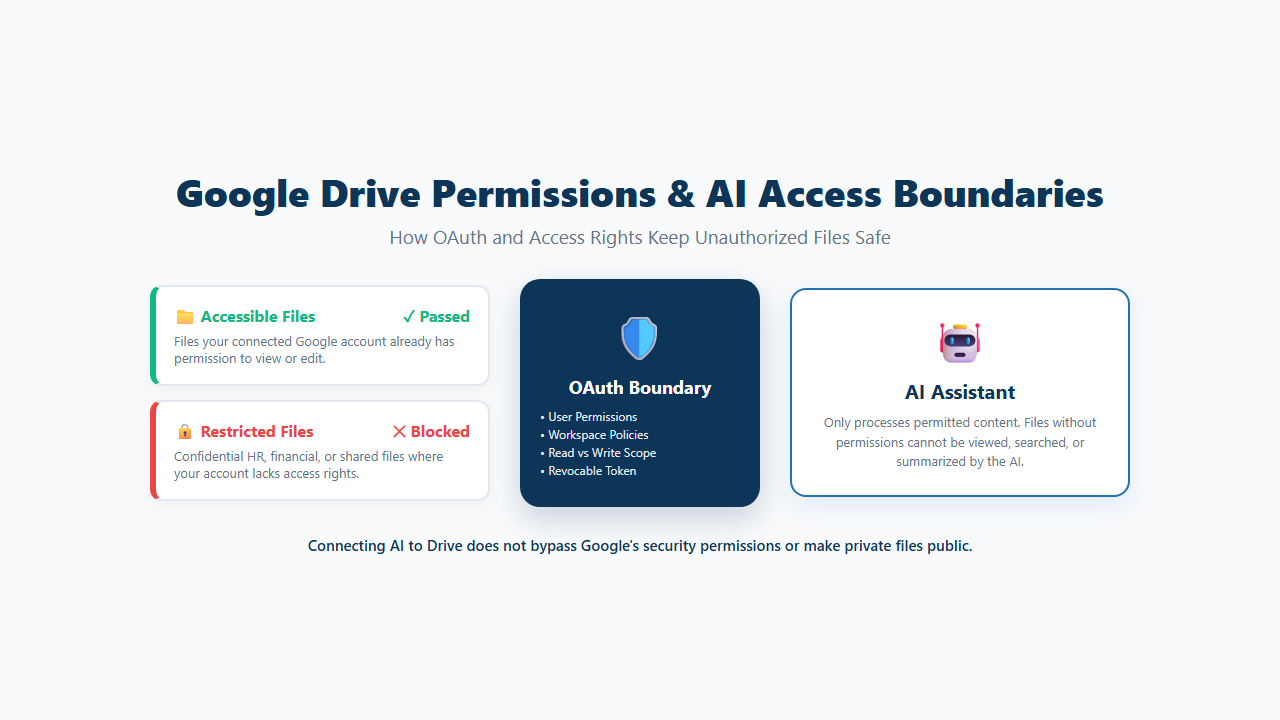
The AI does not automatically receive access to every file stored anywhere in Google Drive.
Access depends on:
- The Google account you connected
- Files that account can already open
- OAuth permissions you granted
- Google Workspace administrator rules
- ChatGPT or Gemini workspace policies
- Shared Drive access
- Supported file type
- Supported action
OpenAI explicitly says ChatGPT cannot use Drive files the connected Google account cannot open.
This means connecting ChatGPT does not bypass Google Drive permissions.
Can AI Read Google Docs, Sheets and Slides?
Yes, in supported integrations.
Gemini works across Google Workspace files directly.
ChatGPT’s Google Drive app can also work with Docs, Sheets, and Slides that the connected account can access.
Useful examples include:
Summarize this Google Doc.Compare these two Sheets.Review this presentation and list missing points.Can AI Analyze PDFs Stored in Google Drive?
Yes.
Gemini can summarize and analyze PDFs directly in supported Drive experiences.
You can ask questions such as:
What are the five most important findings in this report?or:
List every deadline mentioned in this PDF.Gemini can also combine information from the PDF with other Drive files in supported workflows.
ChatGPT can analyze accessible Drive PDFs when the connection can retrieve the file content.
Do not assume every AI tool supports every PDF equally well.
Can AI Work With Google Drive Folders?
Yes, but the level of support differs by tool.
Gemini can summarize a folder and research information across supported files.
Remember Google’s warning that a folder summary may not contain every file in the folder.
ChatGPT can search accessible Drive files and folders when its Drive connection supports the requested retrieval.
For eligible managed ChatGPT workspaces, administrator-managed sync can also create an indexed Drive knowledge source.
Can AI Create or Edit Google Drive Files?
Sometimes.
The answer depends on the integration and permissions.
Gemini
Gemini in Drive can create supported content such as:
- Google Docs
- Google Sheets
- Google Slides
- Images
- Audio Overviews
in eligible workflows.
ChatGPT
OpenAI says supported Google Drive actions may include:
- Creating files
- Updating files
- Moving files
- Sharing files
- Deleting files
when those actions are enabled and the Google account grants the required permissions.
An AI tool having read access does not automatically mean it also has write access.
What Can You Actually Do With Google Drive and AI?
Here are practical uses that make the connection valuable.
Find a File You Cannot Remember
Find the proposal about the website redesign from last quarter.Summarize a Long Report
Summarize this report in 10 clear points.Extract Action Items
Read these meeting notes and list the tasks, owners and deadlines.Compare Several Proposals
Compare these three proposals by price, timeline and deliverables.Analyze Spreadsheet Data
Compare monthly revenue and explain the biggest changes.Draft a Client Update
Use these project notes to draft a short client update.Research Across a Project Folder
Review the available project files and summarize the main risks.Create a Presentation
In supported Gemini workflows:
Create a presentation from these campaign reports.Build a Project Tracker
In supported Gemini workflows:
Create a Sheet with task, owner, due date and status columns.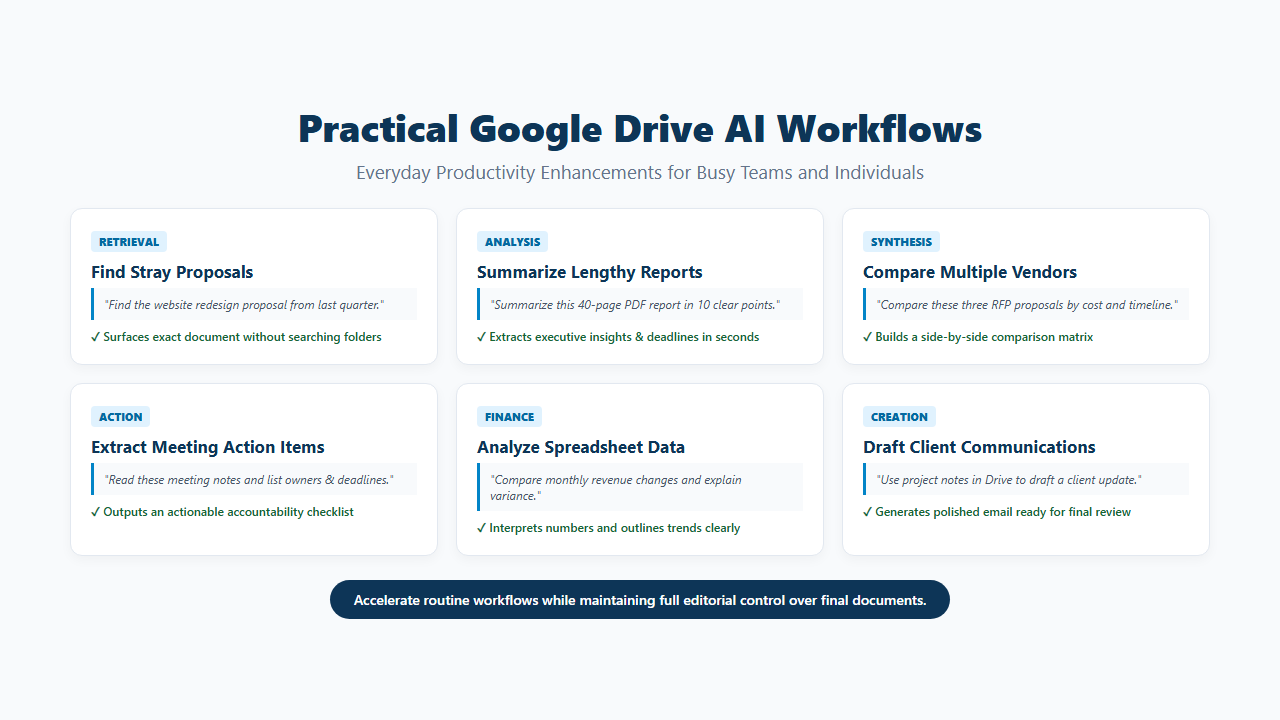
Google Drive With Gemini vs ChatGPT
Neither tool is automatically better for every workflow.
| Feature | Gemini | ChatGPT |
|---|---|---|
| Built directly into Drive | Yes | No |
| Natural-language Drive search | Yes | Yes, when connected |
| File summaries | Yes | Yes |
| Work across several files | Yes | Yes |
| Docs, Sheets and Slides context | Yes | Yes |
| Create Drive content | Yes in supported Drive workflows | Depends on enabled actions |
| Organize Drive files | Native Drive organization features available | Depends on supported actions |
| Managed synced knowledge source | Google-native Workspace environment | Available for eligible managed ChatGPT workspaces |
| Main strength | Deep Google Workspace integration | Broader ChatGPT analysis and drafting workflows |
Choose based on how you work, not only on the brand name.
Which AI Tool Is Better for Google Drive?
Choose Gemini in Drive when:
- Most of your work already happens inside Google Workspace.
- You want AI built into Drive.
- You regularly use Docs, Sheets, Slides, PDFs, and folders.
- You want native Drive search, creation, and organization features.
Choose ChatGPT with Google Drive when:
- You already use ChatGPT for research, analysis, or drafting.
- You want Drive files to become context inside a wider ChatGPT workflow.
- Your plan and workspace support the Google Drive app.
- You want to combine Drive information with other reasoning or writing tasks.
You may also use both.
For example, Gemini can be useful for native Drive organization while ChatGPT can be useful for broader analysis and drafting.
Is Google Drive AI Safe for Private Files?
Do not treat any AI connection as automatically safe simply because it is convenient.
Check the data rules for the specific account and service you use.
For Google Workspace with Gemini, Google currently states that:
- Workspace interactions stay within the organization.
- Existing Workspace protections continue to apply.
- Customer content is not used for other customers.
- Workspace content is not used to train models outside the domain without permission.
Source: Google Drive Help — Get started with Google Workspace with Gemini
For ChatGPT, review the permissions requested by the Google Drive app and your organization’s ChatGPT data controls before connecting sensitive Drive data.
For any AI workflow, review:
- Account permissions
- Shared Drive permissions
- Organization policies
- Data-retention rules
- Admin settings
- Whether files contain sensitive information
Does Connecting AI Make Drive Files Public?
No.
Connecting an AI tool does not automatically make private Drive files public.
The connection uses the permissions granted to the connected account and the integration.
ChatGPT’s Drive documentation states that it cannot access files the connected Google account cannot open.
Sharing permissions in Google Drive still matter.
What Should You Verify Before Trusting an AI Answer?
AI can be useful without being perfect.
It can:
- Miss a relevant file
- Misread context
- Mix information from several files
- Summarize something incorrectly
- Miss a recent change
- Miscalculate a number
- Produce an incomplete folder summary
Google itself warns that Gemini responses may be inaccurate and that folder summaries may not include every file.
Always verify important:
- Numbers
- Prices
- Financial figures
- Legal wording
- Names
- Deadlines
- Contract terms
- Client commitments
- Medical or safety information
- Final business decisions
Use AI to accelerate review, not to remove judgment.
Why Google Drive May Not Appear in Your AI Tool
Common reasons include:
- Your plan does not include the feature.
- The feature is unavailable in your region.
- Your workspace administrator disabled it.
- Your Google Workspace administrator has not approved the connection.
- You connected the wrong Google account.
- Required OAuth permissions are blocked.
- The interface you are using does not support the app.
- Your organization limits third-party apps.
For ChatGPT, availability can depend on plan, location, workspace settings, and Google Workspace policies.
For Gemini in Drive, many features require an eligible Google Workspace or Google AI plan.
Why AI Cannot Find a Google Drive File
If a connected AI cannot find a file, check:
Wrong Google Account
The connected account may not be the one that owns or can open the file.
File Permission
The account may not have permission to access it.
Shared Drive Scope
The file may be inside a Shared Drive outside the available connection or sync scope.
Unsupported File or Content
The integration may not support that file type or content.
Sync Delay
An administrator-managed synced source may not have indexed the file yet.
Retrieval Did Not Surface the File
Even when a file exists, an AI search may fail to return it for a particular prompt.
Try using:
- Exact filename
- Folder name
- Project name
- Owner
- Date
- Specific phrase from the document
OpenAI also notes that finding a filename does not always mean the system successfully retrieved the full file contents.
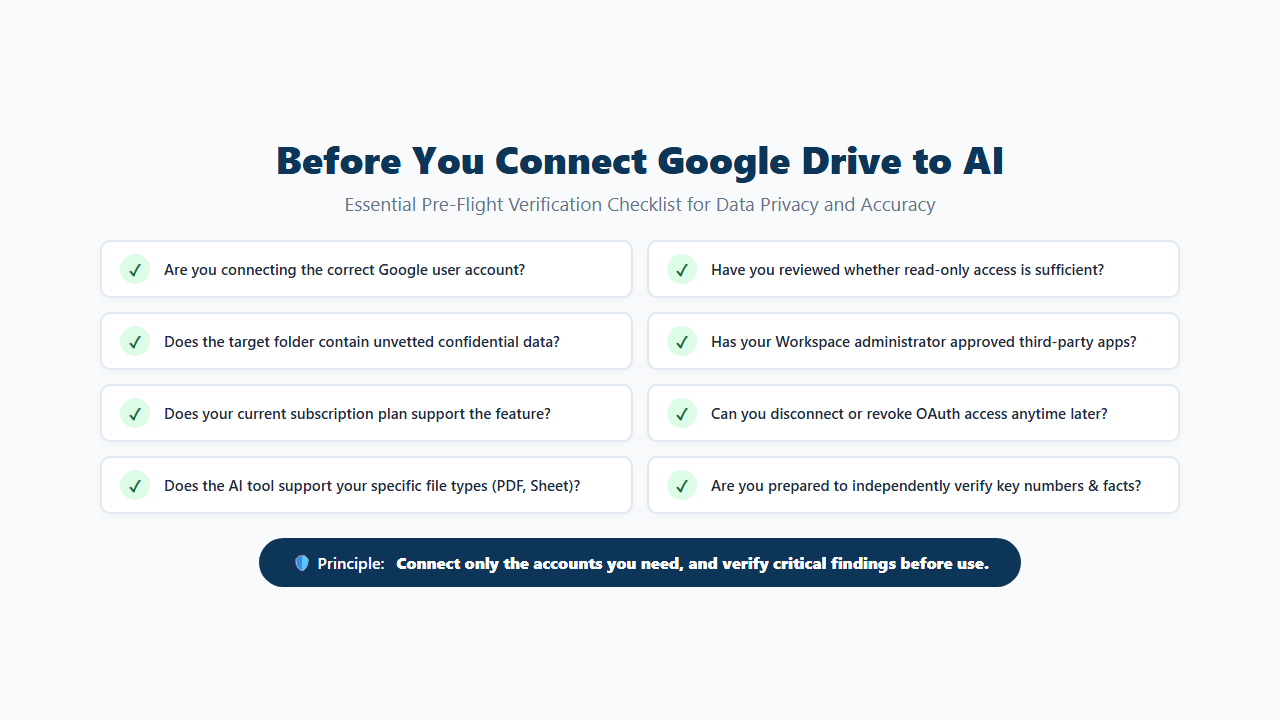
Google Drive AI Checklist Before Connecting
Before connecting Drive to an AI tool, check:
- Which AI tool are you using?
- Which Google account will you connect?
- What Drive files can that account access?
- What permissions does the AI request?
- Does the connection need read access only?
- Does it need create or edit access?
- Is your Workspace administrator involved?
- Does the Drive contain sensitive information?
- Can the connection be removed later?
- Does your plan support the feature?
- Does the AI support the file type you need?
- Will you verify important answers?
Frequently Asked Questions
Does Google Drive work with AI?
Yes. Google Drive has native Gemini AI features, and supported external AI tools such as ChatGPT can connect to Drive.
Can AI read my Google Drive files?
Yes, when you authorize the connection and the connected account has permission to access those files.
Can ChatGPT access Google Drive?
Yes. ChatGPT currently offers a Google Drive app for supported plans, locations, and workspaces.
Can Gemini access Google Drive?
Yes. Gemini is integrated directly into Drive for eligible Google Workspace and Google AI plans.
Can AI summarize a Google Drive folder?
Gemini can summarize supported Drive folders. Google notes that the summary may not include every file.
Can AI analyze PDFs stored in Google Drive?
Yes. Gemini supports PDF analysis in Drive, and ChatGPT can analyze accessible Drive PDFs when its connection supports the file.
Can AI edit Google Drive files?
Some integrations support write actions. The available actions depend on permissions, plan, and administrator settings.
Can AI create Google Docs or Slides from Drive?
Gemini can currently create Docs, Sheets, and Slides in supported Drive workflows.
Does connecting ChatGPT override Google Drive permissions?
No. OpenAI states that ChatGPT cannot use files the connected Google account cannot open.
Does connecting AI make Drive files public?
No. Connecting an AI tool does not automatically make Drive files public.
Can AI organize my Google Drive?
Gemini can suggest file organization in supported Drive web experiences. It does not move files without your permission.
Is Google Drive AI free?
Some features require an eligible Google Workspace, Google AI, or ChatGPT plan. Availability also depends on region and workspace settings.
Why can AI find a filename but not summarize the file?
The integration may find file metadata without successfully retrieving the file contents. Permissions, file type, sync state, or retrieval limitations can cause this.
Google Drive Works With AI, but Permissions Still Control Access
Google Drive can work closely with AI.
Gemini offers the deepest native integration because it is built directly into Drive. It can search files, summarize content, research across several documents, create Docs, Sheets and Slides, generate Audio Overviews, and help organize files on supported plans.
ChatGPT can also connect to Google Drive and use accessible Drive content inside conversations. What it can read or change depends on the permissions you grant and the actions your plan or workspace supports.
The best workflow is simple: connect only the account you need, grant only the required access, verify important AI answers, and keep sensitive-file policies in mind.
