
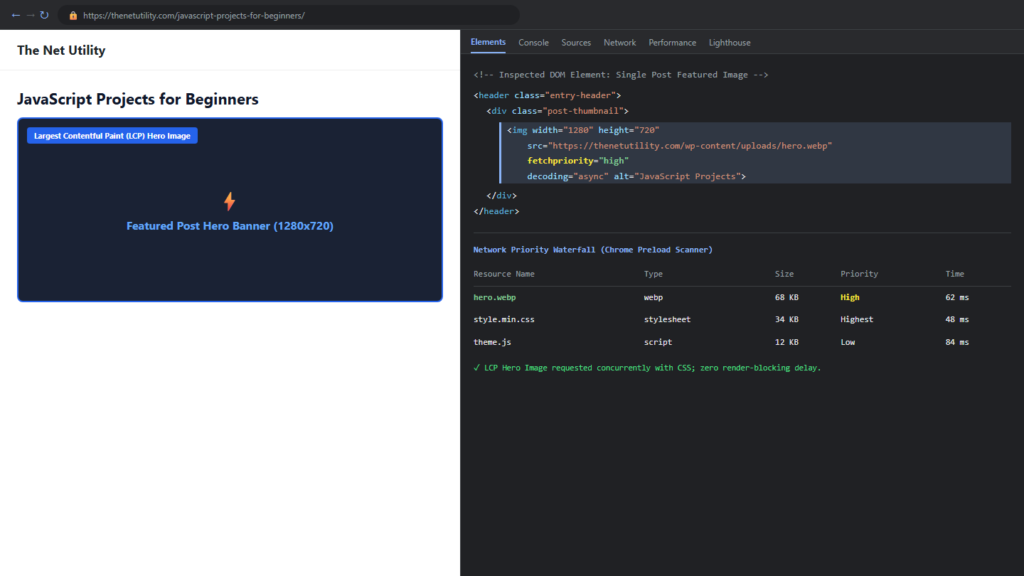
Largest Contentful Paint (LCP) is the single most critical Core Web Vital metric governing perceived page load speed and Google search rankings. On blog posts and editorial content, the LCP element is almost always the featured hero image displayed at the top of the article. When a modern browser begins parsing HTML, it downloads resources in a sequential waterfall based on default heuristic priorities. By explicitly adding the fetchpriority="high" attribute to your WordPress featured image, you signal the browser’s preload scanner to request the hero image immediately alongside critical CSS, shaving hundreds of milliseconds off your LCP timings without touching server infrastructure.
How the Browser Preload Scanner Handles Image Priority
Modern web browsers like Chrome, Edge, and Safari utilize an internal Preload Scanner that reads ahead in the HTML document while the primary parser is blocked by scripts or stylesheets. By default, browsers assign images a “Low” priority so that stylesheets and critical font files can download first.
As documented in Google’s official web.dev Fetch Priority Optimization Guide, the fetchpriority attribute provides developers with direct programmatic control over resource scheduling. Setting fetchpriority="high" elevates the image request to the top of the network queue, instructing the browser to begin downloading the hero banner concurrently with CSS stylesheets.
WordPress Core Fetch Priority Handling and Its Limitations
Starting with WordPress 6.3, core introduced automatic fetch priority heuristic rules. However, in real-world deployments, core heuristics frequently fail for several reasons:
- Custom theme templates and block patterns often bypass the standard
the_post_thumbnail()rendering functions. - Page builders (such as Elementor, Beaver Builder, or custom ACF layouts) render custom
<img>tags that omit the attribute entirely. - Themes that wrap thumbnails in custom markup can cause core heuristics to miscalculate whether an image is above the fold.
How to Force fetchpriority=”high” on Featured Images (PHP Snippet)
The cleanest, most bulletproof method to guarantee that your single post featured images always carry fetchpriority="high" is hooking into the core filter wp_get_attachment_image_attributes documented in the WordPress Developer Code Reference.
Add this lightweight function to your child theme‘s functions.php or via a site code snippets plugin:
<?php
/**
 * Add fetchpriority="high" and decoding="async" to single post featured images.
 */
function netutility_optimize_featured_image_lcp( $attr, $attachment, $size ) {
    // Only apply on single post view to avoid polluting archive thumbnails
    if ( is_singular( 'post' ) && in_the_loop() && is_main_query() ) {
        // Elevate download priority for the above-the-fold hero
        $attr['fetchpriority'] = 'high';
        $attr['decoding']      = 'async';

        // Ensure lazy loading is NEVER applied to the LCP hero
        unset( $attr['loading'] );
    }
    return $attr;
}
add_filter( 'wp_get_attachment_image_attributes', 'netutility_optimize_featured_image_lcp', 10, 3 );
Verifying fetchpriority in Chrome DevTools
After deploying the snippet, verify its real-world execution:
- Open a published article on your website in Google Chrome.
- Right-click the hero image and select Inspect.
- In the Elements panel, examine the
<img>element tag. Confirm thatfetchpriority="high"is present. - Switch to the Network tab, filter by Img, and reload the page.
- Right-click the table header and check Priority to display the priority column.
- Verify that your featured image shows High priority and initiates download in the earliest segment of the waterfall.
Equally critical for LCP optimization is preventing lazy loading from delaying hero elements. Continue reading our companion guide on how to exclude the featured image from lazy loading in WordPress.
