
Updating a WordPress theme does not normally remove your posts or pages. The main risk is custom code or templates edited directly inside the parent theme. Those files can be replaced when the theme updates.
Before clicking Update, find where your customizations are stored. Move parent-theme code into a child theme when needed, create a full backup, check compatibility, and test the site after the update. Changes saved through supported WordPress settings, a child theme, the Site Editor, or the Customizer are handled differently from direct edits to functions.php, style.css, or template files.
Will Updating a WordPress Theme Delete Your Changes?
It depends on where you made the changes.
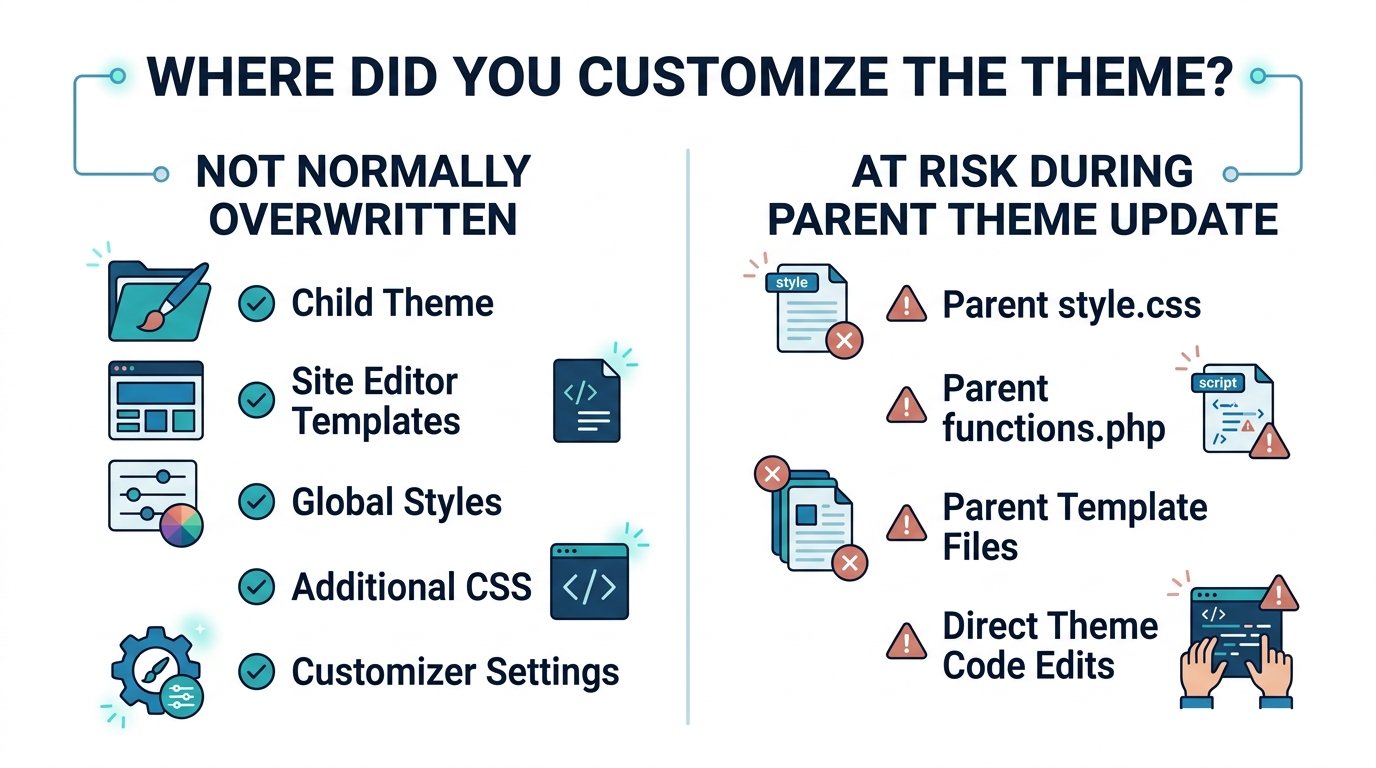
| Customization location | Normally overwritten by a parent-theme update? |
|---|---|
| Child theme files | No |
| Site Editor saved templates | No |
| Site Editor saved template parts | No |
| Site Editor Global Styles | No |
| Site Editor Additional CSS | No |
| Customizer settings | No in normal supported use |
Direct parent style.css edits | Yes, they can be overwritten |
Direct parent functions.php edits | Yes, they can be overwritten |
| Direct parent template-file edits | Yes, they can be overwritten |
| Custom code stored in a separate plugin | No |
WordPress warns on the Dashboard → Updates screen that customizations made directly to theme files can be lost during a theme update. The official WordPress update documentation recommends using a child theme for theme-file modifications.
A customization can survive the update and still stop working correctly. A parent theme may change its HTML, CSS selectors, hooks, JavaScript, or template structure. That is why you should test the site after every important theme update.
Find Where Your WordPress Customizations Are Stored
Do not update the theme until you know where your changes live.
Check these areas:
- Appearance → Editor
- Appearance → Customize
- Site Editor Additional CSS
- Child theme
- Parent theme
style.css - Parent theme
functions.php - Parent PHP or HTML templates
- Theme options panel
- Page builder settings
- Code snippets plugin
- Custom plugin
The storage location tells you how much risk the update carries.
Changes Made With the Site Editor
Block themes use Appearance → Editor for site-wide design work.
You may have changed:
- Header
- Footer
- Page templates
- Single Post template
- Archive template
- Global Styles
- Template parts
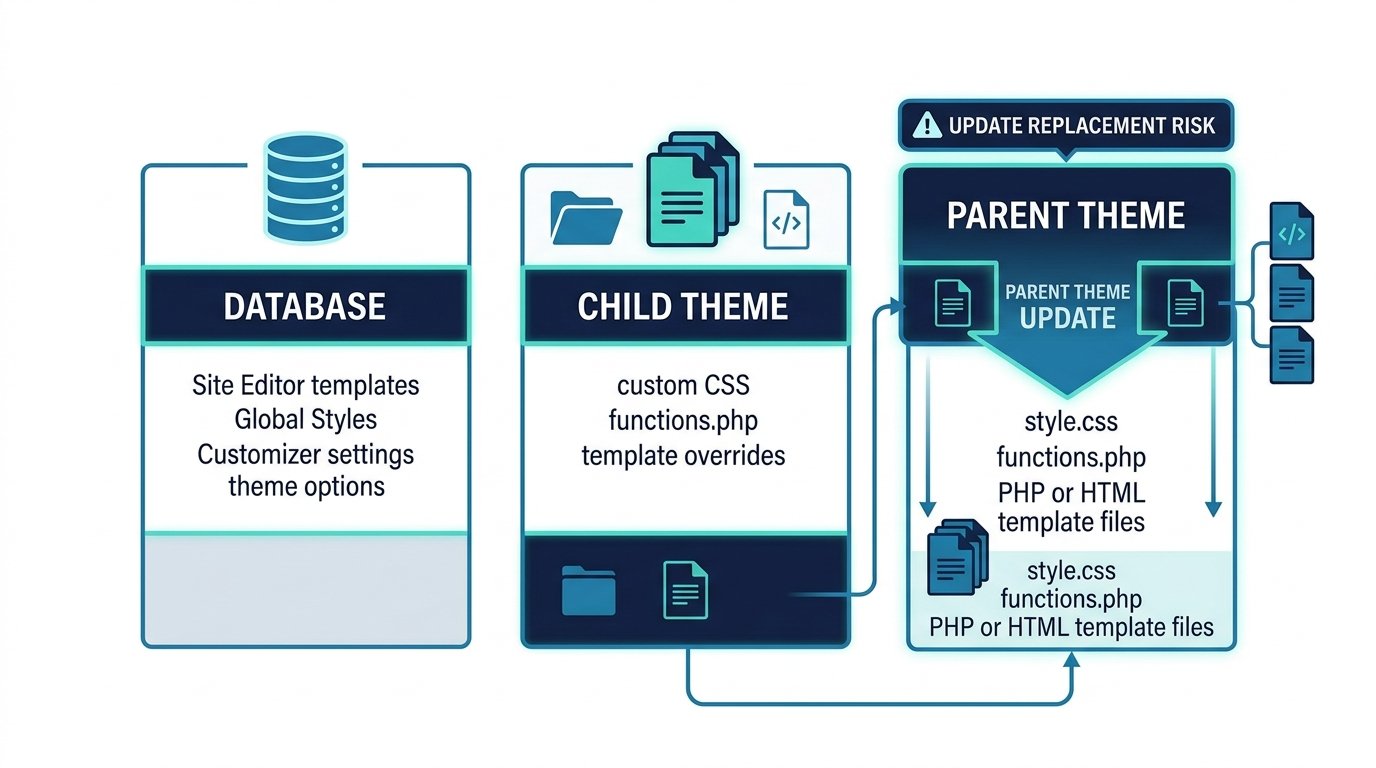
WordPress saves user-created block templates in the database. Those saved templates take priority over matching templates inside the theme files. The WordPress Theme Handbook documents this template hierarchy.
That protects the saved customization from a normal parent-theme file replacement.
It also creates one important issue: your older customized template can continue overriding a newer template supplied by the updated theme.
Changes Made With the Customizer
Classic themes may provide:
Appearance → Customize
Customizer settings can include:
- Colors
- Header image
- Background
- Menus
- Widgets
- Homepage settings
- Additional CSS
WordPress states that Customizer changes are preserved, while direct theme-file modifications may be lost during updates. See the WordPress Customizer documentation.
Third-party themes can add their own settings, so check the theme developer’s documentation before a major version update.
Changes Made Directly to Theme Files
These changes need the most attention:
style.css
functions.php
header.php
footer.php
single.php
page.php
archive.php
If you edited these files inside the parent theme, the new theme package can replace them.
The WordPress Theme File Editor documentation also warns that direct file edits can disappear after a theme update.
Stop Before Updating If Any of These Apply
Do not continue with a live theme update yet if:
- You edited the parent theme files directly.
- You do not have a current backup.
- You cannot identify where custom CSS was added.
- The update is a large major-version jump.
- Your child theme overrides several parent templates.
- The site uses custom WooCommerce template overrides.
- The theme controls business-critical forms or checkout pages.
- You cannot restore the previous working state.
- The theme vendor reports breaking changes.
- The update requires a newer PHP or WordPress version than your site uses.
Fix the relevant issue first.
A five-minute check before the update can prevent a much longer recovery job afterward.
Do You Need a Child Theme Before Updating?
You do not need a child theme for every WordPress website.
Use a child theme when your customization requires changing files that belong to the parent theme.
Common examples include:
- Custom PHP in
functions.php - Custom CSS placed directly in the parent
style.css - PHP template overrides
- Theme template files
- Theme-specific code changes
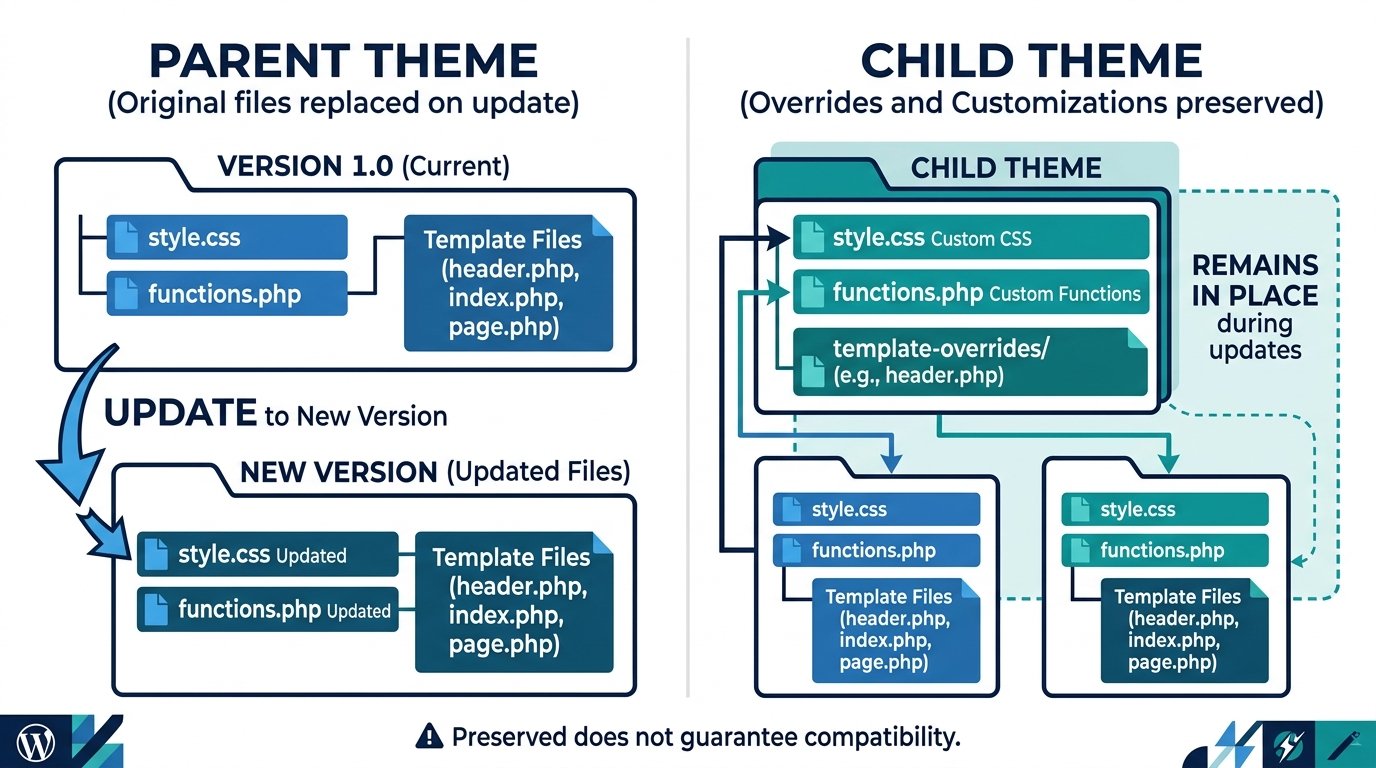
A child theme keeps those modifications outside the parent theme directory. The parent can then receive updates without directly replacing the child’s files.
WordPress describes child themes as a way to modify a parent theme without editing the parent theme’s own code. See the official Child Themes guide.
You May Not Need a Child Theme for These Changes
A child theme is not automatically required because you changed:
- Site Editor styles
- Site Editor templates
- Site Editor template parts
- Customizer settings
- Site Editor Additional CSS
- Plugin settings
Use the tool designed for the customization instead of adding a child theme without a reason.
What If You Already Edited the Parent Theme?
Do not update the theme yet.
First protect the custom work.
1. Back Up the Current Theme
Download the current theme folder or create a full site backup.
You need a copy of the customized files before the update replaces anything.
2. Get a Clean Copy of the Same Theme Version
Use the official theme source or vendor account.
Do not use an unknown theme download site.
3. Compare the Files
Identify which files you changed.
Useful files to compare may include:
style.css
functions.php
header.php
footer.php
single.php
page.php
A code comparison tool can make this much easier than reading entire files manually.
4. Move the Customizations
Move theme-specific overrides into a child theme when appropriate.
Move site functionality that should not depend on the active theme into a custom plugin or another suitable code-management method.
5. Test the Moved Code
Confirm the site still works before updating the parent theme.
Creating an empty child theme does not recover old customizations automatically. You must move the existing modifications before the parent files are replaced.
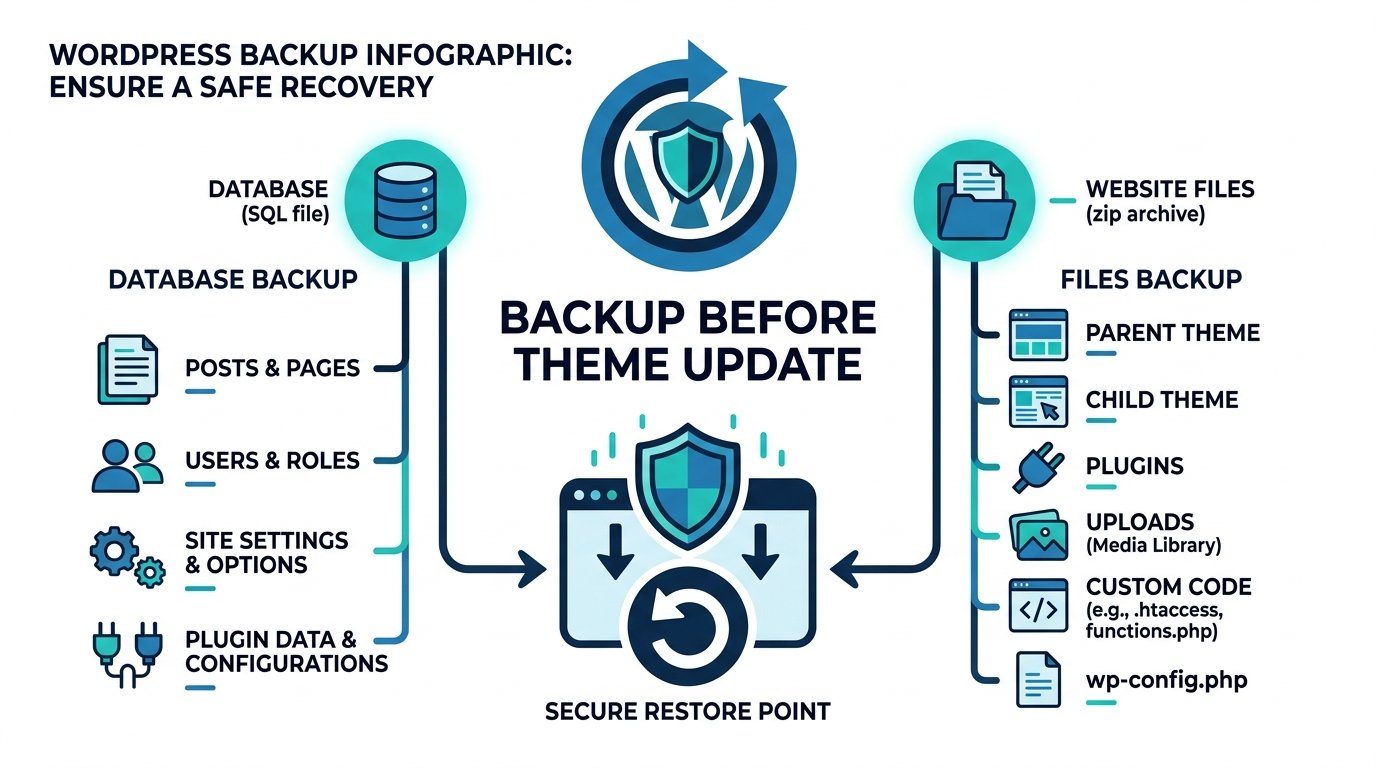
Back Up WordPress Before Updating the Theme
Create a recovery point before the theme update.
A useful WordPress backup should cover both the database and the site files.
Database
The database can contain:
- Posts
- Pages
- Users
- Comments
- WordPress settings
- Theme settings
- Plugin data
Files
The site files can include:
- Themes
- Child theme
- Plugins
- Uploads
- Custom code
- WordPress files
wp-config.php
If the update causes a serious problem, you need enough backup data to restore the working state.
If you need help choosing the correct recovery method, read How to Undo Changes in WordPress.
Check the Theme Version and Compatibility Before Updating
Do not rely only on the red update notice.
Review the update details first.
Check:
- Current theme version
- New version
- Theme changelog
- Minimum WordPress version
- Required PHP version
- Required companion plugins
- Page builder compatibility
- WooCommerce compatibility
- Removed features
- Deprecated functions
- Template changes
- Known issues reported by the theme developer
A small security or bug-fix update usually carries less change than a large version jump, but every site is different.
For a premium theme, read the release notes from the official vendor account or documentation.
Test the Theme Update on Staging When the Site Needs It
A staging site is a copy of your website used for testing.
You do not need a staging workflow for every tiny personal site. It becomes much more valuable when an update can affect revenue, leads, memberships, or custom code.
Use staging first for:
- Ecommerce sites
- Membership sites
- Lead-generation websites
- Heavily customized themes
- Custom PHP
- Large parent-theme updates
- Complex child themes
- Page-builder sites
- Sites with active customers
On staging:
- Create a fresh copy of the live site.
- Update the theme.
- Clear cache if old assets remain visible.
- Open key pages.
- Test mobile layouts.
- Submit important forms.
- Test login or account areas.
- Test cart and checkout when applicable.
- Check for PHP or JavaScript errors.
- Compare the result with the live design.
If staging works correctly, you have much stronger evidence that the live update should be safe.
How to Update a WordPress Theme From Dashboard → Updates
This is the normal update method for themes that support WordPress updates.
Step 1: Open the Updates Screen
Go to:
Dashboard → Updates
Scroll to the Themes section.
Step 2: Review the Theme
Confirm:
- Theme name
- Available version
- Correct theme selected
Do not select every update automatically if you are trying to isolate one theme change.
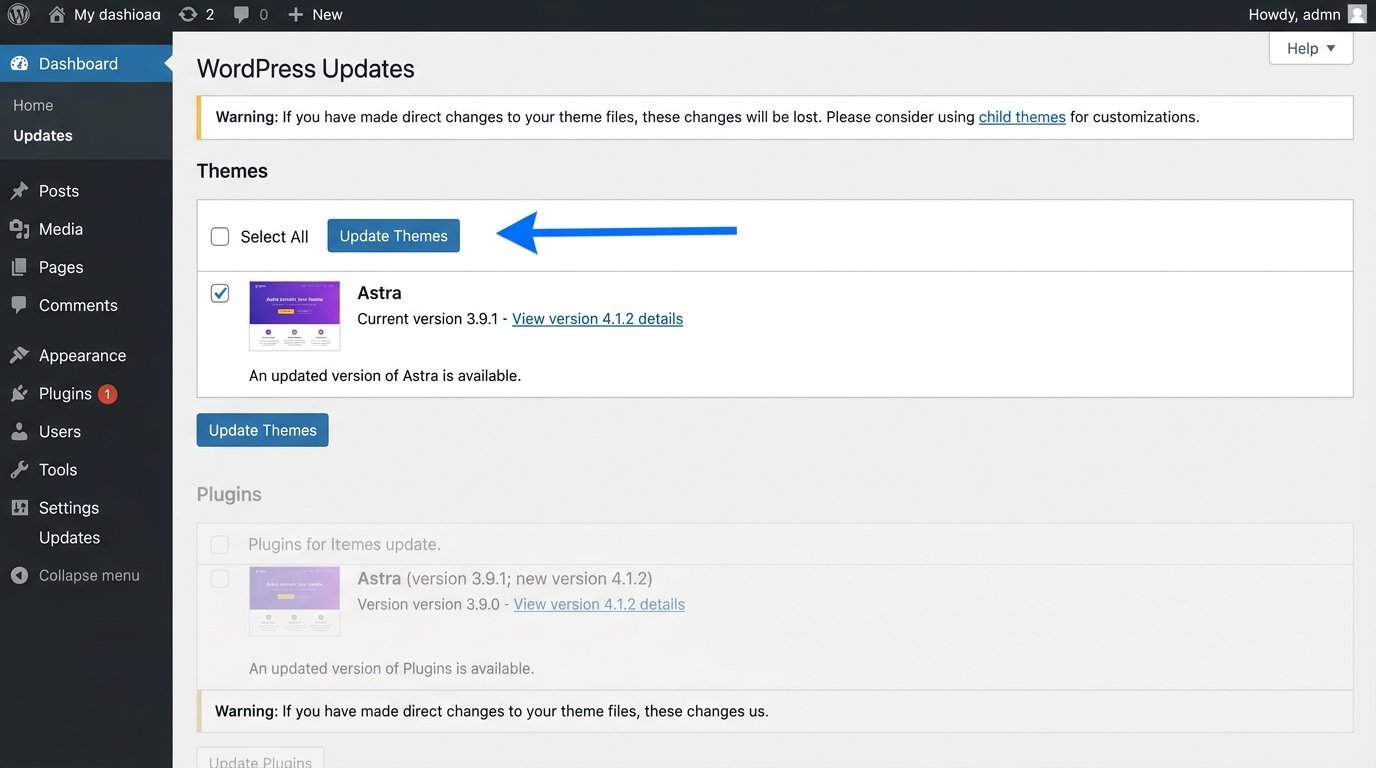
Step 3: Click Update Themes
Select the theme and click Update Themes.
WordPress downloads the new version, installs it, and completes the update process.
The Updates screen warns that changes made directly to theme files can be lost. Protect those changes before clicking the button.
Step 4: Wait for Completion
Do not close the page during the update unless the process has clearly failed.
Wait for WordPress to report that the update finished.
Step 5: Open the Website
Check the frontend immediately.
Start with:
- Homepage
- One normal page
- One blog post
- Header
- Footer
- Mobile menu
Then complete the wider post-update checks later in this guide.
How to Update a Theme From Appearance → Themes
You can also update many themes from:
Appearance → Themes
If WordPress shows an update notice on the theme card:
- Open the theme details.
- Review the available update.
- Use the update control.
- Wait for completion.
- Check the frontend.
Use Dashboard → Updates when you want a central view of available WordPress updates.
Use Appearance → Themes when you are already working with one specific theme.
How to Update a Premium WordPress Theme
Premium themes can use different update systems.
You may receive updates through:
- Standard WordPress update notices
- Vendor license connection
- Theme-specific updater
- Companion plugin
- Vendor account download
- ZIP package
If an automatic update is missing, check whether the theme license is active.
An expired license can stop update delivery even while the installed theme continues working.
Use the official theme vendor as your source for the update package. Avoid nulled themes and unofficial download mirrors.
How to Update a WordPress Theme With a ZIP File
WordPress supports theme installation and updates using a ZIP package.
This is useful when:
- A premium vendor gives you a ZIP file.
- The normal automatic update is unavailable.
- You downloaded the current version from the official source.
Before uploading, confirm:
- Theme name
- Installed version
- New ZIP version
- Parent or child theme
- Correct theme folder
- Backup is complete
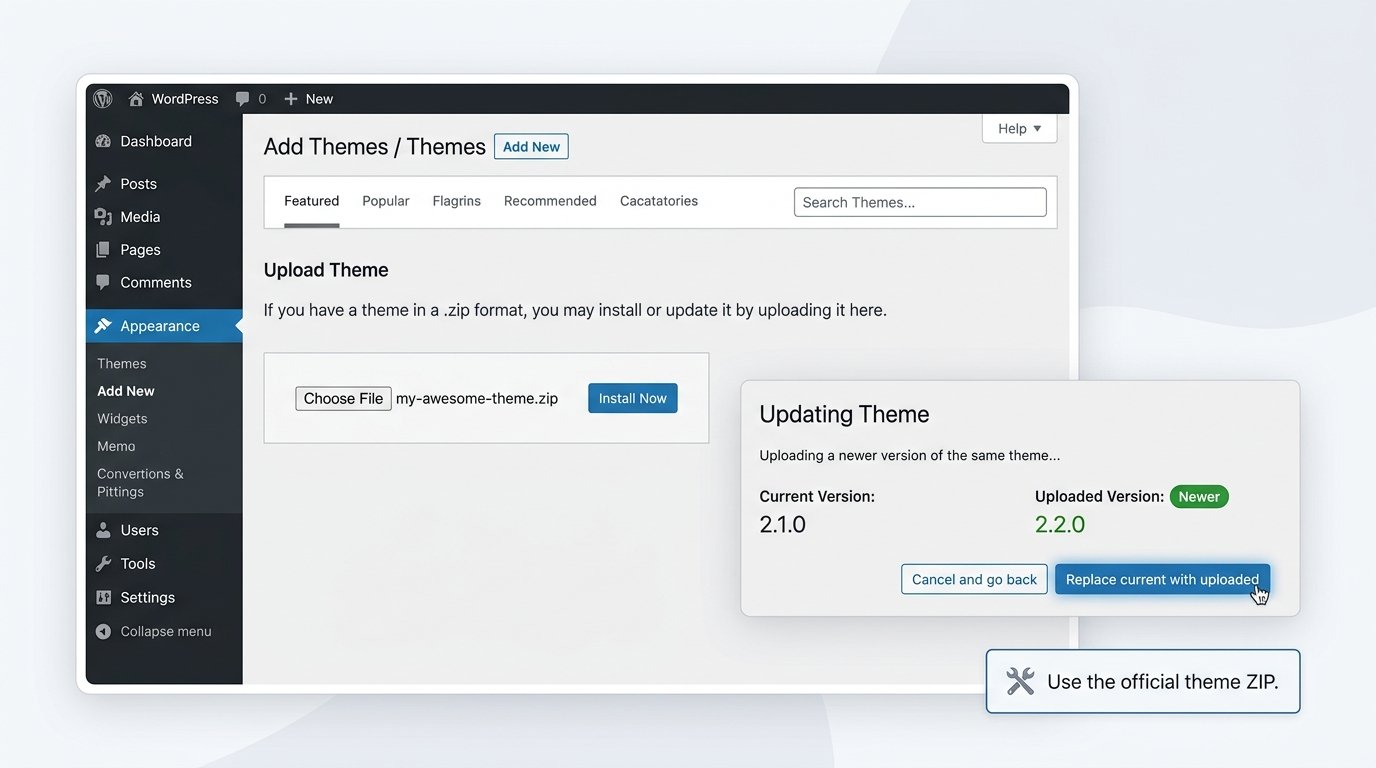
Then go to:
Appearance → Themes → Add New → Upload Theme
Choose the official ZIP file and click Install Now.
When WordPress detects an installed copy of the same theme, it can offer the update/replacement workflow for the uploaded package.
Review the old and new version information before confirming replacement.
Do not upload a parent-theme ZIP over a child theme by mistake.
How to Update a WordPress Theme Manually With SFTP or File Manager
Use manual file access when the dashboard update is unavailable or the theme vendor requires a manual process.
SFTP is preferable to plain FTP because it provides an encrypted connection.
Step 1: Make a Backup
Back up the database and files first.
Step 2: Download the Official Theme Package
Get the newest package from:
- WordPress.org
- Official theme vendor
- Your licensed vendor account
Step 3: Extract the Theme Locally
Unzip the package on your computer.
Confirm the folder contains the expected theme files.
Step 4: Check for Parent-Theme Customizations
Do not overwrite a customized parent theme until those changes are protected.
Compare the current theme folder with a clean copy if you are unsure.
Step 5: Connect to the Server
Use SFTP or your hosting file manager.
Navigate to:
/wp-content/themes/
Find the parent theme folder.
Step 6: Replace the Parent Theme Files
Upload the new official theme files according to the theme vendor’s instructions.
Be careful with custom files that should have been moved to a child theme or plugin first.
Step 7: Check the Website
Open the frontend and WordPress admin.
If the site fails, use the backup or previous theme files to restore the working state.
WordPress also documents theme installation through FTP and hosting file managers in the Appearance Themes Screen guide.
How Developers Can Update a Theme With WP-CLI
Developers and server administrators can update themes through WP-CLI.
Update one theme:
wp theme update theme-slug
Update every theme with an available update:
wp theme update --all
The official WP-CLI theme update command includes options for individual themes, all themes, minor releases, patch releases, and specific versions.
Do not use --all on a production site when you need to test theme updates one at a time.
Should You Enable Automatic Theme Updates?
WordPress supports automatic updates for individual themes.
You can manage this from the Themes area when the feature is available.
Automatic theme updates can work well for:
- Standard themes
- Lightly customized sites
- Sites with reliable automated backups
- Themes with a strong update record
Manual testing can be safer for:
- Heavily customized themes
- Ecommerce stores
- Membership sites
- Business-critical websites
- Complex child themes
- Themes with custom integrations
Automatic updates are not inherently unsafe. The main question is whether your site has enough backup and testing protection when an update changes something important.
WordPress documents automatic theme updates in its Plugins and Themes Auto-updates guide.
What Happens to a Child Theme When the Parent Theme Updates?
The parent theme and child theme use different files.
Updating the parent theme does not directly replace files inside the child theme.
That is one of the main reasons child themes are useful for theme-specific customizations.
However, a child theme can still break after a parent update.
For example, the parent may change:
- Function names
- Hooks
- HTML markup
- CSS classes
- JavaScript behavior
- Template structure
- WooCommerce integration
Your child-theme file remains present, but its code may now be incompatible with the updated parent.
After updating, check any overridden files in the child theme.
Common examples include:
header.php
footer.php
single.php
page.php
archive.php
WooCommerce template overrides
block templates
Do not treat “file preserved” as “guaranteed to work.”
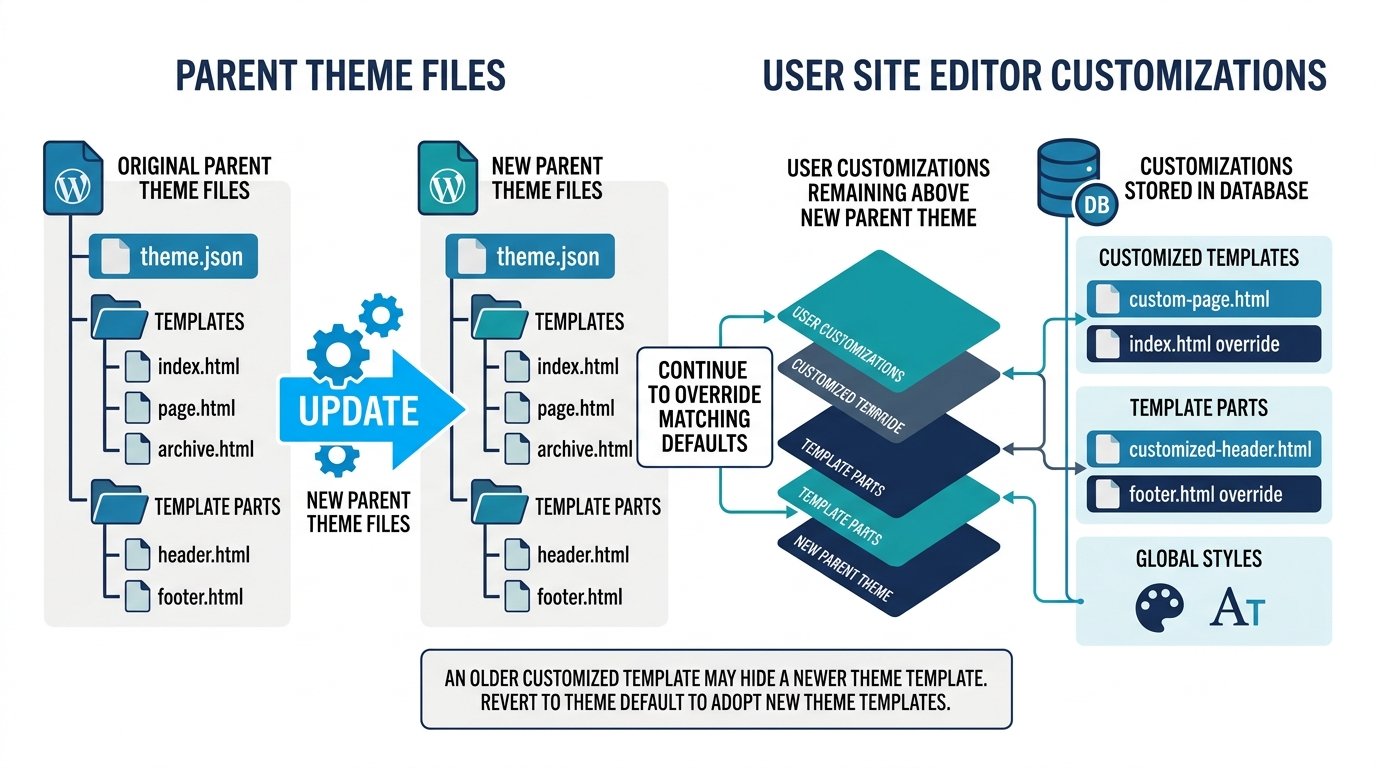
Will Site Editor Changes Survive a Theme Update?
Block-theme customizations saved through the Site Editor are stored apart from the parent theme files.
When you edit and save a template through WordPress, the customized version is saved in the database and can take priority over the matching theme template.
This prevents a normal theme file update from simply replacing the saved Site Editor version.
The tradeoff is important.
Suppose your theme update includes a better single.html template. If you already customized the Single template in the Site Editor, your saved version can continue overriding the newer theme version.
After a major block-theme update:
- Check the new theme changelog.
- Review your customized templates.
- Compare the new theme design where practical.
- Reset or rebuild an old customization only when you want the new theme default.
Will Additional CSS Be Lost During a Theme Update?
For block themes, CSS saved through the Site Editor’s Additional CSS area is not overwritten by an update to the same theme.
WordPress notes that this CSS is cleared when you switch themes, which is a different action from updating the current theme. See the WordPress Styles documentation.
Direct CSS edits inside the parent theme’s style.css are different. Those edits can be replaced during the theme update.
Will Customizer Changes Be Lost During a Theme Update?
Customizer settings are intended to remain when the same theme receives an update.
This can include theme-supported settings such as:
- Colors
- Header image
- Background
- Menus
- Widgets
- Homepage settings
The risk is higher when you edited the theme files directly rather than using the Customizer.
Premium themes may store additional settings in their own systems. Check vendor documentation before a major update.
What Can Break Even When Your Customizations Remain?
Keeping the customization file is only half the job.
An update can change the environment around that customization.
CSS Selectors Can Change
Your custom CSS may still exist, but the updated theme may use different classes or markup.
Hooks Can Change
Custom PHP attached to a theme-specific hook may stop firing correctly.
Functions Can Be Removed or Changed
A child-theme function can depend on parent code that changed.
Template Overrides Can Become Old
Your child theme may continue loading an older overridden template while the parent theme ships a newer version.
Page Builder Integration Can Change
A theme update can change layout wrappers, width settings, or style rules used by a builder.
WooCommerce Templates Can Change
A child theme can contain WooCommerce overrides that no longer match the current plugin or parent-theme structure.
This is why post-update testing matters even when nothing was overwritten.
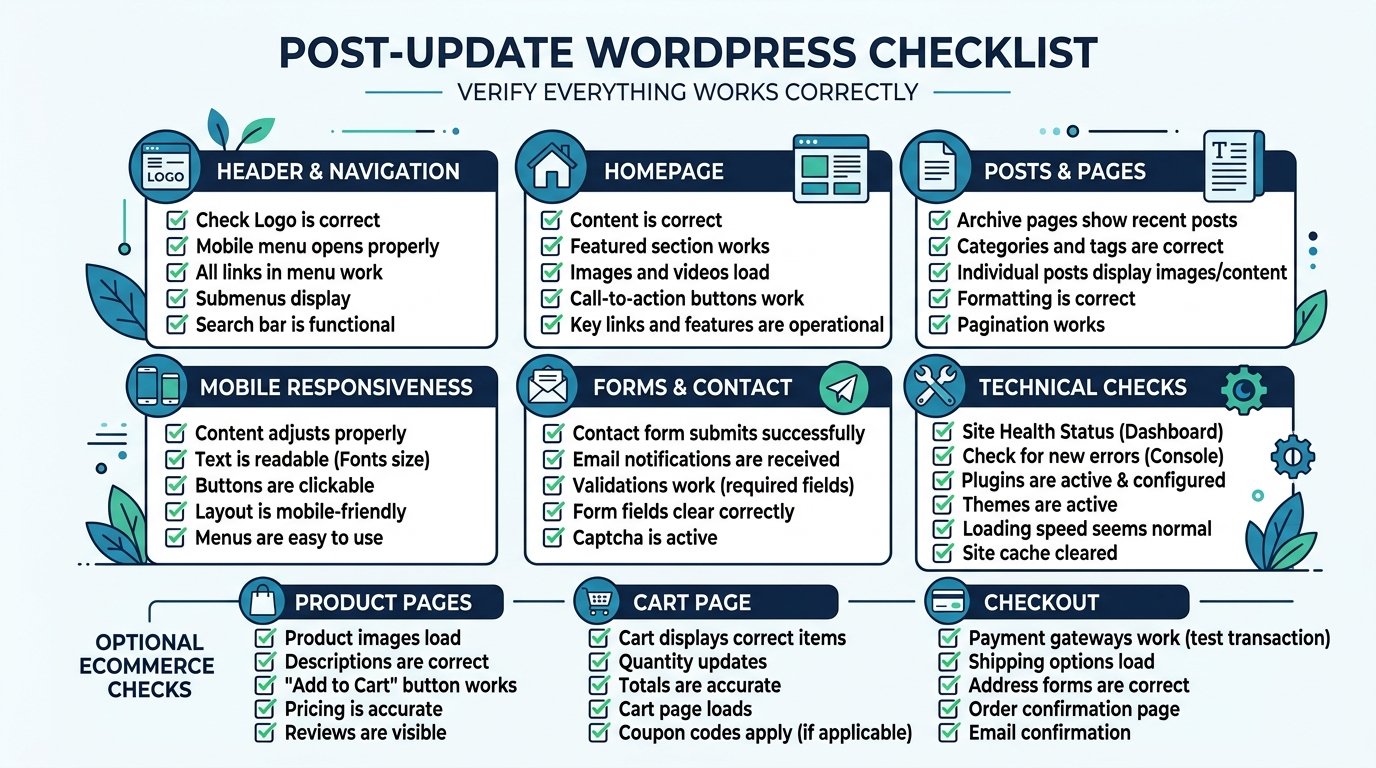
What to Check Immediately After Updating the Theme
Do not check only the homepage.
Test the parts visitors and customers use.
Header and Navigation
Check:
- Logo
- Main menu
- Dropdowns
- Sticky header
- Mobile menu
Homepage
Check:
- Hero area
- Content width
- Buttons
- Images
- Fonts
- Featured sections
Posts and Pages
Open:
- One blog post
- One normal page
- One page with a special template
Check headings, images, sidebars, links, and spacing.
Mobile View
Check:
- Menu
- Buttons
- Text width
- Images
- Horizontal overflow
- Header spacing
- Footer layout
Forms
Test:
- Contact form
- Newsletter form
- Search
- Login
- Registration when applicable
Ecommerce
For a store, test:
- Product page
- Category page
- Add to cart
- Cart
- Checkout
- Customer account
Logged-Out View
Open the site in a private/incognito browser window.
An Administrator can see a different experience because of login state, cache, or admin-only controls.
Technical Checks
Check:
- WordPress Site Health
- Browser console
- PHP error log when available
- Broken JavaScript
- Missing CSS
- 404 assets
WordPress Site Health also reports useful theme information, including active theme and auto-update details.
Clear Cache If the Old Design Still Appears
Do not clear everything before you know there is a display problem.
First check the site.
If the old CSS or layout still appears, clear the relevant cache.
That may include:
- WordPress cache plugin
- Hosting cache
- CDN cache
- Browser cache
Then reload the page.
If the problem remains after cache clearing, continue troubleshooting the theme rather than blaming cache for every issue.
What to Do If the Theme Update Breaks Your Website
Do not make several unrelated changes at once.
Use this order:
- Check whether the issue appears for logged-out visitors.
- Clear cache when old assets are visible.
- Identify which page or feature broke.
- Check browser and PHP errors.
- Check child-theme overrides.
- Check theme-specific plugins or page builders.
- Compare with your staging result if one exists.
- Restore the previous working state when necessary.
If the site needs to be returned to an earlier state, use the recovery method in How to Undo Changes in WordPress.
A full theme rollback deserves its own process. Do not replace the whole site backup if a smaller recovery will fix the issue.
What If Your Customizations Disappeared After the Update?
Check where the missing change was stored.
Parent Theme Files
If you edited style.css, functions.php, or parent template files directly, the update may have replaced those edits.
Compare the new theme with your pre-update backup.
Child Theme
Confirm the child theme is still active.
Then check whether its overridden code remains compatible with the new parent version.
Site Editor
Open Appearance → Editor and check:
- Templates
- Template parts
- Global Styles
The customization may still exist even if the updated theme changed how it looks.
Customizer
Open the Customizer when the active theme supports it and review the saved settings.
Cache
A cached stylesheet can make the website appear unchanged or broken after the update.
Theme Compatibility
The custom code may still be present but depend on a function, selector, or template structure that changed.
Use the backup for comparison before restoring the whole site.
How to Prevent Losing Changes on Future Theme Updates
Use a structure that keeps custom work away from replaceable parent-theme files.
Do Not Edit the Parent Theme Directly
Avoid placing permanent customizations directly inside the parent theme.
Use a Child Theme for Theme-Specific Code
Use a child theme when you need to change parent-theme templates, CSS, or theme-specific PHP.
Keep Site Functionality Outside the Theme When Appropriate
Functionality that should continue after a theme switch often belongs in a plugin rather than the theme.
Keep Backups
Create automatic backups and know how to restore them.
Use Staging for Risky Updates
Test large or business-critical theme updates away from the live site.
Document Custom Code
Record:
- File changed
- Purpose
- Date
- Related theme feature
This makes future compatibility checks much easier.
Use Version Control for Development Work
Git or another version-control system can show exactly what changed and make code recovery easier.
Read Theme Changelogs
A major update can affect templates, hooks, functions, and styles your custom code depends on.
Common WordPress Theme Update Mistakes to Avoid
Updating Without a Backup
You lose your easiest recovery point.
Editing Parent Theme Files
The update can replace those files.
Creating a Child Theme After the Customization Was Already Lost
A new child theme does not recreate overwritten code.
Assuming a Child Theme Makes Every Update Risk-Free
The child files remain, but compatibility can still break.
Updating a Live Store Without Testing
A layout or checkout problem can affect customers immediately.
Updating Many Themes and Plugins Together
This makes it harder to identify which update caused the problem.
Ignoring the Changelog
You may miss a major template or compatibility change.
Uploading Theme Files From Untrusted Sources
Use WordPress.org or the official theme developer.
Checking Only Desktop
Theme updates can break navigation or spacing only on mobile.
Restoring the Whole Site Before Checking the Cause
Use the smallest recovery action that fixes the problem.
WordPress Theme Update Checklist
Before the Update
- Identify where your customizations are stored.
- Check for parent-theme file edits.
- Move required code into a child theme.
- Make a database and file backup.
- Confirm the current theme version.
- Review the new version and changelog.
- Check WordPress and PHP compatibility.
- Check WooCommerce or page-builder compatibility.
- Test on staging when the site is business-critical.
During the Update
- Update the intended theme only.
- Let the process finish.
- Read any WordPress error message.
- Do not make unrelated changes at the same time.
After the Update
- Check the homepage.
- Check posts and pages.
- Check mobile.
- Test navigation.
- Test forms.
- Test checkout when applicable.
- Check child-theme overrides.
- Check Site Editor templates.
- Clear cache if old assets remain.
- Check the logged-out view.
- Review browser or PHP errors.
- Keep the backup until the site is confirmed working.
Frequently Asked Questions
Can I update a WordPress theme without losing customization?
Yes, when your customizations are stored outside replaceable parent-theme files. A child theme, supported Site Editor settings, Customizer settings, or a custom plugin can keep changes away from the parent theme package. Direct edits to parent theme files can be overwritten.
Will updating a WordPress theme delete my posts or pages?
A normal theme update replaces theme files. It does not normally delete your posts or pages from the WordPress database. The update can still change how that content looks.
Will updating a WordPress theme remove custom CSS?
CSS added directly to the parent theme’s style.css can be overwritten. For block themes, WordPress says Additional CSS saved through the Site Editor is not overwritten by an update to the same theme.
Do I need a child theme before updating WordPress?
Not always. Use a child theme when you need to preserve theme-file customizations that would otherwise be placed inside the parent theme.
Can I create a child theme after editing the parent theme?
Yes, but first identify and move the existing modifications into the child theme. Creating the child theme alone does not copy your previous edits.
Does updating the parent theme update the child theme?
No. The parent and child use different theme files. The child theme remains in place, but its custom code may need changes if the parent update changes the features it depends on.
Will Site Editor templates be overwritten?
User-customized block templates saved through WordPress are stored in the database and can override templates supplied by the theme. A theme update does not simply replace that saved customized template.
Should I enable automatic theme updates?
Automatic updates can work well for standard sites with good backups. Heavily customized, ecommerce, membership, or business-critical sites may benefit from staging and manual testing before major updates.
How do I update a premium WordPress theme?
Use the update method supplied by the official vendor. That may be a license-based updater, WordPress dashboard update, companion plugin, or official ZIP file.
Can I update a WordPress theme with SFTP?
Yes. Download the official theme package, protect existing parent-theme customizations, back up the site, and replace the parent theme files through SFTP according to the vendor’s instructions.
Should I update an inactive WordPress theme?
If you keep an inactive theme installed, keep it updated. WordPress Site Health recommends removing inactive themes you do not plan to use. Retain only themes you have a reason to keep.
What should I do if the theme update breaks my website?
Stop making unrelated changes, identify the affected feature, check cache and errors, review child-theme or plugin compatibility, and restore the previous working state when needed.
Update the Theme Only After You Know Where Your Changes Live
A safe WordPress theme update starts before you click Update.
First identify where your customizations are stored. Direct parent-theme file edits need protection because the update can replace those files. Move suitable changes into a child theme, keep site functionality outside the theme when appropriate, and create a full backup.
Then review compatibility, test important sites on staging, update the theme, and check the frontend on desktop and mobile.
