
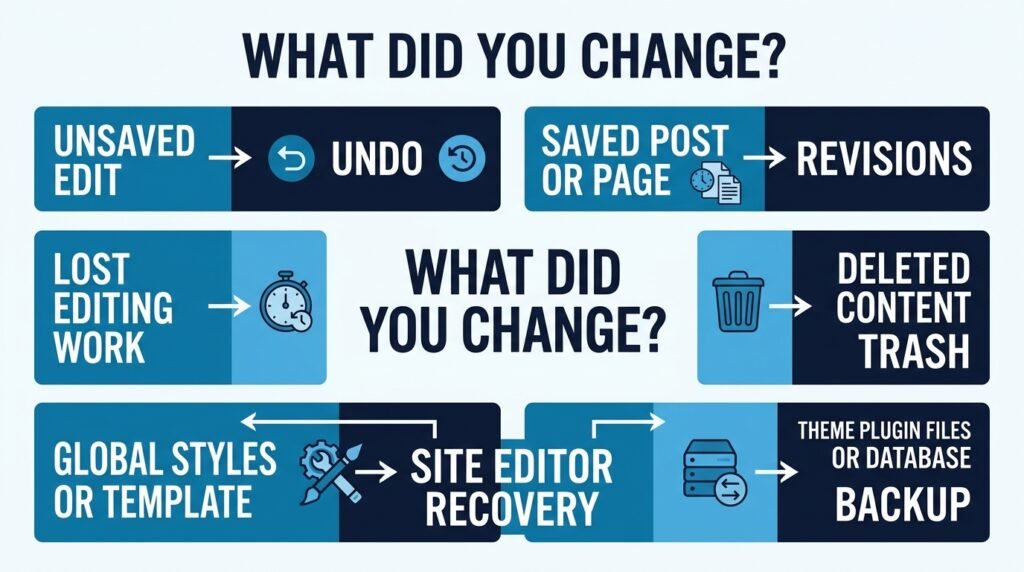
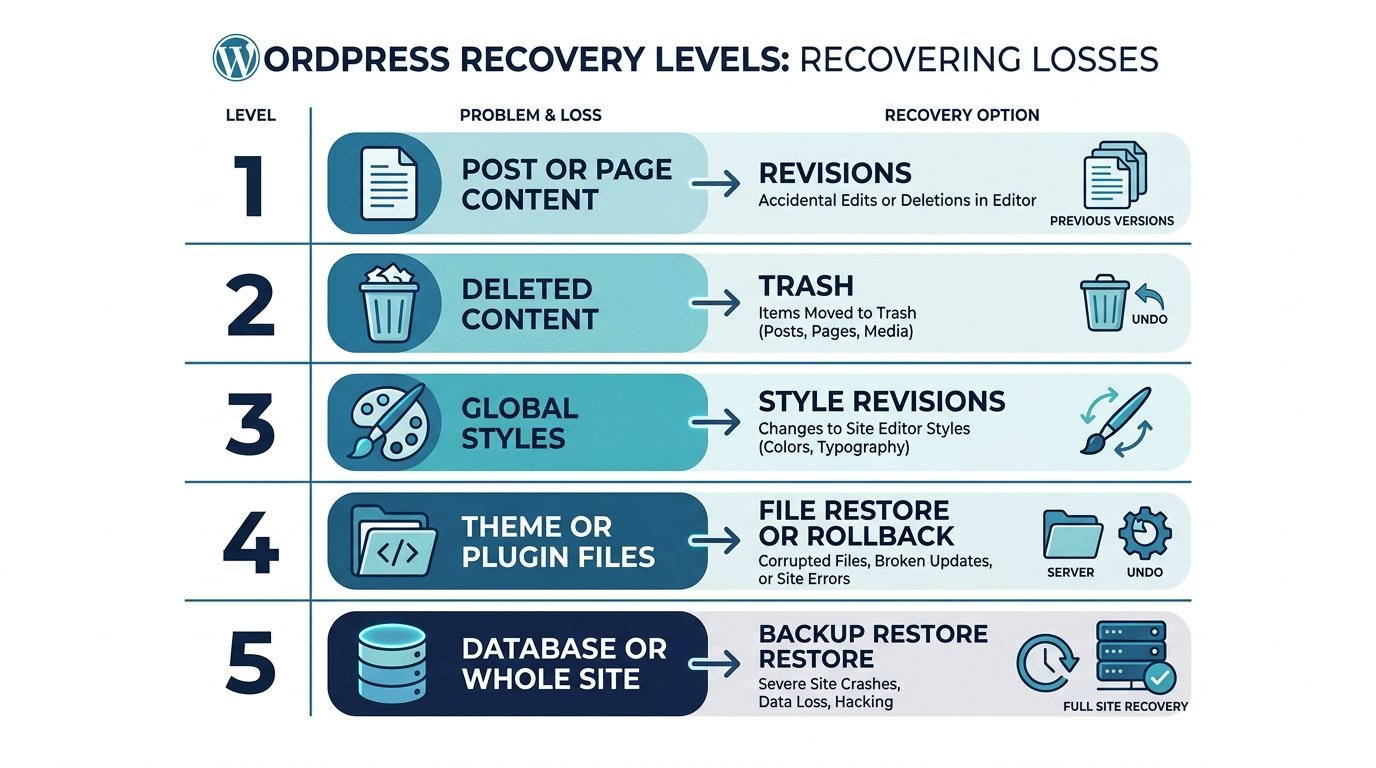
You can undo most WordPress changes, but the right method depends on what you changed. Use Undo for a recent editor mistake, Revisions for a saved post or page, Autosave for interrupted work, Trash for deleted content, and a backup when themes, plugins, files, settings, or the database were changed.
Start with the smallest recovery option that fixes the problem. Restoring an entire website because one paragraph was deleted can remove newer content that was added after the backup.
Which WordPress Undo Method Should You Use?
Use this quick check before changing anything else.
| What changed? | Start here |
|---|---|
| Recent text or block change | Undo |
| Saved post or page | Revisions |
| Work lost after a crash or connection problem | Autosave |
| Deleted post or page | Trash |
| Site-wide colors, fonts or styles | Style revisions |
| Block-theme template | Template reset |
| Theme or plugin files | Backup or supported rollback |
| PHP, CSS or other code | Original file, version control or backup |
| Database or whole website | Full backup restore |
WordPress stores saved post and page versions through its revisions system, while autosaves are stored as a special revision and do not overwrite published content. (WordPress Revisions)
How to Undo a Change Before You Save It
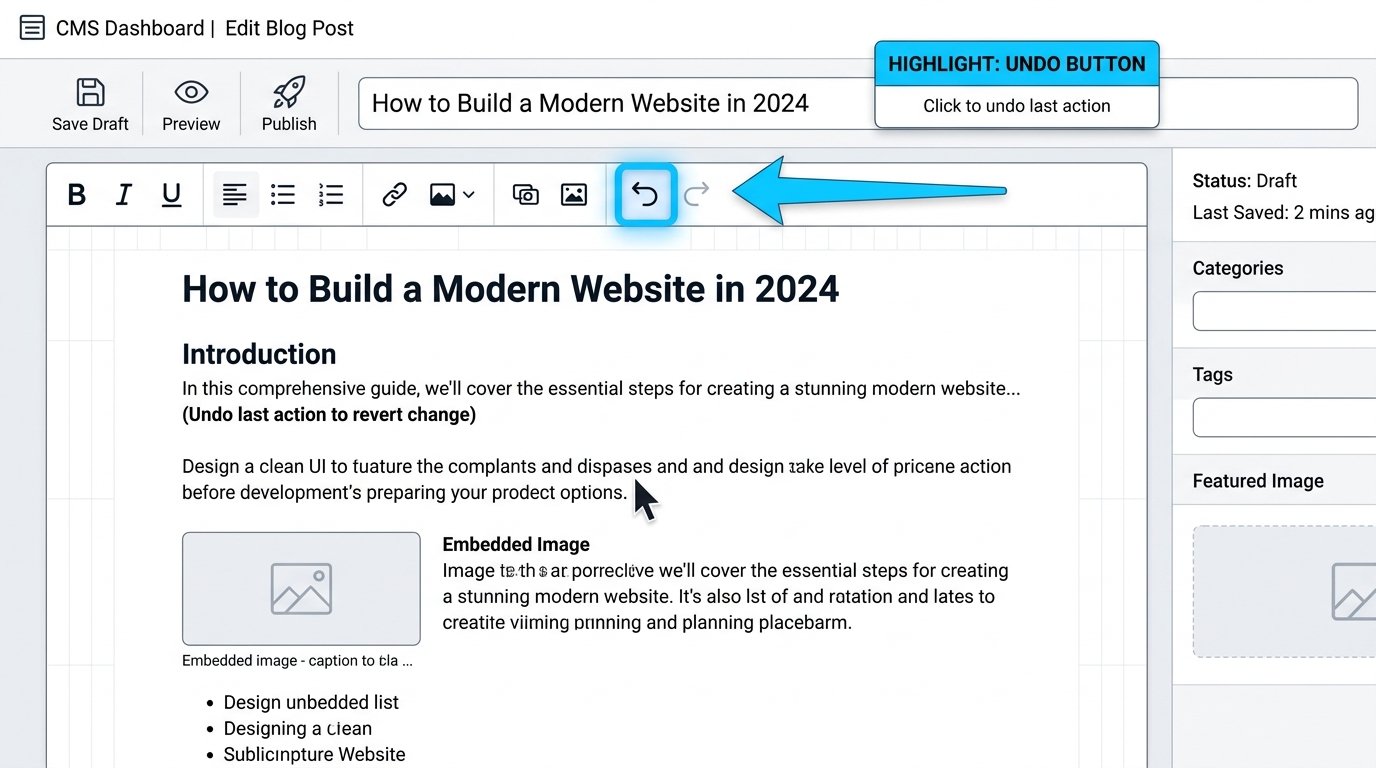
If you just deleted a paragraph, moved a block, changed a heading, or edited the wrong text, use the editor Undo control first.
In the WordPress editor, click the Undo arrow in the top toolbar.
You can also use:
Windows: Ctrl + Z
Mac: Cmd + Z
Undo works best for changes made during the current editing session.
If you already saved the page and reopened the editor, do not keep clicking around trying to rebuild the old version. Open Revisions and find the saved version you want.
How to Restore a Saved WordPress Post or Page
WordPress Revisions are the main recovery option for content that has already been saved.
WordPress records saved drafts and published updates so you can review earlier versions and restore one when needed. (WordPress Revisions)
Step 1: Open the Post or Page
Go to:
Posts → All Posts
or:
Pages → All Pages
Open the content you want to restore.
Step 2: Open Revisions
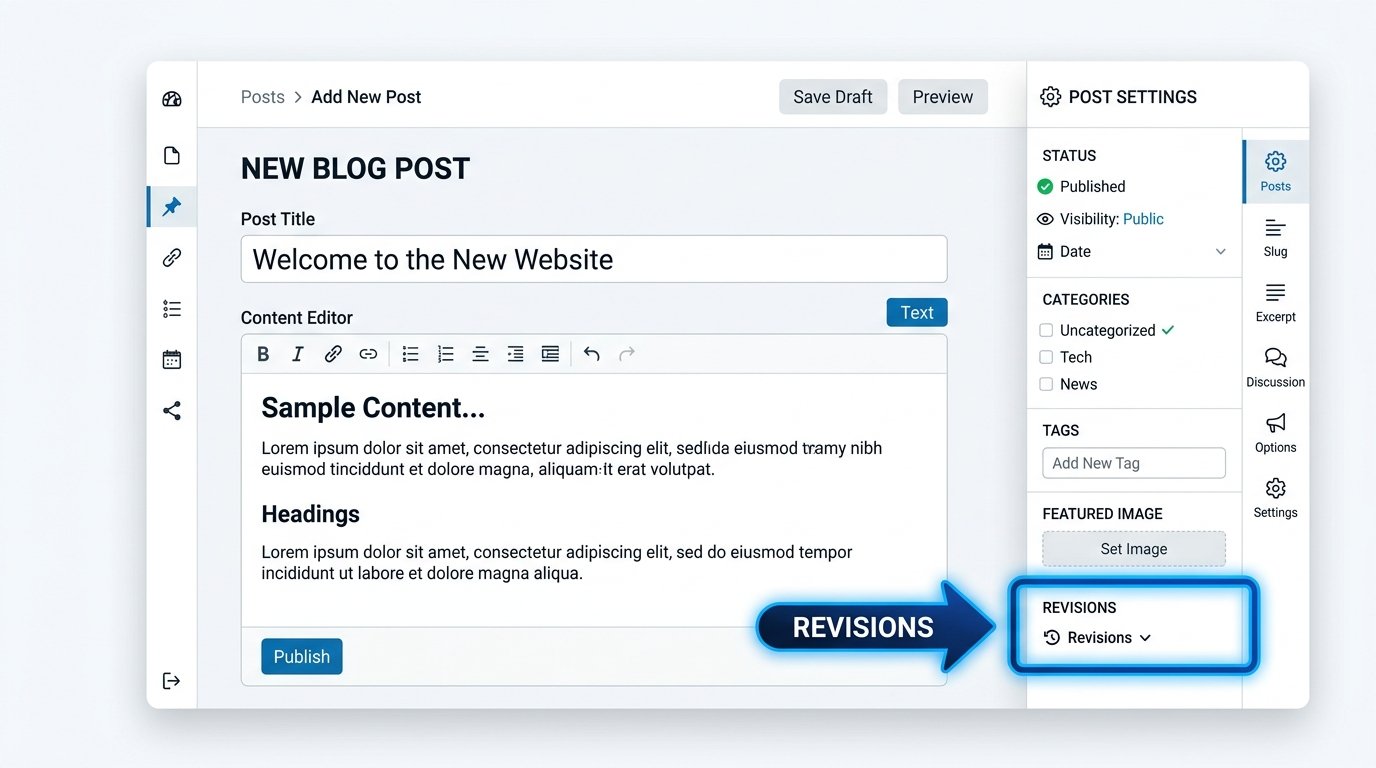
Open the post or page settings sidebar and find Revisions.
If WordPress has saved previous versions, the revision option will let you open the revision history.
Step 3: Find the Version You Want
Move through the available revisions.
Check the date, author, and actual content differences.
Do not restore a revision only because its timestamp looks right. Read the changes first.
Step 4: Compare the Content
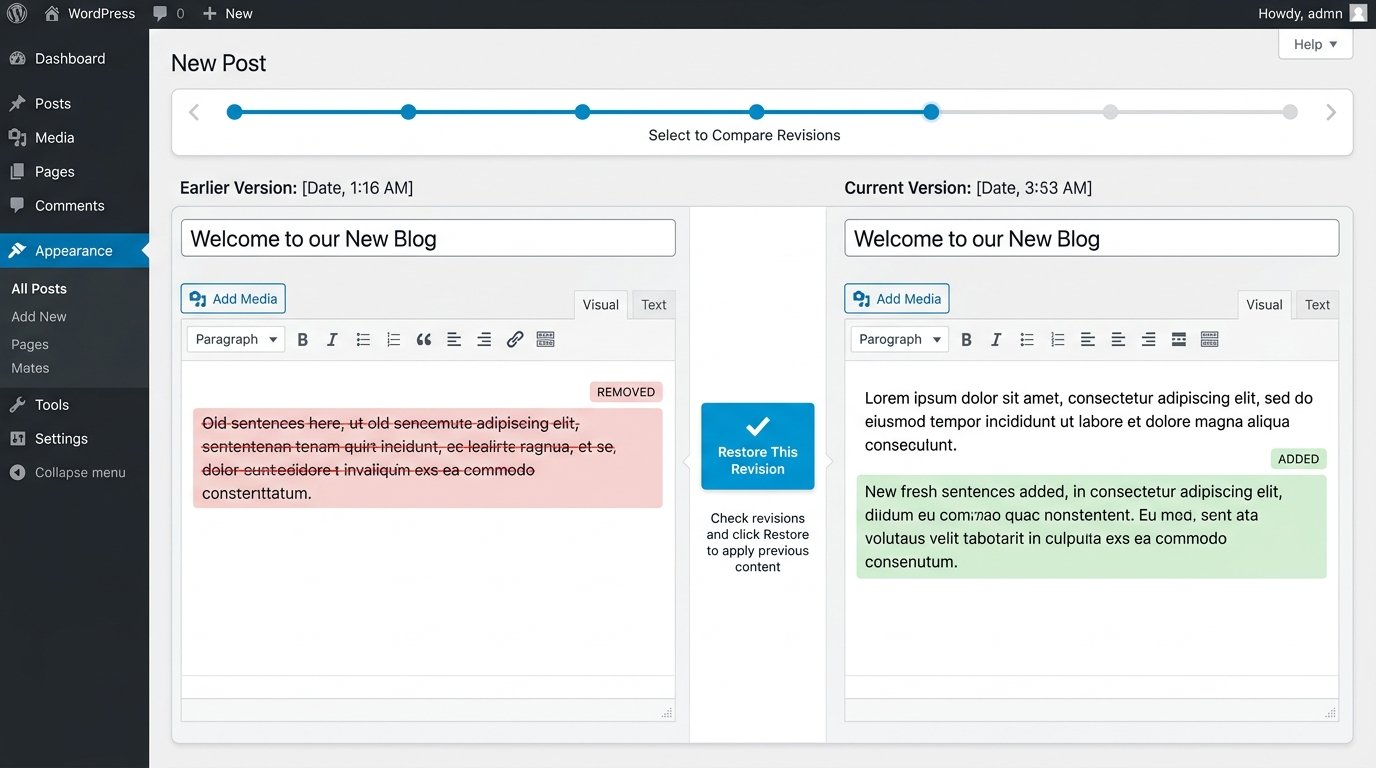
WordPress highlights what changed between revisions, helping you identify added, removed, and changed content. (WordPress Revisions)
Look closely at:
- Page title
- Headings
- Paragraphs
- Links
- Blocks
- Removed text
- Added text
Step 5: Restore the Revision
Once you find the correct version, choose the restore option.
Then preview the post or page.
Check the page on the front end before making more edits.
Does Restoring a Revision Delete the Latest Version?
WordPress revisions are designed to preserve historical versions of saved content.
When you restore an earlier revision, that content becomes the working version you are returning to. Revision history allows you to compare saved versions again if more changes are needed.
Still, check the restored page immediately. Do not assume every site-wide design or plugin change will return with the post content.
How to Recover Unsaved WordPress Content With Autosave
Autosave is different from a normal revision.
WordPress automatically saves editing progress while you work. Autosaves are stored separately from the published post and do not overwrite the published content. If your browser crashes, power fails, or your connection drops, WordPress may detect a newer autosaved version when you return. (WordPress Revisions)
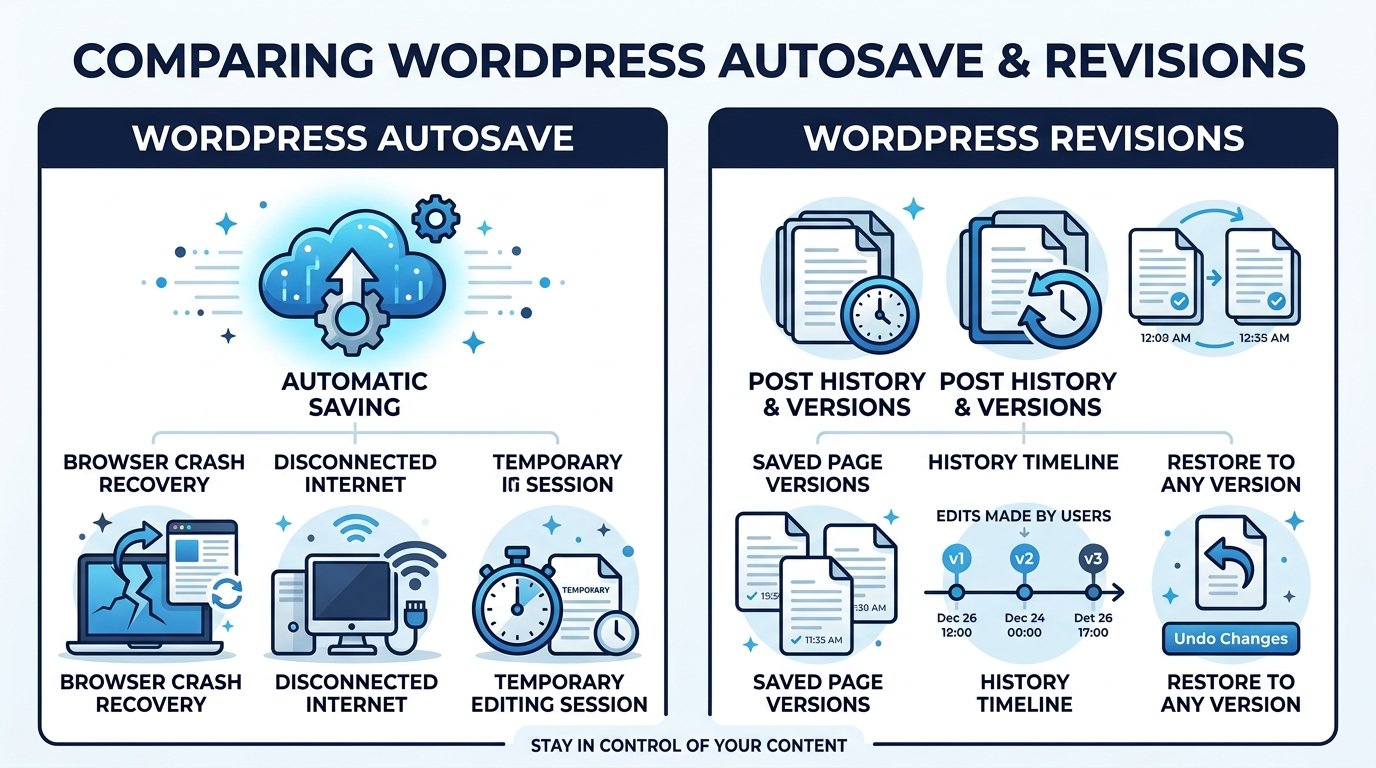
Autosave
Best for:
- Browser crash
- Lost internet connection
- Unexpected tab close
- Interrupted editing
Revision
Best for:
- Saved content changes
- Earlier published version
- Comparing edits
- Restoring an older post or page
If WordPress offers an autosave recovery notice, review that version before continuing with new edits.
How to Restore a Deleted WordPress Post or Page
Accidentally deleting a post or page does not always mean it is gone permanently.
Go to:
Posts → All Posts → Trash
or:
Pages → All Pages → Trash
Find the deleted item and click Restore.
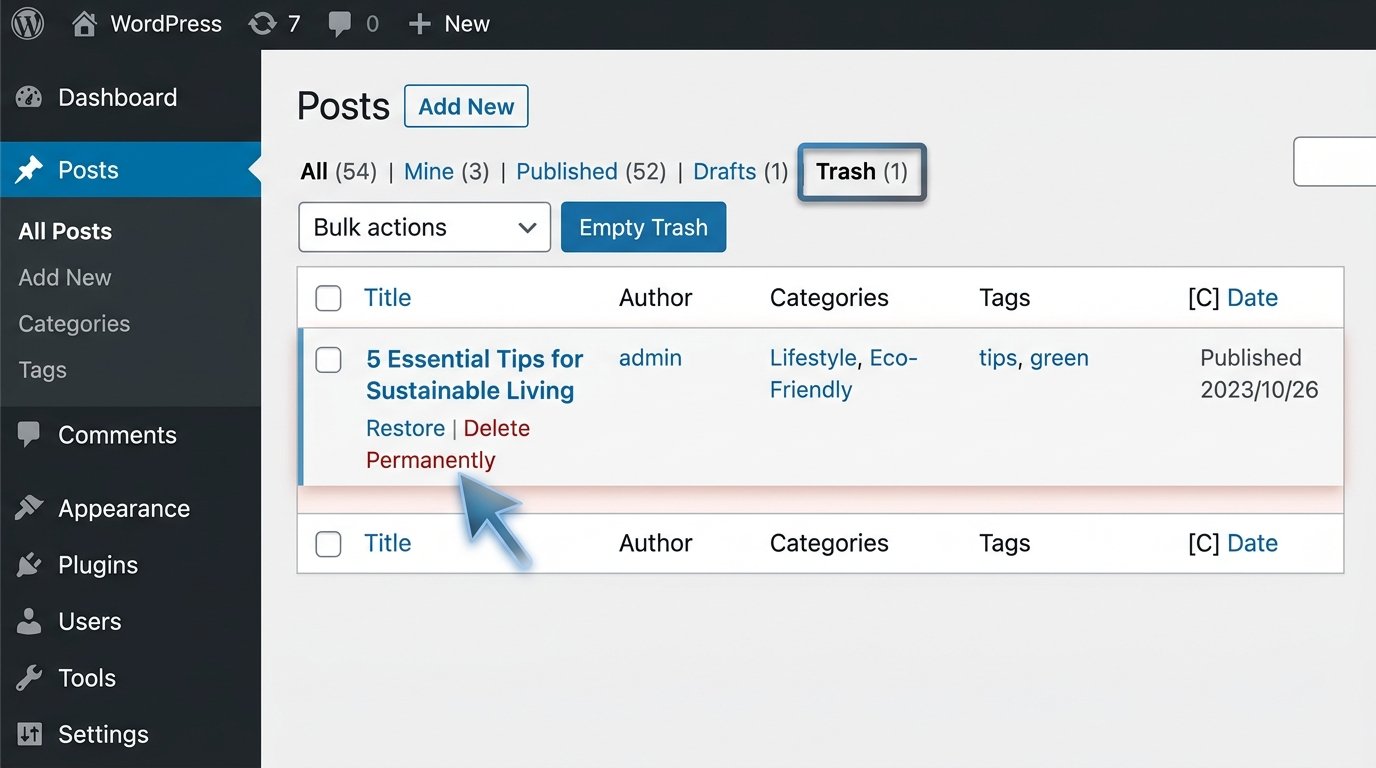
After restoring it, open the content and confirm:
- Title
- Content
- Featured image
- Categories
- Tags
- Page status
If the item was permanently deleted or Trash was emptied, you may need a backup.
How to Undo Site Editor Changes
If your website uses a block theme, Appearance → Editor can control much more than one page.
The Site Editor can manage site-wide styles, templates, headers, footers, and other shared elements. A saved header or footer change can affect every page that uses it. (WordPress Site Editor)
Undo an Unsaved Site Editor Change
If the change is still part of the current editing session, use the Undo control before saving.
This works well for a recently:
- Deleted block
- Moved block
- Changed layout
- Replaced heading
- Edited template part
Check What WordPress Is About to Save
When saving in the Site Editor, WordPress can show the changed templates, template parts, navigation items, or other items included in the save. (WordPress Site Editor)
Review that list rather than saving everything automatically.
How to Restore Earlier WordPress Global Styles
A block theme can use Global Styles for site-wide:
- Colors
- Fonts
- Typography
- Layout
- Spacing
- Block appearance
A change here may affect many pages at once.
Go to:
Appearance → Editor → Styles
Open the Styles options and look for Style revisions.
WordPress provides style revision and reset controls inside the Site Editor. (WordPress Site Editor)
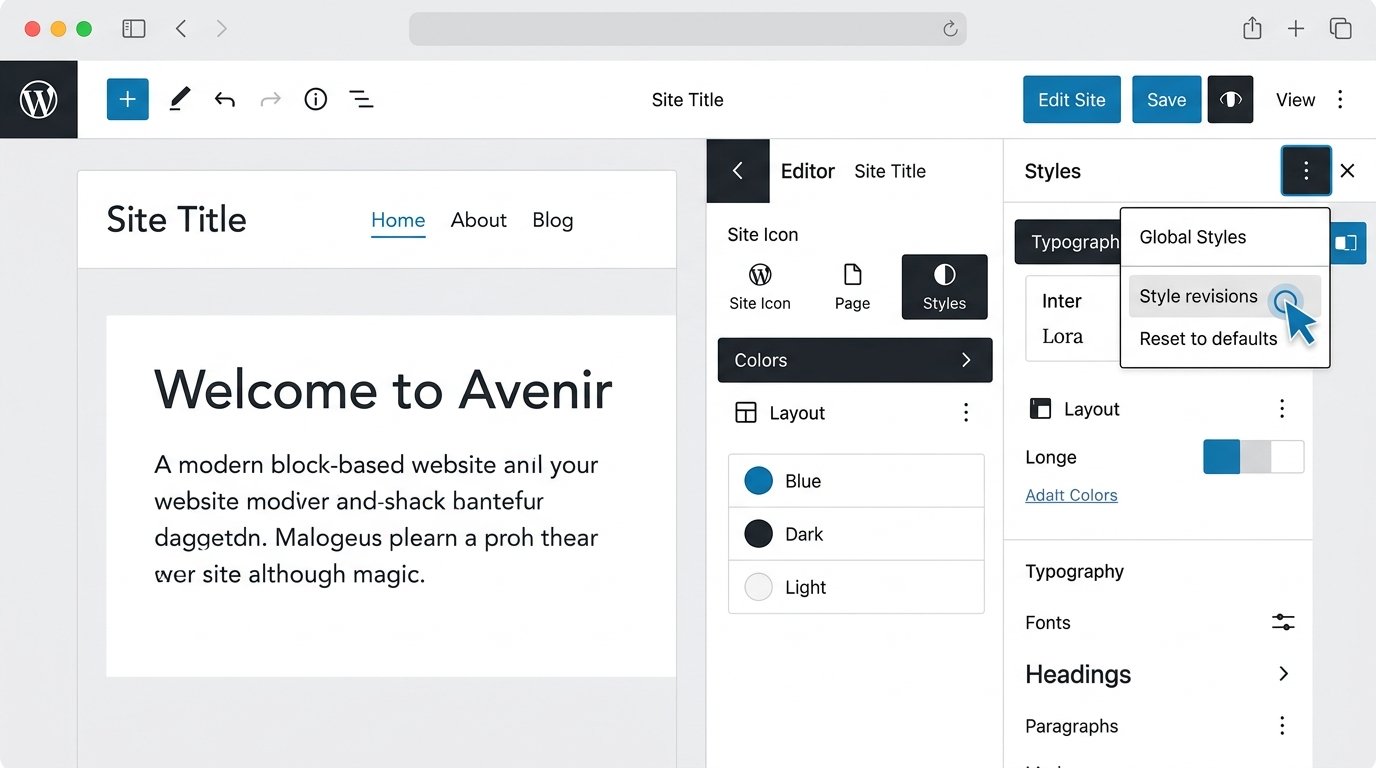
Choose an earlier version when you want to return to a previous style state.
After restoring it, inspect several page types rather than checking only the homepage.
How to Reset WordPress Styles to Theme Defaults
If you want to remove your style customizations completely, WordPress provides Reset to defaults for block-theme Styles. (WordPress Styles Overview)
Go to:
Appearance → Editor → Styles
Open the three-dot menu and choose the reset option.
Be careful here.
Restoring one earlier style revision and resetting all custom styles are different actions.
Use Style revisions when you want an earlier customized version.
Use Reset to defaults when you want the theme’s original styles back.
How to Undo Changes to a WordPress Template
Block themes can contain templates for areas such as:
- Single posts
- Pages
- Archives
- Search results
- Blog home
- 404 pages
If you customized a theme-provided template and want the original version back, WordPress provides a reset option for customized templates. (WordPress Template Editor)
Go to:
Appearance → Editor → Templates
Find the affected template.
Open its menu and choose Reset where available.
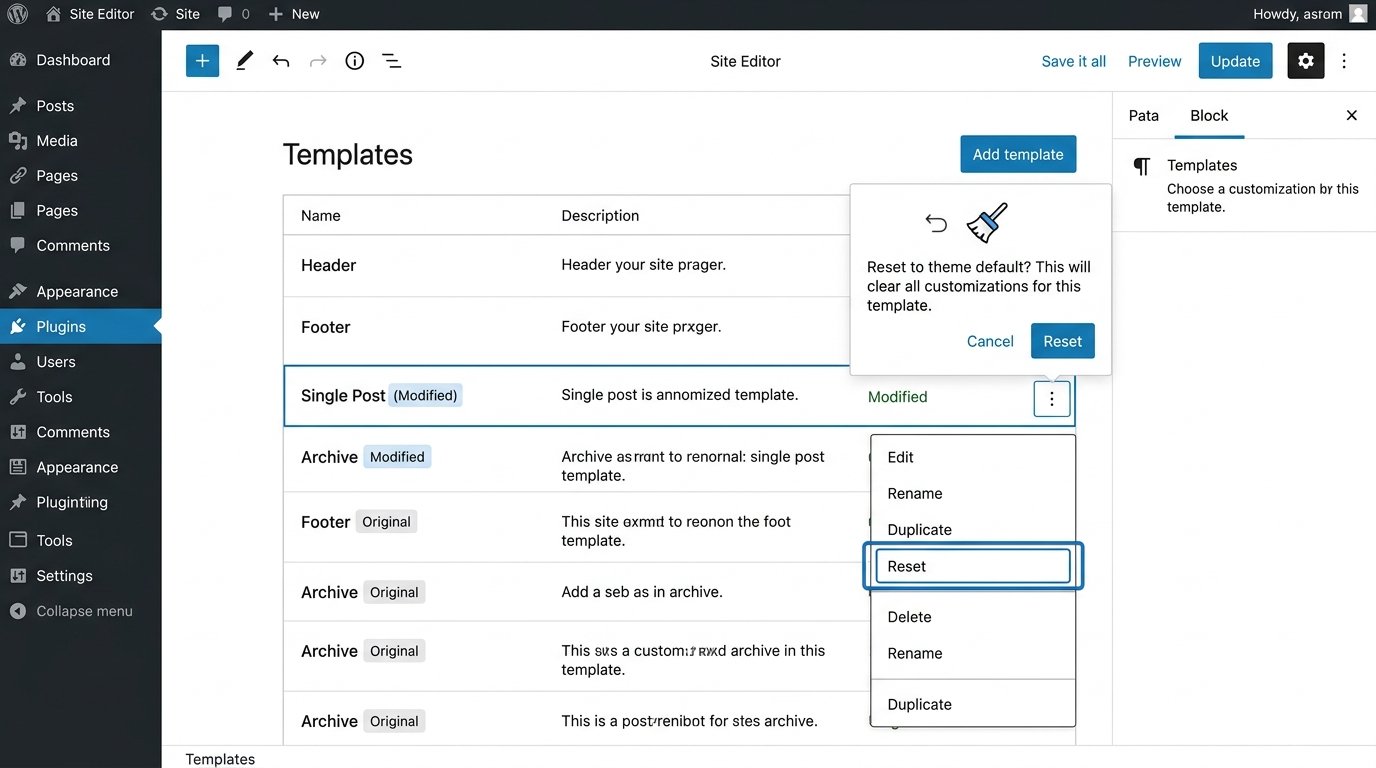
WordPress warns that resetting the template returns it to its default state and removes the customizations made to that template. (WordPress Template Editor)
Do not use Reset when you only want to undo one small change unless you are prepared to rebuild the other customizations.
How to Undo Header or Footer Changes
With a block theme, headers and footers may be shared across multiple templates.
A saved change can therefore appear on many pages.
Use this recovery order:
- Use Undo if the change is still unsaved.
- Check which template or template part was changed.
- Review any available revision or recovery option.
- Restore the relevant template state when appropriate.
- Use a backup when the previous version cannot be recovered another way.
Do not restore the complete site until you confirm the problem cannot be fixed inside the Site Editor.
How to Undo WordPress Navigation Changes
For a block theme, navigation can be managed inside the Site Editor.
If you have not saved the change yet, use Undo.
If the navigation was already saved, open:
Appearance → Editor → Navigation
Check which item was:
- Deleted
- Reordered
- Renamed
- Moved
- Added incorrectly
Rebuild the affected part manually when the original structure is easy to identify.
If a large navigation structure was lost and cannot be reconstructed reliably, check your backup options.
Can You Undo a WordPress Theme Update?
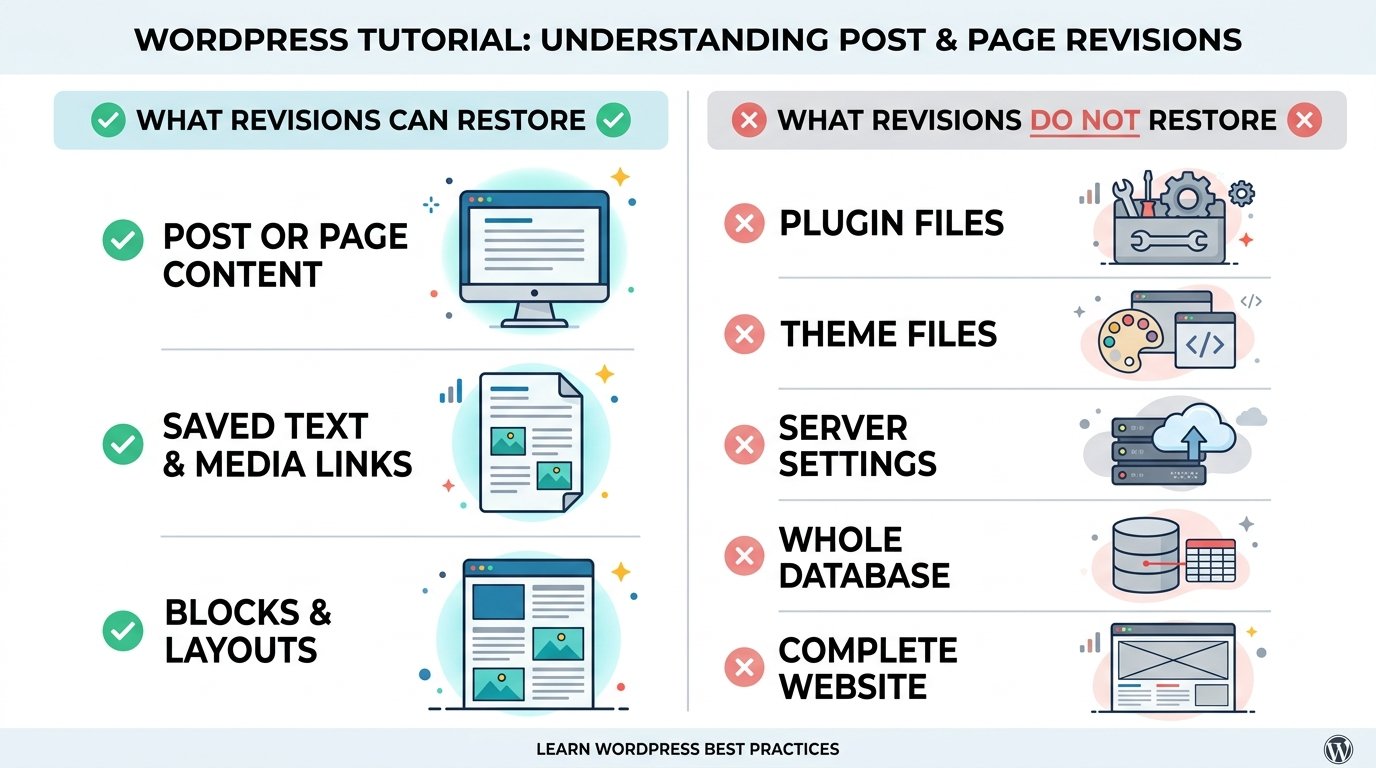
Post and page Revisions do not restore theme files.
If a theme update causes a problem, the recovery method may include:
- Restoring a recent backup
- Restoring the previous theme files
- Using a supported rollback feature
- Reinstalling a known compatible version
- Using a hosting restore point
Do not download an old theme from an unknown website simply because the current update caused a problem.
If you are preparing for an update rather than recovering from one, read How to Update a WordPress Theme Without Losing Changes.
Can You Undo a WordPress Plugin Update?
Not with post revisions.
Plugin updates change plugin files and may also change database data.
If a plugin update causes an error:
- Stop making unrelated changes.
- Confirm which plugin caused the problem.
- Check the plugin documentation.
- Test recovery on staging when available.
- Use a known-good backup if required.
Avoid rolling back several plugins at once when only one update caused the problem.
How to Undo Changes to functions.php, PHP or Theme Files
Content revisions do not restore PHP files, theme files, or plugin code.
If you changed functions.php or another code file, use the recovery source that contains the previous code.
That may be:
- Version control
- A child theme copy
- Original theme files
- Hosting file backup
- Full site backup
- A local development copy
If the edit causes a fatal error and you cannot open WordPress admin, use your hosting file manager, SFTP, SSH, or another available server-access method to restore the affected file.
Do not keep adding more code to a broken file until you know which change caused the error.
How to Undo Custom CSS Changes
If the CSS edit has not been saved, use Undo.
If it was saved, restore the previous CSS from:
- Your own copy
- Version control
- Theme or Site Editor history where available
- A backup
For block themes, site-wide Custom CSS can be managed through the Site Editor. Current WordPress documentation notes that Site Editor Custom CSS is retained during theme updates but is cleared when switching themes. (WordPress Styles Overview)
Keep a copy of important custom CSS outside the live editor before major design changes.
When Should You Restore a WordPress Backup?
Use a backup when the problem reaches beyond one recoverable content item.
A backup becomes more appropriate when you changed:
- Theme files
- Plugin files
- PHP
- Database settings
- Several parts of the website
- WordPress configuration
- Large amounts of content
- Site-wide functionality
If only one post has the wrong paragraph, use Revisions.
If a theme update broke templates and files across the website, a backup may be more appropriate.
What Does a Complete WordPress Backup Need?
A typical complete WordPress backup has two major parts:
Database
The database contains data such as:
- Posts
- Pages
- Comments
- Many WordPress settings
- User-related data
- Plugin-generated database data
Files
Website files include:
- Themes
- Plugins
- Uploads
- WordPress files
wp-config.php- Other PHP, JavaScript and static files
WordPress documentation explains that files and the database are separate parts of a typical WordPress backup, and both are needed for a complete site restore. (WordPress Files Backup)
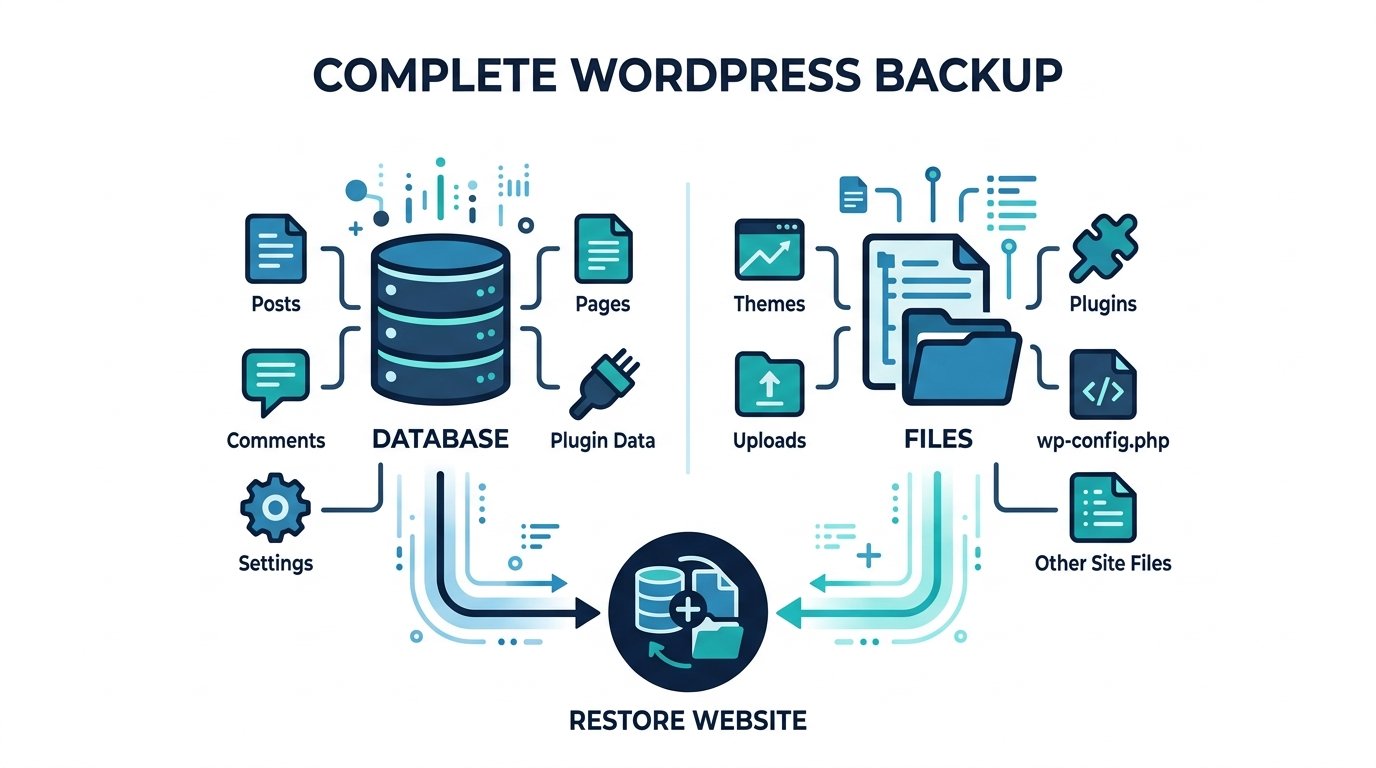
Downloading your WordPress directory alone does not normally create a database backup because the database is stored separately. (WordPress Files Backup)
How to Restore WordPress From a Hosting Backup
Many hosting companies provide restore points or automated backups.
The exact controls differ between hosts, so there is no single WordPress dashboard path that applies everywhere.
Before restoring:
- Check the backup date and time.
- Confirm whether it contains files, database, or both.
- Check what changed after that backup.
- Create a fresh current backup when possible.
- Restore only the part you need if your host supports partial restoration.
After restoration, test:
- Homepage
- Key pages
- WordPress admin
- Forms
- Login
- Plugins
- Images
- Navigation
- Contact forms
- Ecommerce checkout if applicable
Check What Will Be Lost Before Restoring the Database
A database restore can solve one problem while creating another.
Restoring a database backup returns the database to the state captured in that backup. WordPress documentation warns that importing a backup replaces the current database state with the backed-up state. (WordPress Database Backup)
Before restoring, check for newer:
- Posts
- Pages
- Comments
- User accounts
- Form submissions
- Orders
- Customer information
- Plugin data
- Settings
This matters most on active membership, lead-generation, publishing, and ecommerce websites.
A backup from yesterday may fix yesterday’s mistake but also remove valid activity created afterward.
WordPress Undo vs Revisions vs Autosave vs Backup
| Recovery method | Best use | Scope |
|---|---|---|
| Undo | Recent editor mistake | Current editing session |
| Autosave | Interrupted editing | One post or page |
| Revisions | Earlier saved content | One post or page |
| Trash | Deleted content | One post or page |
| Style revisions | Earlier block-theme design | Global styles |
| Template reset | Return template to theme default | One template |
| File restore | Code or theme/plugin file | Selected files |
| Database restore | Database problem | Database |
| Full backup | Major site-wide problem | Files + database |
Use the smallest method that fixes the problem.
Why WordPress Revisions Are Missing
If you cannot find Revisions, first check whether the post or page has any saved revisions.
Possible reasons include:
- No previous revision exists.
- Revision storage has been limited.
- Revisions were disabled through site configuration.
- The content type handles revisions differently.
- A plugin or custom configuration affects revision behavior.
WordPress allows revision storage to be limited or disabled through WP_POST_REVISIONS. (WordPress Revisions)
For example:
define( 'WP_POST_REVISIONS', 3 );
limits the number of stored revisions.
Do not change this value simply to recover a revision that was never stored.
Why the WordPress Undo Button Is Greyed Out
A greyed-out Undo button usually means there is no recent action available to reverse in the current editor state.
This can happen after:
- Reloading the editor
- Opening the page again
- Starting a new editing session
- Reaching the beginning of the available undo history
If you are trying to recover a saved version from earlier, use Revisions instead.
Why a Revision Did Not Restore the Whole Page Design
Post revisions are not full-site backups.
WordPress revisions track saved content fields rather than every file, theme option, plugin configuration, or server setting. (WordPress Revisions)
A post revision should not be expected to restore:
- Plugin files
- Theme files
- PHP changes
- Every plugin option
- Hosting configuration
- Full database state
- All global theme styles
If the visible page changed because of a theme, template, plugin, or site-wide style update, use the recovery method for that part of WordPress.
Common WordPress Recovery Mistakes to Avoid
Restoring the Whole Website for One Content Error
Use Revisions when one page or post is wrong.
Restoring an Old Database Without Checking New Data
You may remove newer orders, forms, comments, users, or posts.
Resetting an Entire Template for One Small Change
A template reset can remove all customizations made to that theme template. (WordPress Template Editor)
Assuming Revisions Restore Theme or Plugin Files
They do not.
Making More Changes Before Identifying the Problem
More edits can make recovery harder.
Restoring a Backup Without Checking Its Date
Know exactly which site state you are returning to.
Editing the Database Before Checking Native Recovery Options
Check Undo, Revisions, Autosave, Trash, and Site Editor tools first.
How to Avoid Losing WordPress Changes Again
Keep a dependable backup routine.
WordPress recommends backing up both the database and site files, particularly before significant upgrades or site work. (WordPress Database Backup)
For safer WordPress changes:
- Preview important edits before saving.
- Keep automatic backups.
- Back up before plugin or theme updates.
- Use staging for risky changes.
- Keep custom code in version control.
- Use a child theme for appropriate theme customizations.
- Record major settings changes.
- Check which Site Editor items will be saved.
- Avoid editing several unrelated areas during troubleshooting.
A good recovery system starts before something breaks.
Frequently Asked Questions
Can I undo changes in WordPress after saving?
Yes, when the affected post or page has a suitable revision. Other saved changes may require Site Editor history, a template reset, file recovery, or a backup.
How do I undo the last change in WordPress?
Use the Undo button in the editor or Ctrl + Z on Windows and Cmd + Z on Mac while the recent edit is still available.
How do I restore an old version of a WordPress page?
Open the page, find Revisions, review the available versions, select the version you want, and restore it.
Does WordPress automatically save my work?
WordPress creates autosaves while you edit posts and pages. Autosaves are stored as a special type of revision and do not overwrite published content. (WordPress Revisions)
Can I recover a deleted WordPress page?
Check Pages → All Pages → Trash first. If the page is still there, restore it. If it was permanently deleted, check your backups.
Can I undo a theme change with Revisions?
Post and page Revisions do not restore theme files. Block-theme styles and templates have separate recovery controls, while theme-file problems may require a backup or rollback.
Can I undo a plugin update with WordPress Revisions?
No. Content revisions do not restore plugin files.
Can I undo WordPress changes without a backup?
Yes, when Undo, Autosave, Revisions, Trash, or Site Editor recovery can restore what changed.
Will restoring a backup remove newer changes?
It can. A database restore returns the database to the state stored in that backup, which can replace newer database changes. (WordPress Database Backup)
Why can I not see Revisions?
The page may not have stored revisions, revisions may have been limited, or your site configuration may affect revision storage.
Use the Smallest Recovery Method That Fixes the Problem
Start with Undo for a recent editor mistake.
Use Revisions for saved post or page content.
Check Autosave when editing work disappeared after an interruption.
Use Trash for deleted content.
Use Style revisions or template recovery for block-theme design changes.
Move to file or backup restoration when the problem affects themes, plugins, PHP, database data, or the wider site.
Avoid restoring more of WordPress than necessary. A targeted recovery protects newer work that is already correct.
