
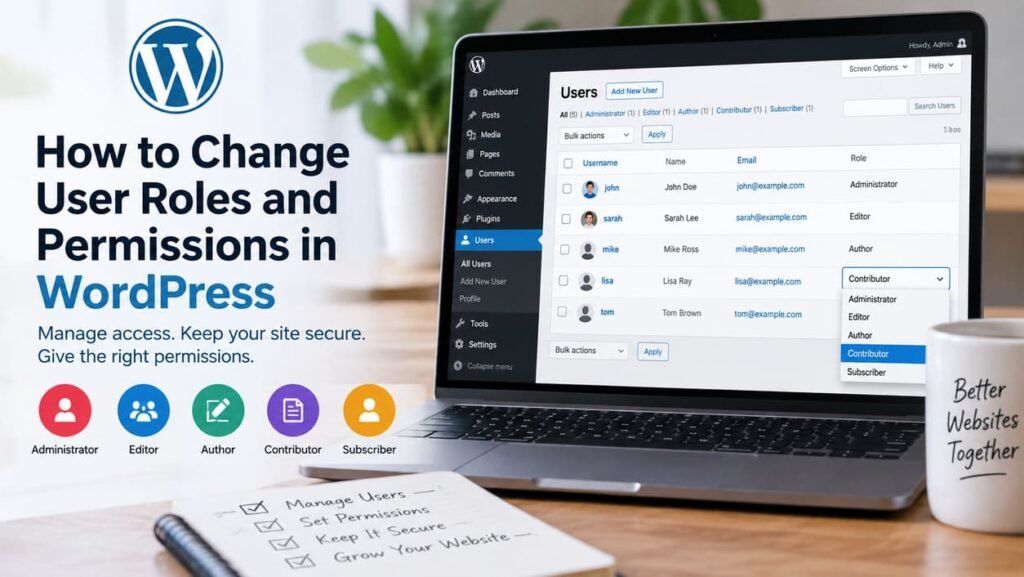
WordPress user roles control what each account can do inside your website. You can give a writer access to posts without letting that person install plugins, or let an Editor manage content without giving full Administrator access.
For most sites, changing access starts in Users → All Users. You can assign a built-in role such as Administrator, Editor, Author, Contributor, or Subscriber. If a built-in role is close but not exact, WordPress capabilities let you control individual permissions more precisely.
This tutorial shows how to modify WordPress roles and permissions safely, choose the right role, change several users at once, and troubleshoot common access problems.
Quick Answer: Where Do You Change a WordPress User Role?
To change one user’s role:
- Sign in to the WordPress Dashboard.
- Go to Users → All Users.
- Open the user you want to edit.
- Find the Role setting.
- Choose the new role.
- Click Update User.
- Sign in with the affected account or test the required access.
Changing a role changes the capabilities assigned to that account.
Do not choose Administrator only because a user needs one extra permission. Start with the lowest role that lets the person complete the required work.
WordPress documents its built-in roles and capabilities in the official Roles and Capabilities documentation.
What Is the Difference Between a WordPress Role and Permission?
A role is a named set of access rights.
Examples include:
Administrator
Editor
Author
Contributor
Subscriber
A capability is one specific permission inside WordPress.
Examples include:
edit_posts
publish_posts
upload_files
moderate_comments
manage_categories
manage_options
edit_users
Think of a role as a package of capabilities.
For example, an Author receives capabilities needed to write, upload media, and publish their own posts. An Editor receives broader content-management capabilities, including the ability to work with posts from other users.
The normal WordPress Users screen makes role assignment easy. WordPress core does not provide a standard checkbox screen where you can freely turn every individual capability on or off for each role.
That distinction matters when a standard role gives a user either too much access or too little.
WordPress User Roles and What Each One Can Do
WordPress includes six predefined roles. Super Admin applies to Multisite networks, while the other five are commonly seen on normal WordPress installations.
Administrator
An Administrator has broad control over a normal single WordPress site.
Depending on the installation, Administrator capabilities can include:
- Managing plugins
- Managing themes
- Managing users
- Publishing and editing content
- Managing categories
- Moderating comments
- Changing site options
- Importing and exporting content
Administrator is appropriate for a site owner or a trusted person who genuinely needs site-wide administration.
Do not give Administrator access to writers or freelancers who only need content access.
Editor
An Editor can publish and manage content, including posts created by other users.
This role works well for:
- Content managers
- Editorial leads
- Website editors
- People responsible for reviewing and publishing content
Editors have much broader content control than Authors, but they do not receive the same site-administration access as a normal single-site Administrator.
Author
An Author can publish and manage their own posts.
This role works well for a trusted writer who should:
- Create posts
- Upload media
- Publish their own posts
- Edit their own published content
An Author should not receive Editor access only to publish personal content.
Contributor
A Contributor can write and manage their own posts but cannot publish them.
This role is useful when:
- A writer submits drafts.
- An Editor reviews content.
- Publishing requires approval.
If you need a writer to create posts without publishing them, Contributor may already solve the problem without a custom role.
Subscriber
A Subscriber has very limited access.
The default Subscriber role primarily allows the user to sign in and manage their profile.
This role can suit registered users who do not need editorial or administrative access.
Super Admin
Super Admin is a WordPress Multisite role.
A Super Admin can manage network-level features across the Multisite installation.
This role is different from Administrator.
On a normal single-site installation, Administrator is the highest standard site role. On Multisite, Super Admin controls network administration while site Administrators have more limited powers than single-site Administrators.
How to Change a User Role in WordPress
Changing an existing user role takes only a few steps.
Step 1: Open All Users
From the WordPress Dashboard, go to:
Users → All Users
The Users screen shows the accounts registered on your site and the role assigned to each account.
Step 2: Select the User Account
Find the account you want to change.
Hover over the username and click Edit, or click the username itself.
Make sure you are changing the correct account before continuing.
Step 3: Find the Role Setting
On the user profile screen, locate the Role dropdown.
The available options normally include roles such as:
Administrator
Editor
Author
Contributor
Subscriber
Additional roles may appear when themes, plugins, ecommerce systems, membership tools, or custom code register their own roles.
Step 4: Choose the New Role
Select the role that matches the work the user actually needs to perform.
For example:
Author → Editor
may be suitable when a writer becomes responsible for reviewing and managing other writers’ posts.
Changing:
Administrator → Editor
can reduce access when a person no longer needs site administration.
Step 5: Save the Change
Click Update User.
WordPress saves the new role and the capabilities attached to it.
Step 6: Test the User Access
Do not stop after saving the role.
Test the affected account and confirm that the person can access only the areas needed.
Depending on the job, check:
- Posts
- Pages
- Media
- Comments
- Categories
- Appearance
- Plugins
- Users
- Settings
Plugins can add their own roles and capability checks, so testing is important on sites with custom functionality.
If you are changing access while troubleshooting a wider site problem, review how to undo changes in WordPress before making several administrative changes at once.
How to Change Roles for Multiple WordPress Users at Once
WordPress can change the role of several users in one operation.
Go to:
Users → All Users
Then:
- Select the checkboxes beside the users you want to update.
- Find the Change role to dropdown.
- Select the new role.
- Apply the change.
The WordPress Users screen documentation describes the Users area and role management.
Bulk role changes are useful when several accounts need the same access.
Check your selection carefully before applying the change. A bulk update can give broader permissions to several users or remove access from several accounts at once.
How to Set the Default Role for New WordPress Users
WordPress also lets you choose the role assigned to new users.
Go to:
Settings → General
Find:
New User Default Role
Choose the role new accounts should receive.
The official WordPress General Settings documentation confirms that this option controls the default role assigned to newly registered or added users.
Changing the default role affects future users. It does not automatically change the roles of existing accounts.
For a site that allows public registration, do not use Administrator as the default role.
Choose the lowest level that matches what newly registered users should be able to do.
How to Change Individual Permissions in WordPress
Changing a user’s role and changing an individual capability are different tasks.
The normal Users screen lets you assign a role.
It does not provide a built-in interface for freely editing every capability attached to each role.
If a standard role is almost correct but needs one permission added or removed, you have two practical options.
Option 1: Use a Role and Capability Management Plugin
A role-management plugin can provide an interface for tasks such as:
- Creating a custom role
- Copying an existing role
- Adding capabilities
- Removing capabilities
- Assigning custom roles
- Reviewing access given by a role
Before changing permissions, make a backup and document the original role configuration.
Do not install a role editor only to give every user broader access. Use it when the site’s access requirements genuinely differ from the default WordPress roles.
Option 2: Modify Roles and Capabilities With Code
WordPress provides developer APIs for role and capability management.
Common functions and methods include:
add_role()
remove_role()
WP_Role::add_cap()
WP_Role::remove_cap()
A developer can retrieve a role and add a capability:
$role = get_role( 'editor' );

if ( $role ) {
    $role->add_cap( 'some_capability' );
}
Or remove a capability:
$role = get_role( 'editor' );

if ( $role ) {
    $role->remove_cap( 'some_capability' );
}
Do not paste capability code into a live site without knowing what that capability controls.
Role changes made through WordPress capability APIs can be stored in the database. Removing the code later does not necessarily mean every saved role change is automatically undone.
For production sites, test custom role code on staging and keep a record of what was changed.
Example: Give an Editor One Extra Permission Without Making Them Administrator
Suppose a content manager is already an Editor but needs one additional site capability.
A common mistake is changing:
Editor → Administrator
only to unlock that one task.
That can expose far more than the person needs.
A safer process is:
- Identify the exact missing capability.
- Check what else that capability permits.
- Confirm the existing role does not already have it.
- Add only the required capability through a controlled role-management method.
- Test the account.
- Document the change.
This follows the principle of least privilege: an account receives the access required for its work, not every available permission.
Be particularly careful with broad capabilities such as:
manage_options
edit_users
install_plugins
edit_theme_options
They can expose much more than one menu item.
Example: Let Writers Create Posts but Stop Them From Publishing
You may not need a custom role.
Use Contributor when a writer should:
- Create a post
- Edit their own draft
- Submit content for review
but should not publish the post.
An Editor or another user with suitable publishing capabilities can review and publish it.
Using the existing Contributor role keeps the permissions easier to understand and maintain.
Example: Let a Writer Publish Only Their Own Posts
Consider Author when a writer needs to:
- Create posts
- Upload media
- Publish personal posts
- Edit personal published posts
An Author does not receive the same broad editorial control as an Editor.
This makes Author a better choice when someone should publish personal work but should not manage content from other writers.
Which WordPress Role Should You Give Each Type of User?
Use the lowest role that still lets the person complete their work.
A practical starting point is:
| User | Suggested starting role |
|---|---|
| Site owner who manages the whole site | Administrator |
| Content manager | Editor |
| Writer who publishes their own posts | Author |
| Writer whose posts require approval | Contributor |
| Registered user without content-management duties | Subscriber |
| Multisite network administrator | Super Admin |
These are starting points, not universal rules.
Plugins can add custom capabilities, and some websites need custom roles.
Always check the actual tasks the person needs to perform.
What to Check Before Increasing a User’s Permissions
Before giving more access, ask what the account genuinely needs.
Check:
- Which exact task is blocked?
- Which capability controls that task?
- Can a lower built-in role already perform it?
- Does a plugin provide a dedicated custom role?
- Will the new permission expose users, settings, plugins, or themes?
- Is the account still actively required?
- Can the change be tested on staging?
- Have you documented the original access?
Do not increase access only because a user cannot see one dashboard menu.
A missing menu may be caused by one capability, a plugin setting, or a custom role configuration.
Why You Should Not Give Every User Administrator Access
Administrator access is broad.
On a normal single-site WordPress installation, Administrators can have capabilities covering areas such as:
- Plugins
- Themes
- Site settings
- Users
- Content
- Categories
- Comments
- Imports and exports
A writer who only creates posts does not need this level of control.
A freelancer who edits landing-page copy may not need it either.
Administrator access should be reserved for people who genuinely need full site administration.
If a person needs only one additional task, solve that specific access requirement instead of giving the account everything.
What Happens to Posts When You Change a User’s Role?
Changing a user’s role does not automatically delete that user’s existing posts.
The role change affects what the account is allowed to do afterward.
For example, moving a user from Author to Subscriber may remove the ability to edit or publish posts through that account.
The existing content itself is a separate issue.
Deleting a user is also a separate WordPress workflow, and WordPress can ask how authored content should be handled during user deletion.
Do not confuse:
Change user role
with:
Delete user
Why a User Cannot See a WordPress Menu After You Changed Their Role
WordPress dashboard menus often appear only when the current user has the capability required for that screen.
If a menu disappears after a role change, check:
The New Role
The selected role may not contain the required capability.
For example, access to different administration screens can depend on capabilities such as:
edit_posts
upload_files
manage_categories
edit_theme_options
manage_options
Plugin Permissions
A plugin may use:
- Core WordPress capabilities
- Its own custom capabilities
- A custom role
- Separate plugin settings
Check the plugin’s access documentation.
Site Editor Access
WordPress notes that Site Editor features can depend on capabilities such as:
edit_theme_options
edit_posts
edit_pages
edit_others_posts
read
upload_files
Do not add edit_theme_options only to make one Site Editor screen appear without checking the broader access that capability can provide.
Multisite
Administrator permissions are different on WordPress Multisite.
Some abilities available to Administrators on a single site are reserved for Super Admins on a Multisite network.
Custom Role Changes
A role-management plugin or custom code may have changed the default capabilities.
Compare the site’s current role configuration with the access you expect.
Why You Cannot Change Another User’s Role
If the role option is missing or you cannot manage another account, check your own permissions first.
Possible causes include:
- Your account does not have user-management capabilities.
- You are not an Administrator on the site.
- The site is part of a Multisite network.
- A plugin changes user-management access.
- A custom role is missing capabilities needed to manage users.
Do not edit the WordPress database manually as the first solution.
Find out why the current account lacks access before changing role records directly.
Can You Create a Custom User Role in WordPress?
Yes.
WordPress provides APIs for creating roles and assigning capabilities.
For example:
add_role(
    'content_reviewer',
    'Content Reviewer',
    array(
        'read'              => true,
        'edit_posts'        => true,
        'edit_others_posts' => true,
    )
);
A custom role can be useful when no built-in role matches the job.
However, do not create a new role when Contributor, Author, Editor, or another existing role already provides the right access.
Custom roles add another configuration that your team must document and maintain.
If you need a dedicated role, a separate tutorial on creating a custom WordPress role can cover safe implementation in more depth.
WordPress User Role and Permission Mistakes to Avoid
Giving Administrator Access for One Missing Permission
Find the actual capability instead of unlocking the entire dashboard.
Changing Several Users Without Checking the Selection
Bulk changes can affect every selected account.
Editing Roles Without Recording the Original Access
Write down what was changed so you can reverse or review it later.
Testing Permission Changes Only With Your Administrator Account
An Administrator can see screens the affected user cannot.
Test with the relevant role.
Assuming Every Plugin Uses the Same Permissions
Plugins can register custom roles and capabilities.
Forgetting to Remove Access
When a contractor, writer, or employee no longer needs access, review the account.
Creating Custom Roles for Problems Built-In Roles Already Solve
Use Contributor, Author, or Editor when one already matches the job.
Changing Permissions Directly on Production Without Testing
Role changes can affect publishing, administration, and plugin access.
Use staging when the change is complex.
Frequently Asked Questions
Can an Administrator change user roles in WordPress?
On a normal single-site WordPress installation, an Administrator has broad user-management capabilities and can generally manage user roles. Multisite permissions differ because some network-level user management belongs to Super Admins.
Can a WordPress user have more than one role?
WordPress user objects can technically hold role data beyond a single simple label, and plugins or custom code can create more complex role setups. The normal WordPress admin interface is designed around assigning a role through the user-management screen. If you need combined permissions, manage capabilities deliberately rather than assuming multiple roles will always combine cleanly across plugins.
What is the highest WordPress user role?
On a normal single-site WordPress installation, Administrator is the highest standard site role.
On WordPress Multisite, Super Admin controls network-level administration.
What is the safest WordPress role for a writer?
Use Contributor when the writer should submit drafts for approval.
Use Author when the writer should publish and manage their own posts.
Do not give Editor or Administrator access unless the writer’s job requires those broader capabilities.
Can I change WordPress permissions without a plugin?
Yes.
Developers can manage roles and capabilities through WordPress APIs such as:
add_role()
remove_role()
WP_Role::add_cap()
WP_Role::remove_cap()
Test changes carefully because capability modifications can affect major areas of the dashboard.
Does changing a WordPress role delete the user’s posts?
No. Changing the role changes the account’s capabilities. It does not automatically delete existing posts.
Why did a WordPress user lose access after I changed their role?
The new role may not contain the capability required for the missing screen or task. Plugins, custom roles, Multisite rules, and capability changes can also affect access.
Should I client get Administrator access?
Only when the client genuinely needs full site administration.
If the person only manages content, an Editor or another lower-access role may be more appropriate.
Should a freelancer get Administrator access?
Not automatically.
Give the freelancer only the access required for the assigned work. If temporary Administrator access is genuinely necessary, review or remove that access after the work is complete.
Final Checklist Before You Change WordPress Permissions
Before saving a role or capability change, confirm:
- You selected the correct account.
- You know what work that person needs to perform.
- A lower role cannot already do the job.
- You understand the new capabilities.
- You have not granted Administrator access unnecessarily.
- You can test the new access.
- Complex changes are documented.
- A backup or staging environment is available when the change is risky.
WordPress already provides useful roles for most common publishing jobs. Start with those roles before building a custom permission structure.
If a standard role is close but not exact, change only the capabilities required for the job rather than giving the user broader access than necessary.
Continue Reading
Category: Website Security
Next WordPress Tutorial: How to Undo Changes in WordPress
