
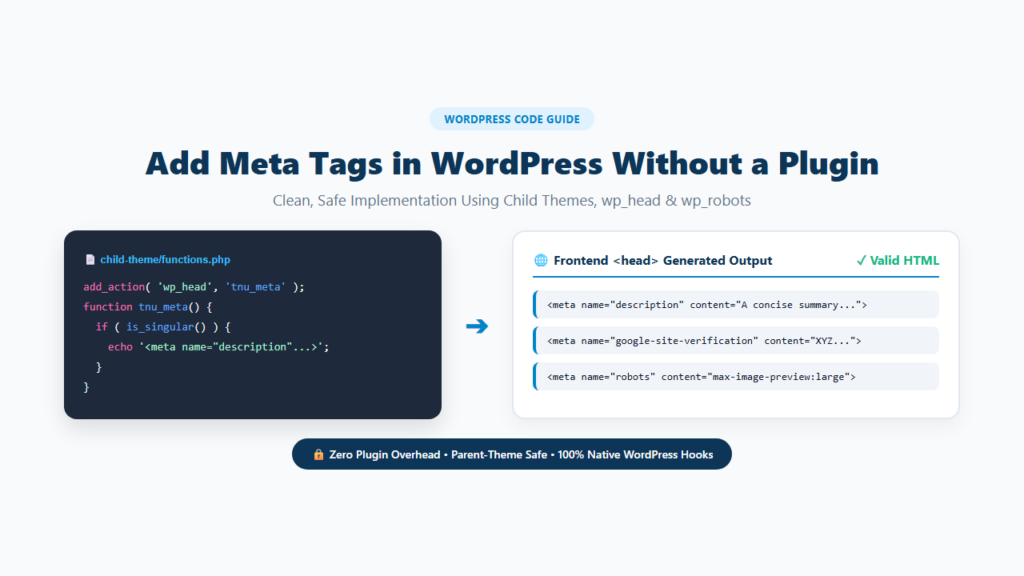
You can add meta tags in WordPress without installing an SEO plugin. For normal custom metadata, the cleanest WordPress method is to hook your PHP code into wp_head, which prints data inside the frontend <head> section. For robots directives such as noindex, use WordPress’s dedicated wp_robots filter instead of printing a second robots tag manually.
Keep the code in a child theme rather than editing the parent theme. Parent-theme updates can replace direct code changes. Also check the page source before adding anything because your theme, WordPress core, or another tool may already output the tag you need.
This guide covers meta descriptions, robots directives, site-verification tags, page-specific conditions, safe dynamic output, and common mistakes.
Quick Answer: How Do You Add Meta Tags in WordPress Without a Plugin?
For a normal custom meta tag, add code to the active child theme’s functions.php file and hook it to wp_head.
Example:
add_action( 'wp_head', 'tnu_add_custom_meta_tag' );

function tnu_add_custom_meta_tag() {
    echo '<meta name="example" content="Example value">' . "n";
}
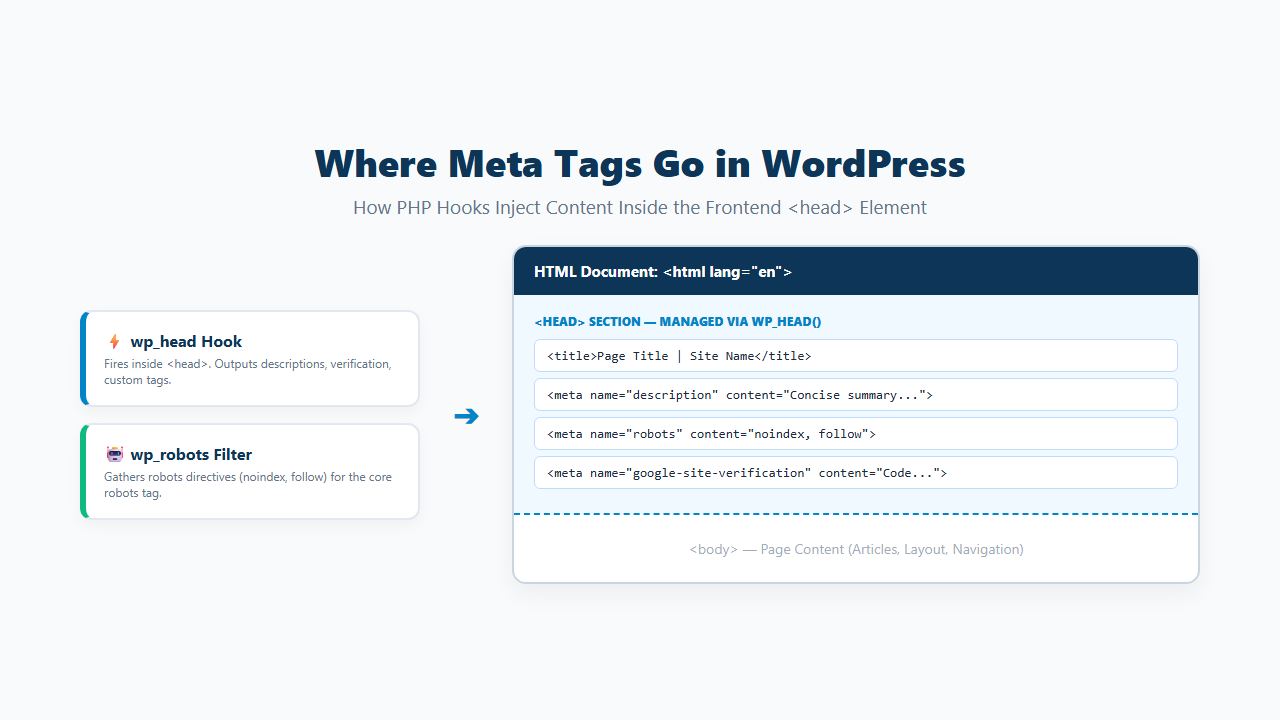
WordPress documents wp_head as an action that prints scripts or data inside the frontend <head> section.
For robots directives, use:
add_filter( 'wp_robots', 'tnu_custom_robots' );rather than manually echoing another <meta name="robots"> tag.
Before adding code:
- Check whether the tag already exists.
- Use a child theme.
- Decide which pages need the tag.
- Escape dynamic values.
- Verify the final page source.
What Is a Meta Tag?
A meta tag is HTML placed inside the page <head> to provide information about the page to browsers, search engines, or other services.
Example:
<meta name="description" content="A short summary of the page.">Another example:
<meta name="google-site-verification" content="YOUR-CODE">A robots directive can look like:
<meta name="robots" content="noindex">Different meta tags have different jobs. Do not treat meta description, robots, verification, and meta keywords as interchangeable SEO fields.
The Page Title Is Not a Meta Tag
A common mistake is calling the HTML <title> element a meta tag.
This:
<title>Example Page Title</title>is a title element.
This:
<meta name="description" content="Example description">is a meta element.
WordPress themes normally handle the document title through WordPress’s title system. This tutorial focuses on actual meta tags.
Which Meta Tags Can You Add Without a Plugin?
You can manually output many valid metadata elements when your site needs them.
Common examples include:
Meta Description
<meta name="description" content="A useful summary of this page.">Google may use a meta description when it provides a better search-result snippet than text taken from the page. Google can also choose a different snippet for a particular query.
Robots Meta
Example output:
<meta name="robots" content="noindex">Use WordPress’s wp_robots system to manage these directives.
Google Site Verification
<meta name="google-site-verification" content="YOUR-VERIFICATION-CODE">This can be used to verify site ownership for Google services such as Search Console.
Other Service Verification Tags
Other platforms may give you a verification meta tag to place in the <head>. Use the exact name and content values provided by that service.
Meta Keywords
You can technically output:
<meta name="keywords" content="keyword one, keyword two">but do not confuse this with modern Google SEO requirements. The next tutorial covers this tag separately.
Use a Child Theme Before Adding Permanent PHP Code
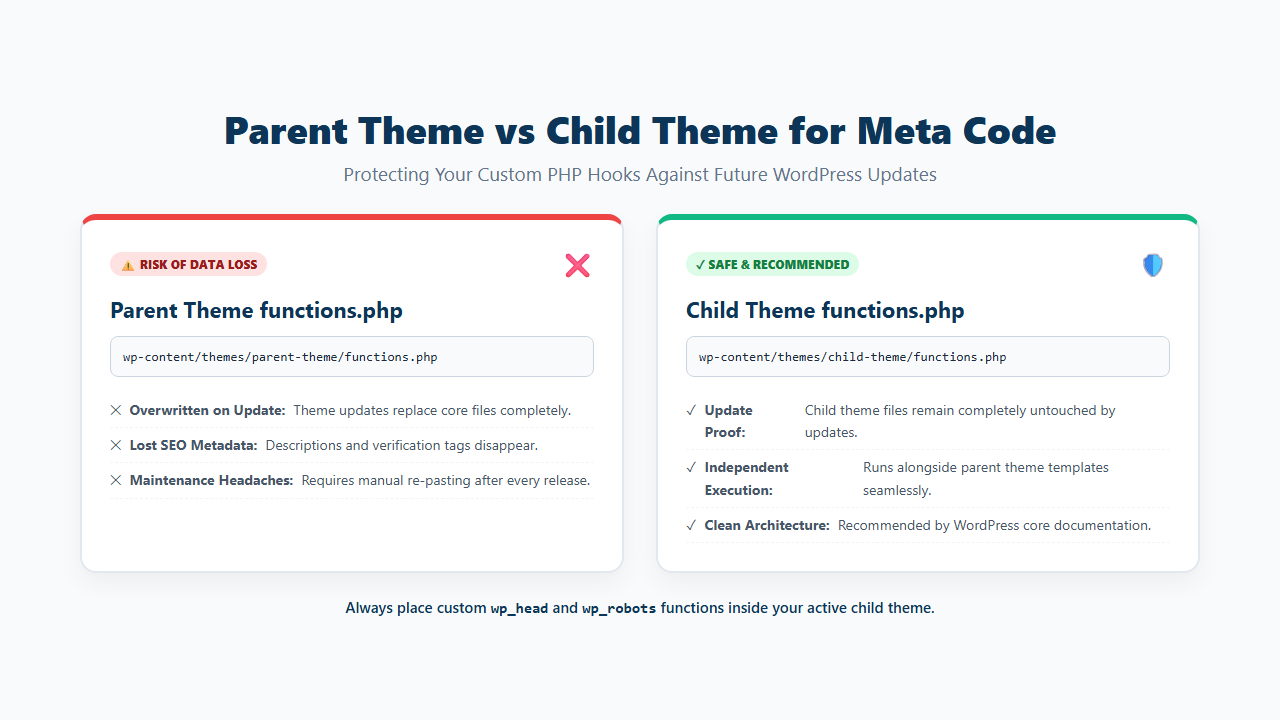
Do not place permanent custom code directly in a parent theme’s functions.php file. A parent-theme update can replace those edits.
A child theme keeps your own functions.php separate from the parent theme. WordPress’s official Child Themes documentation specifically recommends this approach for custom PHP that should remain after parent-theme updates.
A typical structure looks like:
wp-content/
└── themes/
    ├── parent-theme/
    └── child-theme/
        ├── style.css
        └── functions.php
If your site already uses a child theme, add the code there.
If you directly modified the parent theme before, review How to Update a WordPress Theme Without Losing Changes before making more permanent edits.
How wp_head Adds Meta Tags to WordPress
WordPress themes call wp_head(); inside the document <head>.
That function fires the wp_head action. You can attach your own function to that action.
Example:
add_action( 'wp_head', 'tnu_example_meta' );

function tnu_example_meta() {
    echo '<meta name="example" content="Example value">' . "n";
}
The generated HTML appears inside the frontend <head> when the active theme correctly calls wp_head().
This is easier to maintain than hard-coding a tag directly into the parent theme’s header.php.
How to Add a Meta Description to the Homepage Without a Plugin
Use is_front_page() when the description should appear only on the site’s front page.
add_action( 'wp_head', 'tnu_home_meta_description' );

function tnu_home_meta_description() {
    if ( ! is_front_page() ) {
        return;
    }

    $description = 'Write a concise and accurate homepage description here.';

    printf(
        '<meta name="description" content="%s">' . "n",
        esc_attr( $description )
    );
}
The condition is_front_page() prevents the description from being printed on every page. The esc_attr() function safely prepares the description for an HTML attribute.
Before using this code, check that your theme or another system is not already printing a meta description.
How to Add a Meta Description to One WordPress Page
Use is_page() with a page ID.
Example:
add_action( 'wp_head', 'tnu_specific_page_description' );

function tnu_specific_page_description() {
    if ( ! is_page( 123 ) ) {
        return;
    }

    $description = 'Write the description for this specific page here.';

    printf(
        '<meta name="description" content="%s">' . "n",
        esc_attr( $description )
    );
}
Replace 123 with the actual page ID. This method works well when only a small number of important pages need manually controlled descriptions.
How to Add a Meta Description to One Blog Post
Use is_single() when you want to target a specific post.
Example:
add_action( 'wp_head', 'tnu_specific_post_description' );

function tnu_specific_post_description() {
    if ( ! is_single( 456 ) ) {
        return;
    }

    $description = 'Write the description for this specific post here.';

    printf(
        '<meta name="description" content="%s">' . "n",
        esc_attr( $description )
    );
}
Replace 456 with the post ID. Do not create hundreds of hard-coded conditions if your site has many articles. For a larger site, a dynamic method is easier to maintain.
How to Add Meta Descriptions to All Blog Posts
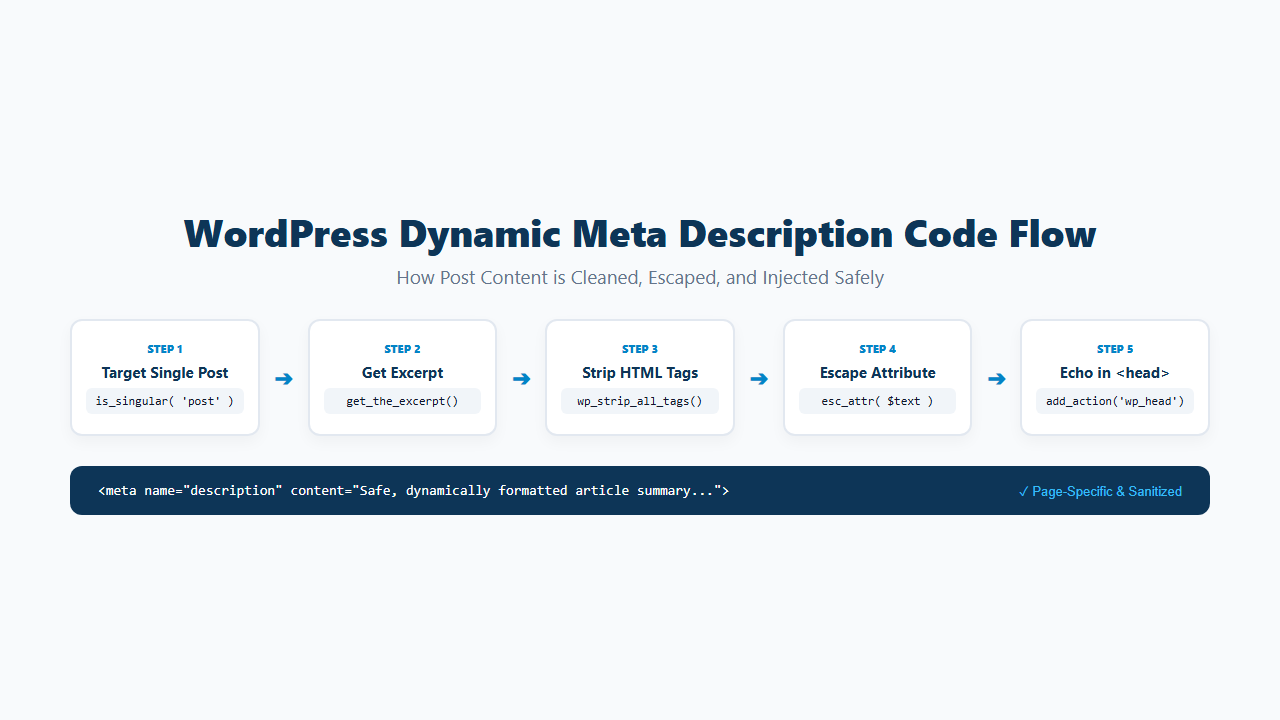
For all normal blog posts, use is_singular( 'post' ). A practical approach is to use the WordPress excerpt.
add_action( 'wp_head', 'tnu_post_meta_description' );

function tnu_post_meta_description() {
    if ( ! is_singular( 'post' ) ) {
        return;
    }

    $description = get_the_excerpt();

    if ( empty( $description ) ) {
        return;
    }

    $description = wp_strip_all_tags( $description );

    printf(
        '<meta name="description" content="%s">' . "n",
        esc_attr( $description )
    );
}
This creates page-specific output instead of printing one description across every post.
Google recommends descriptions that accurately describe individual pages. It also explains that identical or very similar descriptions across many pages are not helpful.
Should You Automatically Use the Post Excerpt as the Meta Description?
It can be a useful fallback, but it is not automatically the best description.
A manual excerpt may work well when it:
- Clearly summarizes the article.
- Reads naturally outside the page.
- Avoids repeated boilerplate.
- Gives users a useful reason to open the result.
If WordPress generates the excerpt automatically from the beginning of the content, review the output before relying on it across the whole site.
Google does not set a fixed character limit for the meta description element. Search-result snippets are truncated as needed for the device and query. Focus on clarity rather than writing to one exact character count.
How to Add Meta Descriptions to Custom Post Types
Use is_singular() with the custom post type slug.
Example:
if ( is_singular( 'product' ) ) {
    // Output the required metadata.
}
Replace product with the actual custom post type slug. Do not assume every custom post type needs a manually generated meta description. Add metadata only where it has a clear purpose.
How to Add a Custom Meta Tag Only to the Homepage
You can use the same wp_head approach for verification or other custom metadata.
Example:
add_action( 'wp_head', 'tnu_home_custom_meta' );

function tnu_home_custom_meta() {
    if ( ! is_front_page() ) {
        return;
    }

    echo '<meta name="example" content="homepage-value">' . "n";
}
This outputs the tag only on the front page. Use page conditions instead of adding a sitewide tag when the service only requires it on one page.
How to Add a Google Site Verification Meta Tag
Google provides a meta-tag verification method for site ownership.
If Google gives you:
<meta name="google-site-verification" content="YOUR-CODE">you can output it from the homepage with:
add_action( 'wp_head', 'tnu_google_site_verification' );

function tnu_google_site_verification() {
    if ( ! is_front_page() ) {
        return;
    }

    echo '<meta name="google-site-verification" content="YOUR-CODE">' . "n";
}
Replace YOUR-CODE with the exact verification value Google provides.
Google says the google-site-verification value should match the provided value exactly.
After adding it:
- Clear relevant cache.
- Open the homepage source.
- Search for
google-site-verification. - Confirm the value is correct.
- Complete verification.
Do not remove the verification method casually after verification if the service expects it to remain available.
How to Add a Robots Meta Tag Without a Plugin
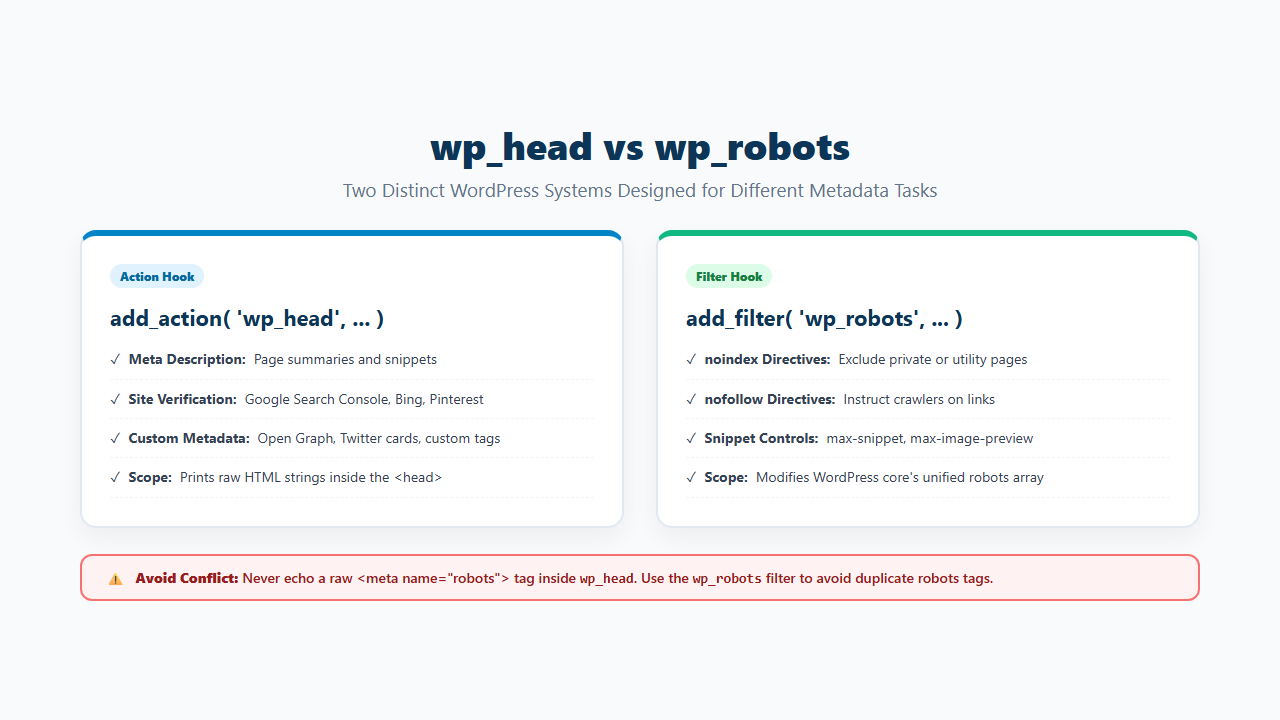
For robots directives, use WordPress’s built-in wp_robots filter.
WordPress introduced the wp_robots() system in WordPress 5.7. It gathers robots directives and prints the robots meta tag when needed. Do not make manual robots output your default approach.
Example:
add_filter( 'wp_robots', 'tnu_custom_robots_directives' );

function tnu_custom_robots_directives( $robots ) {
    if ( is_page( 123 ) ) {
        $robots['noindex'] = true;
    }

    return $robots;
}
This adds noindex for page ID 123.
How to Noindex One WordPress Page Without a Plugin
Use a page condition with wp_robots.
add_filter( 'wp_robots', 'tnu_noindex_specific_page' );

function tnu_noindex_specific_page( $robots ) {
    if ( is_page( 123 ) ) {
        $robots['noindex'] = true;
    }

    return $robots;
}
Replace 123 with the required page ID.
Use this carefully. A noindex directive tells supporting search engines not to keep the page in search results after they crawl and process the directive.
Google also notes that a page must remain crawlable for Google to see a noindex meta rule. Blocking the URL in robots.txt can prevent Google from seeing the directive.
Do not add noindex to an important page unless you genuinely want it excluded from search.
Do Not Add a Second Robots Meta Tag
Avoid code like this as your normal WordPress solution: echo '<meta name="robots" content="noindex">'; if WordPress or another system is already managing robots directives.
You can end up with more than one robots meta element or conflicting instructions.
WordPress’s wp_robots filter gives you one native place to modify the directives WordPress collects. Use that system whenever it fits the requirement.
wp_head vs wp_robots: Which Should You Use?
| Task | Recommended WordPress method |
|---|---|
| Meta description | wp_head |
| Verification meta tag | wp_head |
| Other custom metadata | wp_head |
Robots noindex | wp_robots filter |
| Robots directives | wp_robots filter |
Direct parent header.php edit | Avoid for normal permanent customization |
The distinction keeps robots handling inside WordPress’s existing robots system.
How to Target Different WordPress Pages
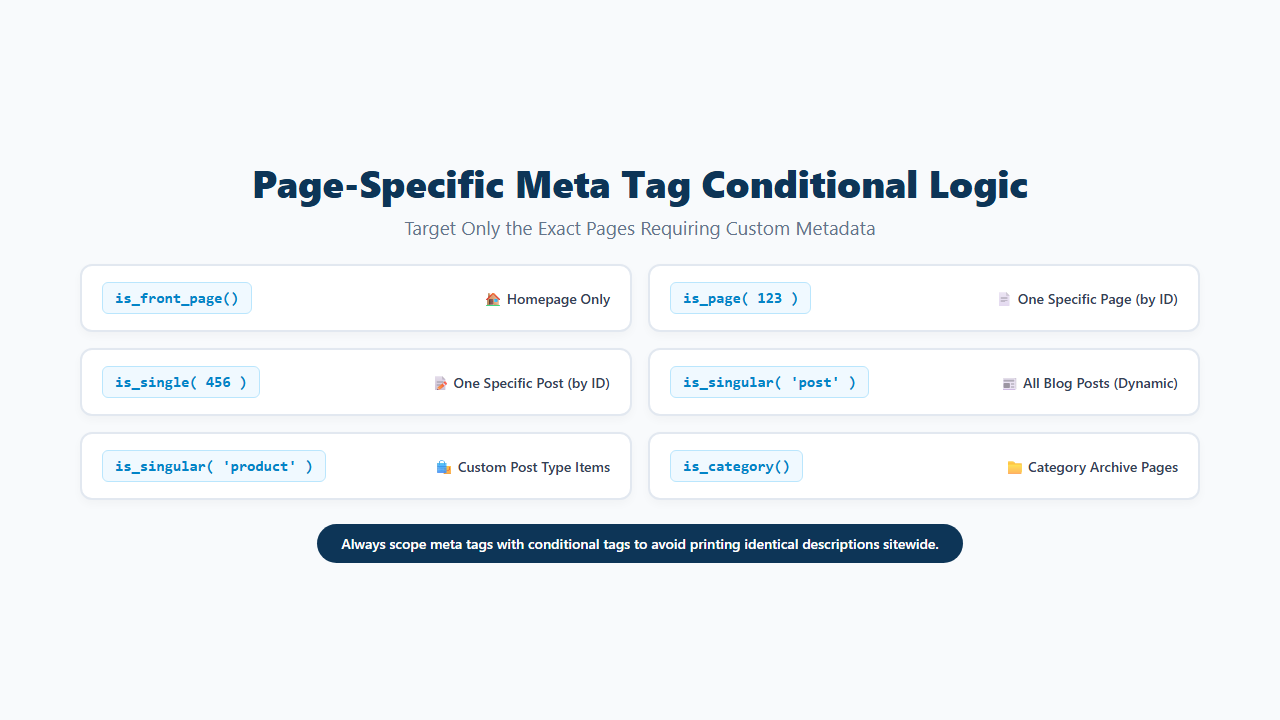
Conditional functions let you decide where metadata appears.
Front Page
is_front_page()One Page
is_page( 123 )Several Pages
is_page( array( 123, 456, 789 ) )One Blog Post
is_single( 456 )All Blog Posts
is_singular( 'post' )Custom Post Type
is_singular( 'product' )Use the narrowest condition that matches the actual requirement.
How to Escape Dynamic Meta Tag Values Safely
Do not print raw dynamic content directly into an HTML attribute.
For a meta description, use esc_attr().
Example:
$description = get_the_excerpt();
$description = wp_strip_all_tags( $description );

printf(
    '<meta name="description" content="%s">',
    esc_attr( $description )
);
This is especially important when the value comes from post content, excerpts, custom fields, user-entered data, API data, or database values.
Escaping is part of safe output, not an optional SEO step.
Should You Edit header.php to Add Meta Tags?
You can technically place a meta element directly inside a theme’s <head>, but editing the parent theme’s header.php is usually a poor long-term method.
Problems include:
- Theme updates can replace the edit.
- A hard-coded tag can appear on every page.
- Page conditions become harder to maintain.
- Duplicate metadata is easier to create.
A child theme plus WordPress hooks is cleaner for most manual implementations.
If you already edit parent-theme files directly, see How to Update a WordPress Theme Without Losing Changes.
functions.php vs header.php for Meta Tags
| Method | Use? | Reason |
|---|---|---|
Child theme functions.php + wp_head | Yes | Conditional and parent-update safe |
Parent theme functions.php | Avoid for permanent code | Parent update can replace changes |
Parent header.php | Usually avoid | Update risk and hard-coded output |
Child theme header.php | Possible | Often unnecessary for simple meta tags |
wp_robots filter | Yes for robots | Uses WordPress’s robots system |
Remember that functions.php belongs to the active theme. If you later switch to a completely different theme, code stored in the old theme will no longer run.
How to Check Whether the Meta Tag Was Added Correctly
Never assume the PHP worked simply because WordPress saved the file.
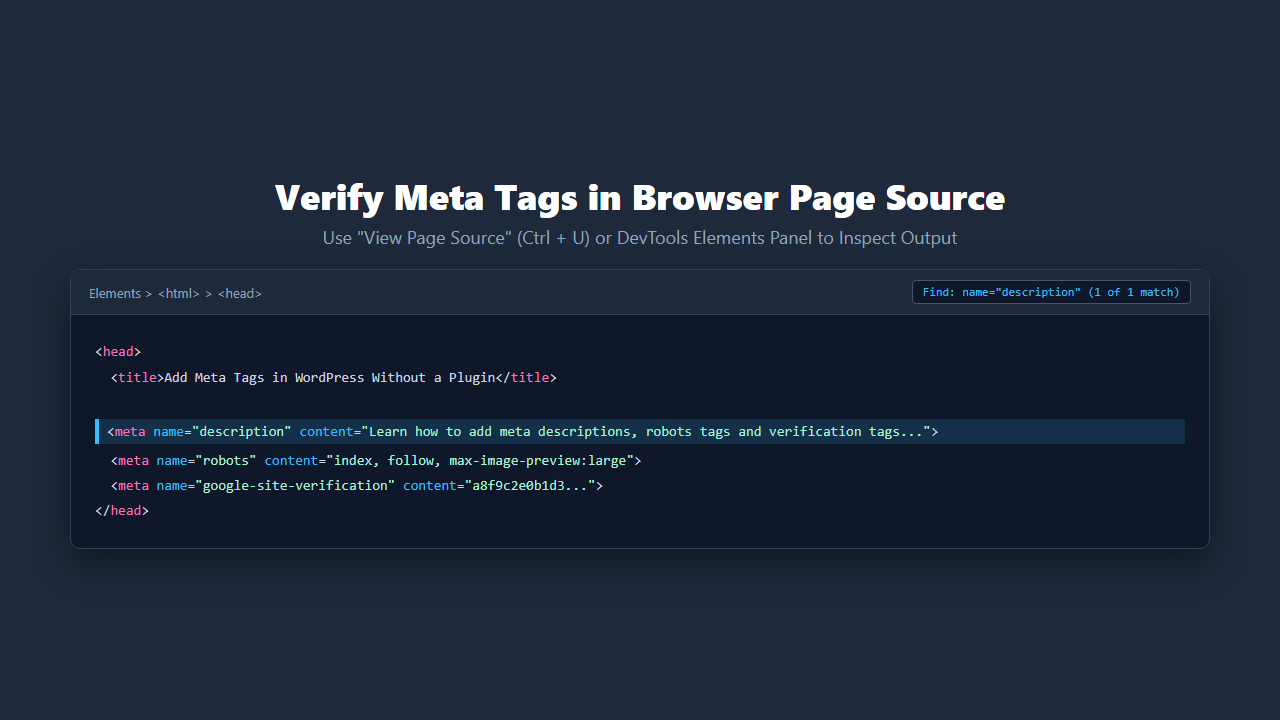
Method 1: View Page Source
Open the page in your browser. Use View Page Source (Ctrl + U). Search for name="description" or google-site-verification or another exact tag name.
Method 2: Browser Developer Tools
Open Inspect → Elements. Find <head> and check the generated metadata.
Method 3: Google URL Inspection
For Google-related indexing and metadata checks, inspect the URL in Google Search Console. Google’s documentation recommends URL Inspection for checking meta tags and attributes Google sees.
How to Check for Duplicate Meta Tags
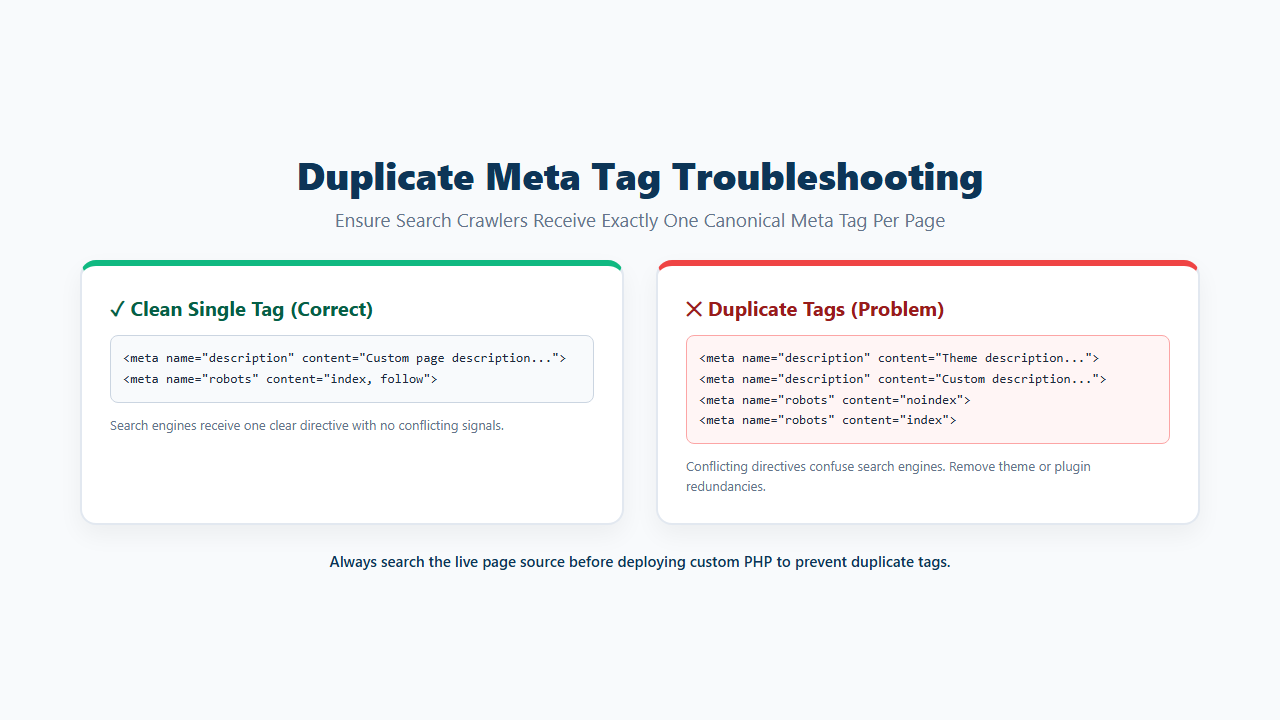
Before adding a new description, search the page source for name="description". If two descriptions already exist, do not add a third.
Also check name="robots" before introducing custom robots logic.
Duplicate output can come from:
- Theme code
- SEO plugin
- Custom snippet
- Old child-theme code
- Another metadata plugin
- Custom integration
Remove or modify the source creating the unwanted duplicate. Do not keep stacking new tags on top of an existing problem.
Why the Same Meta Description Appears on Every Page
This happens when your wp_head function has no page condition.
Example:
add_action( 'wp_head', function() {
    echo '<meta name="description" content="Same description">';
} );
That function runs wherever the theme fires wp_head. The result can be the same description across the site.
Fix it with conditional checks such as is_front_page(), is_page(), is_single(), is_singular(), or generate a page-specific description from the current content.
Google recommends unique descriptions that accurately describe individual pages when possible.
Why Your WordPress Meta Tag Is Not Appearing
Check these common causes:
- You Edited the Wrong Theme: Code in an inactive theme does not control the live frontend.
- The Code Is in the Parent Theme You Replaced: If you changed themes or updated away an edit, the old function may no longer exist.
- The Conditional Does Not Match: For example,
is_page( 123 )will not output anything on page ID456. - The Theme Does Not Call wp_head Correctly: Proper WordPress themes call
wp_head()inside the document head. Without that call, functions attached towp_headcannot print there. - Cache Is Serving Old HTML: Clear page cache, hosting cache, and CDN cache, then check again.
- PHP Has an Error: A syntax error or naming conflict can stop the custom code.
- Another System Removes or Replaces the Tag: Inspect the final HTML rather than relying on the PHP file alone.
Why Google Shows a Different Description
Adding a meta description does not guarantee that Google will display that exact text for every search.
Google says snippets are primarily created from page content. It may use the meta description when that provides a better summary for the query.
This means your job is to provide an accurate, useful page description. Do not rewrite the meta description repeatedly simply because Google showed a different snippet for one search.
Which Meta Tags Does Google Support?
Google documents support for several useful metadata controls, including:
descriptionrobotsgooglebotgoogle-site-verification
Google may ignore meta tags it does not support. Do not add large lists of invented SEO meta tags because another website claims every tag improves ranking. Use metadata for a clear technical purpose.
Do You Need Meta Keywords in WordPress?
You can technically add a meta keywords element manually:
<meta name="keywords" content="wordpress, seo, meta tags">However, meta keywords should not be confused with modern metadata that Google actively uses for search presentation or crawling controls.
If you specifically need that tag, continue with How to Add Meta Keywords in WordPress Without a Plugin.
Common Meta Tag Mistakes to Avoid
- Editing the Parent Theme: The next parent-theme update can replace the code.
- Adding One Meta Description to Every URL: Use page-specific descriptions where appropriate.
- Printing Unescaped Dynamic Values: Escape content before placing it inside HTML attributes.
- Adding a Second Robots Tag: Use WordPress’s
wp_robotsfilter. - Noindexing the Wrong Page: A mistaken
noindexcan remove an important URL from search results after crawling. - Blocking a Noindexed Page in robots.txt: Google needs to crawl the page to see the
noindexrule. - Expecting Google to Always Use Your Description: Google can choose a different snippet.
- Using Meta Keywords as a Ranking Strategy: Do not treat a legacy keywords field as a substitute for useful content and modern SEO.
- Forgetting to Check the Final HTML: Always verify the actual page source after changing metadata.
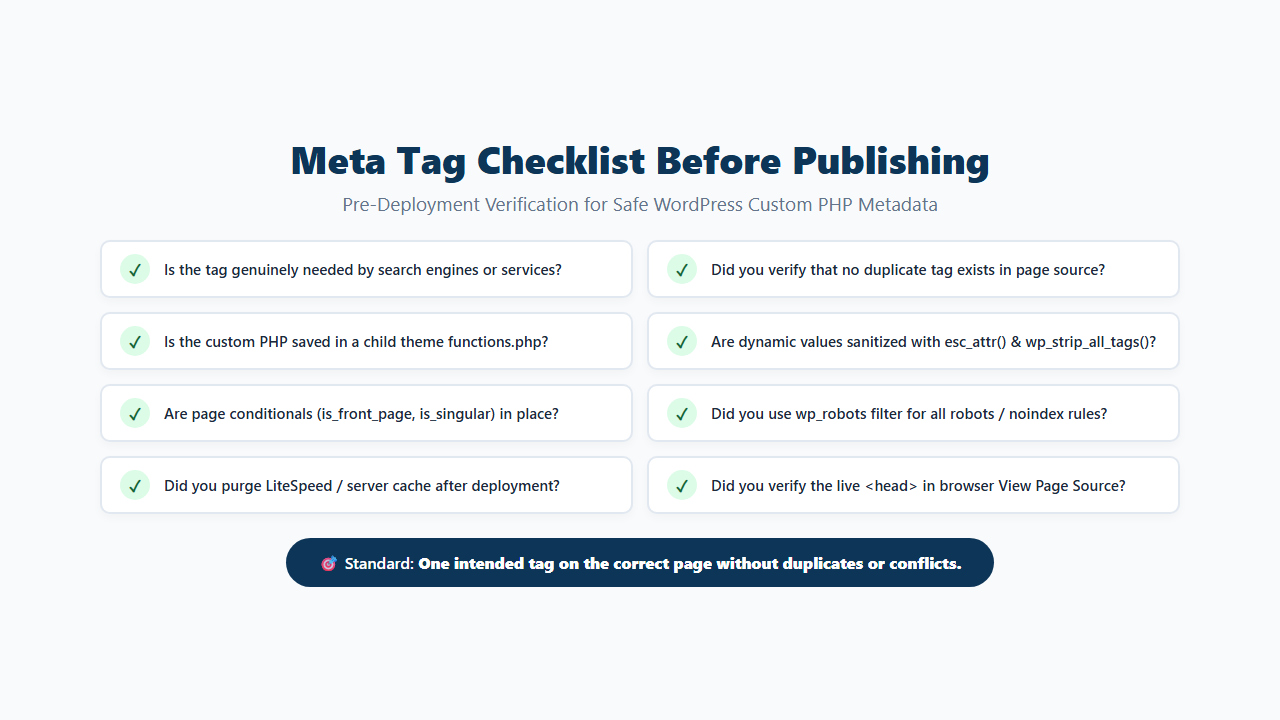
Meta Tag Checklist Before Publishing
Before you finish, check:
- Confirm the tag is genuinely needed.
- Check whether it already exists.
- Keep custom PHP outside the parent theme.
- Use
wp_headfor normal custom metadata. - Use
wp_robotsfor robots directives. - Add conditions for page-specific output.
- Escape dynamic attribute values.
- Keep descriptions relevant to each page.
- Check for duplicate descriptions.
- Check for duplicate robots tags.
- Clear relevant cache.
- View the final page source.
- Test the exact page targeted by the code.
Frequently Asked Questions
Can I add meta tags in WordPress without a plugin?
Yes. You can use WordPress hooks in a child theme’s functions.php file. wp_head is suitable for normal custom metadata, while the wp_robots filter is designed for robots directives.
Where should I add meta tags in WordPress?
Meta tags belong inside the HTML <head>. WordPress themes normally call wp_head() there, allowing functions attached to the wp_head action to output metadata.
Can I add a meta description without Yoast or Rank Math?
Yes. You can output a meta description with wp_head without using an SEO plugin.
Can I add different descriptions to different pages?
Yes. Use WordPress conditional functions such as is_front_page(), is_page(), is_single(), or is_singular().
Should I edit header.php to add meta tags?
It is technically possible, but a hook in a child theme is usually easier to maintain and protects the change from parent-theme updates.
What is wp_head in WordPress?
wp_head is an action fired by the wp_head() function inside the frontend document head. WordPress core and themes use it to print data such as scripts, links, styles, and metadata.
How do I noindex one WordPress page without a plugin?
Use the wp_robots filter and conditionally add the noindex directive for that page.
Does WordPress already manage robots meta tags?
WordPress has a wp_robots() system that gathers robots directives through the wp_robots filter and outputs a robots meta tag when necessary.
How do I verify a meta tag?
View the page source or inspect the <head> with browser developer tools. For Google-related metadata, you can also use Search Console URL Inspection.
Why is my meta description showing twice?
Another theme, plugin, or custom function may already output a meta description. Search the page source for name="description" and remove the unwanted duplicate source.
Will changing themes remove this custom PHP?
Yes, if the code is stored in the old theme or its child theme. Theme functions.php code runs only while that theme setup is active.
Is a meta description guaranteed to show in Google?
No. Google may use the meta description or generate a different snippet from the page content depending on the query.
Add Only the Meta Tags Your WordPress Site Actually Needs
You do not need an SEO plugin simply to place a meta tag inside WordPress’s <head>.
Use wp_head for ordinary custom metadata such as page descriptions and verification tags. Use wp_robots for robots directives. Keep permanent PHP code in a child theme rather than the parent theme, and use conditions so tags appear only where they belong.
Most importantly, check the final HTML. A correct implementation should put one intended tag on the correct page without creating duplicates or conflicting directives.
