
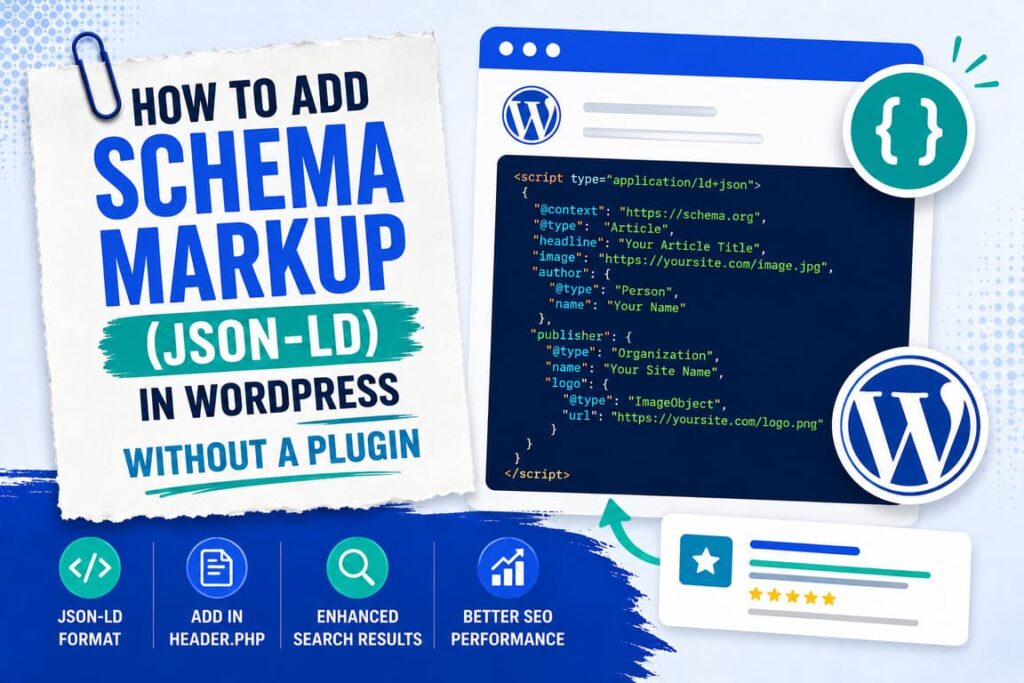
Schema markup is extra code that tells search engines and AI tools exactly what your content is, like an article or a list of questions and answers. JSON-LD is the format Google likes best. You can add it in WordPress without any plugin, either by pasting a small code block into a page or by adding a short snippet to your theme. Both ways are shown below.
Plugins are easy, but each one adds weight to your site. If you want full control and a lighter, faster site, adding schema by hand is a great option. It is simpler than it sounds.
What Is Schema Markup?
Schema markup is a small piece of code you add to a page. It does not change how the page looks. Instead, it quietly explains your content to machines. It tells Google and AI tools, in clear terms, that this is an article, this is the author, this is a question and answer, and so on.
When search engines understand your page better, they can show it in nicer ways, like the question boxes or star ratings you see in search results. These fancy listings are called rich results.
What Is JSON-LD?
JSON-LD is the format that holds your schema. It is a small block of code that sits in your page, separate from your text. Google recommends it over other formats because it is clean and easy to manage. You do not need to understand every line. You just need to place the right block in the right spot.
Why Add Schema Without a Plugin?
Adding schema by hand has a few real benefits:
- It keeps your site lighter, since every plugin you skip helps your speed. You can read more in my guide on how to improve Core Web Vitals in WordPress.
- It gives you full control over exactly what the schema says.
- It helps AI tools understand and cite your content, which matters for generative engine optimization.
Before You Start
One of the methods below edits a theme file. A small typo there can break your site, so please take two safety steps first. Back up your site, and use a child theme, which is a safe copy of your theme that updates will not erase. It is also best to edit files through your host’s file manager or an FTP tool, so you can undo a change quickly if needed.
Method 1: Add Schema to One Page With a Custom HTML Block
This is the easiest way, and it is perfect for FAQ schema on a single post. You do not touch any theme files.
- Open the post in the WordPress editor.
- Add a new block and choose “Custom HTML”.
- Paste your JSON-LD code into it, then update the post.
Here is a simple FAQ schema block. Change the question and answer to match your post:
<script type="application/ld+json">
{
  "@context": "https://schema.org",
  "@type": "FAQPage",
  "mainEntity": [{
    "@type": "Question",
    "name": "What is schema markup?",
    "acceptedAnswer": {
      "@type": "Answer",
      "text": "Schema markup is code that helps search engines understand your content."
    }
  }]
}
</script>
Only add FAQ schema if those questions and answers really appear on the page. The schema must match what the reader sees.
Method 2: Add Article Schema Site-Wide With functions.php
If you want Article schema added to every post automatically, you can add a short snippet to your child theme’s functions.php file. Paste this at the end of the file:
function tnu_add_article_schema() {
    if ( is_single() ) {
        $schema = array(
            "@context"      => "https://schema.org",
            "@type"         => "Article",
            "headline"      => get_the_title(),
            "datePublished" => get_the_date( 'c' ),
            "dateModified"  => get_the_modified_date( 'c' ),
            "author"        => array(
                "@type" => "Person",
                "name"  => get_the_author()
            )
        );
        echo '<script type="application/ld+json">' . wp_json_encode( $schema ) . '</script>';
    }
}
add_action( 'wp_head', 'tnu_add_article_schema' );
This code waits for a single post, then builds Article schema using your post’s own title, dates, and author. It adds the schema to the page header for you, with no plugin involved.
How to Test Your Schema
Never skip this step. After you add schema, check that it works:
- Open the Google Rich Results Test and paste in your page address.
- If your schema is valid, the tool shows the type it found, like Article or FAQ.
- If there is an error, the tool points to the line, so you can fix it.
Common Mistakes to Avoid
- Adding schema that does not match the real content on the page.
- Forgetting to test, so a broken block goes unnoticed.
- Adding the same schema twice, once by hand and once by an SEO plugin.
- A small typo in the code, which is why a backup matters.
Frequently Asked Questions
What is JSON-LD?
It is the code format Google recommends for schema. It is a small script you place in your page, kept separate from your text.
Do I need a plugin for schema?
No. You can add it by hand with a Custom HTML block or a small snippet, which keeps your site lighter and faster.
Will schema improve my ranking?
It does not directly boost your rank, but it can earn rich results and helps search engines and AI tools understand and cite your content.
Is editing functions.php safe?
Yes, if you back up first and use a child theme. A typo can break the site, so edit carefully and keep a way to undo.
Which schema should a blog use?
Article schema for your posts, and FAQ schema for posts that have real questions and answers, are the two most useful types.
Final Words
Adding schema markup by hand is a small task with a real payoff. It helps search engines show your pages in richer ways, and it helps AI tools understand and quote you. Start with the Custom HTML method for FAQ schema, since it is the easiest, then add the functions.php snippet when you are ready for site wide Article schema.
Always test your work, and only describe what is truly on the page. To put this to use across your whole site, pair it with my on-page SEO checklist.
