Google’s NotebookLM has emerged as one of the most powerful personalized AI research assistants in modern productivity workflows. Powered by Google’s state-of-the-art Gemini multimodal models, NotebookLM allows researchers, students, developers, and knowledge workers to ground AI responses directly in their own curated documents.
Because Google Drive integration is the primary way users import source materials—such as Google Docs, Google Slides, and PDFs—a common and vital operational question arises: Does NotebookLM sync with Google Drive automatically when you make edits to your original files? In this detailed investigative guide, we will examine the source synchronization architecture of NotebookLM, explain why automatic background sync is not enabled, detail the exact manual sync workflow, and share essential best practices for keeping your research notebooks up to date.
The Direct Answer: Does NotebookLM Auto-Sync with Google Drive?
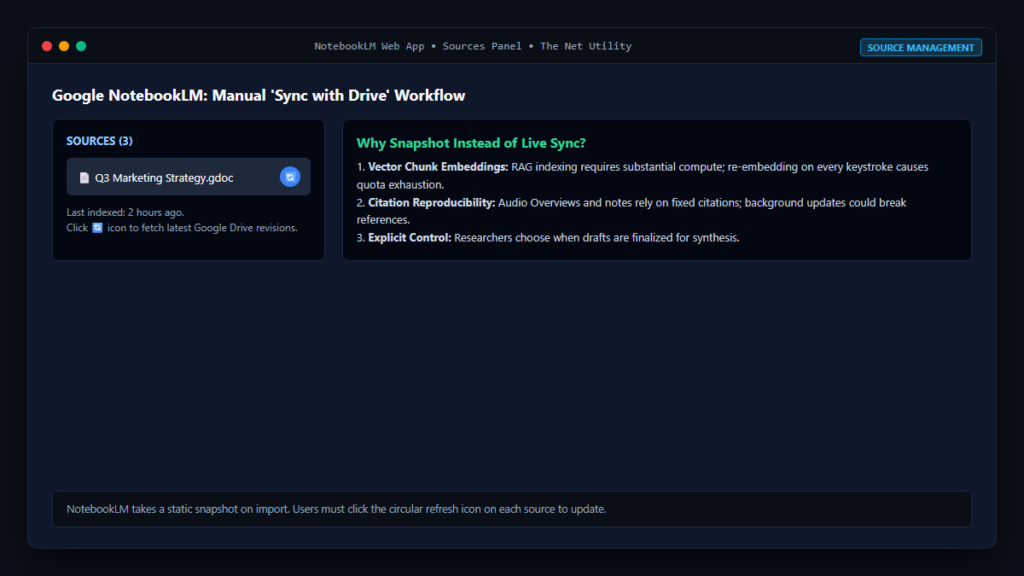
The short answer is No, NotebookLM does not sync with Google Drive automatically in real time. When you import a Google Doc or Google Slides presentation into NotebookLM, the application does not maintain a continuous live bi-directional sync channel with your Drive files. Instead, NotebookLM creates a static snapshot of the document at the exact moment of importation.
According to the official Google NotebookLM Help Center documentation on managing sources, if you edit a source Google Doc in Google Drive, those modifications will not reflect in NotebookLM’s citations or chat responses until you explicitly perform a manual source refresh.
Why Does NotebookLM Use Snapshots Instead of Live Sync?
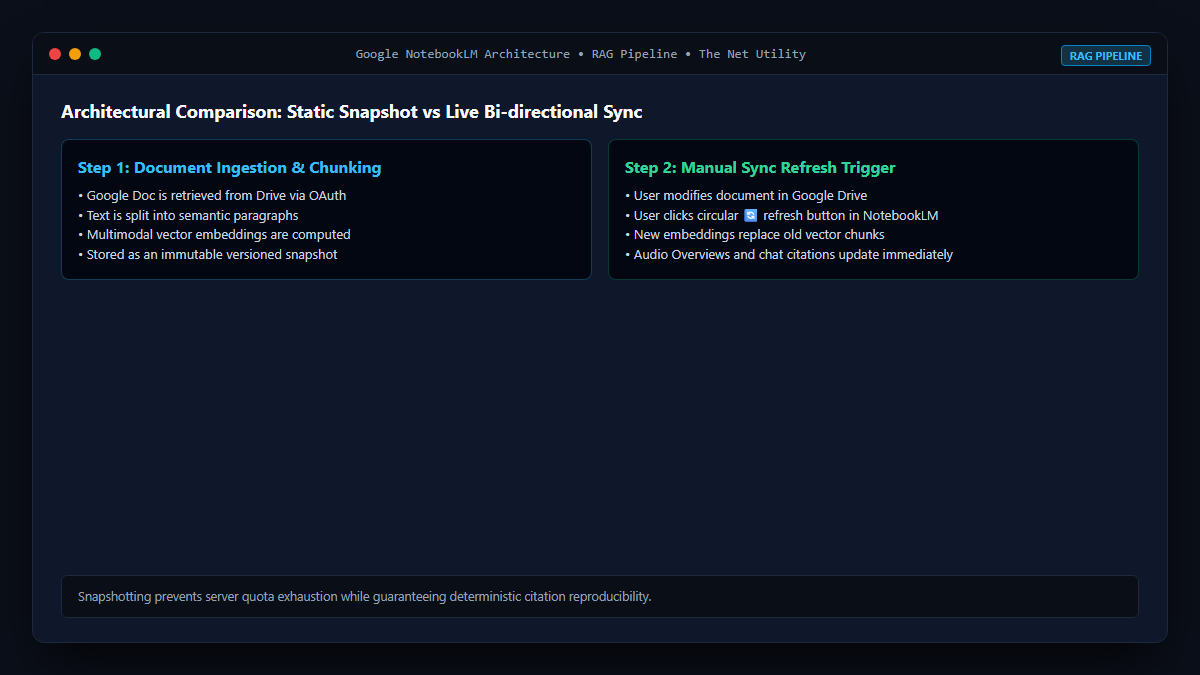
To understand why Google engineered NotebookLM this way, consider the technical mechanics of Retrieval-Augmented Generation (RAG) and document grounding:
- Vector Embeddings and Chunking: When a document is loaded into NotebookLM, the system splits the text into semantic chunks and calculates mathematical vector embeddings for each passage. This indexing process requires substantial computational resources. If NotebookLM attempted to recalculate vector embeddings every time a collaborator typed a single keystroke in a live Google Doc, server overhead would skyrocket.
- Source Determinism and Citation Integrity: Research integrity demands reproducibility. If an AI generates a structured Audio Overview, study guide, or executive briefing based on your notes, you need to know exactly which document version informed those conclusions. Uncontrolled background syncing could invalidate existing footnotes and source citations.
- Rate Limiting and API Quotas: Continuous polling of Google Drive APIs across millions of active notebooks would trigger aggressive rate limits and battery drain on mobile devices.
How to Manually Sync Google Drive Files in NotebookLM
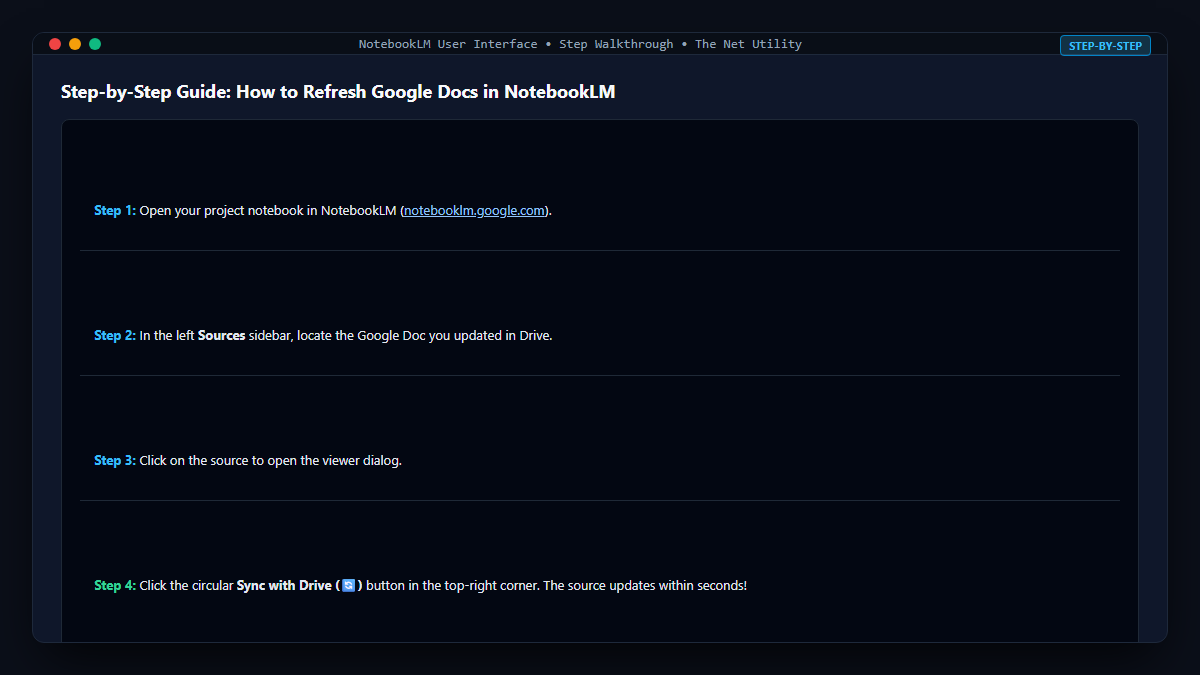
Google provides a native manual sync mechanism that makes updating your source files quick and seamless without losing your chat history or notes:
- Open your project notebook in NotebookLM.
- Locate the Sources panel on the left side of the screen.
- Click on the specific Google Doc or Google Slides source you recently updated in Drive.
- In the top right corner of the source viewer dialog, click the Sync with Drive button (represented by a circular refresh arrows icon: 🔄).
- NotebookLM will immediately re-fetch the latest revision from your Google Drive, re-index the content, and update the internal timestamp.
Once refreshed, all future chat queries, summaries, and notebook outputs will immediately incorporate your new edits and additions!
What Types of Sources Support Syncing?
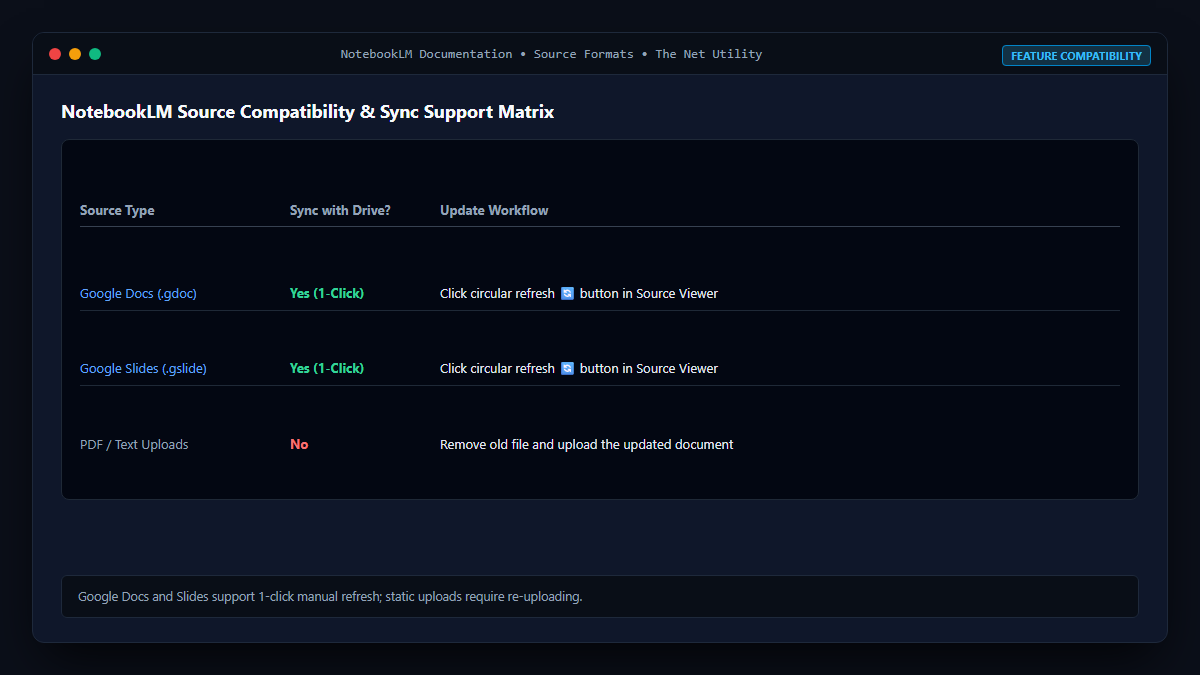
| Source Type | Supports “Sync with Drive”? | How to Update Content |
|---|---|---|
| Google Docs | Yes (1-Click Sync Button) | Click circular refresh icon in Source Viewer |
| Google Slides | Yes (1-Click Sync Button) | Click circular refresh icon in Source Viewer |
| Uploaded PDFs | No | Delete old PDF source and upload new version |
| Copied Text / Notes | No | Edit directly inside the NotebookLM note editor |
| YouTube URLs | No | Re-import URL if transcript updates |
| Webpage URLs | No | Re-add URL to capture updated web content |
Managing Large Workspaces: Best Practices for NotebookLM
- Group Documents Thematically: Keep notebooks focused on specific domains or projects rather than creating one giant repository. NotebookLM allows up to 50 sources per notebook.
- Sync Before Generating Audio Overviews: NotebookLM’s viral “Deep Dive” Audio Overviews synthesize all active sources. Always click sync on your primary Google Docs before generating a new audio episode to ensure the AI podcast hosts discuss your latest findings.
- Verify Deleted Sections: If you remove substantial sections from your Google Doc, syncing will properly expunge those passages from NotebookLM’s retrieval index.
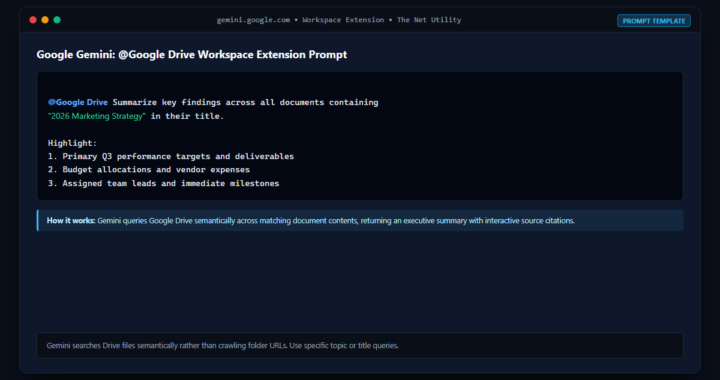
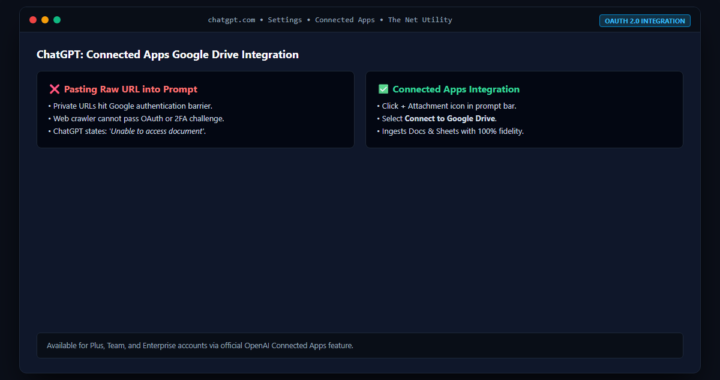
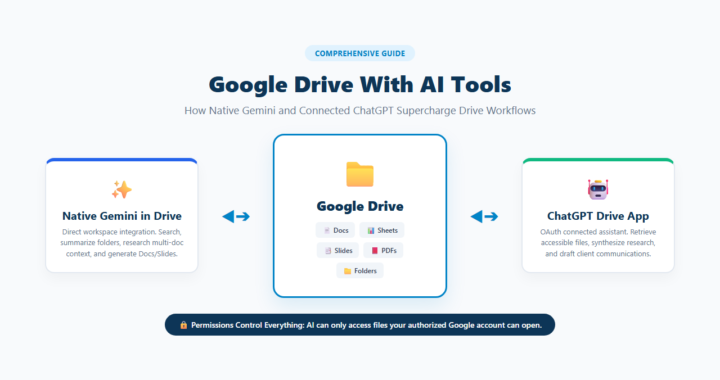
Interested in comparing how other leading AI systems interface with Google Drive? Discover our complete analyses on whether ChatGPT can read a Google Docs link and how Gemini summarizes Google Drive folders.