As artificial intelligence transforms enterprise data processing and personal productivity, users are looking beyond analyzing single documents. Organizations and knowledge workers frequently store projects, customer research, invoices, and meeting minutes inside organized Google Drive folders.
Naturally, a frequent requirement is: Can Google Gemini summarize an entire Google Drive folder at once? Because Gemini is developed by Google and natively integrated into Google Workspace, expectations are high for deep Drive file management. In this practical technical guide, we will evaluate Gemini’s exact capabilities with Google Drive folders, explain how the @Google Drive Workspace extension functions, explore folder-level limitations, and demonstrate practical workarounds to summarize multi-file directories effectively.
Can Gemini Summarize an Entire Google Drive Folder Directly?
The short answer is Not in a single automated command targeting a folder container, but yes through multi-document querying. As of 2026, you cannot simply provide a Google Drive folder URL or type @Google Drive summarize the folder "Q3 Financials" and have Gemini automatically crawl and ingest every file contained within that directory hierarchy.
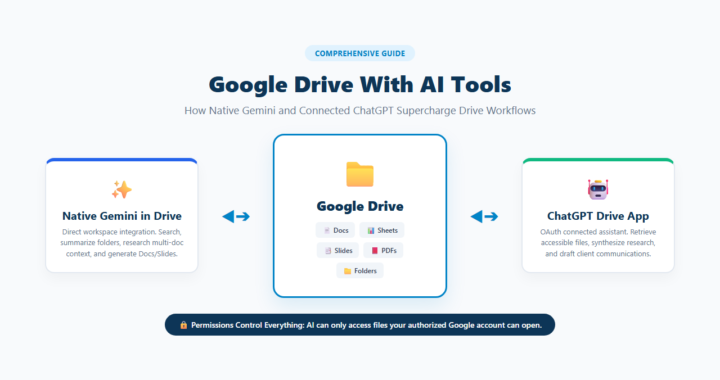
As documented in the official Google Gemini Help Center guide on Google Workspace Extensions, the Gemini Workspace extension is architected to search for and retrieve specific documents, spreadsheets, slides, and PDFs based on semantic search queries rather than iterating through directory tree structures.
Understanding Why Gemini Doesn’t Crawl Folders Automatically
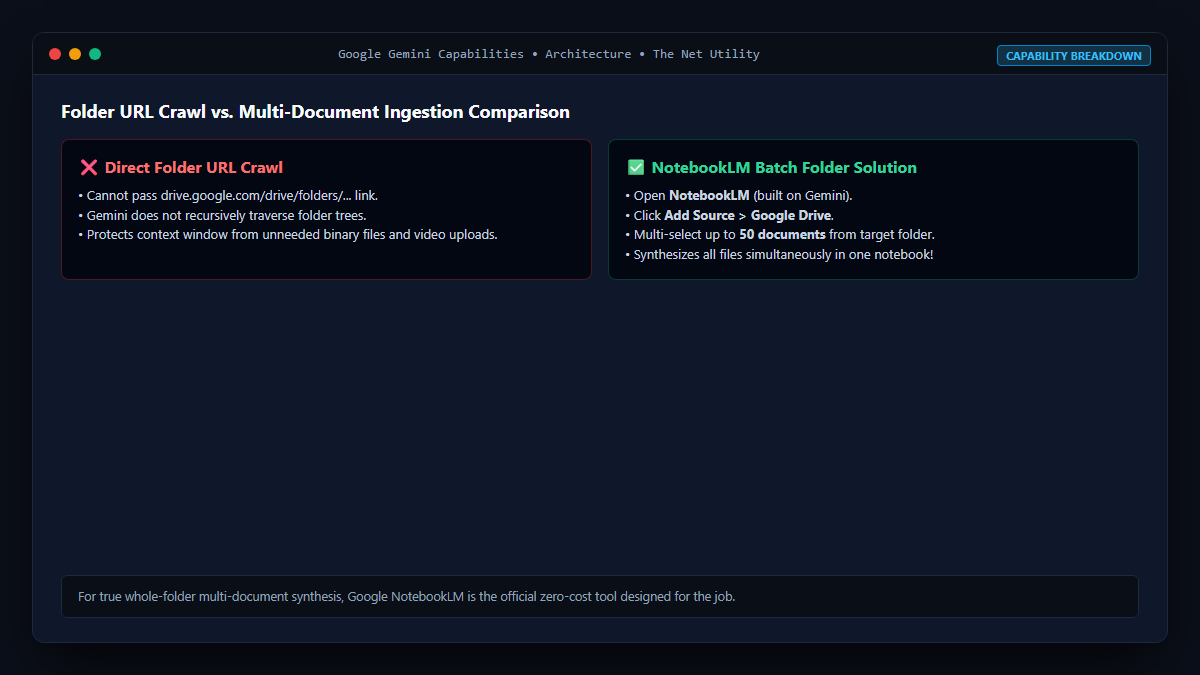
There are several technical and security reasons why Google restricts recursive folder ingestion:
- Context Window Saturation: A single Google Drive folder might contain 150 spreadsheets, 40 PDFs, and high-resolution images totaling millions of tokens. Even with Gemini 1.5 Pro’s massive 1M–2M token context window, indiscriminately dumping every file from a folder into the prompt context can degrade output quality, increase latency, and waste computational resources.
- File Type Diversity: Folders often contain unsupported binary formats, zip archives, video recordings, or nested subdirectories that cannot be parsed by text models.
- Permission Boundaries: In shared Google Drive environments, individual files within a folder may inherit disparate permission levels across team members.
How to Summarize Files from Google Drive Using the @Google Drive Extension
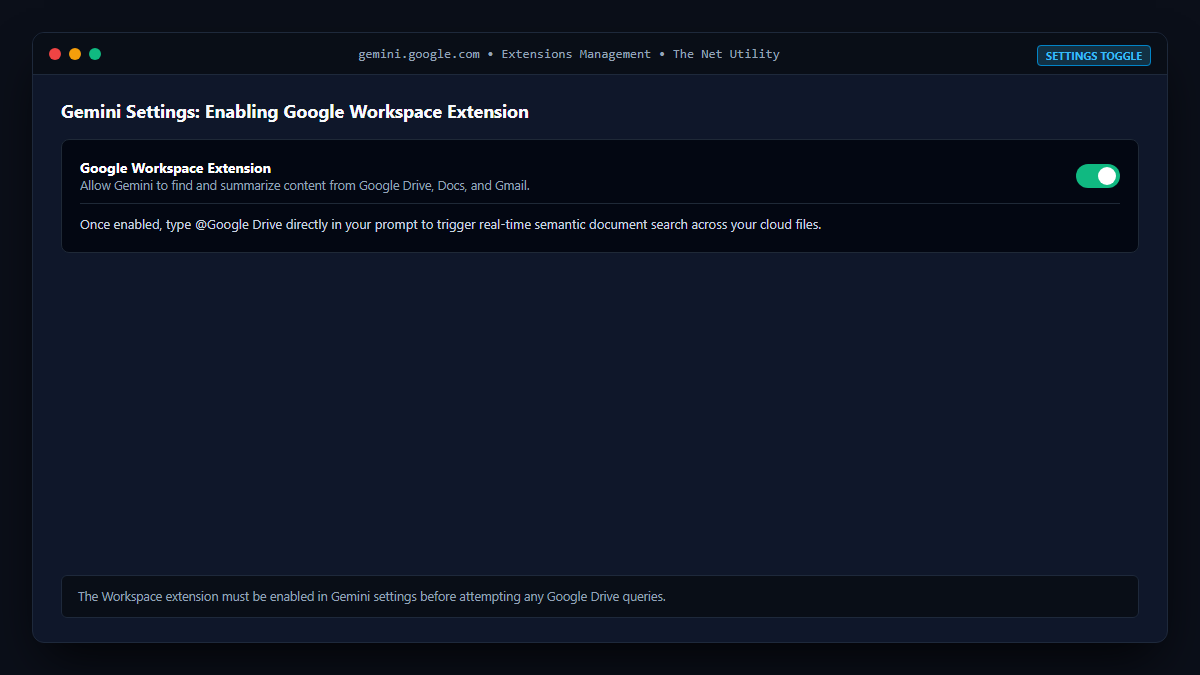
While you cannot point to a folder container directly, you can easily query all files related to a specific project using Gemini’s native extension:
Step 1: Enable the Google Workspace Extension
- Open the Gemini web app (gemini.google.com).
- Click the Extensions icon (puzzle piece) in the bottom-left settings menu.
- Ensure that the Google Workspace extension toggle is turned ON.
Step 2: Prompting Multiple Documents Across Your Drive
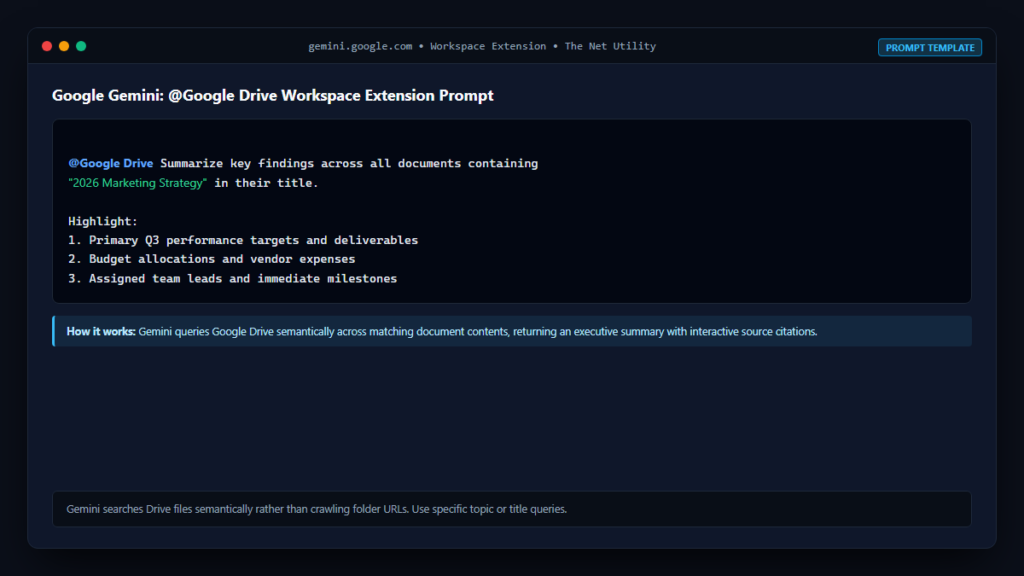
Use targeted semantic prompts that reference the common naming convention or topic of the files in that folder:
@Google Drive Summarize the main findings across all documents containing "2026 Marketing Strategy" in their title. Highlight common key metrics, deadlines, and assigned team members.Gemini will search your Drive, retrieve the relevant documents matching the query, and present a consolidated synthesis with clickable citations to each file.
The Ultimate Workaround: Use Google NotebookLM for Folder-Scale Ingestion
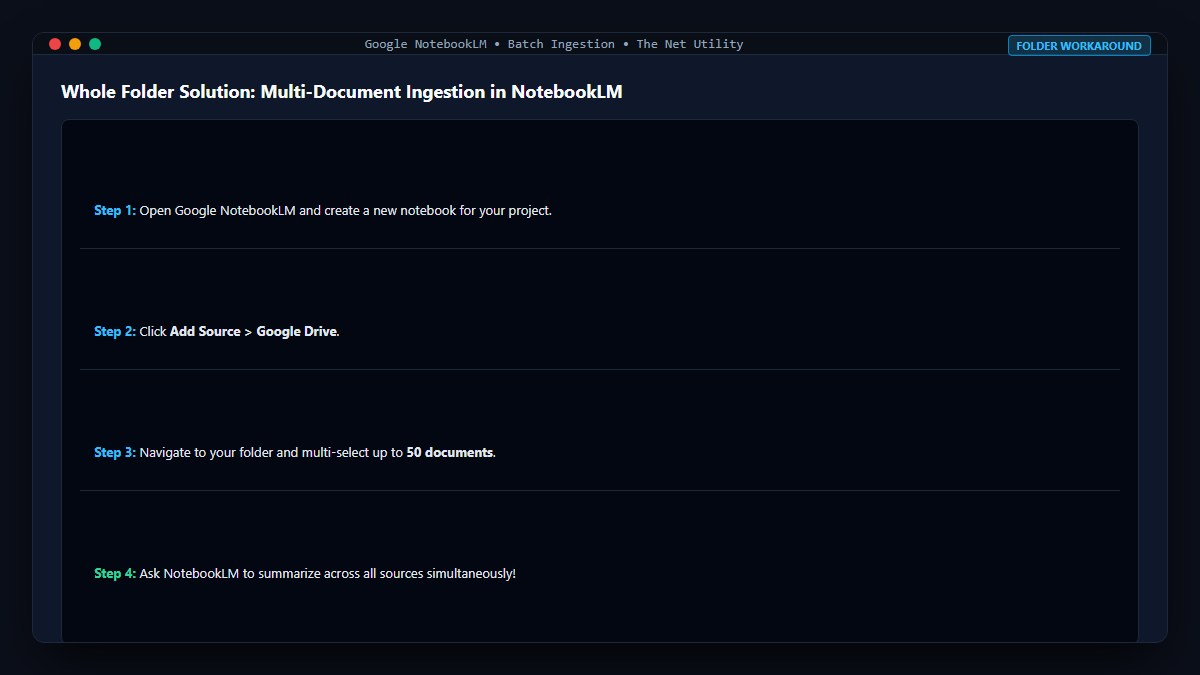
If your goal is to truly analyze and summarize dozens of documents from a single Google Drive folder simultaneously, Google provides a dedicated tool built specifically for this purpose: Google NotebookLM.
- Open NotebookLM and create a new Notebook.
- Click Add Source > Google Drive.
- In the Google Drive picker modal, navigate to your target folder.
- Select multiple files (up to 50 documents per notebook) and click Insert.
- NotebookLM will ingest all files in parallel. You can then ask: “Synthesize all sources in this notebook and provide an executive summary of key takeaways.”
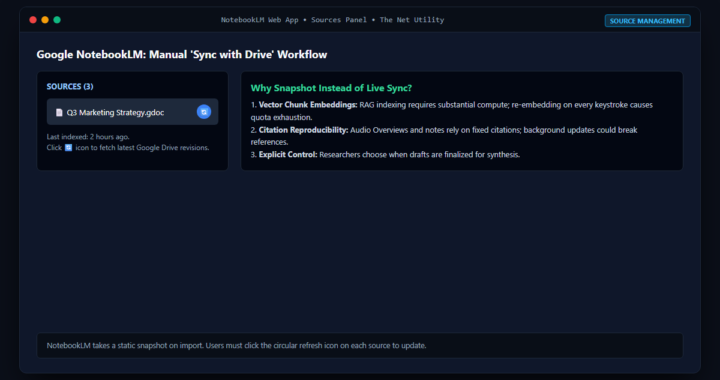
For a detailed breakdown of how source synchronization works in that environment, consult our guide on whether NotebookLM syncs with Google Drive automatically.
Comparison of Google Drive AI Summarization Options
| Feature | Gemini (@Google Drive) | Google NotebookLM | ChatGPT Connected App |
|---|---|---|---|
| Single Doc Summarization | Excellent & Instant | Excellent | Excellent |
| Multi-Doc Semantic Search | Yes (via natural language) | Yes (across all sources) | Manual attachment selection |
| Batch Ingest 30+ Files | Limited by query specificity | Yes (up to 50 sources) | Limited to single selections |
| Audio Overview / Podcast | No | Yes (Studio Quality) | No |
| Pricing Tier | Free / Gemini Advanced | 100% Free | Plus / Team ($20+/mo) |
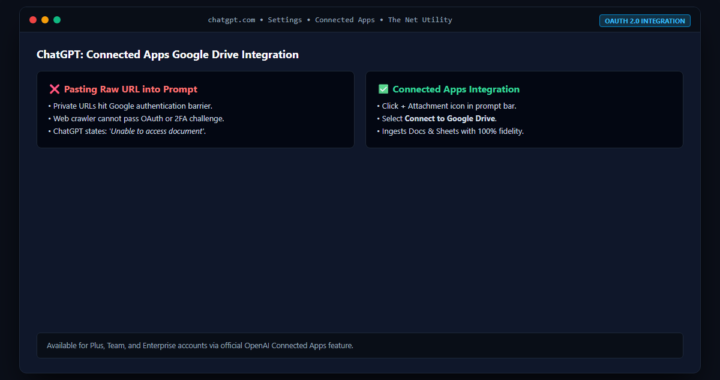
For cross-platform comparisons, also check out our guide on whether ChatGPT can read a Google Docs link.