As AI chatbots become central to modern writing, document analysis, and project collaboration, users constantly look for frictionless ways to share documents with language models. A question asked daily by professionals, researchers, and students is: Can ChatGPT read a Google Docs link directly if you paste the URL into the chat prompt?
Many users paste a link such as https://docs.google.com/document/d/... and are surprised when ChatGPT either hallucinated a response, declined to read it, or requested a file upload. In this definitive guide, we will unpack how ChatGPT interacts with Google Docs URLs, examine web browsing security boundaries, explore the official OpenAI Google Drive Connected Apps integration, and provide the most effective workflows for analyzing Google Docs with ChatGPT.
Can ChatGPT Read a Pasted Google Docs Link?
The short answer depends on how you share the document and which features you are using:
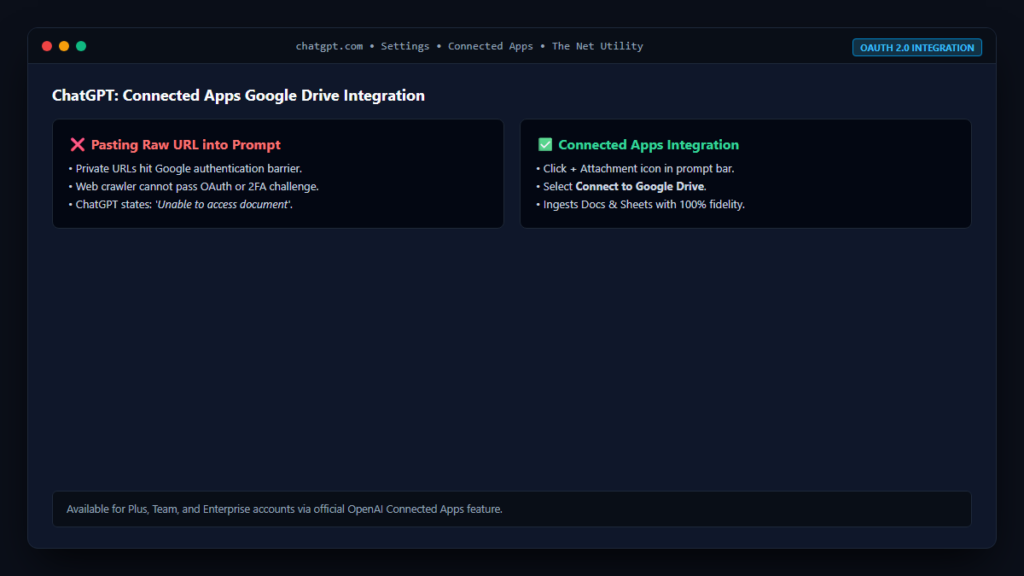
- Standard Private Links (Default): No. If your Google Doc permissions are set to private or restricted to specific email addresses, ChatGPT’s web browser cannot authenticate into your Google account. It will simply encounter a Google authentication login page and return an error stating that it cannot access the URL.
- Public “Anyone with the link can view” Links: Partially / Inconsistently. Even when a Google Doc is made public, Google Docs renders its interface using complex clientside JavaScript canvas and WebAssembly frameworks. Standard automated web crawlers (including ChatGPT’s browser tool) often fail to extract the full document text from the canvas DOM, leading to partial extraction or failures.
- Google Drive Connected App (Official Integration): Yes! When connected through OpenAI’s official Connected Apps feature, ChatGPT can directly browse, search, and ingest Google Docs securely without pasting URLs.
The Security Barrier: Why Direct Links Fail
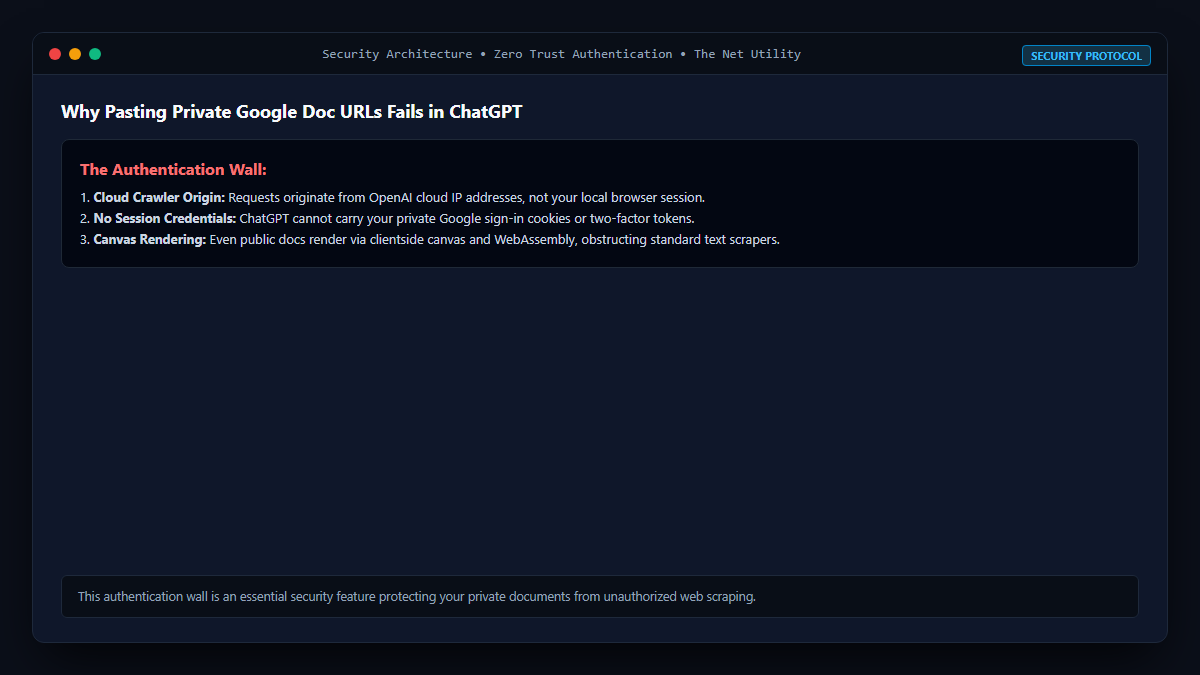
Modern cloud security operates on strict zero-trust principles. When you paste a URL into ChatGPT:
- The request originates from OpenAI’s cloud IP addresses, not your personal browser session.
- OpenAI’s web crawler does not carry your personal Google session cookies, OAuth credentials, or two-factor authentication tokens.
- Google’s security infrastructure automatically blocks unauthenticated access and prompts for sign-in.
This is a critical security safeguard that prevents unauthorized third parties from viewing your sensitive documents.
The Modern Solution: ChatGPT Connected Apps (Google Drive Integration)
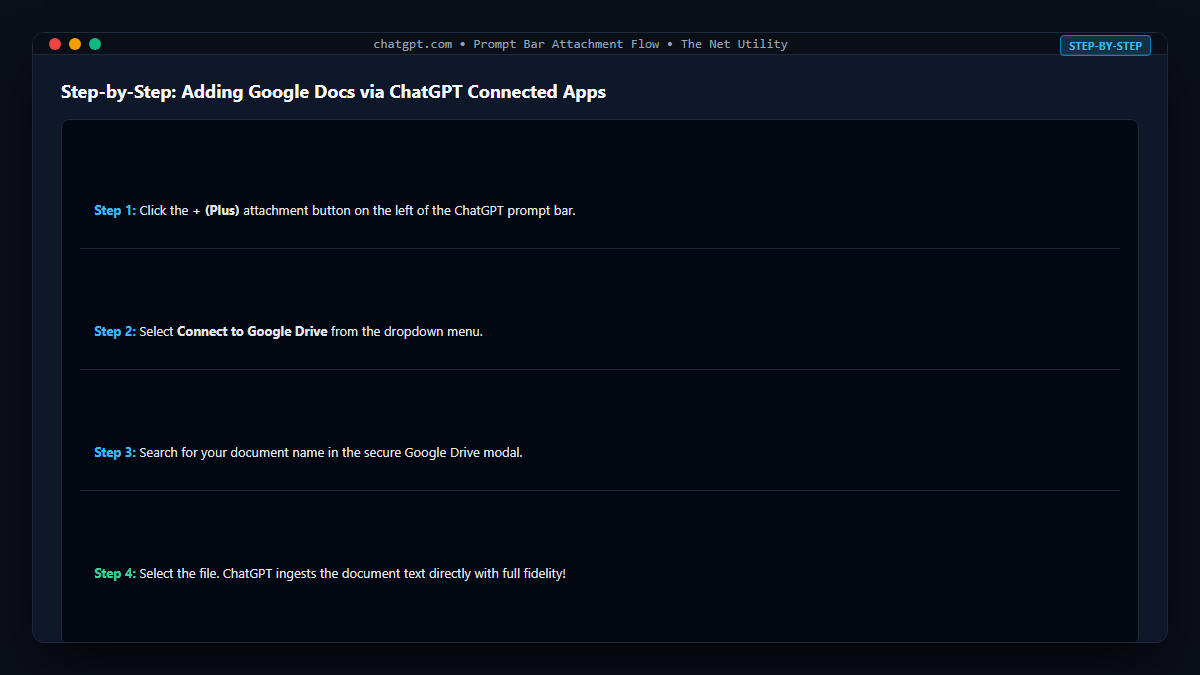
As outlined in OpenAI’s official Connected Apps in ChatGPT Help Guide, ChatGPT Plus, Team, and Enterprise subscribers can connect their Google Drive directly to ChatGPT via secure OAuth 2.0.
How to Connect Google Drive to ChatGPT:
- Log into ChatGPT on your web browser or desktop app.
- Click on your Profile icon in the bottom-left corner and open Settings.
- Navigate to the Connected Apps section.
- Find Google Drive in the list of available services and click Connect.
- A Google OAuth consent screen will appear. Select your Google account and grant read permissions to allow ChatGPT to access your documents.
How to Use It in Chat:
Once connected, you no longer need to copy links! Simply click the + (Attachment) icon in the ChatGPT prompt bar, select Connect to Google Drive, search for your document by name, and attach it directly. ChatGPT will ingest the full document natively with complete formatting, tables, and headings intact.
Alternative Free Workflows for Reading Google Docs
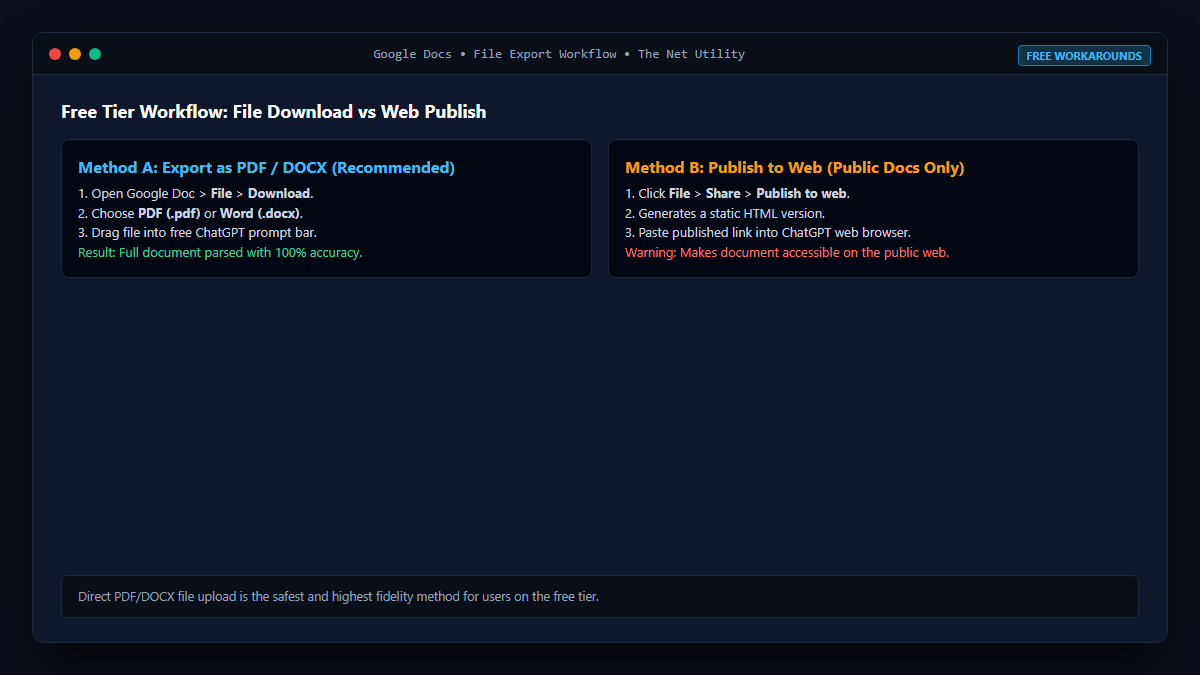
If you are on the free tier of ChatGPT or do not wish to link your Google account, here are the two fastest and most reliable methods:
Method 1: Download as PDF or DOCX and Upload (Recommended)
- In your Google Doc, navigate to File > Download.
- Select PDF Document (.pdf) or Microsoft Word (.docx).
- Drag and drop the downloaded file directly into the ChatGPT chat interface.
- ChatGPT’s Advanced Data Analysis / File Search engine will parse the entire document instantly with 100% fidelity.
Method 2: Publish to the Web (For Public Non-Sensitive Docs)
- Click File > Share > Publish to web in Google Docs.
- Click Publish to generate a clean, static HTML version of your document.
- Copy the published URL and paste it into ChatGPT. Because the published view contains plain HTML instead of the dynamic canvas editor, ChatGPT’s web browsing tool can parse and summarize it seamlessly.
Comparison of Document Reading Methods in ChatGPT
| Method | Supported Tiers | Fidelity / Accuracy | Security & Privacy |
|---|---|---|---|
| Pasting Standard Link | All | Very Low (Usually fails or hits login) | Public access required |
| Google Drive Connected App | Plus, Team, Enterprise | 100% Complete & Formatted | High (Secure OAuth token) |
| File Upload (PDF/DOCX) | All (including Free) | 100% Complete & Formatted | High (Direct client upload) |
| Publish to Web Link | All | Moderate (Plain text/HTML) | Low (Indexed publicly) |
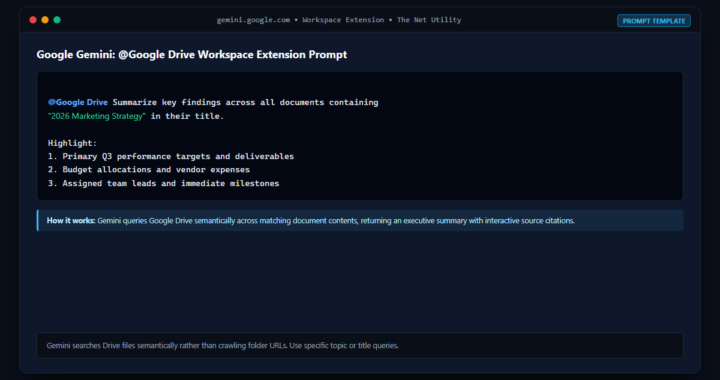
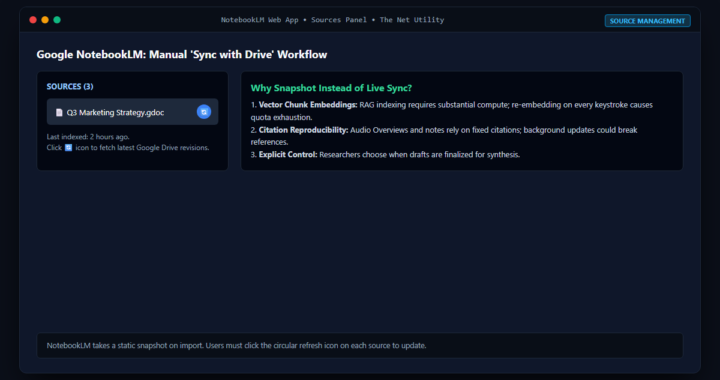
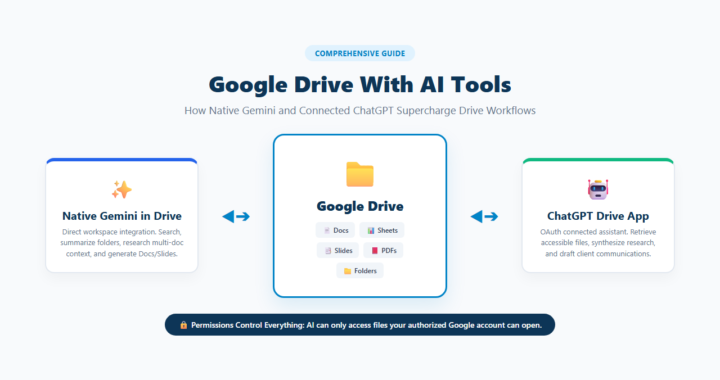
To learn how other AI platforms handle cloud storage integration, read our deep-dives on whether NotebookLM syncs with Google Drive automatically and how Gemini summarizes Google Drive folders.