
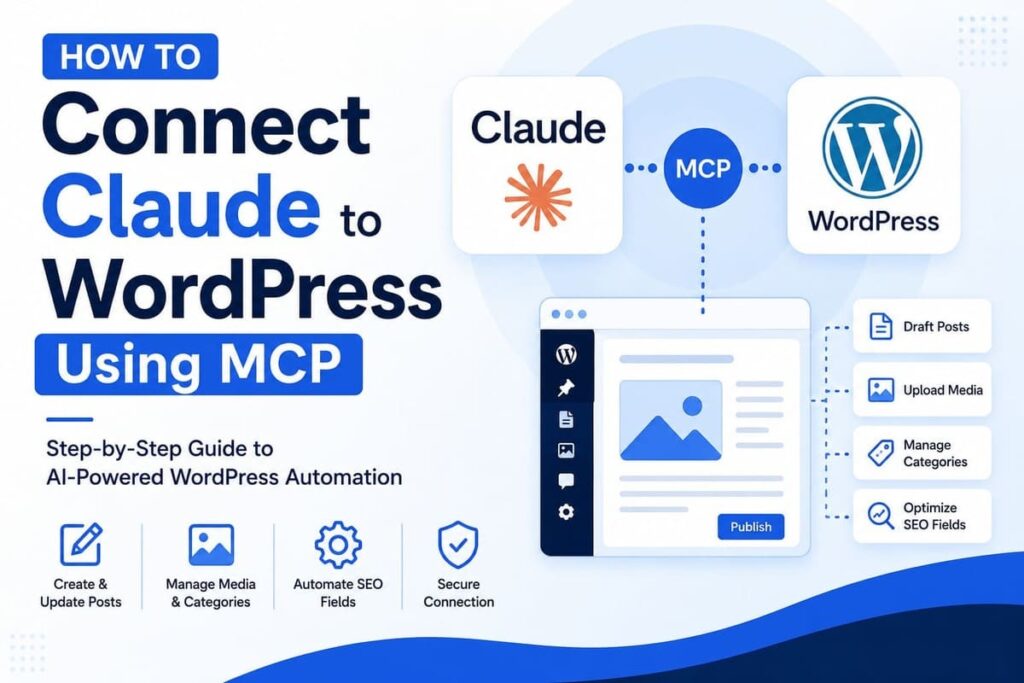
Claude can write articles, code, titles, and page content. However, copying every response into WordPress takes time. It also creates formatting errors and missed fields.
You can connect Claude to WordPress through MCP. The connection lets Claude read and manage approved parts of your website. You remain in control through WordPress roles, connector permissions, and human review.
This guide shows how to build a safe Claude WordPress integration. You will connect the tools, test permissions, create drafts, upload images, and solve common errors.
Important: MCP tools can change website content. Complete the first setup on a staging site. Keep automatic publishing, deletion, plugin changes, and user management disabled.
What Can Claude Do After Connecting to WordPress?
A working connection can remove many copy-and-paste tasks. Claude can use WordPress tools directly from a conversation.
Depending on your MCP connector, Claude may be able to:
- Find posts by title, ID, slug, category, or status
- Read an existing post before suggesting changes
- Create new posts as drafts
- Update titles, content, excerpts, and slugs
- Add categories and tags
- Upload images to the Media Library
- Add image titles, captions, and alt text
- Assign a featured image
- Read or update supported SEO fields
- Check posts for missing headings or metadata
- Prepare several drafts from approved source material
WordPress supports API operations for posts, pages, media, categories, tags, users, settings, and other resources. The actions available inside Claude still depend on your WordPress role and MCP server configuration. (WordPress Developer Resources)
Claude should support your publishing process rather than control it. A safer workflow is:
- Claude reads approved information.
- Claude prepares or updates a draft.
- You inspect the content in WordPress.
- You publish it manually.
This method keeps the speed of WordPress AI automation without removing human checks.
For broader WordPress options, link readers to 10 Best AI Tools for WordPress. That article can help them compare MCP with tools that work only inside the dashboard.
How MCP Connects Claude With WordPress
MCP stands for Model Context Protocol. It is an open protocol for connecting AI applications with external tools and information. Anthropic compares it to a standard connection port for AI applications. (Claude Platform Docs)
A Claude MCP WordPress connection normally has four parts:
Claude is the MCP client.
Claude receives your request and decides which approved tool can complete it. You can review the proposed action before allowing it.
The WordPress connector is the MCP server.
An MCP plugin or external bridge presents WordPress actions as named tools. Examples may include list_posts, create_draft, upload_media, or update_post.
The WordPress API completes the action.
Many connectors use the WordPress REST API behind the MCP server. The REST API accepts structured requests and returns WordPress data in JSON format. (WordPress Developer Resources)
Authentication controls access.
The server may use OAuth, an API key, or a WordPress Application Password. Never provide your main WordPress login password to an MCP service.
There is no universal MCP endpoint for every WordPress website. The endpoint, authentication method, and available tools depend on the connector you install. WordPress.org currently lists several MCP plugins with different security controls and feature sets. (WordPress.org)
WordPress.com and Self-Hosted WordPress Differences
The correct setup depends on where your website is hosted.
Connecting Claude to a Self-Hosted WordPress Site
A self-hosted site uses WordPress software on your chosen hosting account. You can install an MCP plugin, create user roles, access hosting files, and manage the REST API.
WordPress includes Application Passwords for external API access. Each password belongs to one user and can be revoked without changing the main account password. WordPress stores it securely and shows the full value only once. (WordPress Developer Resources)
A common self-hosted connection uses:
Claude
   ↓
WordPress MCP server or plugin
   ↓
WordPress REST API
   ↓
Posts, media, categories, and approved fields
Your connector may provide a remote MCP endpoint such as:
https://example.com/wp-json/plugin-namespace/mcp
That address is only a pattern. Copy the exact endpoint shown by your installed connector.
Connecting Claude to WordPress.com
WordPress.com manages the hosting environment for you. Plugin installation is available on paid WordPress.com plans, while free sites cannot install plugins. This plan rule was confirmed in the official documentation reviewed in July 2026. (WordPress.com)
A plugin-enabled WordPress.com site can create a site-specific Application Password through Users → Profile. WordPress.com also supports OAuth for third-party applications and recommends OAuth when building a full external integration. (WordPress.com)
Before continuing, check these points:
- Your WordPress.com plan permits plugin installation.
- The selected MCP plugin works on WordPress.com hosting.
- Your plan provides the staging and backup controls you need.
- The connector supports WordPress.com authentication.
WordPress.com Business and Commerce plans include built-in staging features. Personal and Premium sites can install plugins, but their staging options differ. (WordPress.com)
Tools and Access Required
Prepare the following items before you connect Claude AI to WordPress.
1. A Claude Account
Remote MCP connectors are available through Claude and Claude Desktop on supported paid plans. Local desktop extensions are available through Claude Desktop and may use a different installation process.
Update Claude Desktop before beginning. An older version may not show current connector or extension options.
2. A WordPress MCP Connector
Choose a connector that provides:
- Authenticated access
- Tool-level permission controls
- Read-only mode
- Activity logs
- Rate limits
- Draft creation
- Media controls
- A documented removal process
- Regular security updates
Do not select a plugin only because its name includes MCP. Check its recent updates, support history, active installations, tested WordPress version, and published security controls.
3. WordPress Administrator Access for Setup
You may need administrator access to install and configure the connector. Do not keep using the administrator account after setup unless the connector requires it.
Create a separate integration user with the lowest useful role. WordPress roles control actions such as editing posts, publishing content, managing categories, installing plugins, and changing users. (WordPress.org)
4. HTTPS
Use an HTTPS website with a valid security certificate. WordPress Application Passwords are designed for authenticated API requests served over HTTPS. (WordPress Developer Resources)
5. A Backup and Staging Website
Create a full backup before testing write actions. A staging website lets you test plugin conflicts and content changes without affecting visitors. (WordPress.com)
How to Connect Claude to WordPress Using MCP
Connector screens can differ. However, the following process applies to most remote WordPress MCP connections.
Step 1: Create or Refresh Your Staging Site
Copy the latest production website to staging. Confirm that posts, themes, plugins, media, and user roles appear correctly.
Use a name that prevents mistakes:
Production: The Net Utility
Staging: The Net Utility — MCP Testing Only
Do not connect Claude to production during the first test.
Step 2: Create a Dedicated WordPress User
Go to:
WordPress Dashboard → Users → Add New
Create a user only for the Claude connection. Use a company-controlled email address and a unique username.
Choose the lowest role that completes the required work. An Author has narrower access than an Editor. An Editor can manage posts written by other users, which creates more risk. (WordPress.org)
A custom role is better when your connector supports one. Permit only these actions during the first test:
- Read posts
- Create drafts
- Edit drafts
- Upload approved media
- Assign existing categories
Keep publishing, deletion, user management, theme changes, and plugin changes blocked.
Step 3: Install a Trusted WordPress MCP Plugin
Open:
Plugins → Add New Plugin
Search for the selected connector. Review its documentation before clicking Install and Activate.
After activation, find its settings page. Record the following information:
- MCP endpoint URL
- Authentication method
- Required username
- Available WordPress tools
- Permission or scope controls
- Activity log location
Some connectors create the MCP endpoint inside WordPress. Others require a local bridge or hosted server.
Step 4: Configure the Smallest Tool Set
Disable every tool that your workflow does not require.
For the first connection, enable only tools similar to:
list_posts
get_post
create_draft
update_draft
list_categories
list_media
upload_media
Keep high-risk tools disabled:
delete_post
publish_post
delete_media
install_plugin
update_plugin
edit_theme
manage_users
update_site_settings
execute_code
Tool names will differ between connectors. Judge each tool by what it can change rather than its label.
Step 5: Create the Authentication Credential
Your plugin may use OAuth, a connector API key, or a WordPress Application Password. Follow its documented authentication method.
For a self-hosted WordPress Application Password:
- Sign in as the dedicated integration user.
- Open Users → Profile.
- Find Application Passwords.
- Enter a name such as
Claude MCP Staging. - Generate the password.
- Copy it immediately.
- Save it inside an approved password manager.
Application Passwords are separate, revocable credentials. Create one password for each integration and rotate it after suspected exposure. (WordPress Developer Resources)
Do not use:
- Your normal WordPress password
- Your hosting password
- A database password
- The same Application Password on several sites
Step 6: Add the MCP Connector to Claude
For a remote MCP server, open Claude and go to:
Settings → Connectors → Add custom connector
Enter a clear connector name:
The Net Utility WordPress — Staging
Paste the exact MCP endpoint from the plugin. Click Add, then complete the requested authentication.
Claude supports remote MCP servers through its connector settings. Custom connectors can access external data and perform actions, so Anthropic recommends adding servers only from trusted providers. (Claude Help Center)
For a local server or desktop extension, open:
Claude Desktop → Settings → Extensions
Install the approved extension and enter the required connection details. Restart Claude Desktop when the tools do not appear after installation. (Claude Help Center)
Step 7: Check the Available Tools
Open a new Claude conversation and use this prompt:
List every tool available through the WordPress staging connector.

For each tool, show:
1. Tool name
2. Data it can read
3. Data it can change
4. Whether it can publish, delete, upload, or change settings

Do not call any tool.
Compare Claude’s list with the connector settings. Stop if you find an unexpected tool.
Step 8: Test Read-Only Access
Ask Claude to read one public post:
Use the WordPress staging connector.

Find the post titled "[POST TITLE]".
Return its post ID, URL, status, author, categories, modified date,
heading structure, and featured image ID.

Do not change anything.
Confirm the returned information inside WordPress.
Step 9: Create a Test Draft
Use content that can be deleted later:
Create a new WordPress draft on the staging site.

Title: MCP Connection Test
Slug: mcp-connection-test
Category: AI Tools & Automation
Status: Draft

Add two short paragraphs explaining that this is a staging test.
Do not publish the post.
Do not create new categories or tags.

After creating it, return the post ID and edit URL.
Open the draft manually. Check its title, slug, status, category, and formatting.
Step 10: Update the Same Draft
Test a controlled update:
Update WordPress post ID [POST ID] on the staging site.

Add an H2 titled "Connection Confirmed" after the opening text.
Add two sentences under the heading.

Do not replace any other content.
Do not publish the post.

Show a summary of the changed fields after completion.
Using a post ID is safer than using a similar title. It reduces the chance of editing the wrong article.
Step 11: Review the Activity Log
Open the MCP connector log. Confirm that it recorded:
- The connected user
- The tool Claude called
- The affected post
- The request time
- The completed action
- Any blocked request
Do not move to production when the connector provides no useful record of write actions.
Step 12: Repeat the Setup on Production
After testing, install and configure the connector on production. Create a new production-only credential rather than reusing the staging password.
Keep the production tool set smaller than staging. Continue creating drafts until the process has passed several manual reviews.
Create and Update WordPress Posts With Claude
Claude should receive exact instructions before changing content. Include the site, post ID, allowed fields, status, and blocked actions.
Prompt to Create a New Draft
Use the production WordPress connector.

Create a new draft for The Net Utility.

Title: [TITLE]
Slug: [SLUG]
Category: AI Tools & Automation
Status: Draft

Use the supplied article exactly as written.
Preserve all H2 and H3 headings.
Do not add new claims, links, tags, or categories.
Do not publish.

After creating the draft, return:
1. Post ID
2. Draft URL
3. Assigned category
4. Word count
5. Any fields you could not add
Prompt to Update an Existing Article
Read WordPress post ID [POST ID] before making changes.

Replace only the section under:
"[EXACT H2 HEADING]"

Use the approved replacement text below:
[PASTE TEXT]

Keep every other section unchanged.
Keep the current slug, author, category, and status.
Do not publish.

Before applying the update, show the planned change.
Wait for my approval.
The approval instruction creates an extra check. However, you must still review the final WordPress draft.
Readers preparing full websites can also review How to Build a Complete Website With Claude AI. That article covers website creation, while the current guide covers controlled WordPress management.
Manage Images, Categories, and SEO Fields
Content is only one part of a WordPress post. Your connection may also handle media, taxonomy, and metadata.
Upload and Assign Images
The WordPress media endpoint supports file uploads and fields such as alt text, captions, descriptions, and attachment relationships. A post can also reference a featured media ID. (WordPress Developer Resources)
Use a prompt with fixed image details:
Upload the approved image to the WordPress staging Media Library.

File: [APPROVED FILE]
Title: Claude WordPress MCP Connection
Alt text: Diagram showing Claude connected to WordPress through MCP
Caption: Claude and WordPress MCP workflow
Description: Featured image for the WordPress MCP setup article

Do not change the file name.
Do not delete or replace existing media.

After uploading, return the media ID.
Then assign it separately:
Assign media ID [MEDIA ID] as the featured image
for post ID [POST ID].

Do not change the post content or status.
Separate prompts make errors easier to find.
Add Existing Categories
WordPress provides API endpoints for listing, creating, updating, and deleting categories. Category creation should remain disabled unless your content manager has approved a new taxonomy. (WordPress Developer Resources)
Use:
List categories containing the words "AI" or "Automation".

Do not create, rename, merge, or delete any category.
Return each category name, ID, slug, and post count.
After finding the correct ID:
Assign category ID [CATEGORY ID] to post ID [POST ID].

Keep all other assigned categories.
Do not create a new category.
Update SEO Fields
SEO titles and descriptions often belong to an SEO plugin. They are not always available through the default WordPress post fields.
A connector can update them only when:
- The SEO plugin exposes the fields
- The MCP server provides a matching tool
- The fields are registered for REST access
- The connected user has permission to edit them
WordPress can expose registered metadata through the REST API when show_in_rest is enabled. Custom or plugin fields may need extra connector support. (WordPress Developer Resources)
Check field support before writing:
Inspect post ID [POST ID].

List every SEO field available through the WordPress connector.
Include the current value and field source.

Do not update any field.
Do not guess hidden field names.
When the fields appear:
Update only the supported SEO fields for post ID [POST ID].

SEO title:
How to Connect Claude to WordPress Using MCP

Meta description:
Connect Claude to WordPress using MCP. Follow safe steps to create
drafts, update posts, upload images, manage SEO fields, and fix errors.

Do not change the page title, slug, content, schema, or canonical URL.
Return the saved values after completion.
Do not ask Claude to invent SEO meta keys. An incorrect hidden field may save data that the SEO plugin never uses.
For more background on tool selection, place another natural link to 10 Best AI Tools for WordPress.
Ready-to-Use Claude Prompts
Audit Posts Without Editing
Use the WordPress connector in read-only mode.

Review the latest 20 published posts in the
AI Tools & Automation category.

Report:
1. Missing featured images
2. Missing image alt text
3. Empty excerpts
4. Duplicate H1 headings inside post content
5. Posts without internal links
6. Titles longer than 60 characters

Do not update any post.
Return post IDs with each finding.
Prepare Bulk Drafts Without Publishing
Create drafts only from the approved content files I provide.

Before creating anything:
1. List the proposed titles
2. Check WordPress for matching titles and slugs
3. Flag possible duplicates
4. Wait for my approval

Never publish, delete, or overwrite an existing post.
Readers producing many static pages can visit How to Create Bulk HTML Pages With Claude AI. That process creates HTML files, while MCP sends approved content into WordPress.
Compare Content Before an Update
Read WordPress post ID [POST ID].

Compare its current content with the approved version below.
Show only meaningful differences by section.

Do not update the post.
Do not rewrite either version.
[PASTE APPROVED CONTENT]
Check What Claude Changed
Read post ID [POST ID] after the latest update.

Return:
1. Fields changed
2. Current status
3. Current slug
4. Current categories
5. Featured media ID
6. Current SEO fields
7. Any content not included in my approved input

Do not make further changes.
Require Confirmation Before Every Write Action
For this conversation, do not call any WordPress tool
that creates, updates, publishes, deletes, uploads, or changes data
until you show the exact planned action and receive my approval.

Read-only tools may be used without approval.
Claude and ChatGPT handle website workflows differently. Add Claude vs ChatGPT for Website Development where readers need help choosing the right platform.
Common Claude WordPress Connection Errors
Claude Shows No WordPress Tools
The connector may be disabled, incomplete, or unavailable. Confirm that it is enabled for the current conversation.
For Claude Desktop, restart the application. Then check the extension settings, required fields, and debug logs. Anthropic lists missing configuration and outdated extension state among common causes. (Claude Help Center)
Error 401: Unauthorized
A 401 response often points to missing or invalid authentication.
Check:
- WordPress username
- Application Password
- OAuth token
- API key
- Authorization header
- Expired or revoked credentials
Generate a new integration credential when its status is uncertain.
Error 403: Forbidden
A 403 response often means the user is authenticated but lacks permission.
Check the WordPress role and connector scopes. Also confirm that the requested MCP tool is enabled.
Do not solve the error by immediately granting administrator access. Find the missing capability first.
Error 404: Endpoint Not Found
The connector URL may be incorrect. The plugin may also be inactive or using another endpoint.
Copy the endpoint again from the connector settings. Do not build the address from memory.
The Endpoint Returns an HTML Page
A security plugin, hosting firewall, maintenance page, or login redirect may be blocking the request.
Open the connector logs and hosting firewall records. The MCP endpoint should return its expected protocol response rather than a normal website page.
Media Upload Fails
Check the file size, file type, user permissions, and WordPress upload limit.
Test with one small JPG or PNG image. Do not begin with several large files.
Claude Cannot Find SEO Fields
The SEO plugin may not expose its metadata through the connector. The fields may also require an extra bridge or plugin-specific tool.
Ask Claude to list available fields. Do not guess internal meta names.
Claude Edits the Wrong Post
Similar titles can cause weak matching. Always use a post ID for update requests.
Add the expected title and URL as a second check:
Update post ID 123 only when its title and URL match:
[EXPECTED TITLE]
[EXPECTED URL]

Stop without changing anything when they do not match.
The Connector Works on Staging but Not Production
Production may have different firewall rules, plugins, roles, or server settings. It also requires its own endpoint and credential.
Compare both configurations field by field. Do not copy staging secrets into production.
Security, Backups, and Staging Tests
MCP connectors can read data and perform actions in external services. Anthropic advises users to connect only trusted servers, review tool requests, and enable only the tools needed for the current work. (Claude Help Center)
Use the following controls before production access:
- Create a dedicated integration user.
- Use the lowest practical WordPress role.
- Generate one credential for one website.
- Keep your main password private.
- Begin with read-only tools.
- Keep publishing and deletion disabled.
- Require approval before write actions.
- Enable activity logs and rate limits.
- Revoke credentials that are no longer used.
- Rotate credentials after possible exposure.
- Update the MCP connector regularly.
- Back up files and the database.
- Test changes on staging.
A staging website is a separate copy used for testing. Changes made there do not affect the production site until you move or repeat them. (WordPress.com)
Use extra caution with WooCommerce. Copying or syncing an older staging database over production can remove newer orders and customer data. WordPress.com warns that database synchronization replaces matching live data. (WordPress.com)
Tasks Claude Should Never Perform Automatically
Some actions carry too much risk for unattended automation.
Do not permit Claude to perform these tasks without direct review:
Publish New Content
Claude may miss an incorrect fact, broken link, weak image, or formatting problem. Keep all new content in draft status until a person reviews it.
Delete Posts, Pages, or Media
Deletion may break internal links, search rankings, page layouts, or embedded images. Keep deletion tools disabled.
Install or Update Plugins and Themes
An update can create compatibility errors or change website output. Complete these actions through your normal maintenance process.
Edit PHP, Theme Files, or Server Configuration
A small code error can break the website. Code changes need version control, testing, and developer review.
Change User Roles or Passwords
The connector should never create administrators or increase its own permissions.
Change Global SEO Settings
Do not automate canonical rules, robots controls, sitemap options, schema templates, or sitewide title patterns.
Change URLs or Redirects
A changed slug can produce broken links and ranking loss. Review every URL and redirect manually.
Modify WooCommerce Orders or Customer Records
Order, payment, address, and customer information requires strict access controls. Do not expose it during a content workflow.
Perform Unapproved Bulk Replacements
A bulk replacement can alter menus, reusable blocks, product details, code samples, and old articles. Require a preview and backup first.
Publish Legal, Medical, or Financial Claims
These topics require qualified review and reliable evidence. AI should not publish them without human approval.
Frequently Asked Questions
Can Claude Connect Directly to WordPress?
Claude needs a connector between the conversation and WordPress. An MCP server can provide that connection and expose approved WordPress actions as tools.
The server may use the WordPress REST API behind the connection. Available actions depend on the installed connector and assigned permissions.
Is MCP the Same as the WordPress REST API?
No. MCP gives Claude a standard method for discovering and calling tools.
The WordPress REST API processes many of the website operations behind those tools. An MCP server can convert Claude’s tool calls into WordPress API requests.
Can I Connect Claude to WordPress.com?
Yes, when your WordPress.com site supports the required connector or plugin. Paid WordPress.com plans currently support plugin installation, while free sites do not. (WordPress.com)
Check the connector’s hosting requirements before installing it. Authentication may use OAuth or a site-specific Application Password.
Do I Need Claude Desktop?
Not always. Remote MCP servers can connect through Claude’s connector settings on supported plans.
A local MCP server or desktop extension requires Claude Desktop. The correct option depends on your WordPress connector. (Claude Help Center)
Can Claude Publish WordPress Posts Automatically?
A connector may provide a publishing tool. However, automatic publishing creates avoidable content and security risks.
Configure Claude to create drafts only. Publish each article after checking its facts, links, layout, images, and metadata.
Can Claude Upload Featured Images?
Yes, when the MCP server supports media uploads and the connected WordPress user can upload files.
Upload the image first, record its media ID, and then assign that ID to the correct post. This two-step process makes errors easier to trace.
Can Claude Update Yoast or Rank Math Fields?
Only when the connector exposes those fields or provides plugin-specific tools.
Ask Claude to list available SEO fields before requesting an update. Never ask it to guess hidden database keys.
Can Claude Manage Elementor or WooCommerce?
Only when the MCP server includes tools for those plugins. Standard post tools do not automatically provide full Elementor or WooCommerce control.
Keep store orders, customer records, payments, template code, and global settings outside an automated content workflow.
Is a WordPress Application Password Safe?
An Application Password is safer than sharing your main login password. It is created for API access and can be revoked separately. (WordPress Developer Resources)
It still provides the permissions of its linked WordPress user. Use a limited user, store the password securely, and revoke it when the connection is removed.
