
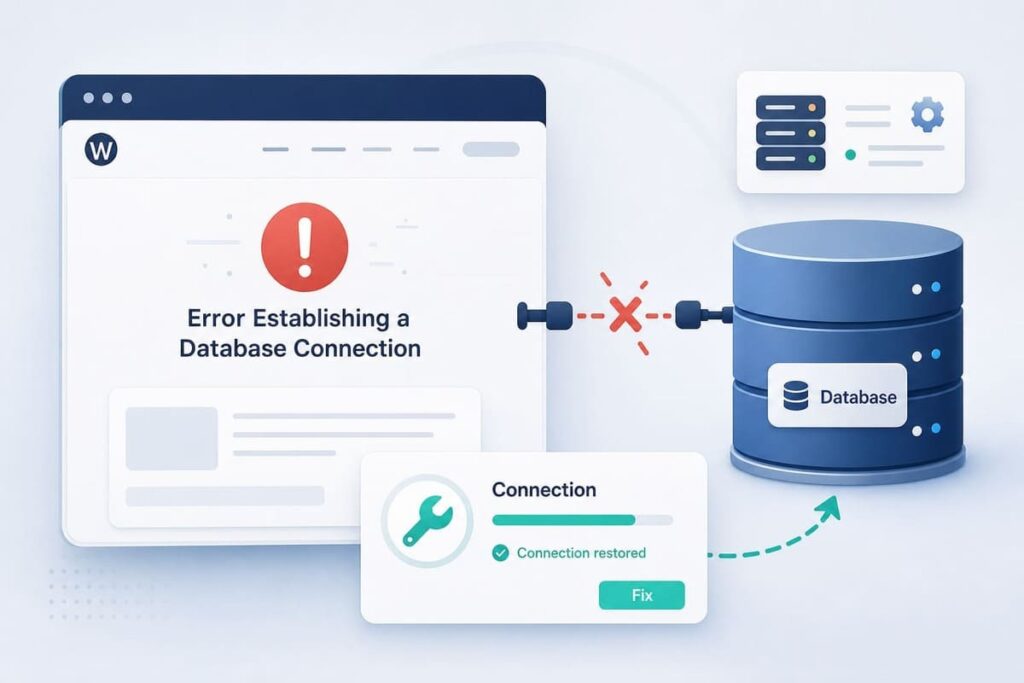
This error means WordPress cannot reach its database, which is where your site keeps all its content. The most common cause is a wrong database name, username, or password in your settings file. In most cases you can fix it by checking those details or by repairing the database. The steps below walk you through it, from the easiest fix to the deeper ones.
Seeing your whole site replaced by one line of error text is scary, but do not panic. Your content is almost always safe. This error is common, and most of the time the fix is quick.
What Does This Error Mean?
Your WordPress site has two parts. One part is the files, and the other part is the database. The database is where your posts, pages, comments, and settings are stored. To show your site, WordPress has to log in to that database and pull the content out.
When you see “Error establishing a database connection,” it means WordPress tried to log in to the database and failed. So it cannot load your site until that connection works again.
What Causes This Error?
A few things can break this connection. The most common causes are:
- Wrong database details, like a wrong name, username, or password.
- The database server is down or too busy, often on cheap shared hosting.
- The database is corrupted, which means some of its data got damaged.
- Too much traffic, which can overload a small hosting plan.
For example, this error often appears right after you move your site to a new host, because the database details change during the move.
Before You Start: Back Up Your Site
Some of these fixes need you to edit a settings file. Before you change anything, make a backup of your files and database if you can. That way, you can undo any change safely. It is best to edit files through your host’s file manager or an FTP tool, not by guessing.
How to Fix It, Step by Step
Work through these in order. Stop as soon as one of them brings your site back.
1. Check the admin side too
First, open your admin page at yoursite.com/wp-admin. Look at what it shows:
- If the admin shows the same database error, the problem is most likely your database details or a down server. Go to step 2.
- If the admin shows a different message about repairing the database, your database is corrupted. Jump to step 5.
2. Check your database details
This is the most common fix. WordPress keeps its database login details in a file called wp-config.php, which sits in your main site folder. Open it and find these four lines:
define( 'DB_NAME', 'your_database_name' );
define( 'DB_USER', 'your_database_user' );
define( 'DB_PASSWORD', 'your_database_password' );
define( 'DB_HOST', 'localhost' );
Now compare each value with the real details in your hosting account. You can find them in your host’s dashboard, often under a tool called phpMyAdmin or a database section. If even one detail is wrong, fix it, save the file, and reload your site.
3. Check the database host
The last line above, DB_HOST, is the address of your database. For most hosts this is simply localhost. But some hosts use a different name. If localhost does not work, check your hosting account or ask your host for the correct value, then update that line.
4. See if your database server is down
If your details are correct but the error stays, the database server itself may be down or too busy. Here is how to check:
- Try to open phpMyAdmin from your hosting dashboard. If it will not open or shows its own error, the database server is likely down.
- If your site sits on shared hosting, a traffic spike on another site can slow the shared database.
If the server is down, the fix is on your host’s side, so move to step 7 and contact them.
5. Repair a corrupted database
If the admin page told you the database needs repair, WordPress has a built in tool for this. Add this one line to your wp-config.php file, just above the line that says “That’s all, stop editing”:
define( 'WP_ALLOW_REPAIR', true );Then visit this address in your browser:
yoursite.com/wp-admin/maint/repair.phpClick the repair button and let it finish. When you are done, remove that line from wp-config.php. This is important, because leaving it in is a security risk.
6. Check for too much traffic or host limits
If your site got a sudden rush of visitors, a small hosting plan can run out of room and drop the database connection. If this keeps happening, your plan may be too small. A faster plan or better hosting will fix it, and it also helps your speed scores. You can learn more in my guide on how to improve Core Web Vitals in WordPress.
7. Contact your hosting support
If nothing above works, your host can check the database server from their side, restart it, or tell you what is wrong. This is what their support is for, so do not feel shy about asking. Share what you have already tried, so they can help faster.
How to Avoid This Error in the Future
A little care goes a long way. To lower the chance of seeing this again:
- Keep regular backups of your files and database.
- Choose reliable hosting that can handle your traffic.
- Double check your database details whenever you move your site. My guide on moving WordPress from localhost to a live website shows how to do this cleanly.
- Update WordPress, themes, and plugins so small bugs do not pile up.
Frequently Asked Questions
Will I lose my content because of this error?
Almost never. The error is about the connection, not your data. Once the connection works again, your posts and pages come right back.
What is the most common cause?
Wrong database details in the wp-config.php file, such as a wrong name, username, or password. This is the first thing to check.
Where do I find my database details?
In your hosting dashboard, usually under a database section or a tool called phpMyAdmin. Compare those details with the ones in wp-config.php.
How do I repair my database?
Add the line define( ‘WP_ALLOW_REPAIR’, true ); to wp-config.php, visit yoursite.com/wp-admin/maint/repair.php, run the repair, then remove the line.
Why does this happen after moving my site?
Because your database name, user, password, or host often change during a move. Updating those details in wp-config.php usually fixes it.
Final Words
The database connection error looks frightening, but it is one of the most fixable problems in WordPress. Start by checking your database details, since a wrong name or password is the usual cause. If that is fine, check whether the server is down, repair the database if needed, and reach out to your host if you are stuck.
Keep a backup and use reliable hosting, and you will rarely see this error again. If it showed up after moving your site, read my guide on moving WordPress from localhost to a live website to get your database details right.
